Walkthroughs of complete sample projects. The books, the film, the thesis and every name in them are fictional and were written for this site. The screenshots show the app as it is.
Mystery novel · The Salt Archive
From a canvas of cards to an agent submission
Planning a dual-timeline mystery, keeping two weeks of story time straight, and compiling the first fifty pages.
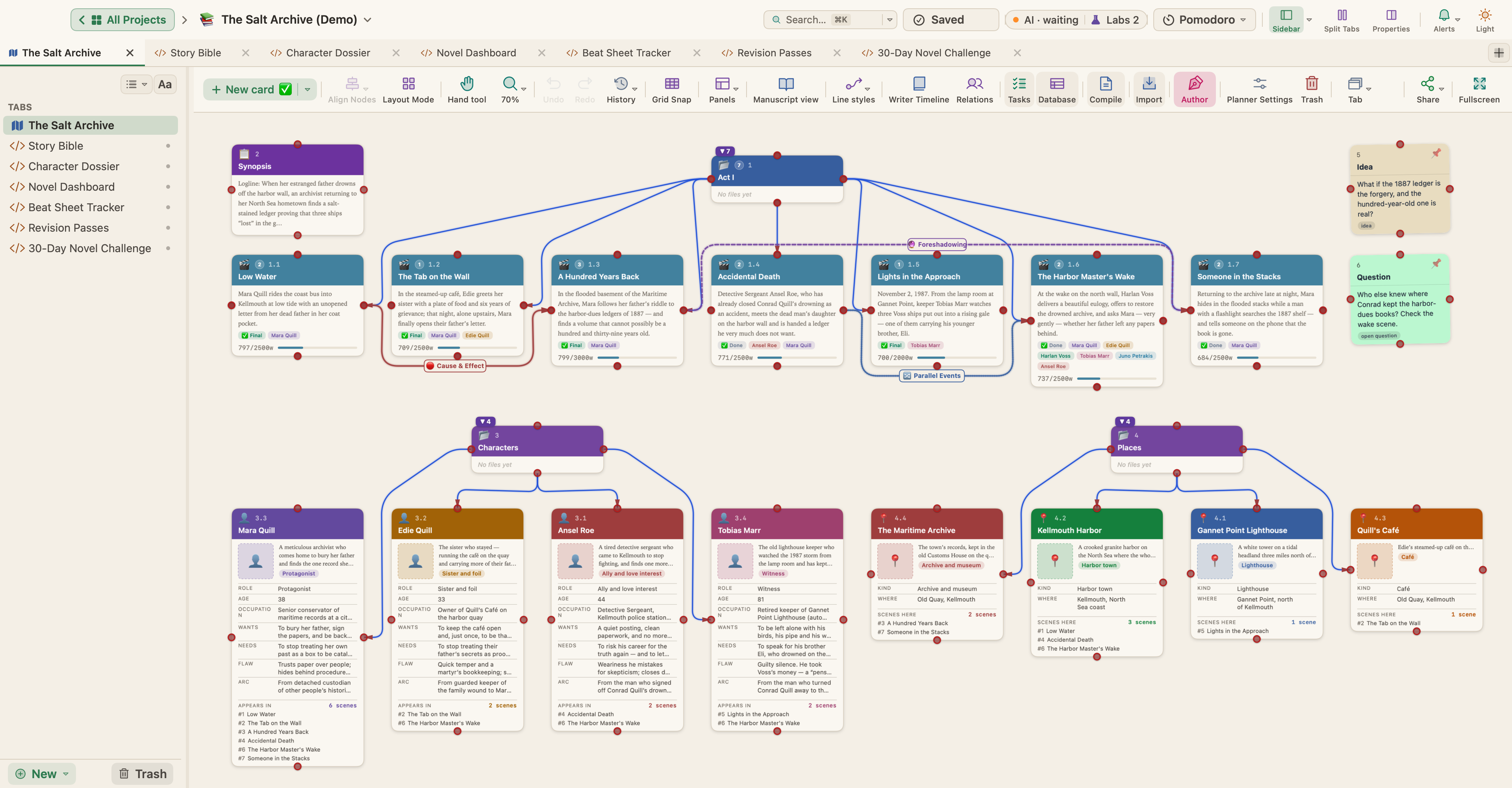
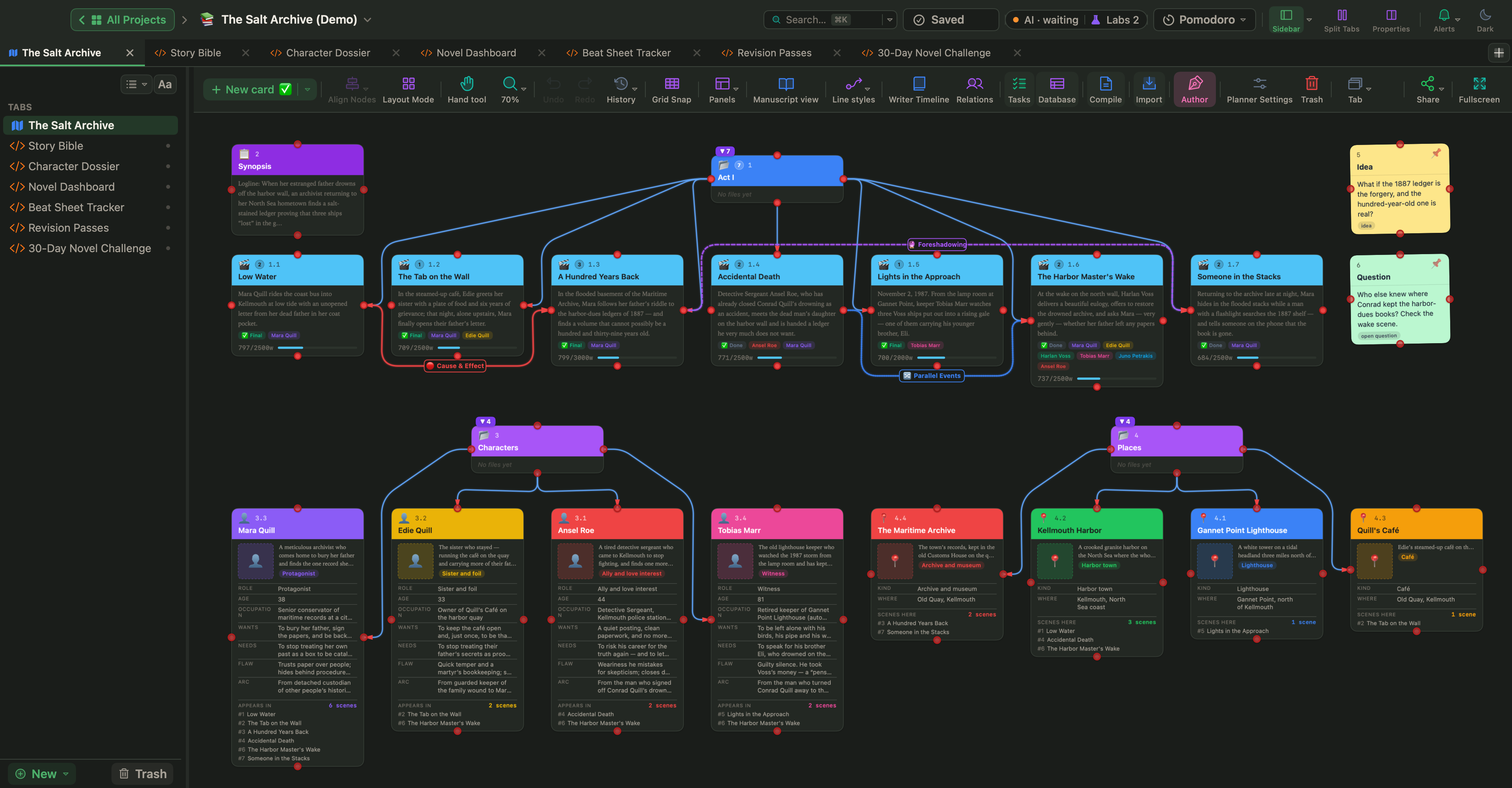
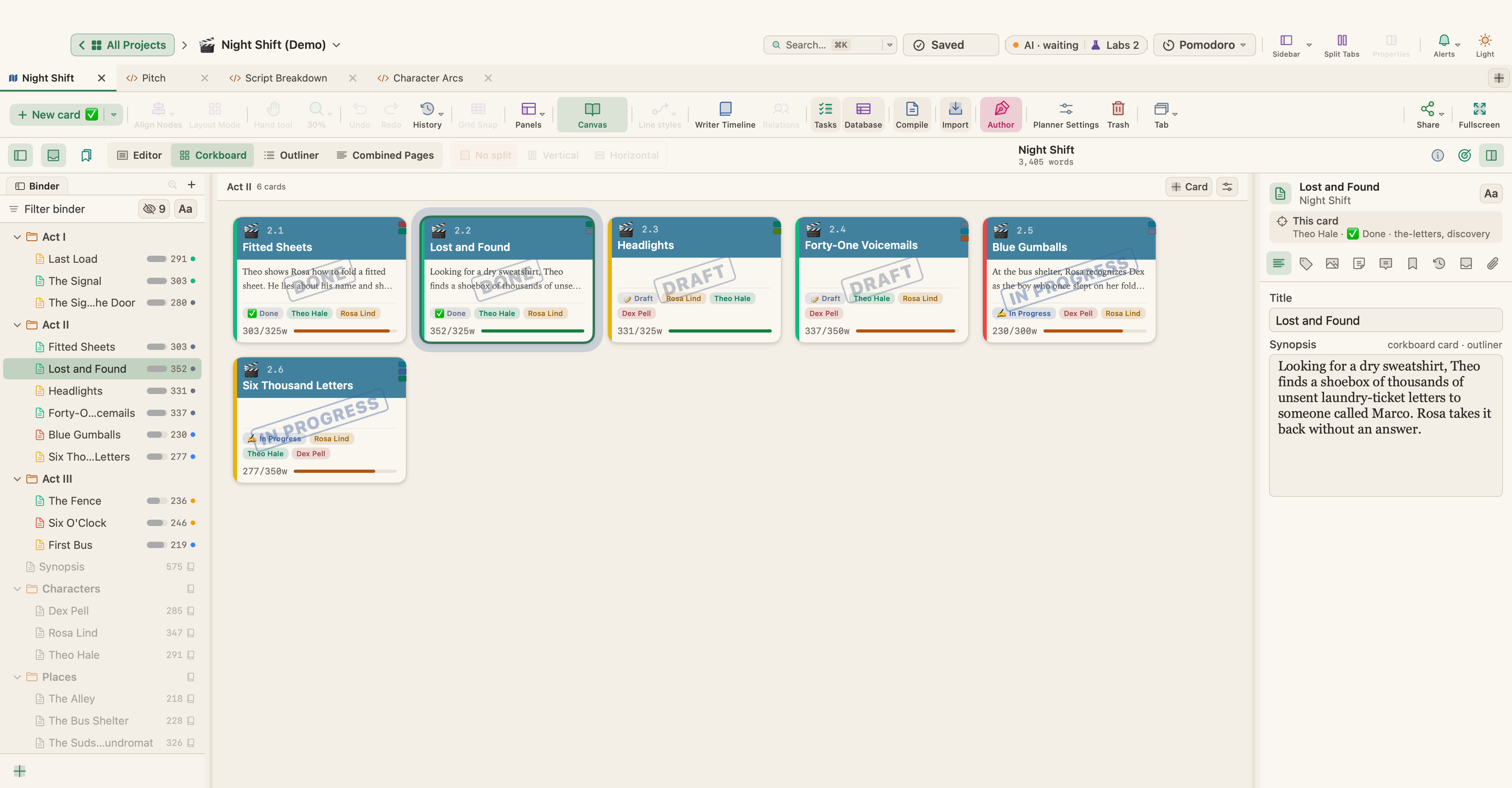
Every scene is a card on the canvas, grouped under its act. Status and word count show on each card, so the board doubles as a progress report.
Step 2
Check the structure
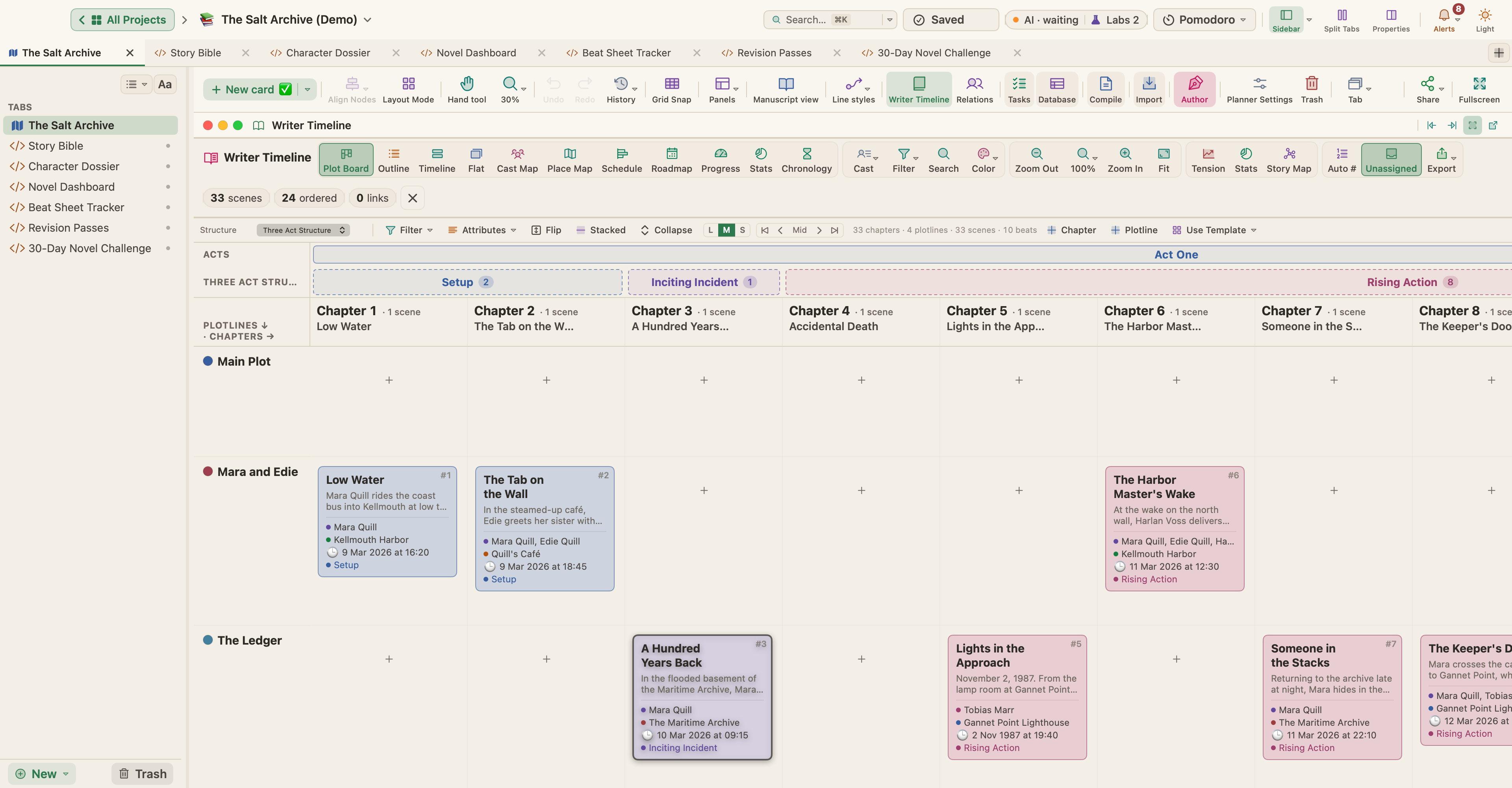
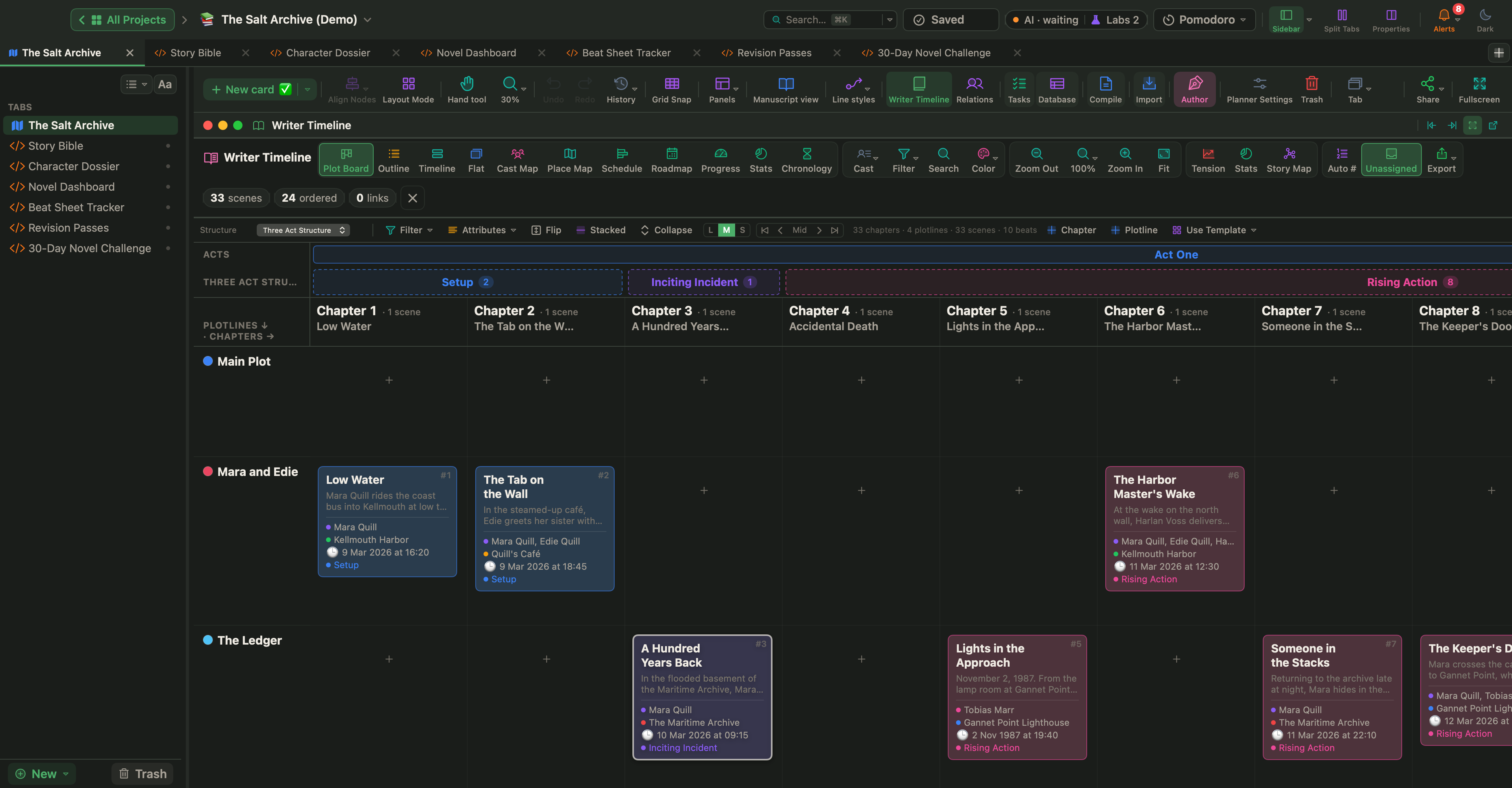
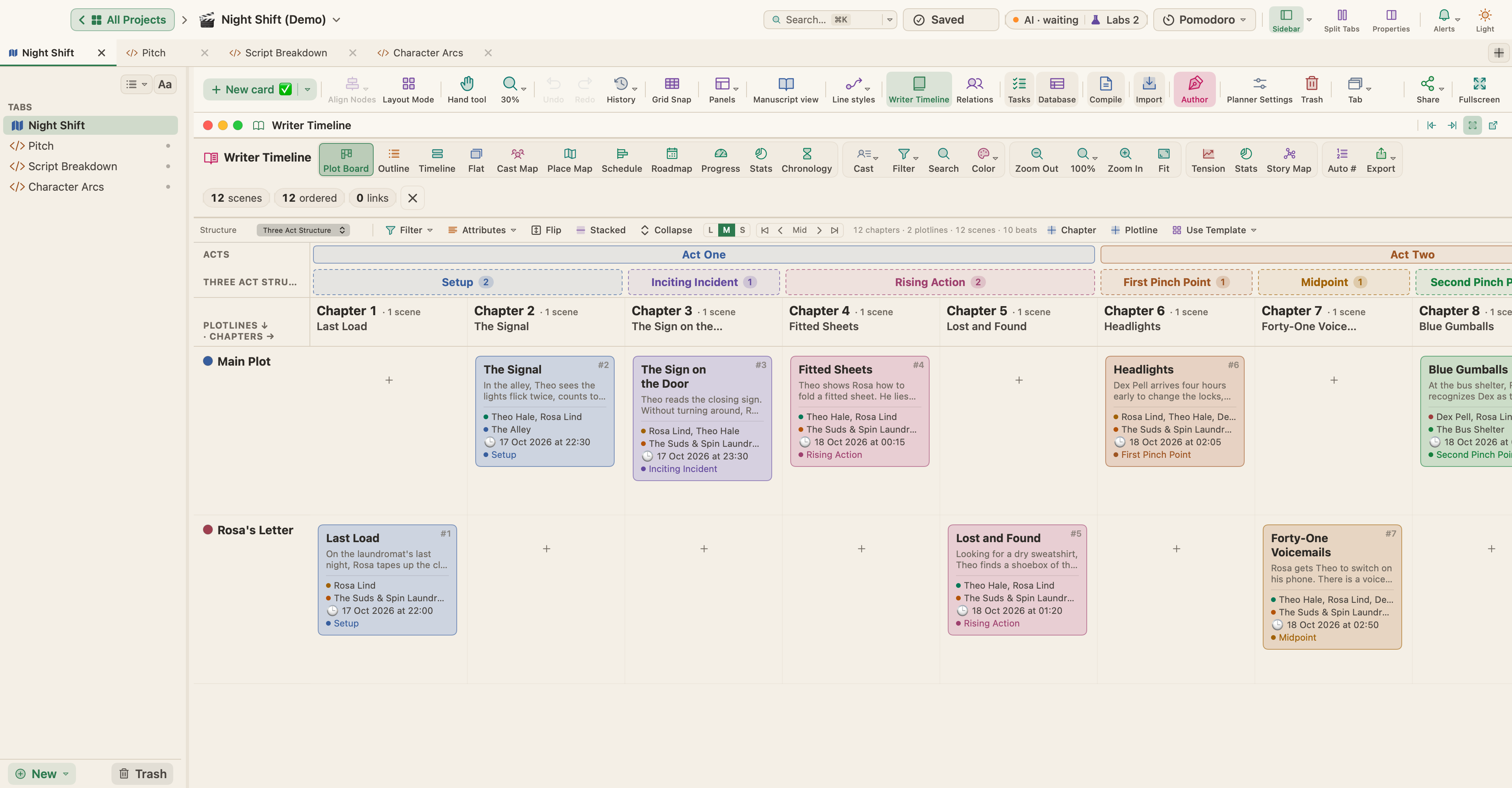
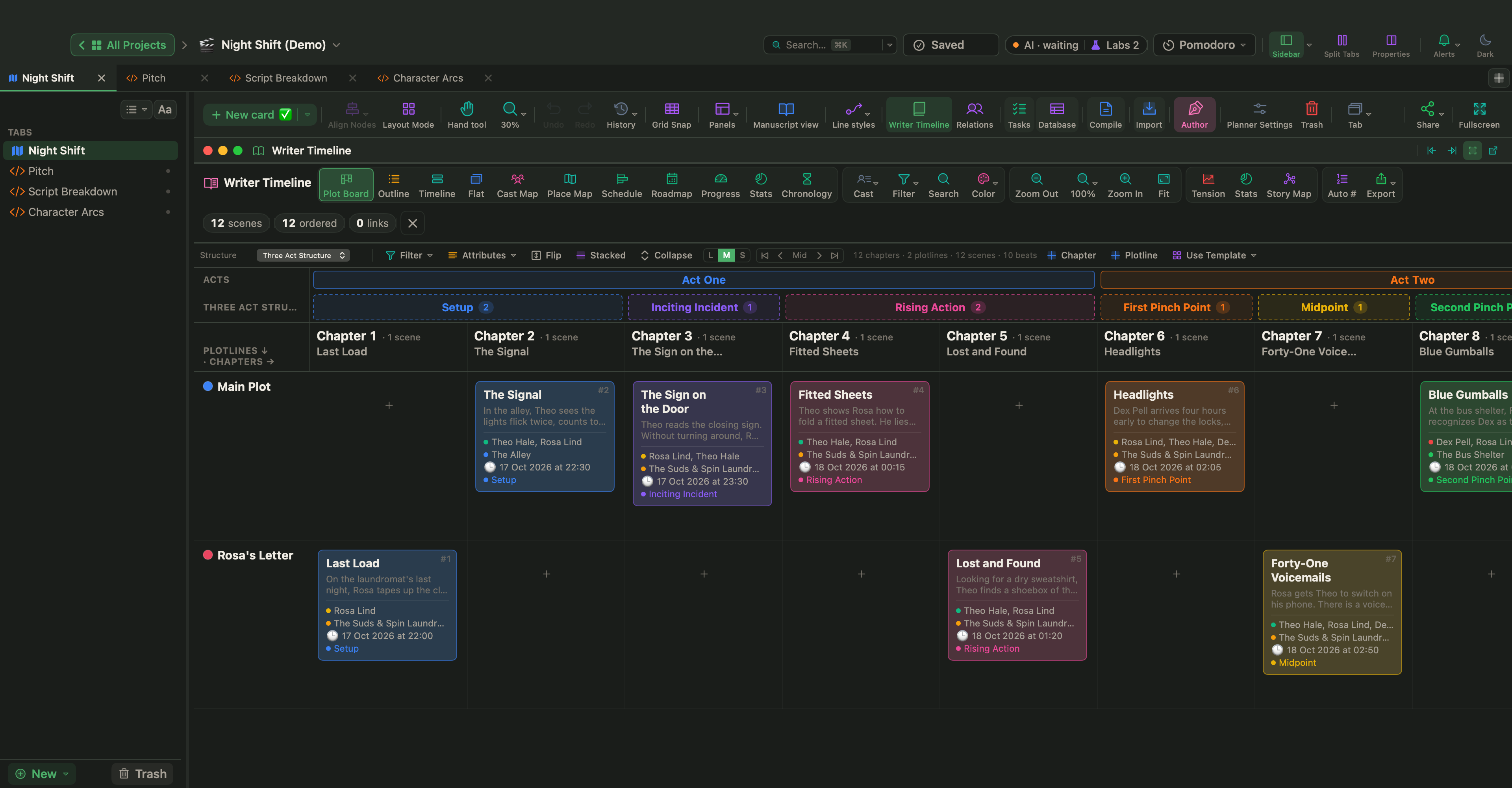
The Plot Board puts scenes over the ten Three-Act beats, one lane per plotline. The Ledger subplot carries most of Act II, and the board shows it at a glance.
Step 3
Keep time straight
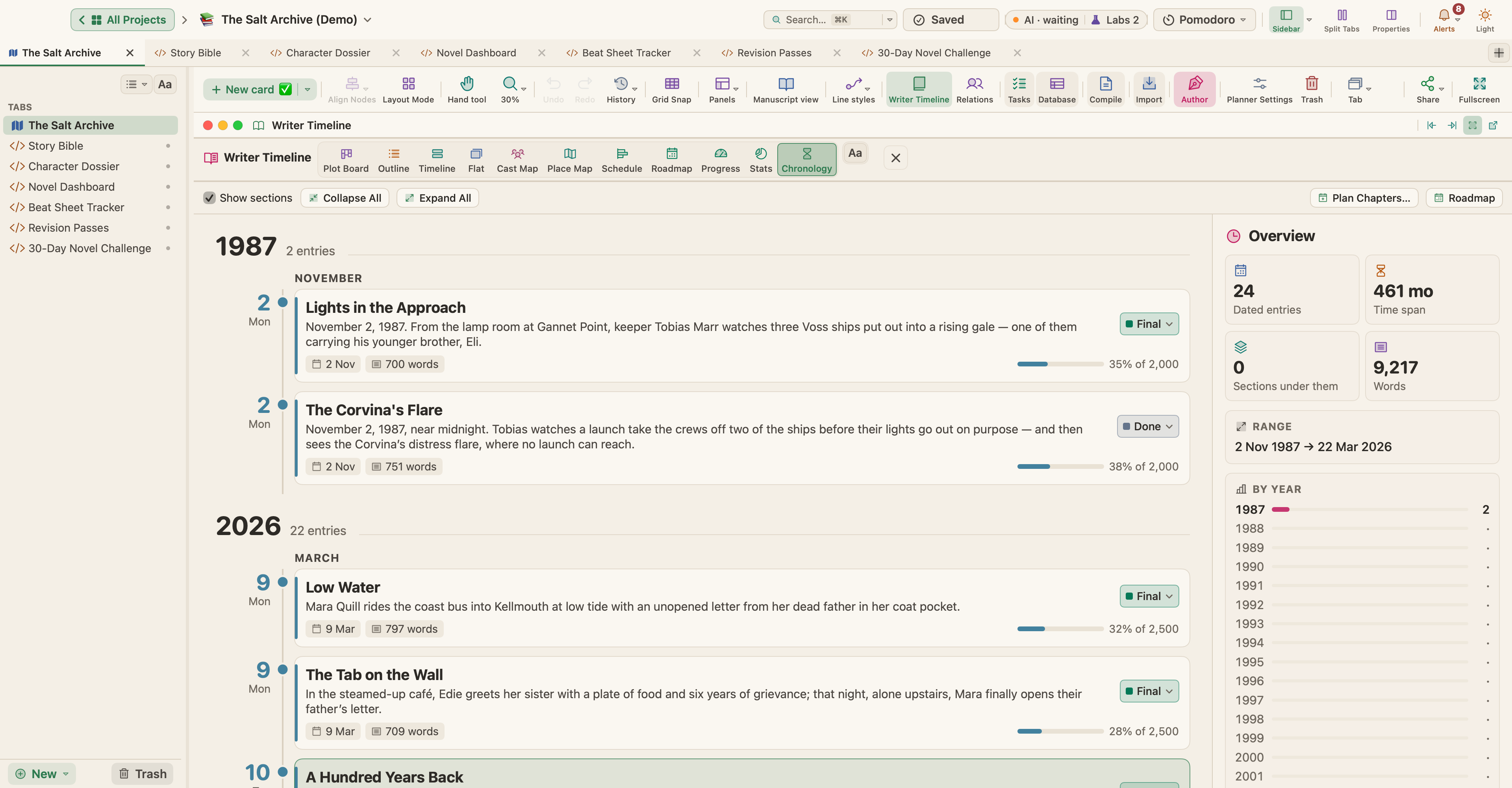
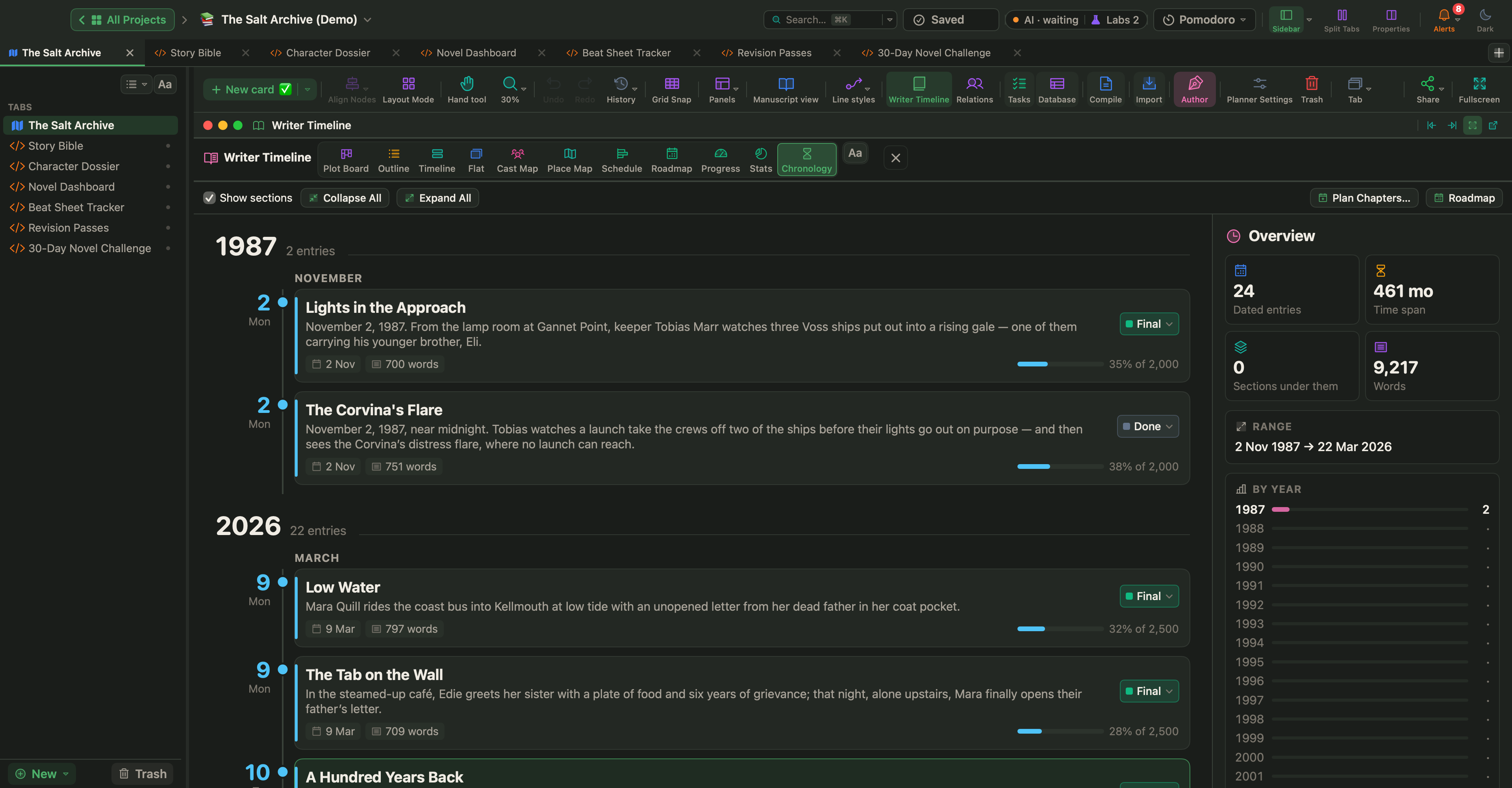
Two scenes happen on the storm night in 1987. The Chronology view sorts by story time, so the flashbacks sit where they happened, not where the reader meets them.
Step 4
Shape the tension
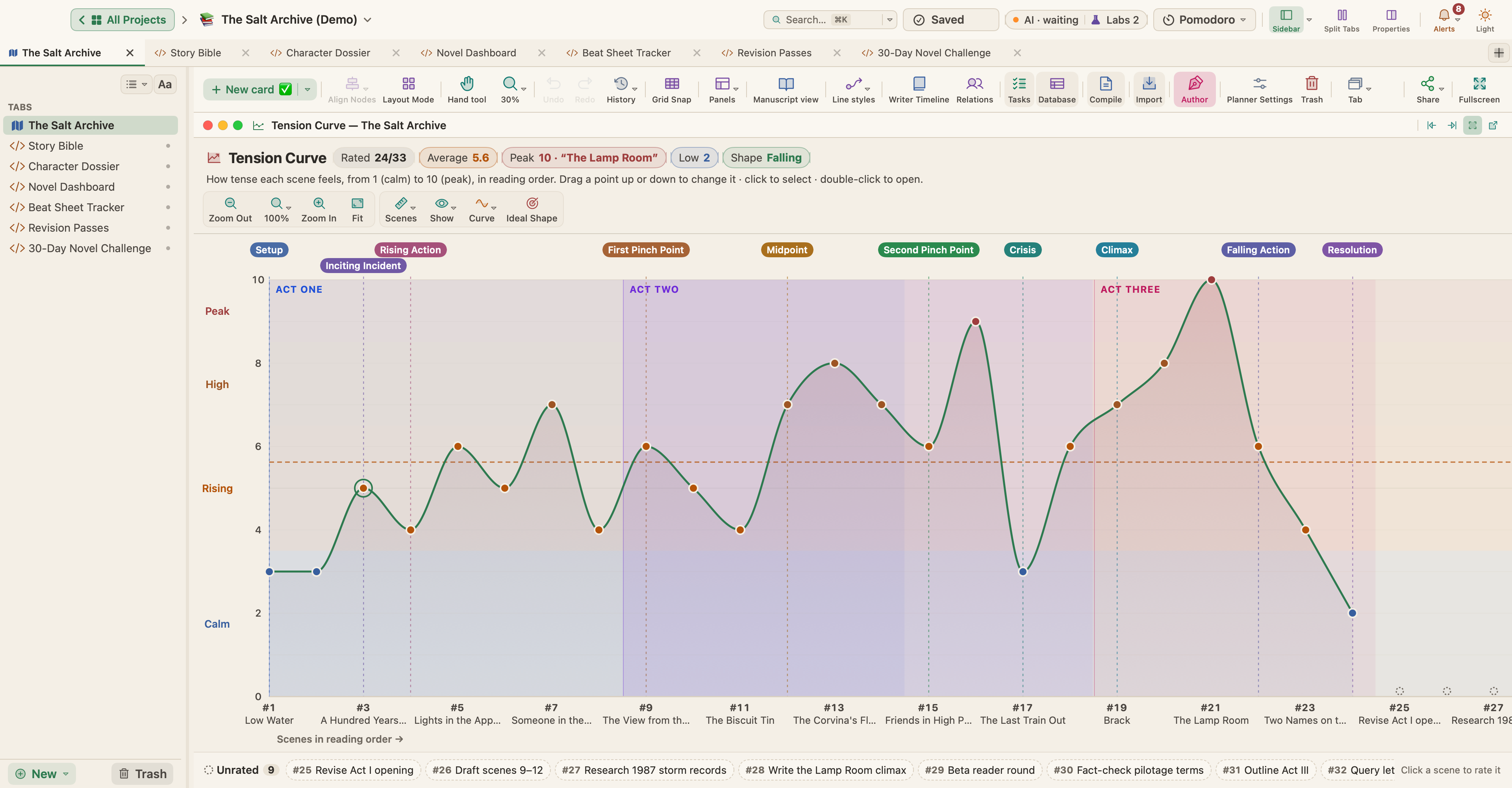
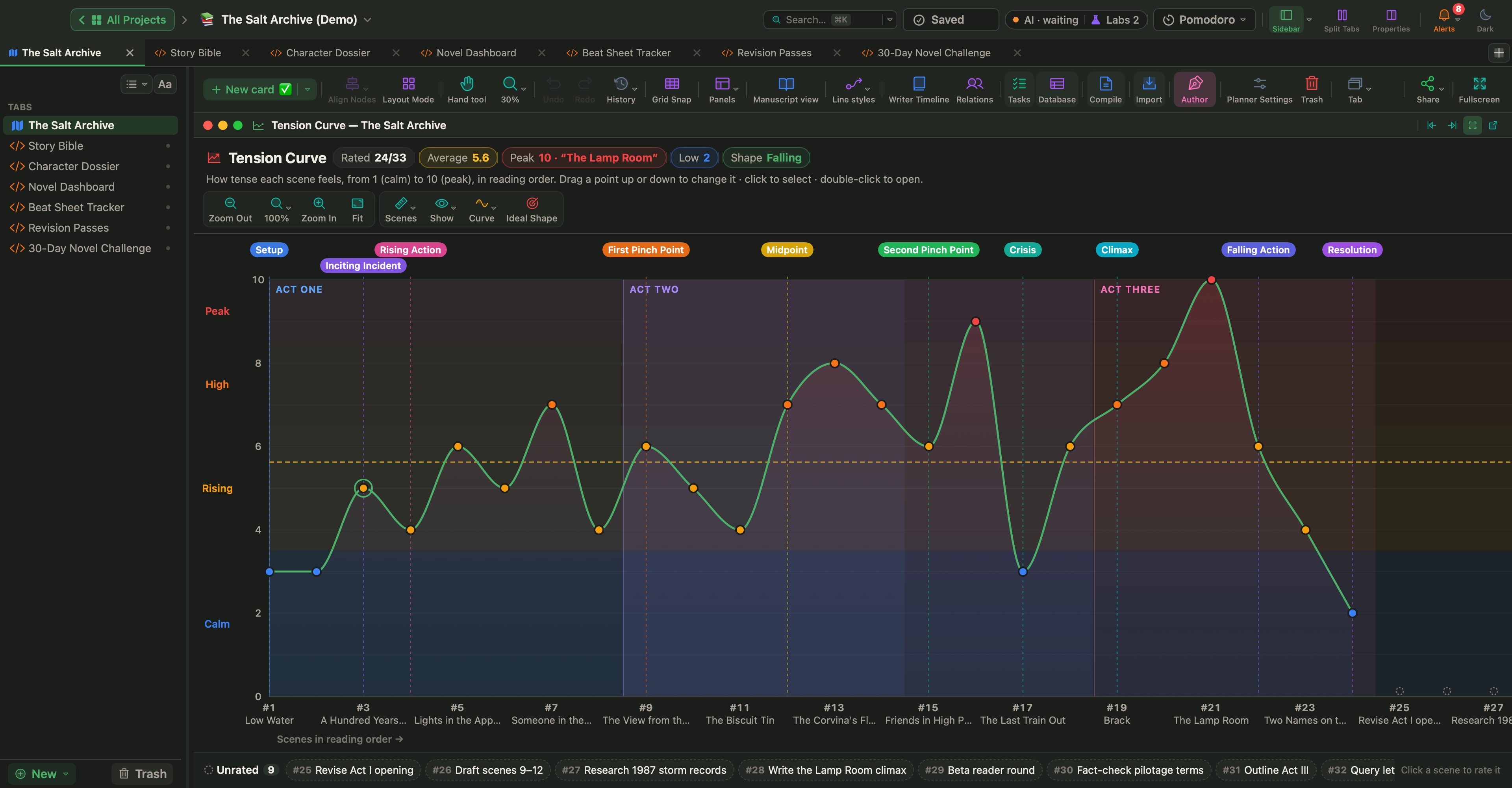
The tension curve rises through Act II and peaks at the lighthouse. Drag a point to rescore a scene.
Step 5
Write with the facts in view
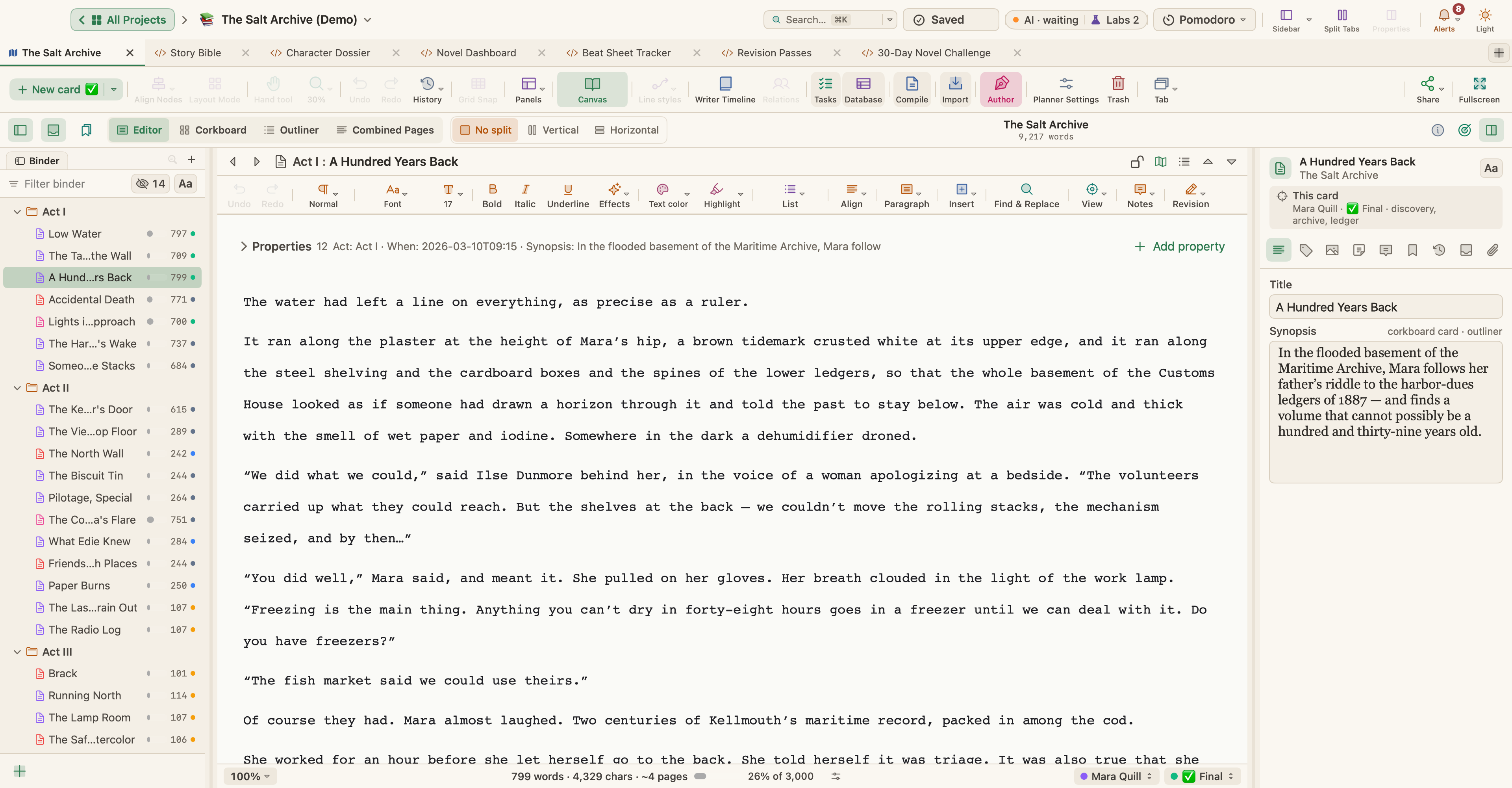
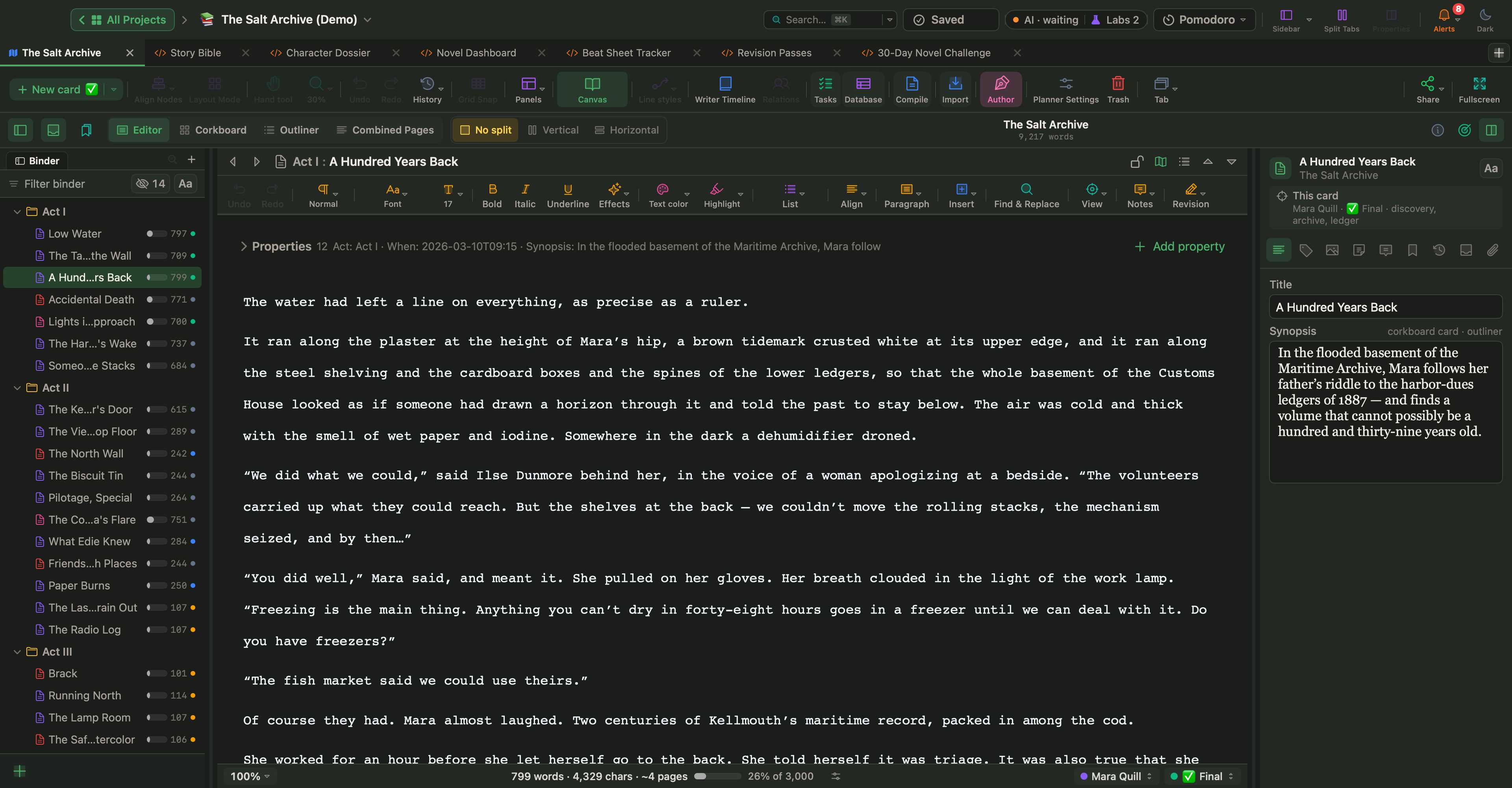
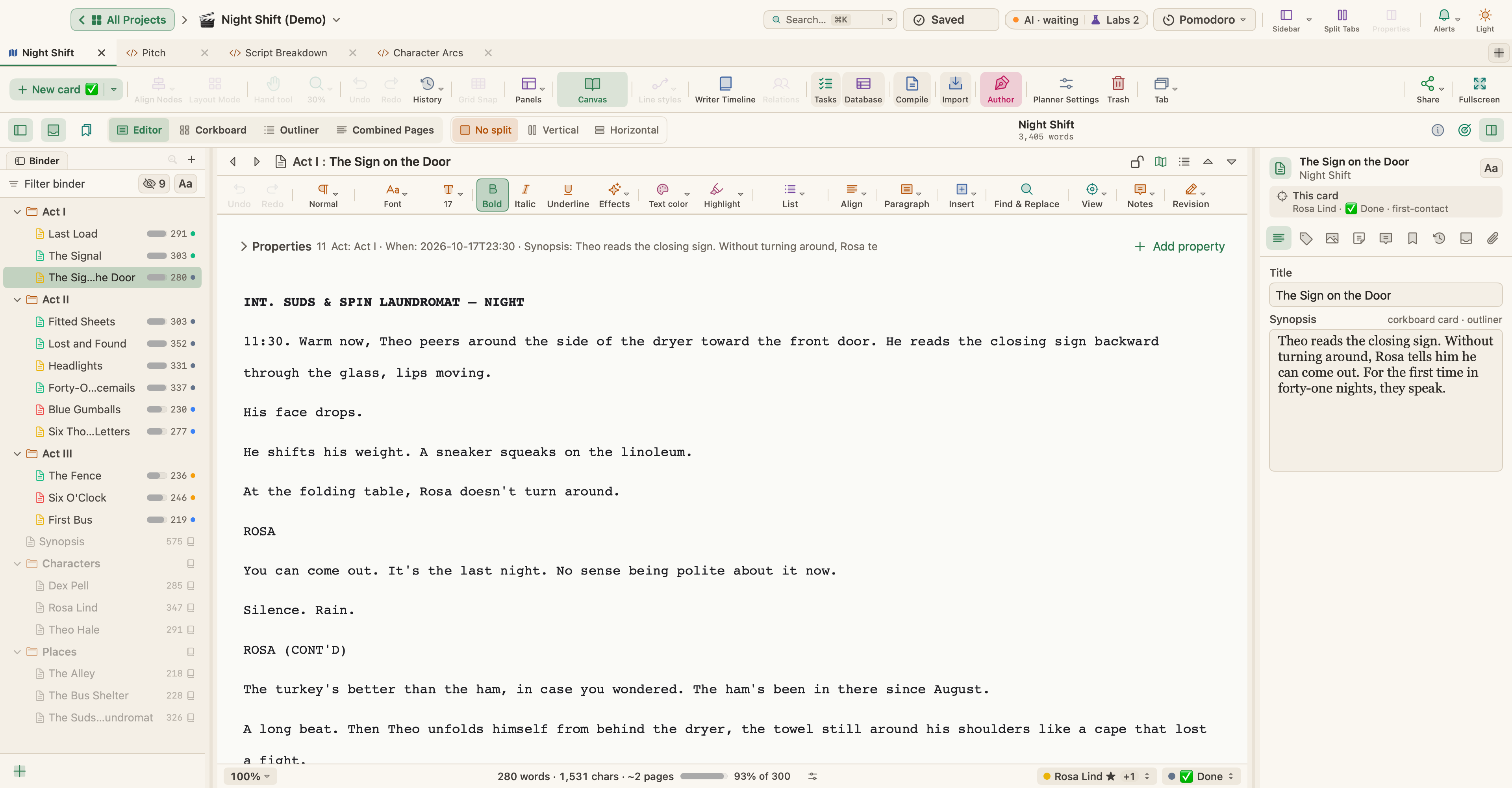
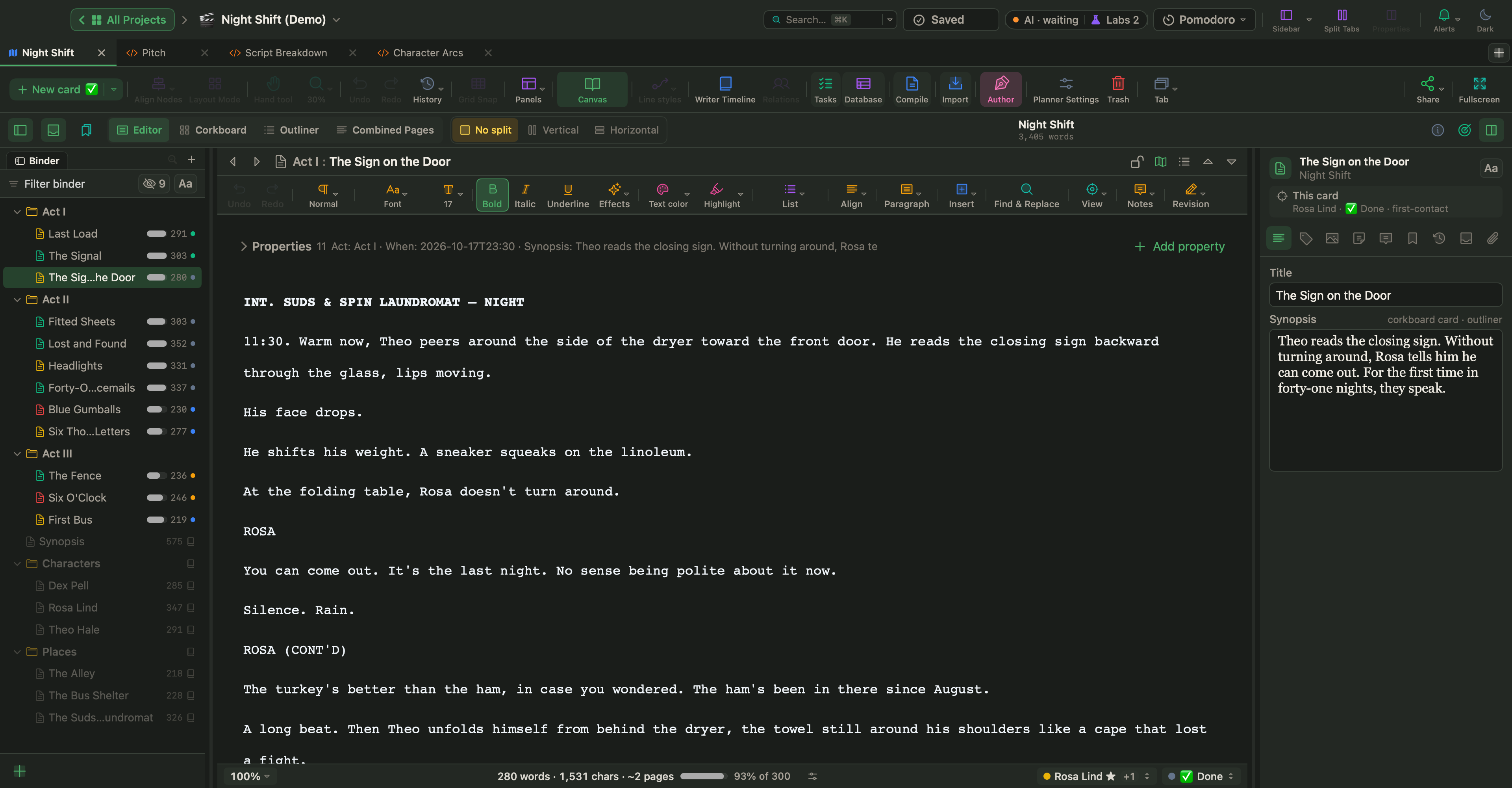
Each scene's point of view, place, beat and tension sit above the text in the editor. Change them there and every view updates.
Step 6
Plan the revision
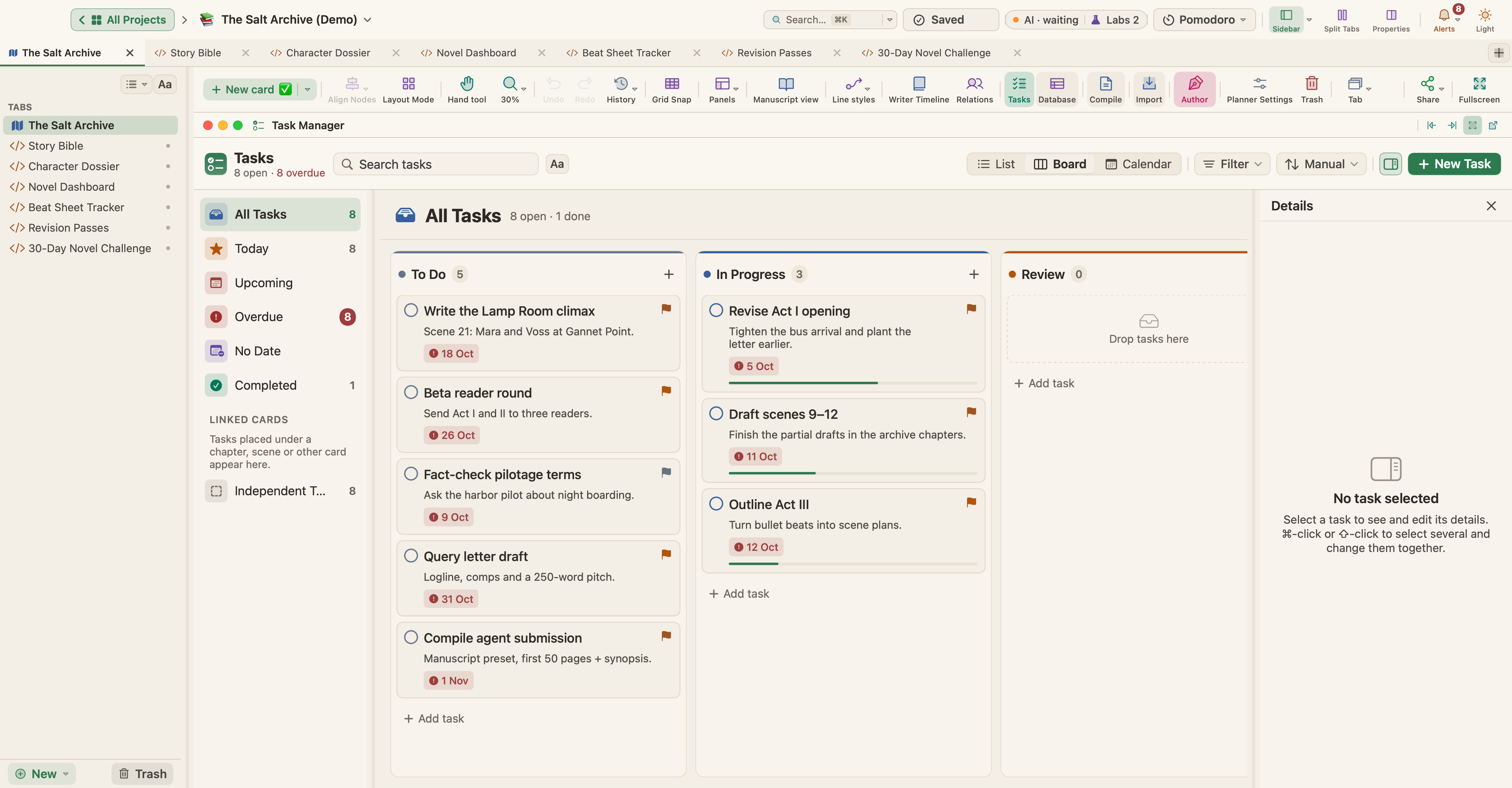
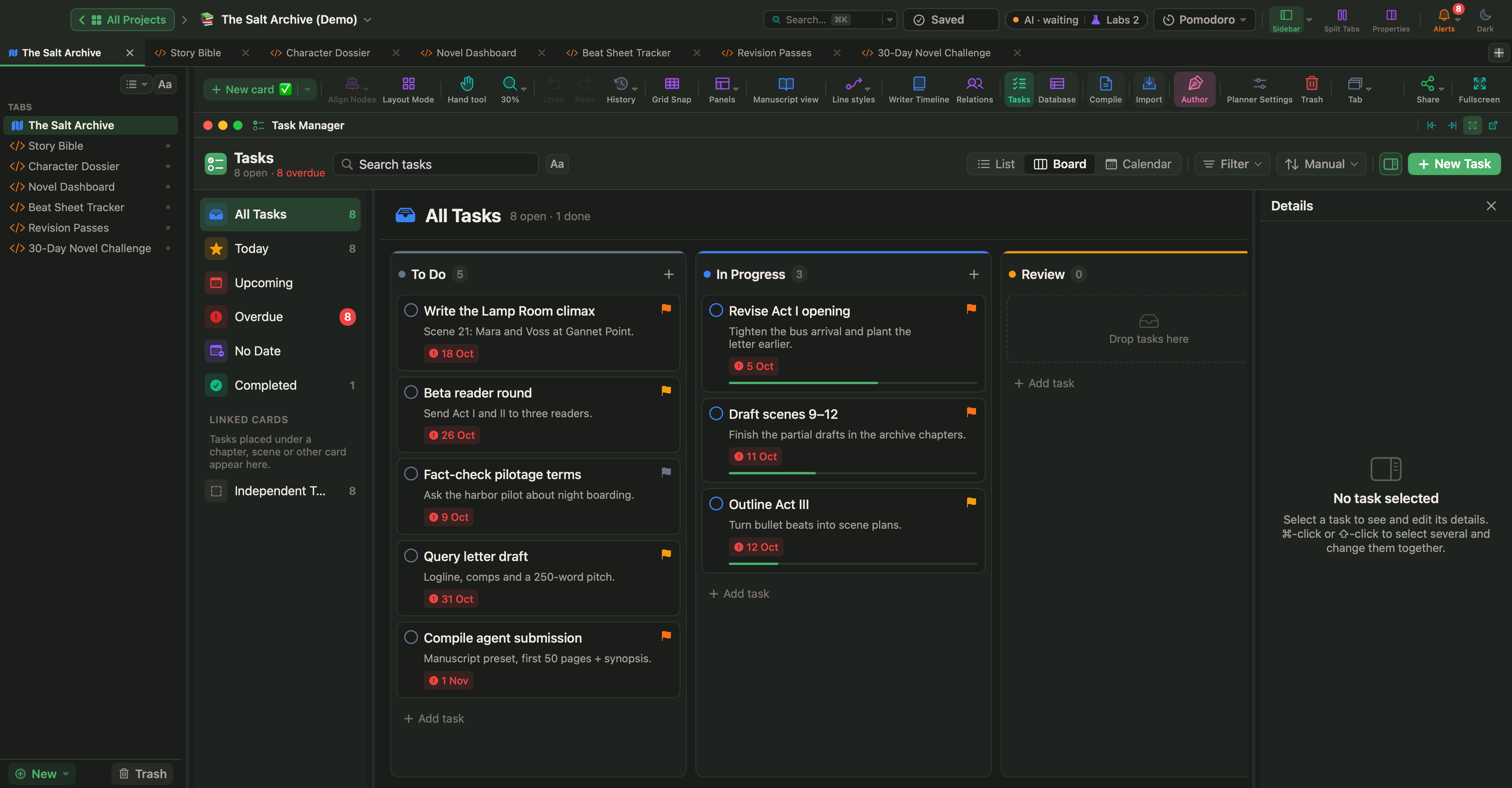
The revision plan is a set of task cards with dates and dependencies. The board, the calendar and the Gantt chart read the same tasks.
Step 7
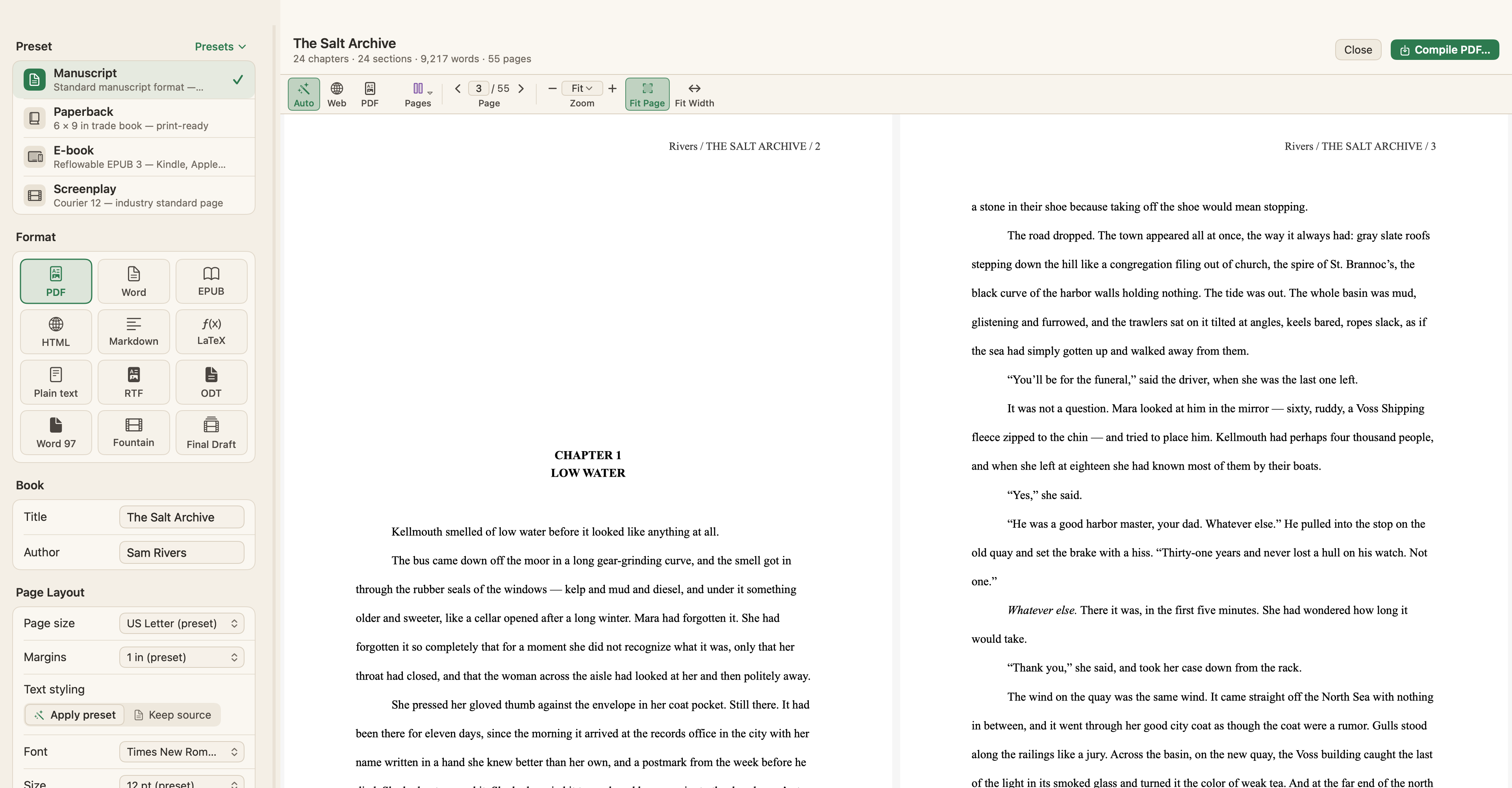
Compile the submission
The Manuscript preset produces a standard submission PDF with a title page and running header.
Short film · Night Shift
One night, twelve scenes, ready to pitch
Breaking a short film into scenes over a single night, writing it in script format, and pitching it.
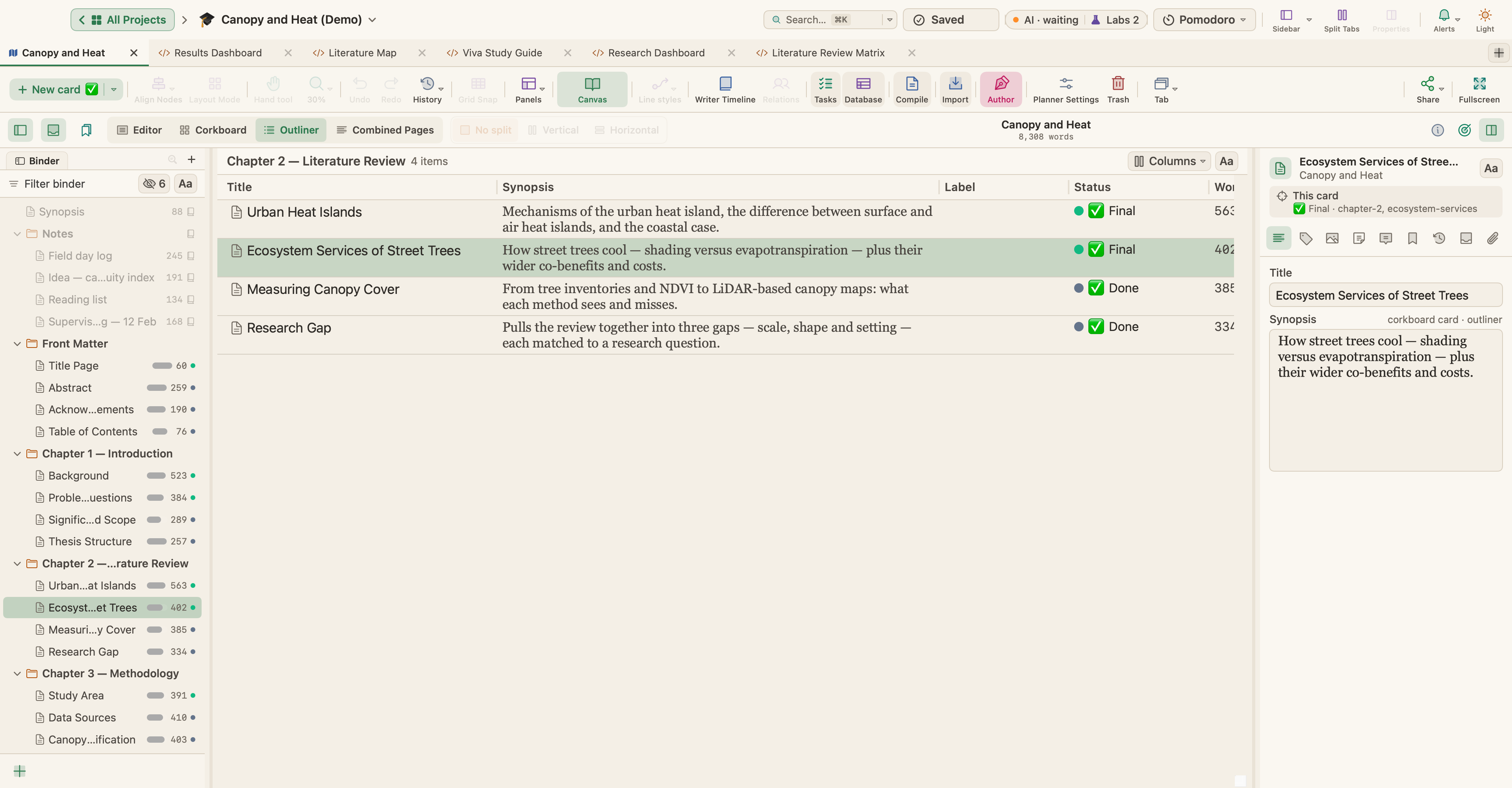
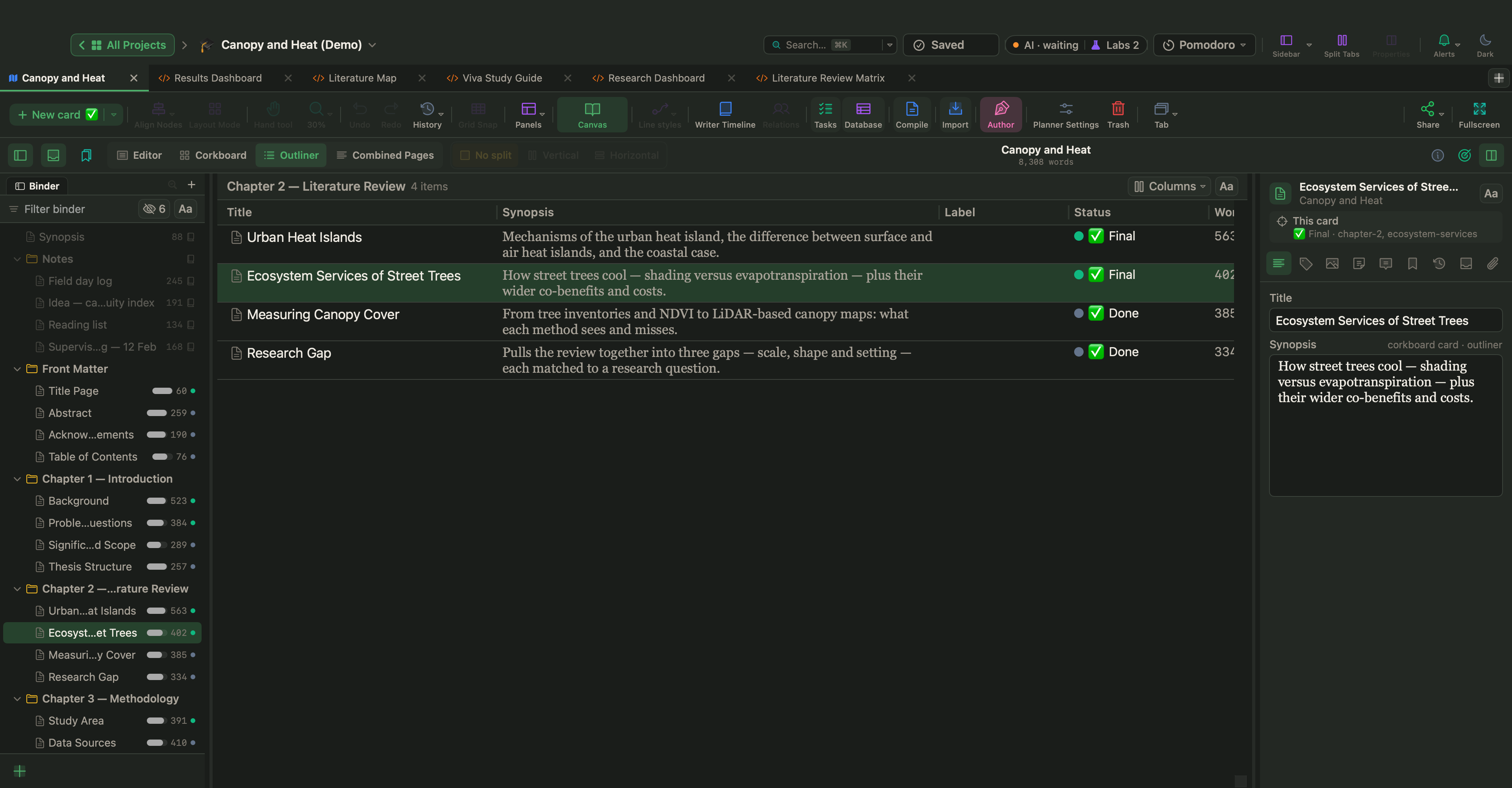
The outliner lists every section with its status and word target. Front matter, chapters and back matter are folders in the binder.
Step 2
Write against targets
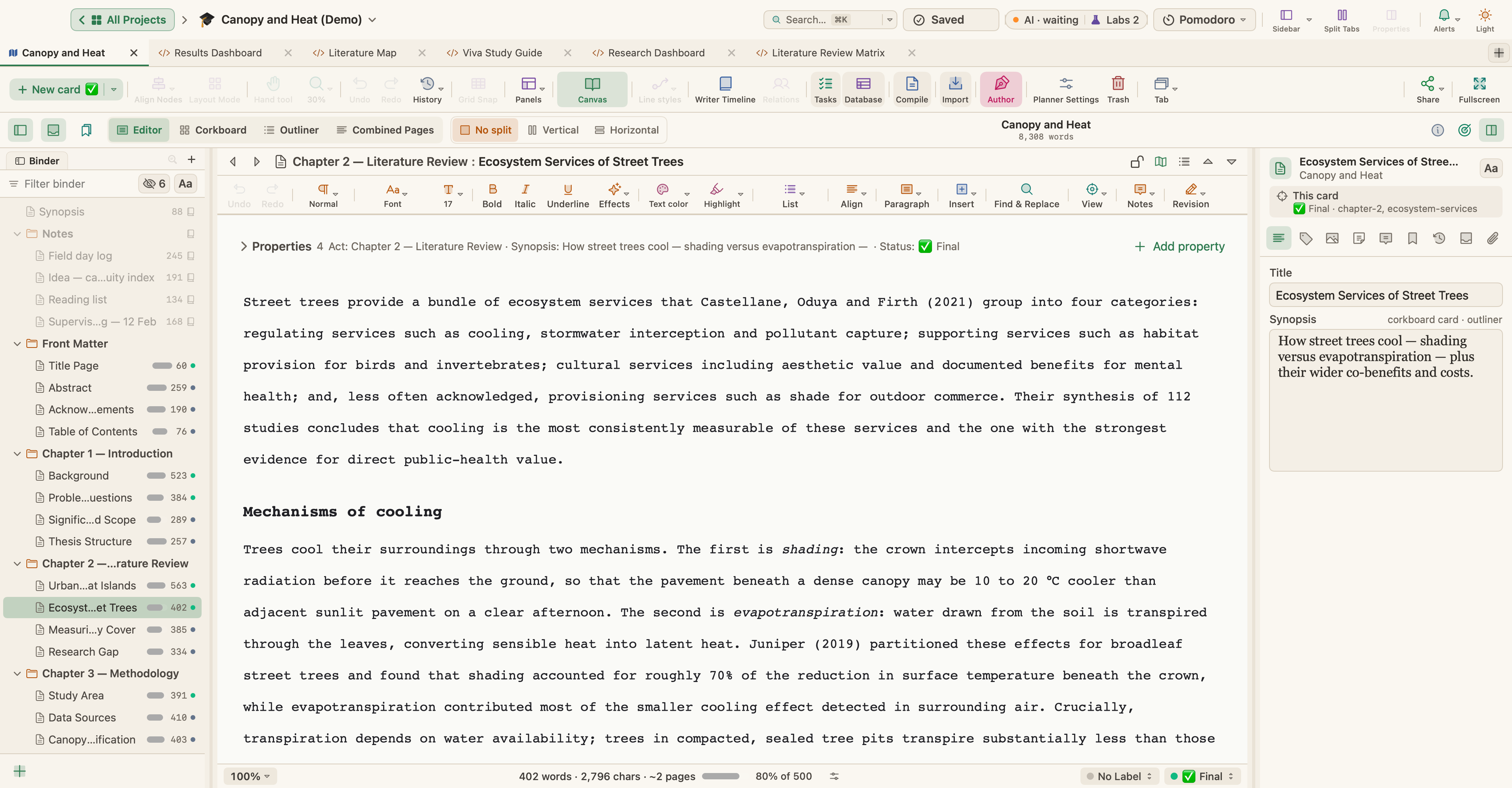
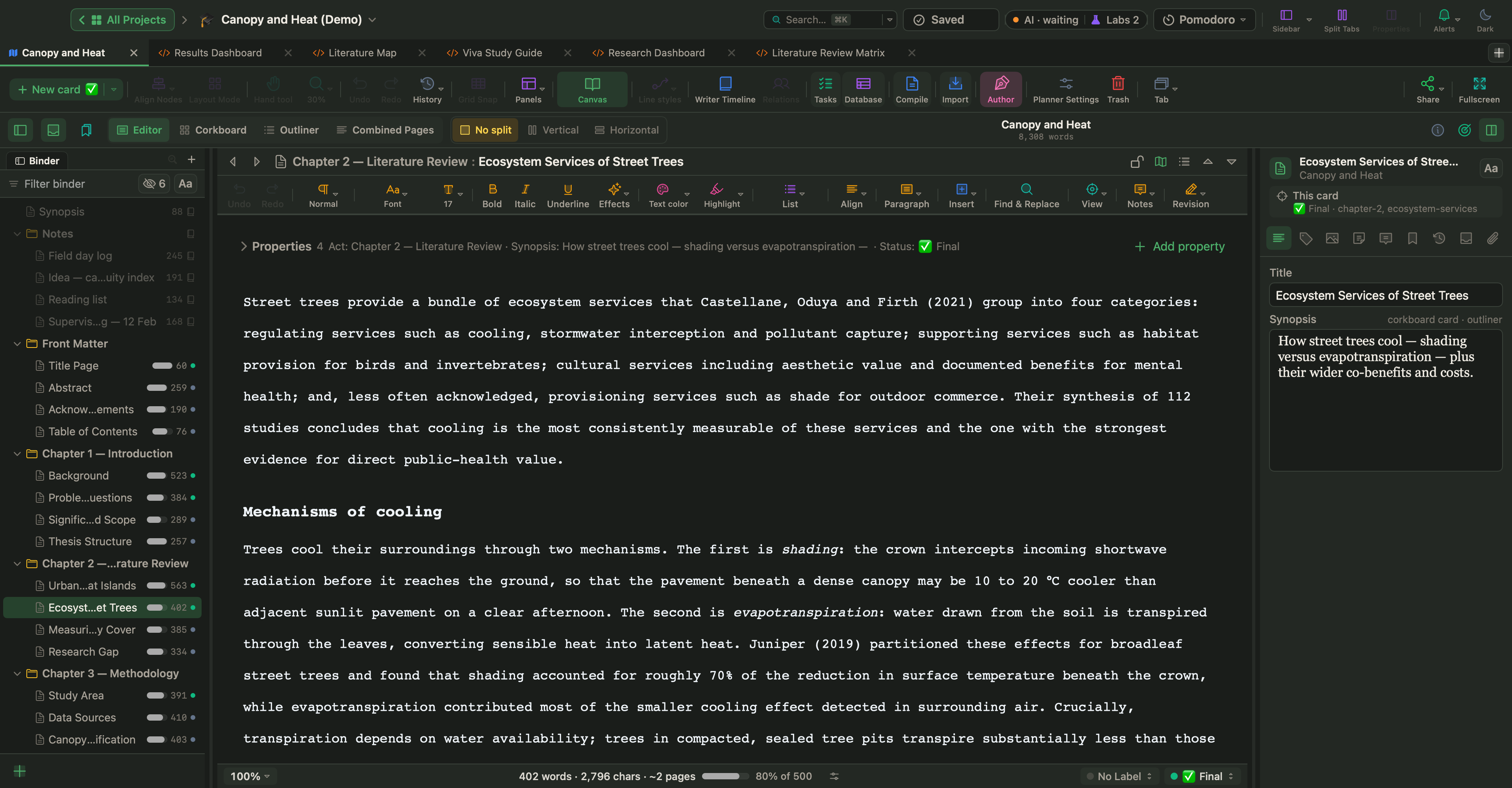
Each section shows its progress toward the target. Supervisor notes and the field log stay in a folder outside the manuscript.
Step 3
Compile for submission
The compile preview shows the title page and chapter openings before the PDF is written.
Optional · Claude Code and Codex
Inviting an assistant in, on your terms
WriterMorph has no AI. This walkthrough shows what happens when a writer chooses to connect Claude Code or Codex: switching it on and off, properties it filled in, a plan it drafted and the pages it opened.
AI Connections is off by default. Here it is switched on in Settings, Claude Code reads the novel and builds a Character Dossier as a new tab, and once the connection is switched off again it can no longer reach the project. The chat window is a mock-up; WriterMorph is recorded live.
Step 2
Change properties, then build a page
Asked to mark the four Chapter 5 sections as Draft with a 900-word target, Codex updates the cards and the corkboard changes at once. Then it maps the literature review into a new page.
Step 3
A plan from a premise
Given a one-paragraph premise, Claude Code drafted three acts, six scenes, four characters and two places as cards, filled in each scene's point of view, beat, tension, place, date and status, and wrote the opening paragraph.
Step 4
Who knows whom
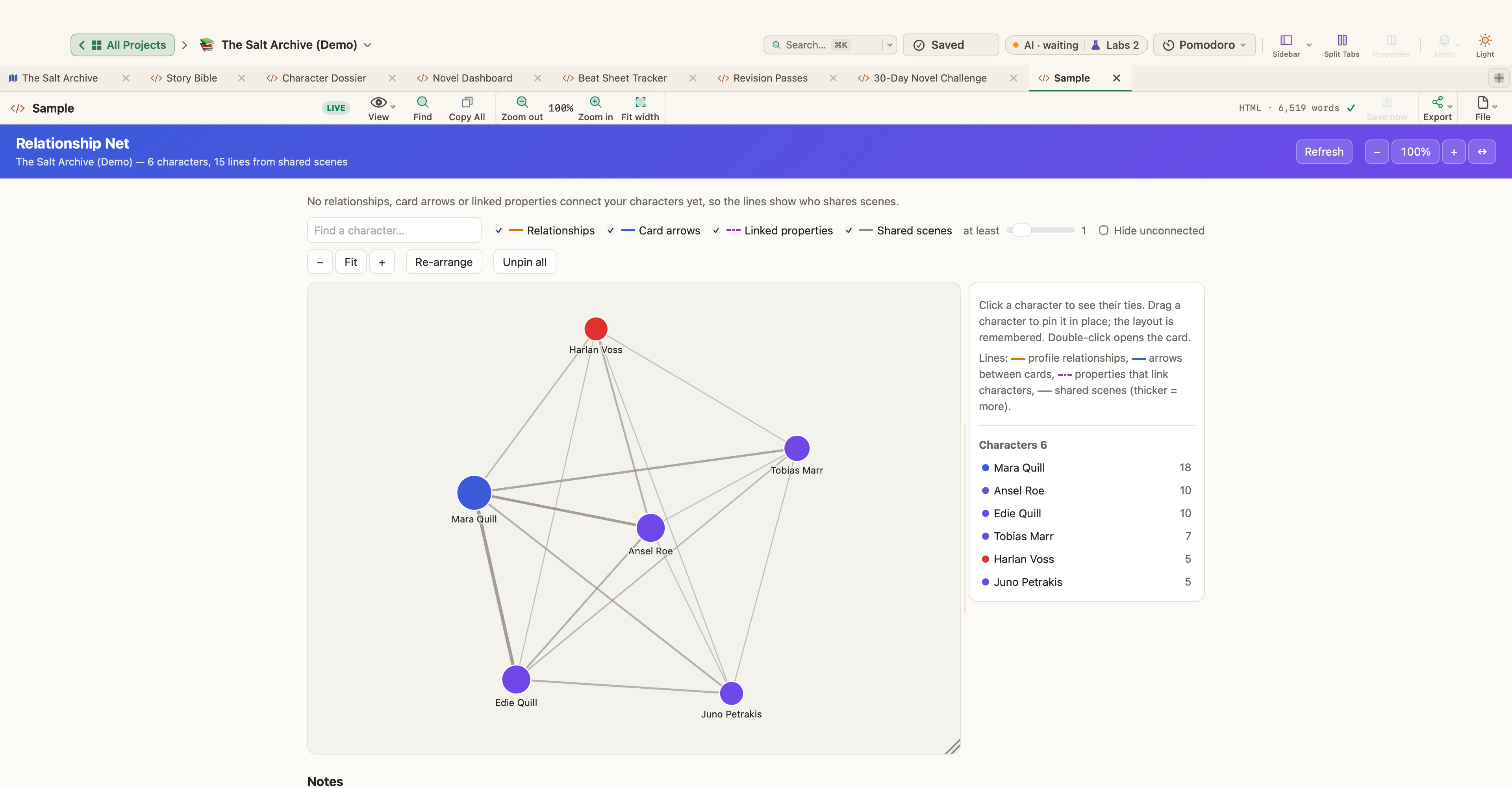
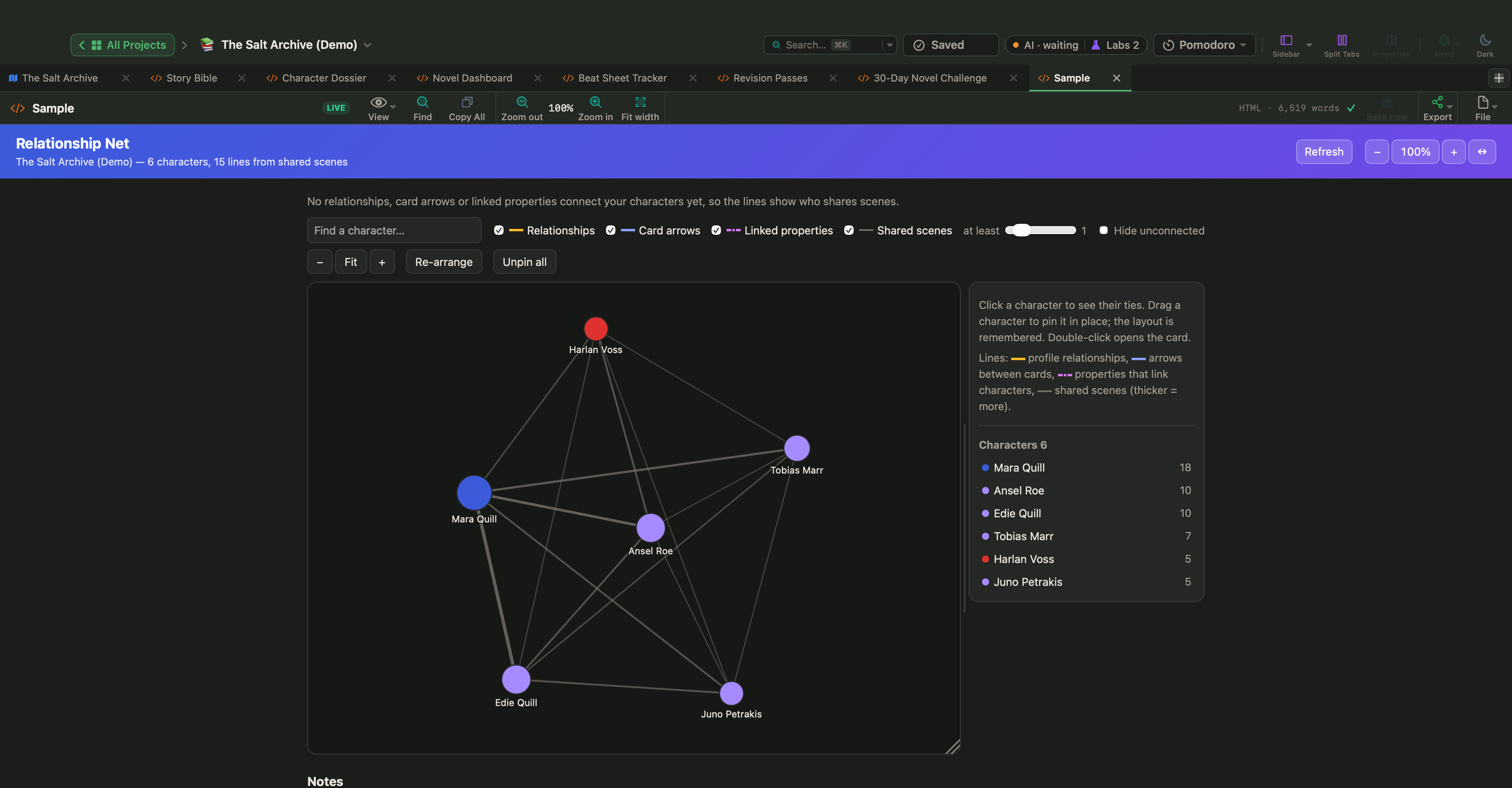
Pages can also start from one of the Live Page templates. Asked who in The Salt Archive is connected to whom, the assistant opens Relationship Net: six characters, linked by their arrows, linked properties and the scenes they share. The page reads the cards itself, so it stays current as the book changes.
Step 5
A literature review matrix
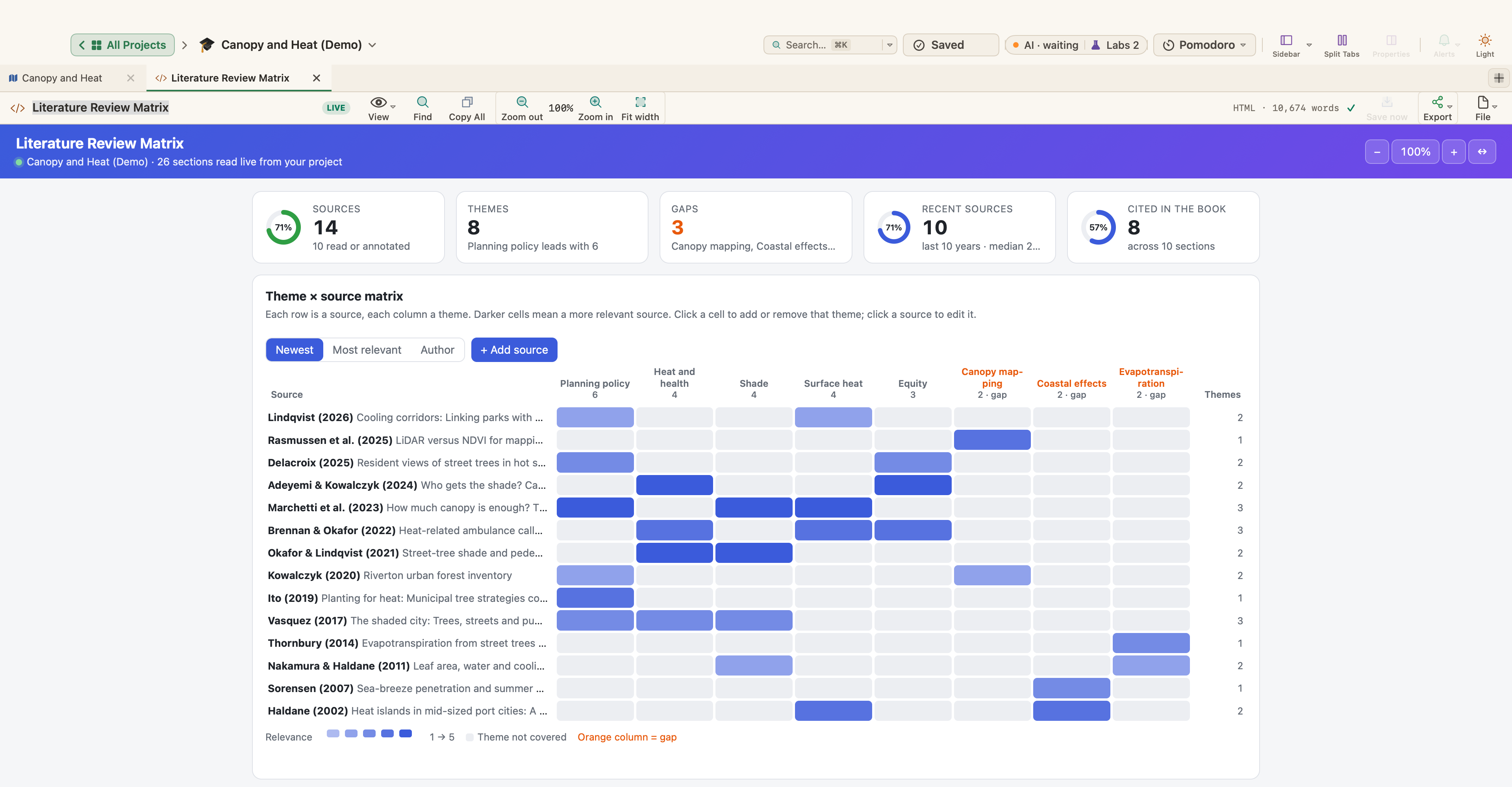
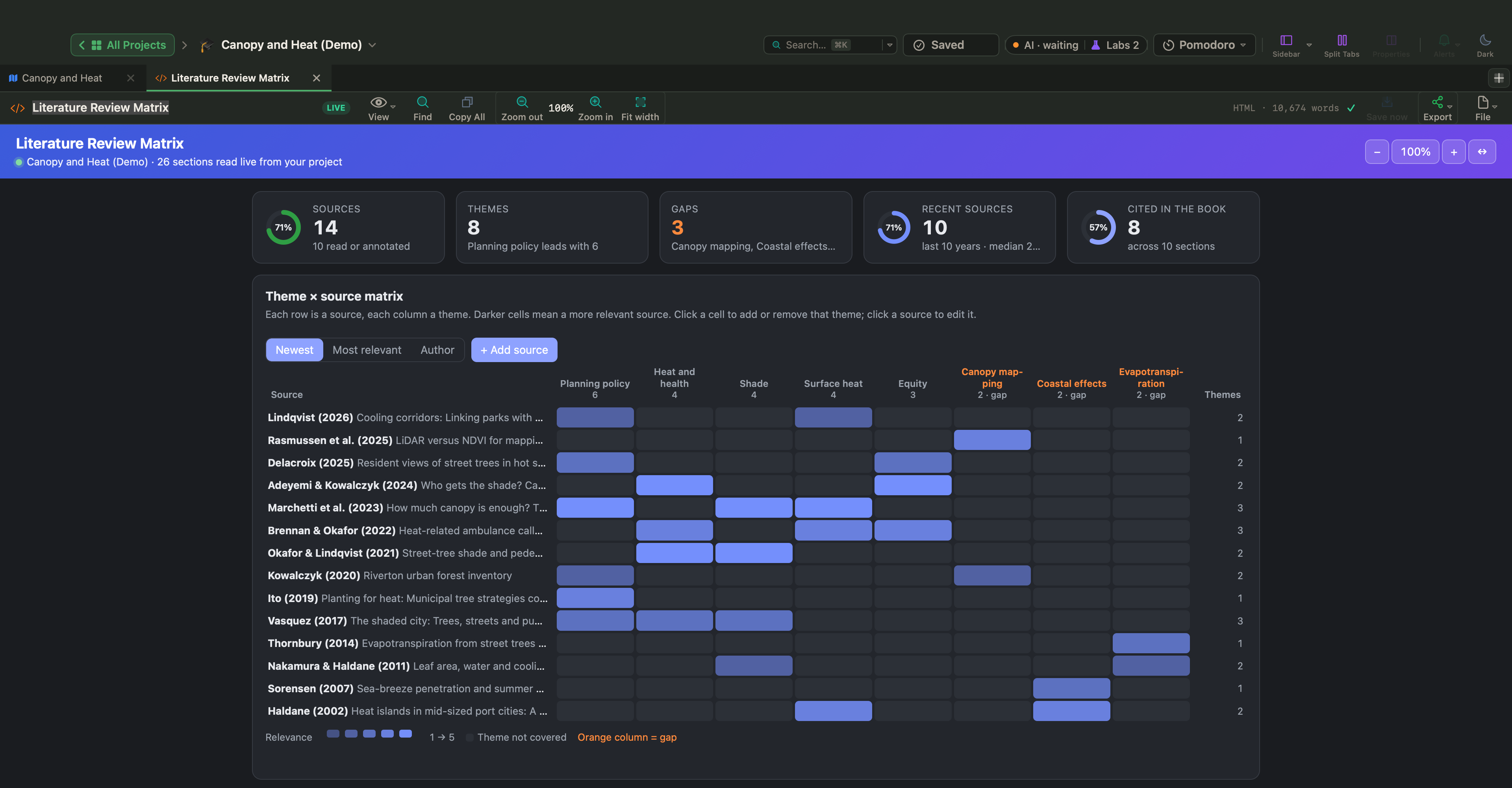
For Canopy and Heat, Literature Review Matrix sets every source against the themes of the thesis. Empty columns are the gaps, and the counts at the top say how many sources the chapters actually cite.
Step 6
A research dashboard
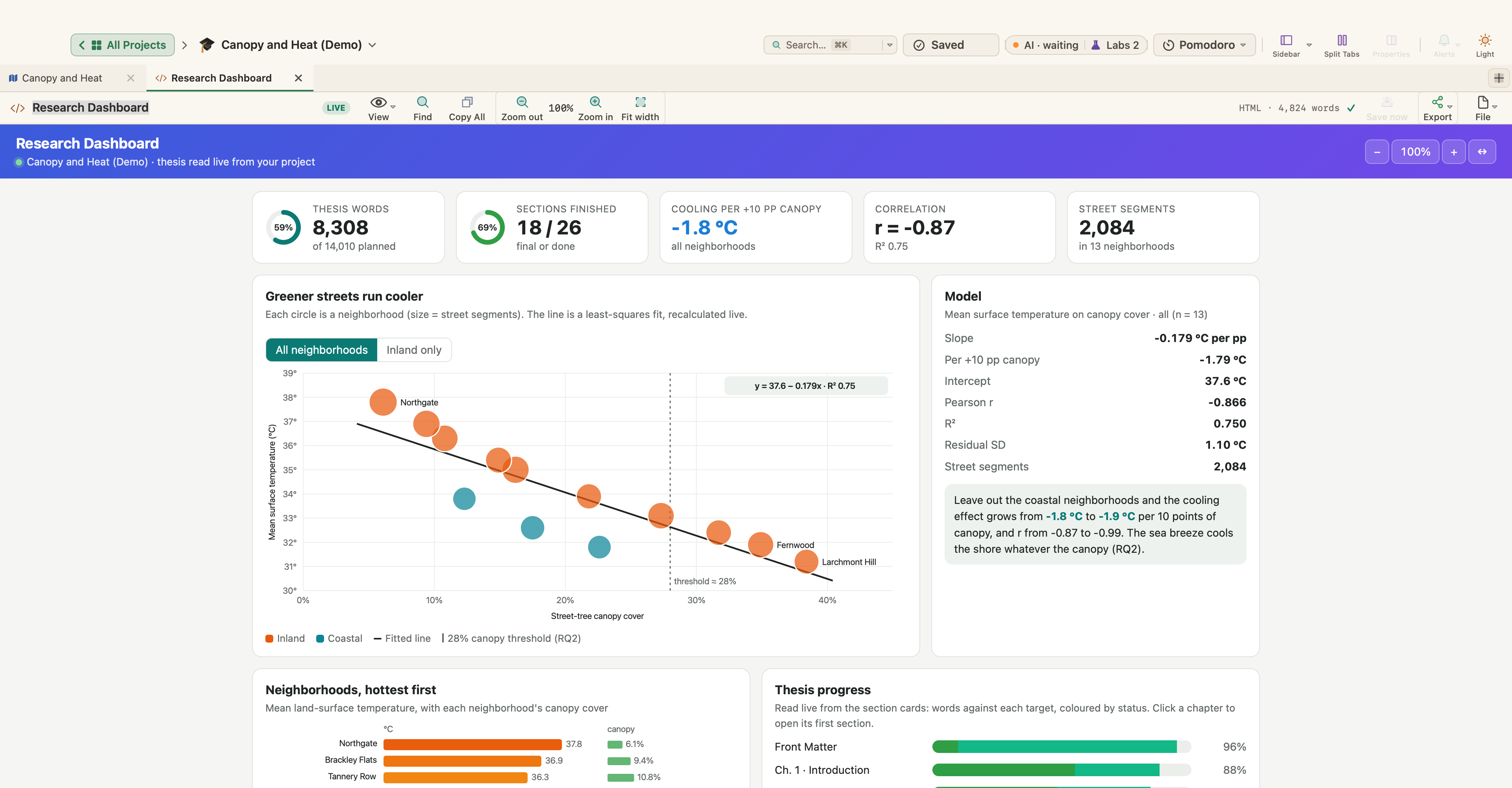
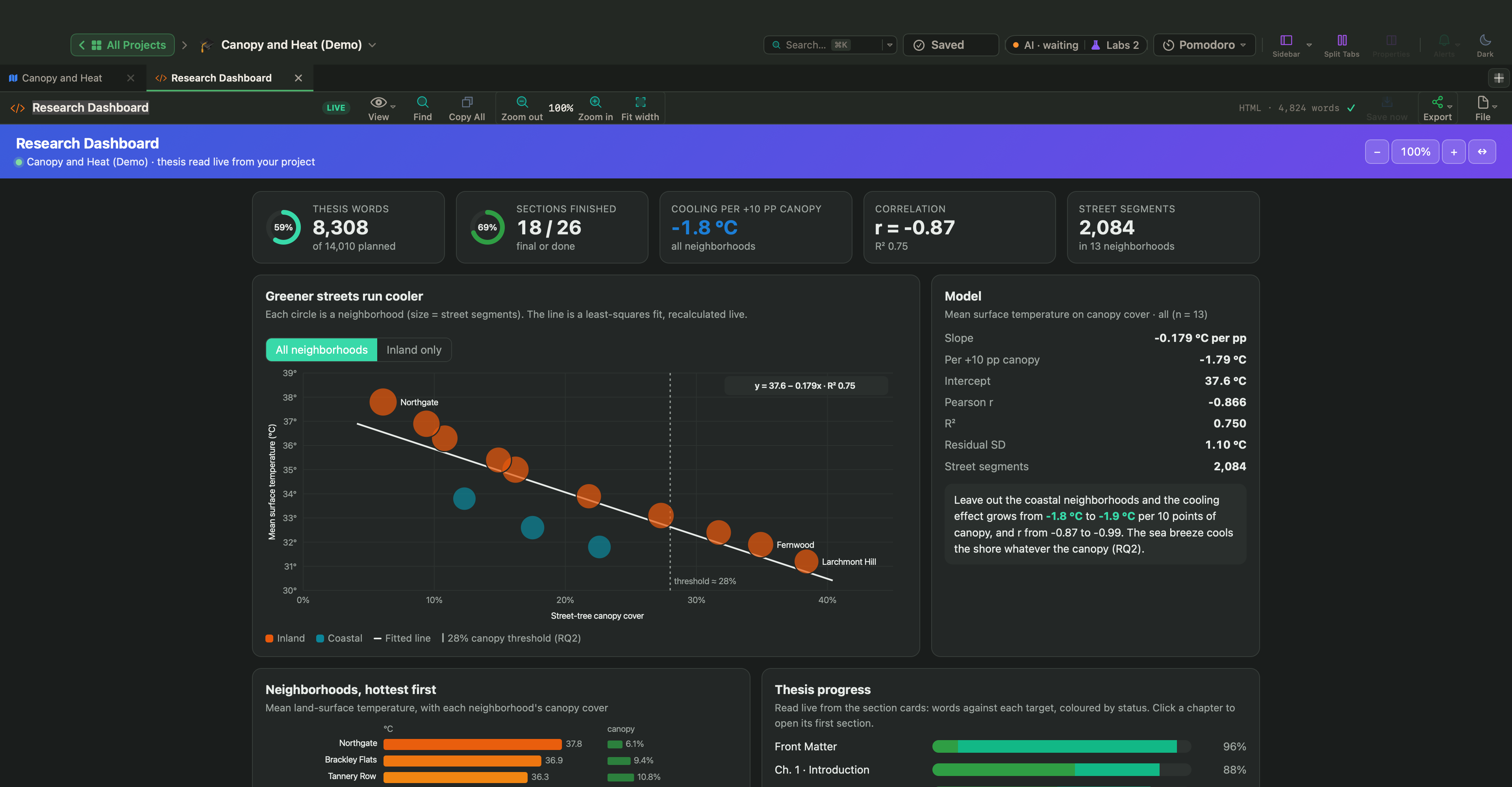
Research Dashboard puts the thesis on one page: words against the plan, finished sections, the cooling model behind the results and each chapter's progress toward its target.
Step 7
A story bible
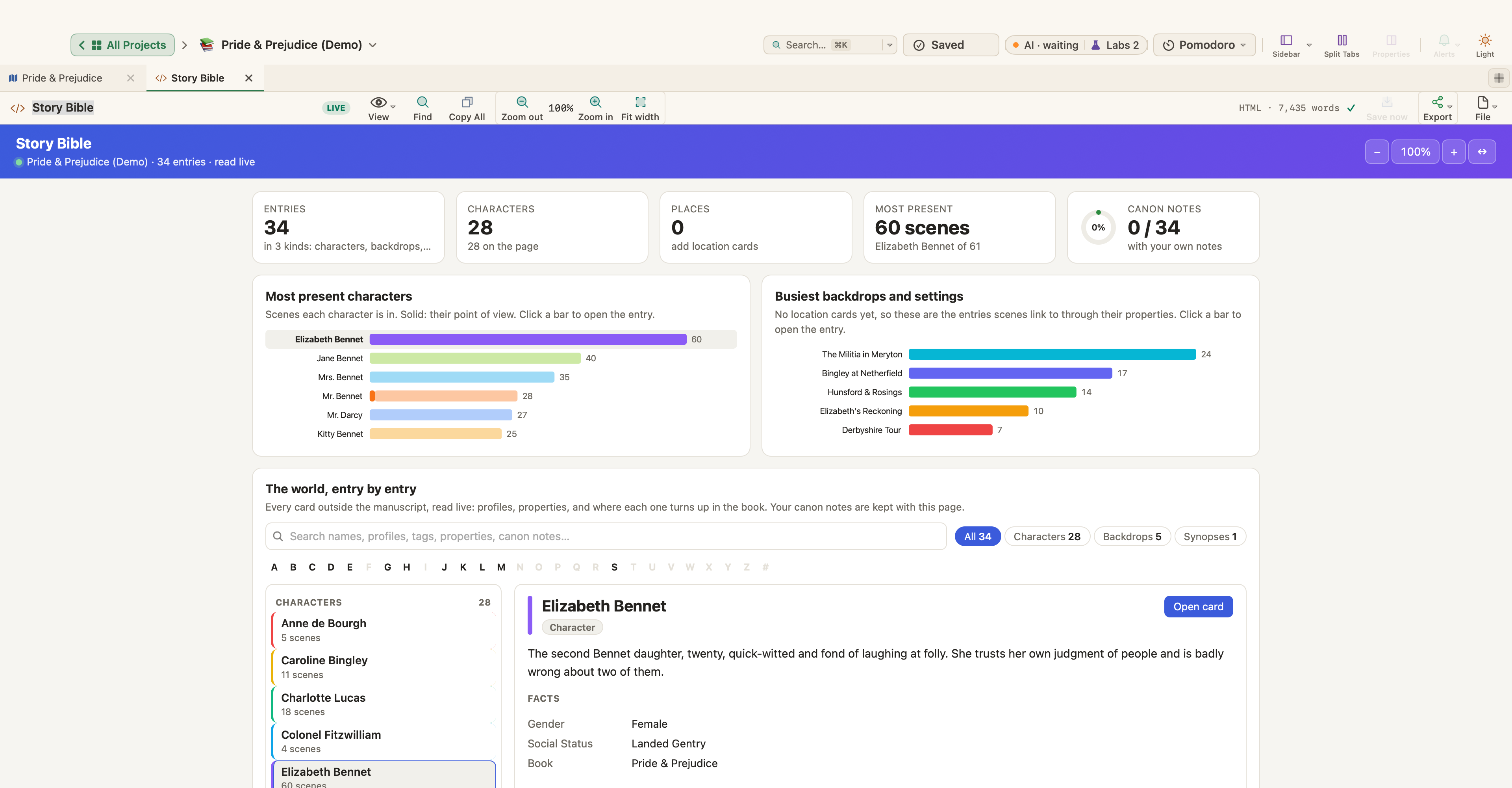
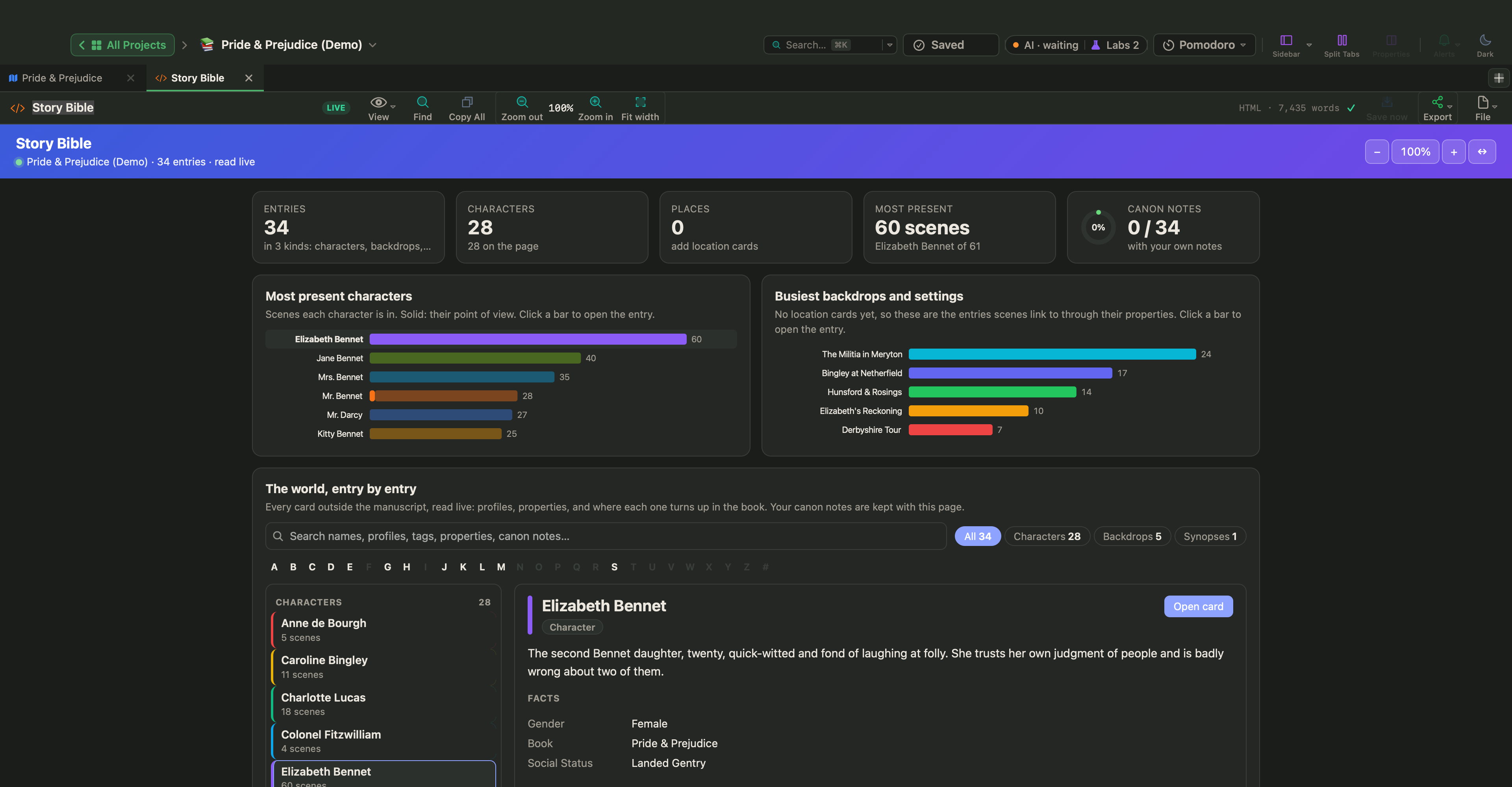
Story Bible gathers every character and place from the cards, with who appears most and where, and an entry for each with facts, voice and canon notes.
Your next book starts here
Try every feature free for 30 days of use. Your files stay yours whatever you decide.
30 days of use free
Then $49.99$29.99 once−40%Launch price until 7 January 2027
Other product names mentioned (e.g. Scrivener, Final Draft, Microsoft Word, Obsidian, Notion) are trademarks of their respective owners. They are used to describe compatibility or appear in customers' own words; WriterMorph is not affiliated with or endorsed by their owners.
 WriterMorph