 WriterMorph
Take the tour before you download
This is the tour WriterMorph gives new users on Mac and iPad. The app shows it the first time you open it, and again whenever you choose Help › Show the Tour.
Home screen

Welcome to WriterMorph
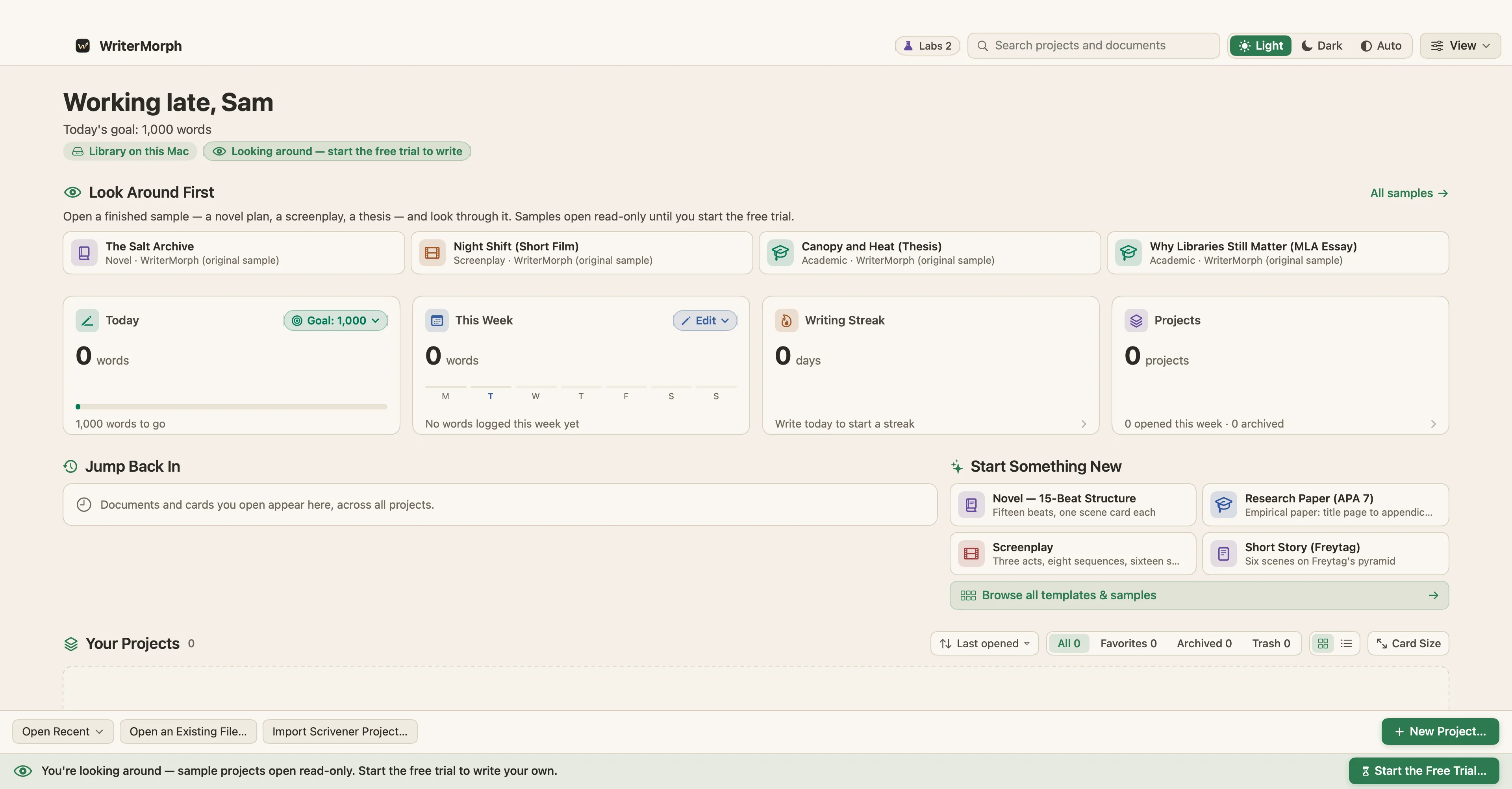
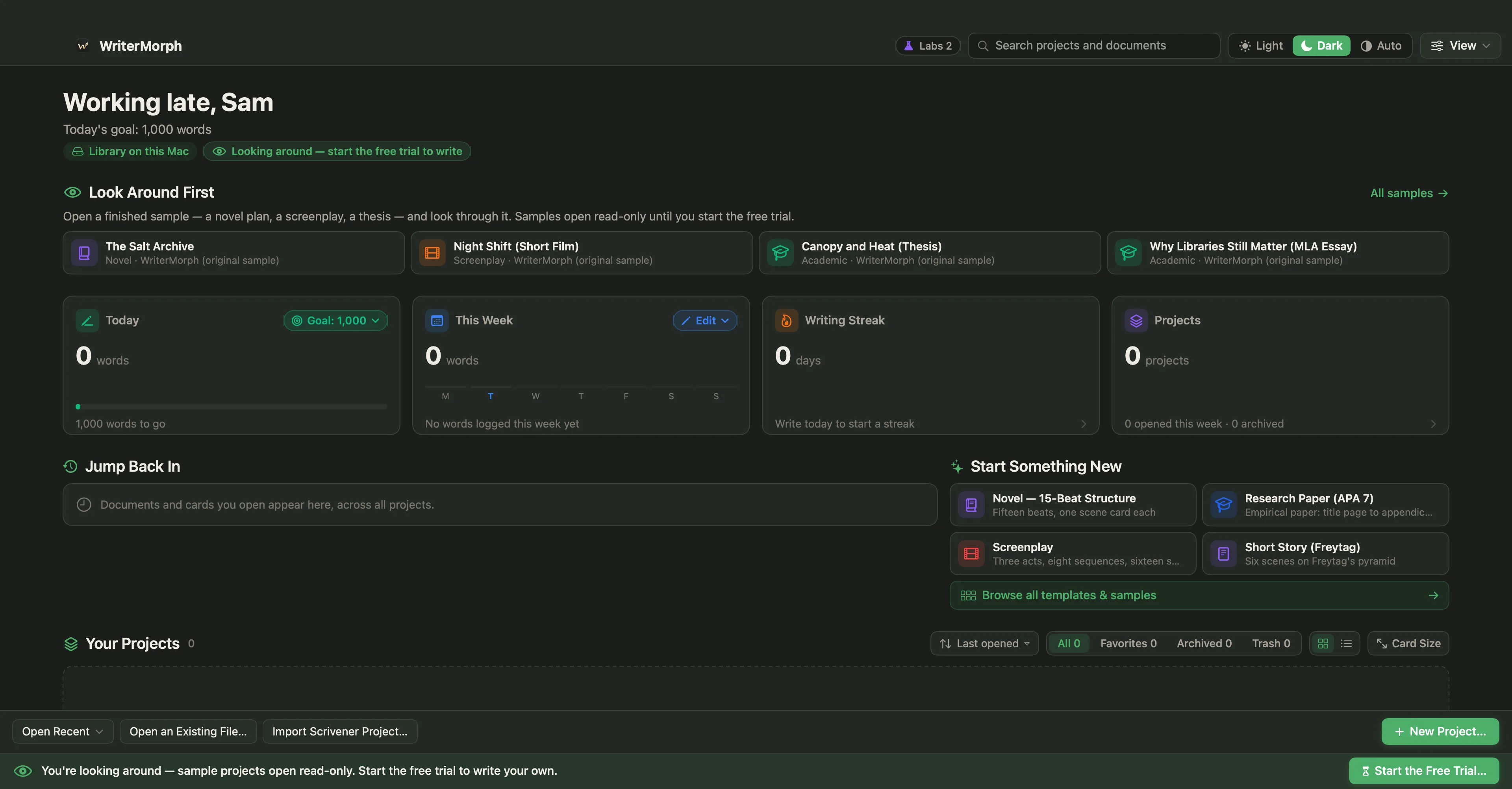
WriterMorph is one place to plan your book and write it — your cards, chapters and notes, side by side. This short tour shows you around. It takes about a minute.
Look around first
These are finished sample projects — a novel, a screenplay, a thesis and more. Open one to see how a real project looks inside. You can't break anything: samples open read-only while you look around.
Start something new
When you're ready for your own project, pick a template here. Each one gives you a ready-made plan to fill in — or you can start with a blank page.
Your own projects
New Project… shows every template and sample. Each project you make appears here on the home screen, ready to open with one click.
Find anything
Type a word here to search the names and the text of all your projects at once.
Light or dark
Choose Light, Dark, or Auto to follow your Mac. WriterMorph › Settings… has more looks — Forest, Paper, E-ink and others — and fonts for your page.
Free for 30 days of use
When you want to write your own, start the free trial. You get every feature for 30 days of use — only the days you open WriterMorph count.
- The App Store window shows a price of 0. That is simply how Apple starts every free trial — nothing is charged, now or later.
- There is no subscription, and nothing renews by itself.
- When the trial ends, you decide: buy WriterMorph once, or keep reading and exporting your work for 10 more days.
- Your projects are always yours — they stay in your own folder.
Where to begin
Open the sample novel and the tour carries on inside it, so you can see a finished project from the inside. Or close the tour and explore on your own — Help › Show the Tour brings it back any time.
Inside a project
Inside a project
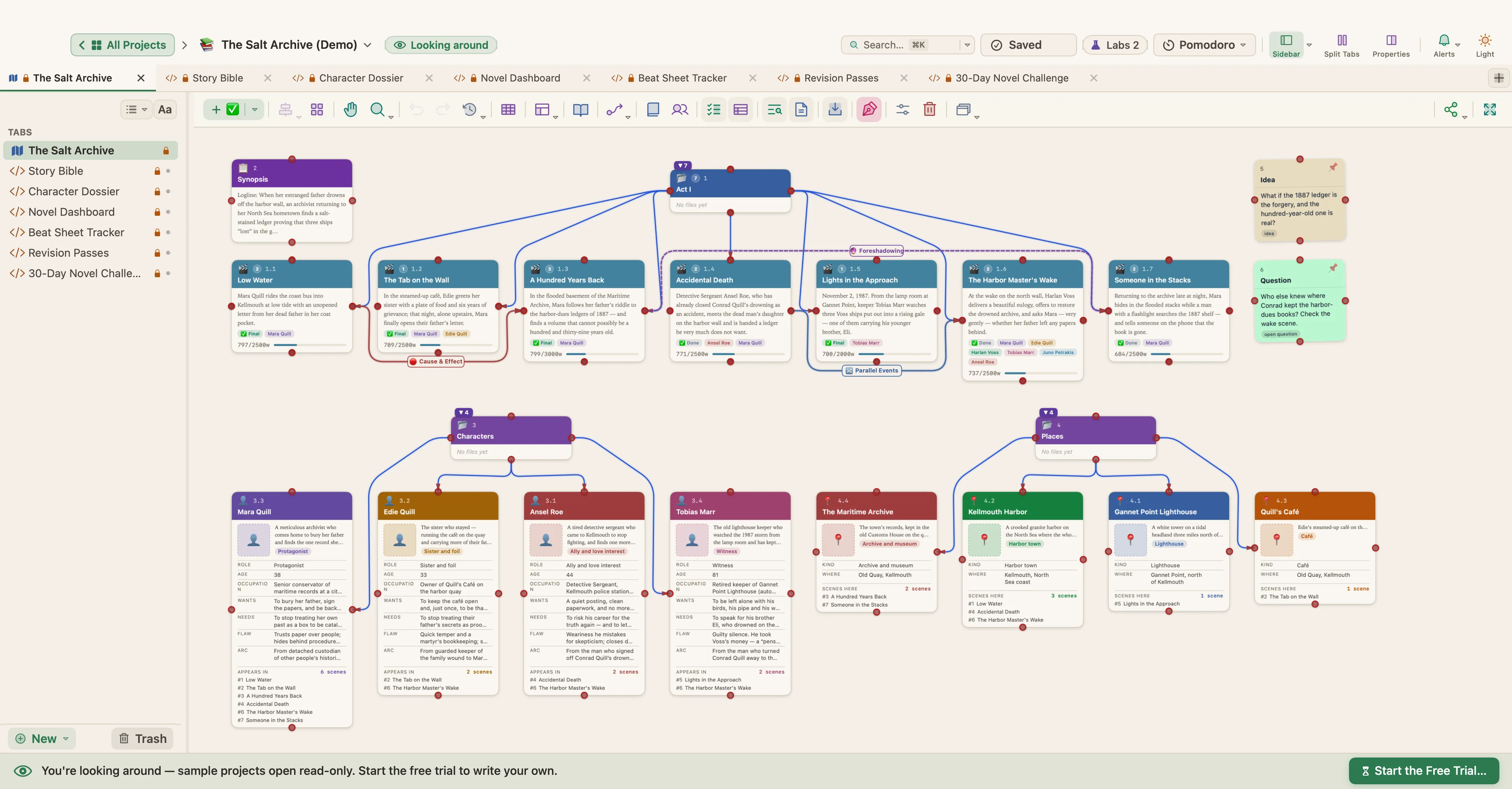
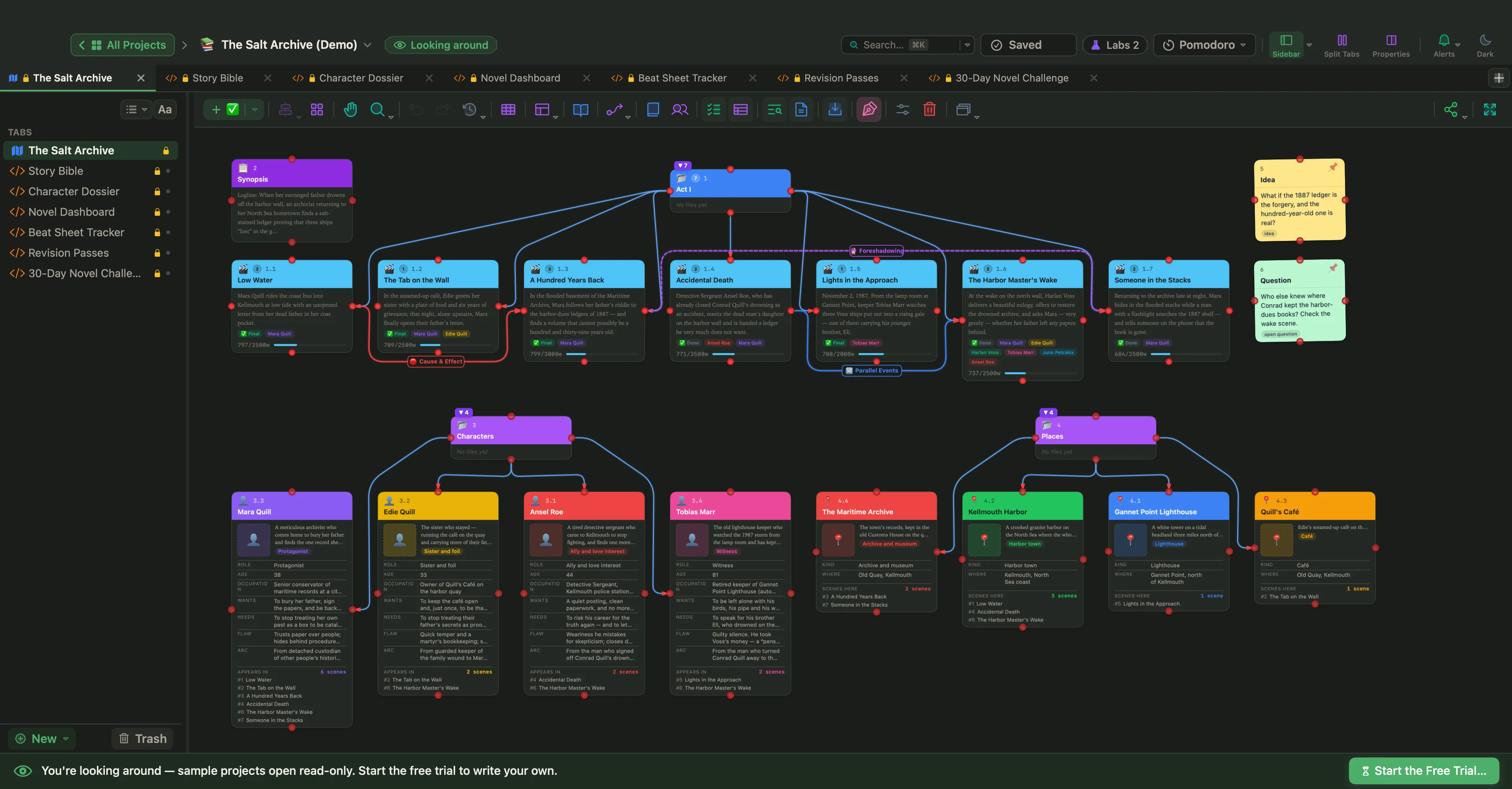
A project holds everything for one piece of writing: your plan, your chapters, your notes and your research. Here is how it fits together.
Everything in one list
The list on the left shows what's in this project — plans, chapters, notes and pages. Click any item to open it.
Tabs, like in a web browser
Whatever you open appears up here as a tab, so you can jump between your plan and your writing.
Your plan on cards
On the canvas each card is a scene, a character, a place or an idea. Drag cards around to shape your story, and double-click a card to read or write it.
Add a card
New card adds a scene, a character or a note. The small arrow next to it lets you choose the kind of card.
From plan to book
Manuscript view shows the same cards as a book, in order, so you can write chapter by chapter. Click it again to go back to the canvas.
Your story over time
This opens your scenes along the story — by chapter and plotline, by place, or by when things happen — plus a writing schedule and your progress.
Search the project
Find any card or any line of text in this project. The keyboard shortcut is ⌘K.
Your work is saved for you
WriterMorph saves as you go. This shows Saved when everything is stored, so you never have to worry about it.
Make it yours
Switch between light and dark here. WriterMorph › Settings… (⌘,) has more looks — Forest, Paper, E-ink and others — editor fonts and many options. Right-click any toolbar to choose which buttons it shows.
Back to all your projects
This button takes you back to the home screen and all your projects.
Want to write your own?
Samples are read-only while you look around. Start the free trial to edit this one or to begin your own project — every feature, for 30 days of use.
- The App Store window shows a price of 0. That is simply how Apple starts every free trial — nothing is charged, now or later.
- There is no subscription, and nothing renews by itself.
- When the trial ends, you decide: buy WriterMorph once, or keep reading and exporting your work for 10 more days.
- Your projects are always yours — they stay in your own folder.
Where next?
Most of the writing happens in two places: the manuscript, where you write chapter by chapter, and the Writer Timeline, where you see your story over time. Each has its own short tour.
Manuscript view
Write your book here
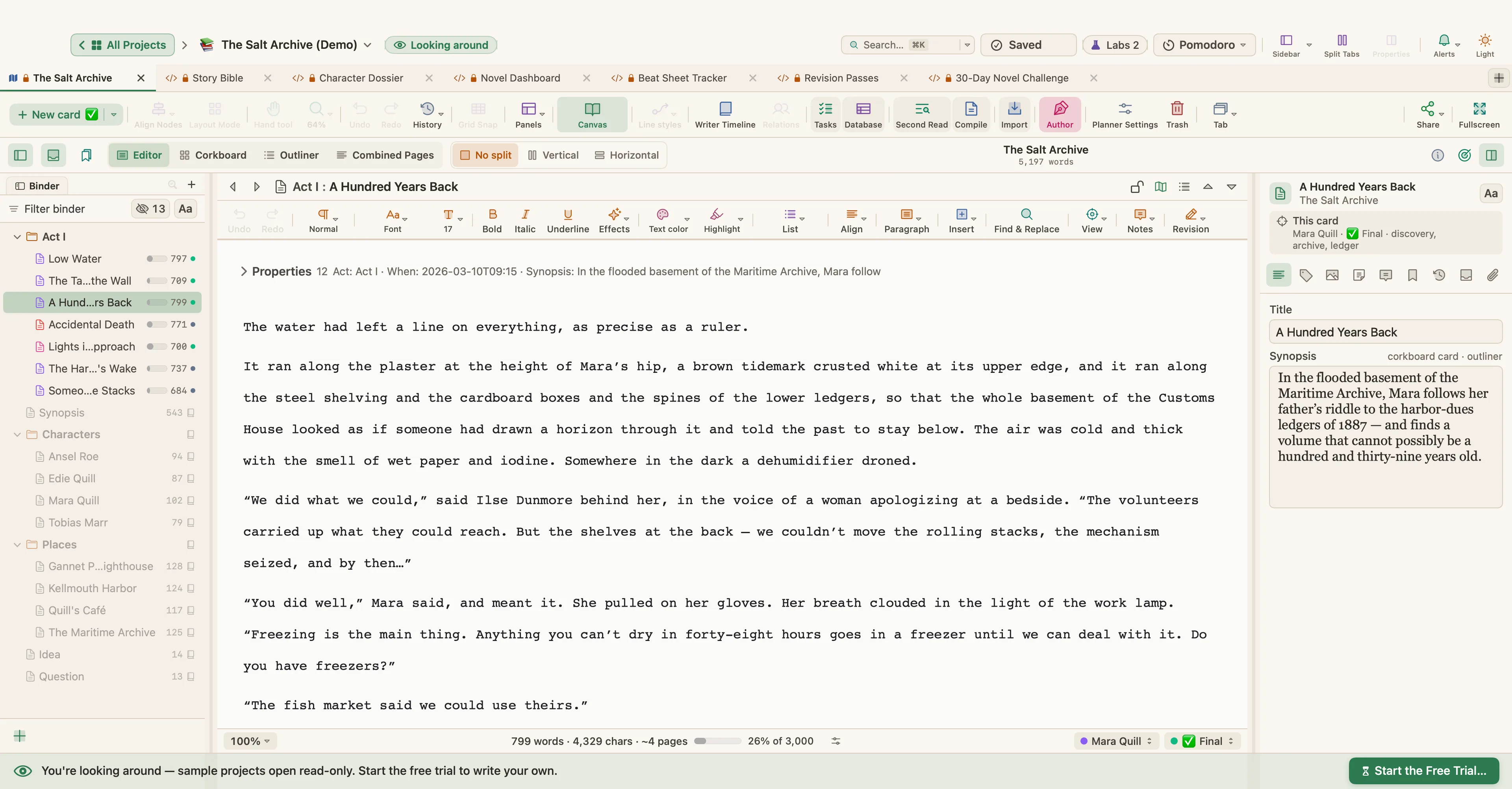
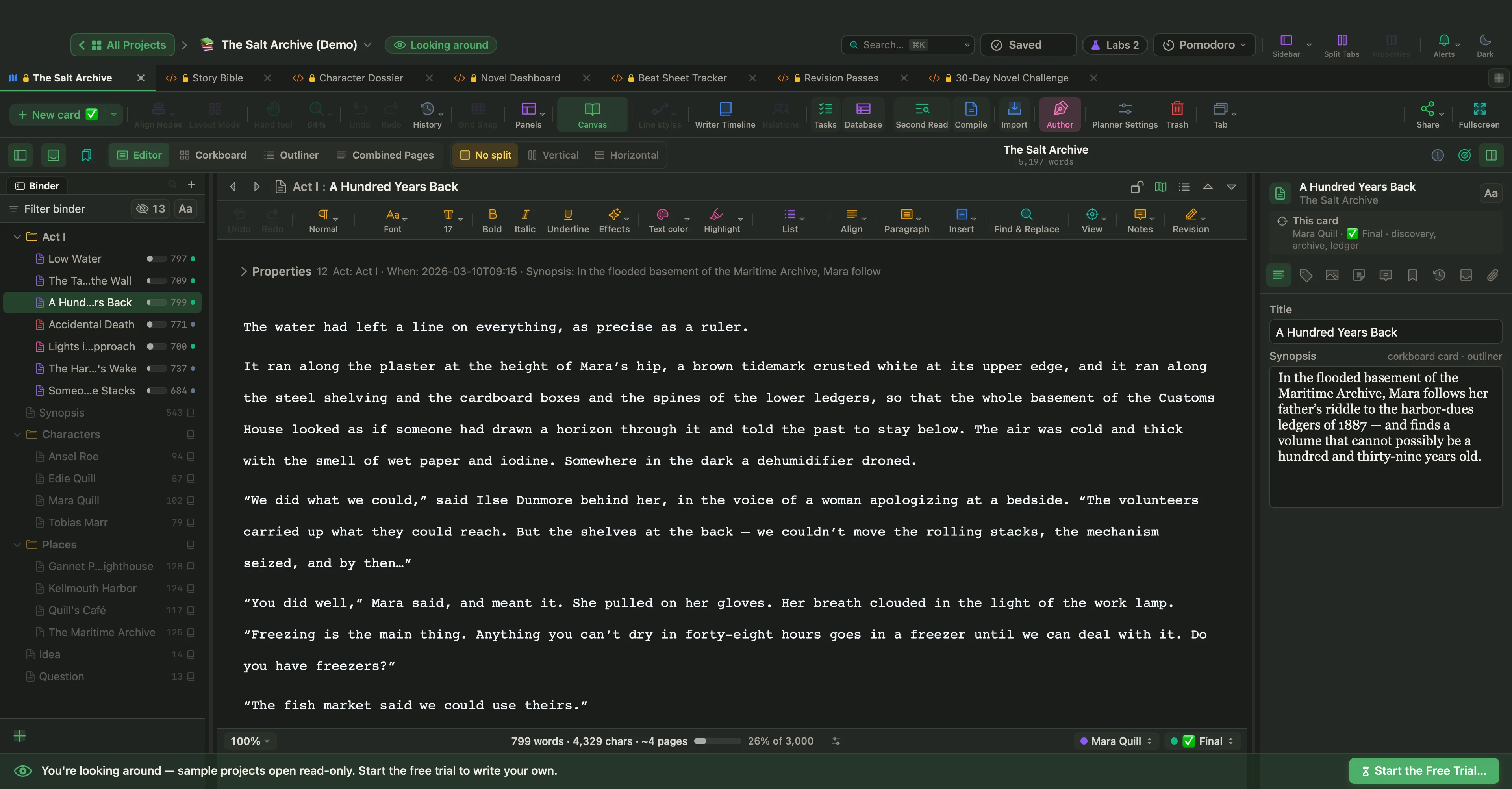
Manuscript view shows your cards as a book: chapters and scenes in order, ready to write. They are the same cards as on the canvas, so a change in one place shows in the other.
Four ways to see it
Editor is for writing. Corkboard shows each part as an index card, Outliner as a list with details, and Combined Pages lets you read and edit several parts as one text.
Your chapters in order
The binder on the left lists your chapters and scenes in book order. Click one to open it on the page.
Your page
Write here. WriterMorph saves as you type, so you never lose a word.
Shape your text
Bold, italic, headings, lists and styles. The View ▾ button on this bar opens Composition Mode, a calm full-screen page, and Dactylo, which turns your Mac into a typewriter.
Words and goals
The bar at the bottom counts the words of this part — click the count for more statistics. The target button at the top right sets goals for the whole book and for today.
Notes beside your page
The inspector on the right keeps the synopsis, notes, comments and snapshots of the part you're writing. A snapshot saves a copy you can go back to.
Two parts side by side
Split the editor to see two parts at once — for example the chapter you're writing and the one before it.
Turn it into a book
Compile makes a PDF, a Word file or an e-book from your manuscript — ready to print, send or publish.
Back to your cards
Click Manuscript view again to go back to the canvas and your cards.
Writer Timeline
Your story over time
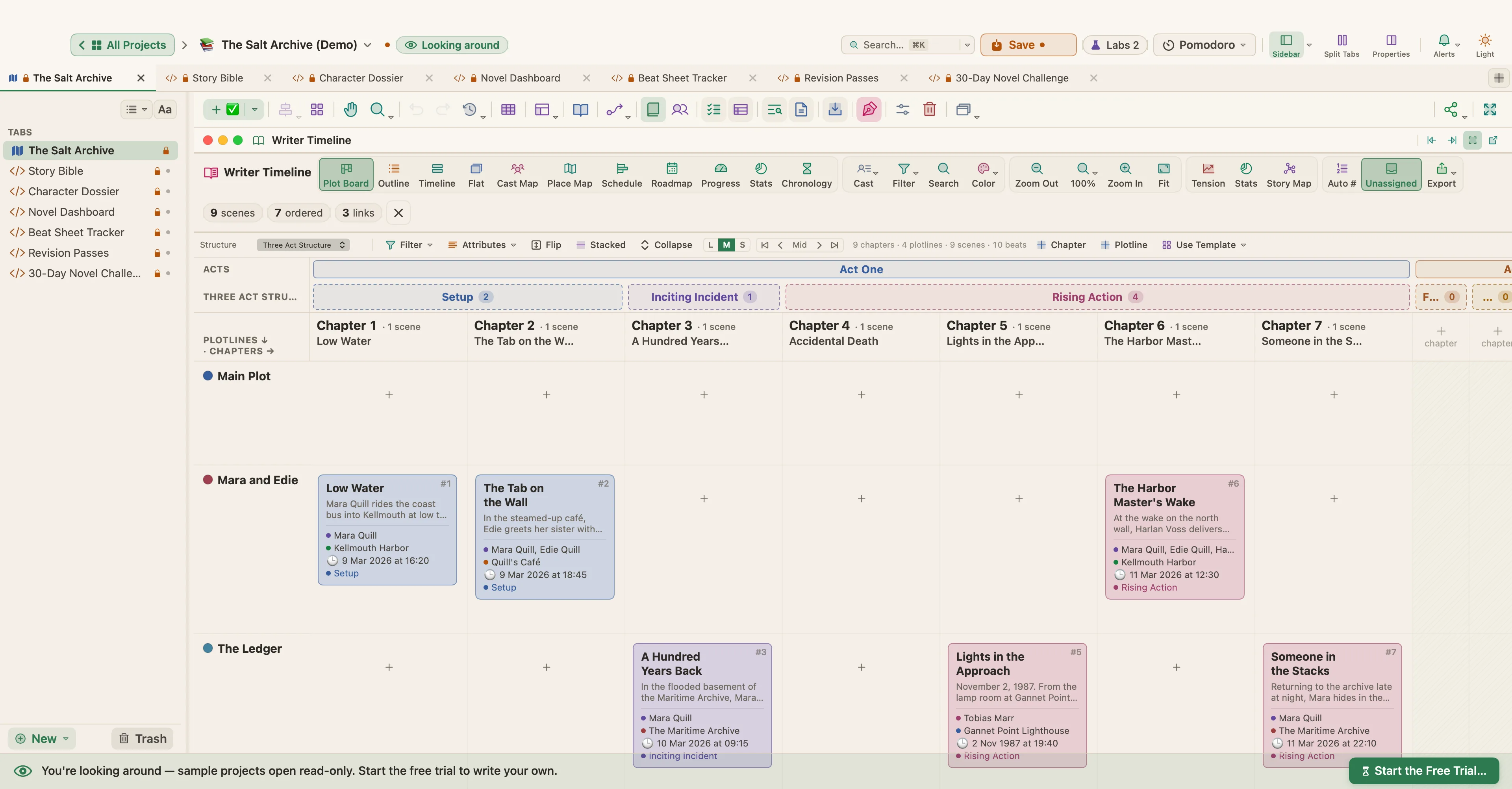
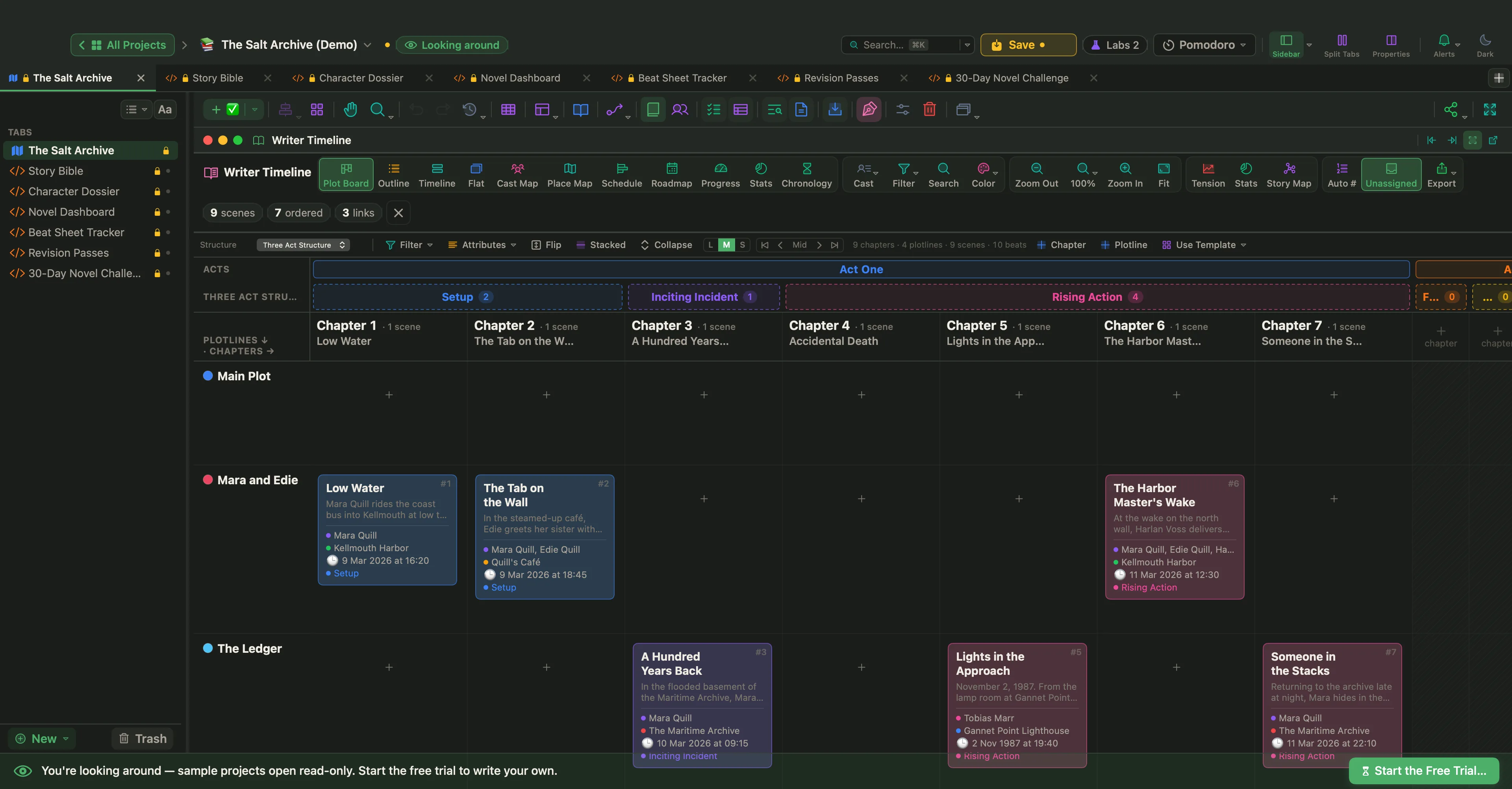
This view lays out your scenes along the story: by chapter and plotline, by place, or by when things happen in the story.
Choose a view
Plot Board shows chapters against plotlines. Timeline puts scenes in story order. Cast Map and Place Map show who appears where. Schedule, Roadmap and Progress help you plan your writing days.
Dates and deadlines
Panels ▾ › Timeline opens a strip under the canvas: drag across a row to give a card a start and an end date.
Back to the canvas
Click Writer Timeline again to close it and return to your cards.
Pick a tour, then click the highlighted part of the screen or Next to go on. The arrow keys work too.
Your next book starts here
Try every feature free for 30 days of use. Your files stay yours whatever you decide.

30 days of use free
Then $49.99 $29.99 once−40% Launch price until 7 January 2027
Other product names mentioned (e.g. Scrivener, Final Draft, Microsoft Word, Obsidian, Notion, Grammarly) are trademarks of their respective owners. They are used to describe compatibility or appear in customers' own words; WriterMorph is not affiliated with or endorsed by their owners.