 WriterMorph
Help › Writing
All help topics
Dactylo
Write the open document on a sheet of paper in a drawn typewriter, with recorded key sounds, a ruler with margin stops, counters on the machine and a stack of finished pages.
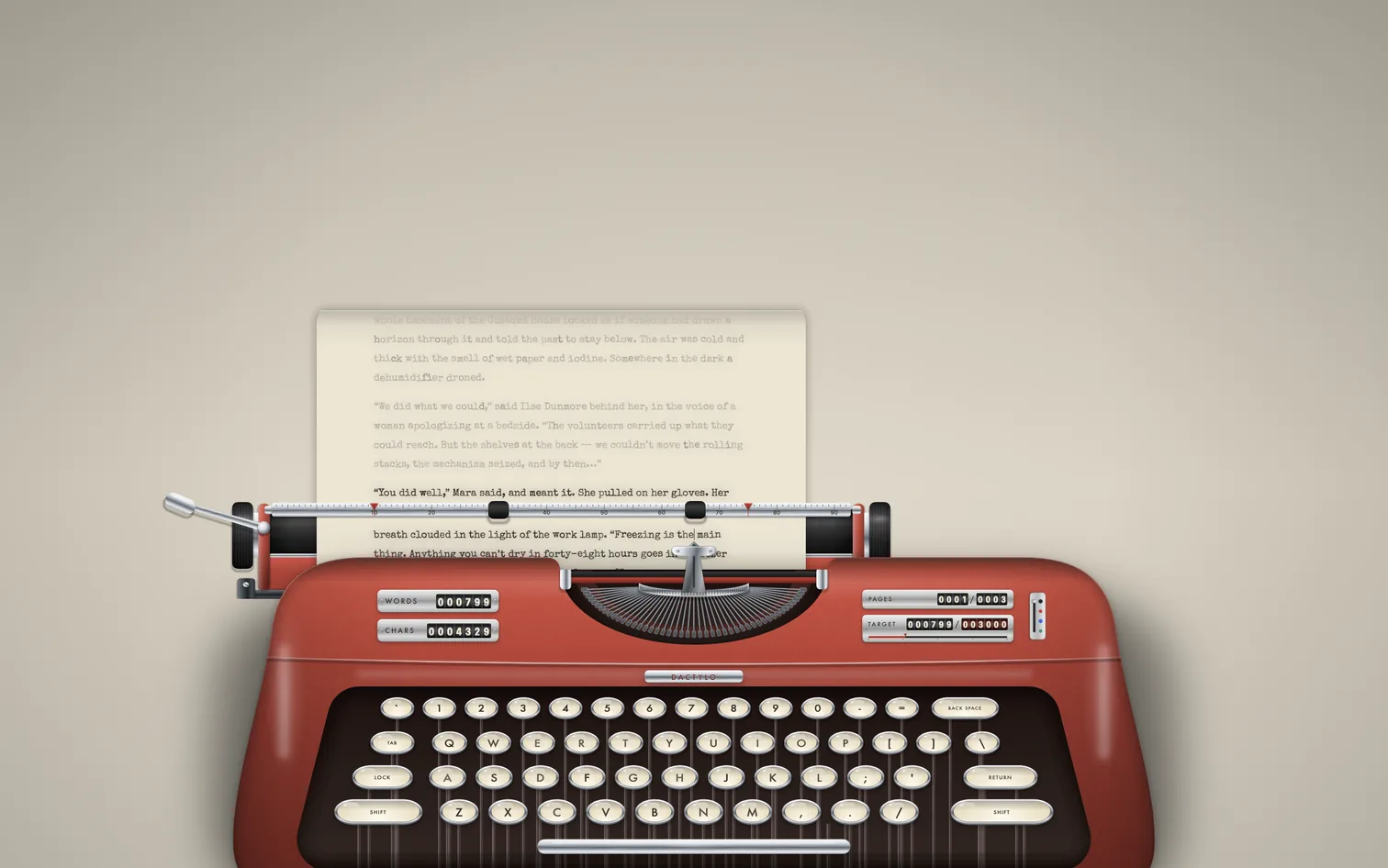
Dactylo shows the document you are writing on a sheet of paper in a drawn typewriter. It is not a copy or a separate draft: it is the same document, and everything you type is saved in your project as usual.
The paper feeds line by line, the carriage moves with each letter and comes back when you press Return, and a bell rings as you near the end of the line. When a line is full, the text wraps by itself and the carriage returns on its own.
Dactylo is a view of Composition Mode, so the Composition bar, Focus, the daily word count and Go To all work here too.
Turn it on and off
- Click in the text of a document or card, then choose View › Dactylo. You can also choose Dactylo in the format bar's View ▾ cell.
- Already in Composition Mode? Click Dactylo in the Composition bar.
- To go back to the normal Composition page, click Dactylo in the bar again.
- To leave, press Esc or click Exit. Dactylo closes with Composition Mode. Your machine, paper, sound and page choices are remembered for next time.
Tip: View › Dactylo has no shortcut of its own. To add one, open Settings › Shortcuts and choose Open Keyboard Shortcuts…. In App Shortcuts, add WriterMorph with the menu name
Dactyloand the keys you want.
What changes, and what stays the same
- Dactylo shows your text in a typewriter font, on a page with real measurements: margins in inches, letters per inch and lines per inch. This is only the view. Your document keeps its own font and spacing.
- The editor's page view (separate pages on screen) is switched off while Dactylo is on, and the paper scrolls by itself so the line you type stays on the roller. Your page view and typewriter scrolling settings come back when you leave.
- Two things you do in Dactylo are saved in the document: text typed with a red, blue or green ribbon keeps that color, and words struck out with Backspace (when Backspace is set to strike out) stay struck through until you remove them.
The bar in Dactylo
When Dactylo is on, the Composition bar adds these controls:
- Machine: the machine, key color, view, machine size, page stack, font, ribbon, counters and effects.
- Sound: the volume and which sounds play.
- Backspace: whether Backspace deletes or strikes out.
- Machine Position: move the typewriter left or right on the desk. Double-click the label to center it.
- Paper Width: show the paper smaller or larger. The page itself (size, margins and lines) stays the same. Double-click the label for the machine's own size.
- Page: paper size, line spacing, pitch and margins.
Paper (paper feed, paper colors and a background image), Text Scale, Focus, Paper Fade, Background Fade, the word counts, Go To and the other Composition controls work as usual. In Dactylo, Text Scale makes the paper and its text larger or smaller together, so the lines still break in the same places.
Machines and keys
Choose a machine at the top of the bar's Machine menu:
| Machine | Look |
|---|---|
| Portable | Red, compact |
| Office | Black, heavy |
| Seafoam | Mint, light |
| Pop | Red plastic, black keys |
| Chrome | Mirror chrome, mint keys |
The keys follow the keyboard layout of your Mac, and the key you press goes down as you type. Under Keys in the same menu, choose the key color: Machine Default, Ivory, Black, Grey, Mint or Red. Keys you use a lot slowly look worn; Reset Key Wear makes them new again.
Under View in the Machine menu:
- Full Machine: the whole typewriter.
- Page View: more of the page, with the machine lower on the screen.
- Carriage Only: only the carriage and the paper, without the keys and counters.
Under Machine Size, choose Fill the Screen, Large, Medium or Small. The machine, the paper and the text grow or shrink together.
The other switches in the Machine menu:
- Ink Effects: small, uneven differences in the letters and the ink, as on a real typed page. View only.
- Moving Carriage: the paper slides with each letter. Turn it off to keep the paper still. The paper also stays still when Reduce motion is turned on in the macOS Accessibility settings.
- Desk Lamp (Dark Mode): a warm light behind the machine when the app is dark.
Paper, ink and font
The Paper menu in the bar chooses the sheet:
- Typewriter Papers: Auto (Light / Dark), White, Cream, Onionskin, Charcoal and Midnight. Auto uses cream paper when the app is light and charcoal when it is dark.
- Composition Papers and App Themes: any Composition paper, including Match App Theme and Custom.
- Background Image… puts your own picture behind the machine.
The ribbon (ink) color is under Ribbon in the Machine menu: Black, Red, Blue or Green. You can also click a color on the selector at the right side of the machine body (not shown in Carriage Only). The new color applies to what you type next; text you already typed keeps its color. Black uses the paper's own ink color, so it stays readable on dark paper.
Under Font in the Machine menu, choose Special Elite, Courier Prime, American Typewriter or Courier. Special Elite and Courier Prime come with WriterMorph. The same menu sets the pitch: Pica (10 per inch) or Elite (12 per inch).
Page, margins and the ruler
The Page menu in the bar sets up the sheet:
- Paper Size: the same paper sizes as page view. Letter is the default.
- Line Spacing: Single, One and a Half or Double.
- Pitch: Pica (10 per inch) or Elite (12 per inch).
- Margins: shows the current left and right margins, with Reset Margins to 1 Inch and Reset Paper Rollers.
The paper bail just above the line you type carries a ruler marked in letter spaces:
- Drag the two red margin stops to set the left and right margins. They move one letter at a time, and the text wraps again when you let go. These margins belong to the Dactylo page only; they are not written into your document.
- Drag the two rubber rollers along the bail to move them out of the way.
- The line you typed before stays readable above the ruler while you type the next one.
Paper feed
Choose how the paper comes out of the machine under Paper Feed at the top of the bar's Paper menu:
- Sheets, Curled Over the Top: each page is a sheet. A few inches above the roller, the sheet curls back over the top, as on a real typewriter.
- Sheets, Straight to the Top: the sheet rises straight up at its full length.
- Continuous Roll (No Sheets): one long sheet without page edges, so all your text stays visible above the line.
With sheets, a new sheet goes in when a page is full, with the sound of the paper being fed.
Reread and move around
- Scroll with the trackpad or mouse over the paper to roll it back and reread earlier pages. You can scroll a little past the end, so the last lines are easy to read.
- Click in the text to put the cursor there. The paper stays where it is until you type or move with the keyboard.
- The bar shows the page in the machine and the number of pages, for example "page 3 / 7".
Page stack and page viewer
Under Page Stack in the Machine menu, choose Left of the Machine or Right of the Machine to stack the pages that are not in the machine on the desk. It is Off by default. The stack appears when there is room beside the machine and the paper feed uses sheets.
To look through your pages, click the stack, click the PAGES counter, or choose Look Through the Pages… in the Machine menu. In the page viewer:
- ← and → go to the previous and next page; Home and End go to the first and last page.
- Put in the Machine (Return) rolls the paper to the top of that page, so you can carry on typing there. Double-clicking a page in the strip at the bottom does the same.
- Drag the corner of the page to make it larger or smaller.
- Close or Esc takes you back to the typewriter.
Right-click the stack for Look Through the Pages… and Put Page … in the Machine.
Counters on the machine
Mechanical counters sit on the two lids of the machine and turn as you type. Choose which ones you see under Counters in the Machine menu:
| Counter | Shows |
|---|---|
| Words | Words in the document |
| Characters | Characters in the document |
| Sentences | Sentences in the document |
| Pages | The page in the machine and the number of pages |
| Target Progress | Words written and the goal |
| Words Today | Words written today in Composition Mode |
Words, Characters, Pages and Target Progress are on by default. Target Progress uses the document's target when it has one, and otherwise the daily target you set in the bar's Today menu.
Click a counter to see the text statistics. Click PAGES to look through the pages. The counters are shown in Full Machine and Page View; Carriage Only has no machine body.
Sounds
The key, space bar, bell and carriage-return sounds are recordings of a real mechanical typewriter. The recordings are released under Creative Commons 0 and credited in Help › Acknowledgements.
Use the Sound menu in the bar:
- Volume: Off, Quiet, Medium or Loud.
- Keys: the sound of the keys and the space bar.
- End-of-Line Bell: the bell near the end of a line.
- Carriage Return: the carriage return and the paper feed.
The sounds also follow your Mac's own volume.
Backspace
Choose what Backspace does in the Backspace menu:
- Normal Editing: Backspace deletes, as everywhere else.
- Strike Out (No Deleting): like a real typewriter, Backspace strikes through the word before the cursor (or the selected text) instead of deleting it. The bar shows Strike while this is on.
Remove Struck-Out Text deletes every struck-out word in the text at once. It is in the Backspace menu and in Format › Remove Struck-Out Text, and ⌘Z undoes it. Only text struck out in Dactylo is removed; strikethrough you applied yourself and revision marks stay.
Go to another document
Go To in the bar (⇧⌘G), and ⇧⌘[ / ⇧⌘] for the previous and next document, open another document without leaving Dactylo. A fresh sheet goes into the machine and you carry on typing.
Tips
- Set a daily target in the bar's Today menu and turn on Words Today or Target Progress to watch it on the machine.
- Use Focus in the bar to dim everything except the current line, sentence or paragraph.
- On a small screen, choose a smaller Machine Size, or Carriage Only, to see more of the page.
- Click Full Screen in the bar (⌃⌘F) to give Dactylo its own space.
- Prefer quiet? Set Volume to Off; everything else keeps working.