 WriterMorph
Help › Writing
Revisions, History and Snapshots
Track edits with colored revision marks, compare and restore earlier versions, and take snapshots before big changes.
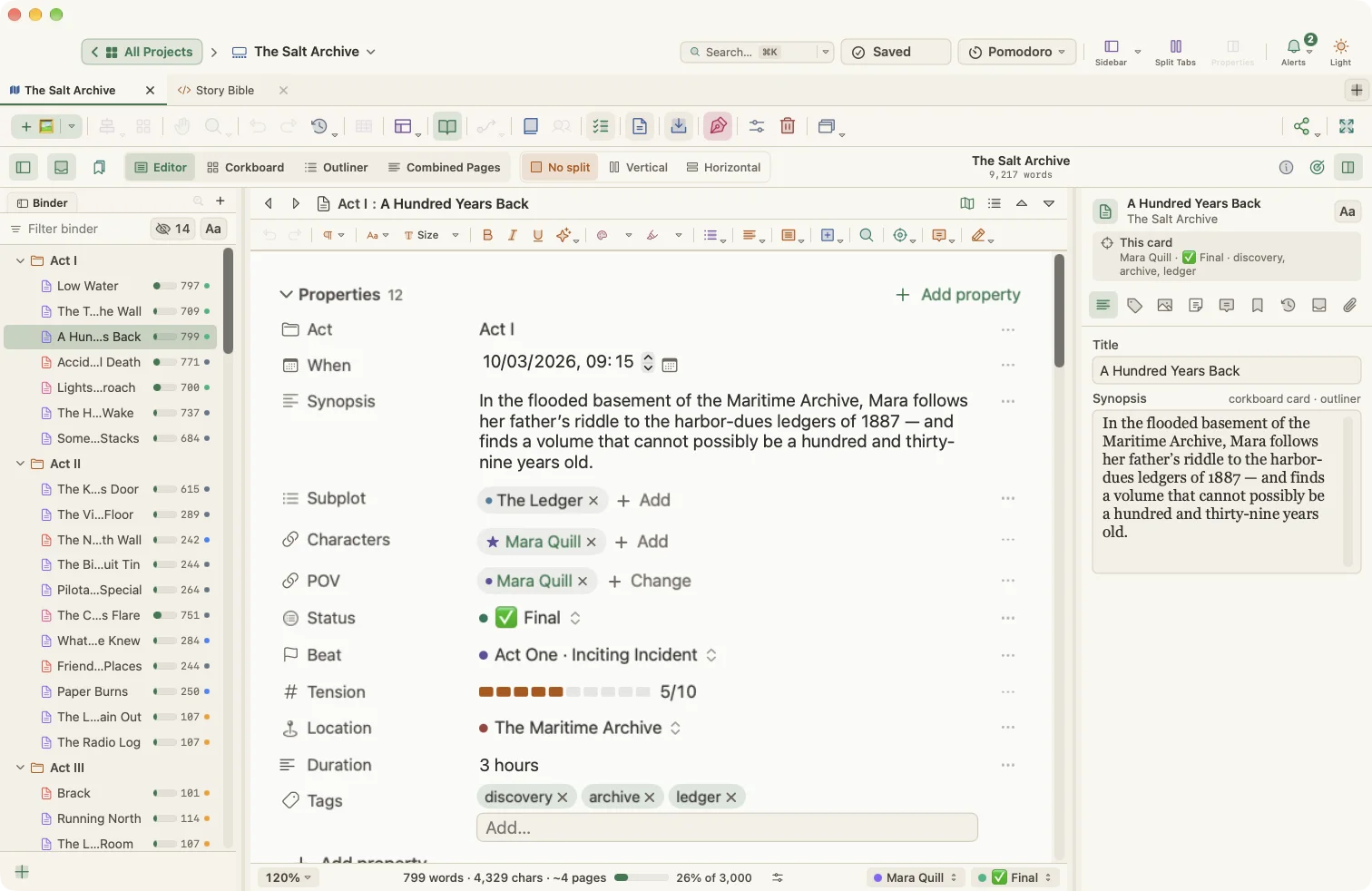
WriterMorph gives you three complementary safety nets for your text:
| Tool | What it does | When to use it |
|---|---|---|
| Revision Mode | Colors new text (and optionally marks deletions) as you type | Editing passes you want to see at a glance |
| Version history | Keeps a version of a card each time you save it | Going back after a change you regret |
| Snapshots | Saves a named copy of a document on demand | Before a big rewrite |
There is also Revert History for the planner as a whole.
Revision Mode
Revision Mode works like the revision colors used in publishing and screenwriting. Each pass gets its own color.
- Choose Format › Revision Mode and pick a level: First Revision, Second Revision, Third Revision, Fourth Revision or Fifth Revision.
- Type. New text appears in that level's color.
- Turn on Mark Deletions if you want deleted text to stay visible as struck-through text instead of disappearing.
- Choose None to stop marking.
Use Format › Revision Mode › Show Revisions to show all revisions, only one level, or none (hide the colors without removing them).
When you are done:
- Remove Revision Markings… lets you choose what to remove.
- Remove All Revision Marks clears them all from the document.
Tip: You can change the color of each revision level in Settings › Editing › Revisions.
Version history for cards
Every time you save a card in the card editor, WriterMorph keeps a version.
- Open the card and go to the editor's History (Versions) section.
- Pick a version to see it.
- Choose Compare to see what changed. Additions and deletions are highlighted, with a count of each.
- Choose Restore this version to bring it back.
To keep the list short, choose Keep 5 or Keep 10 to keep only the most recent versions.
Snapshots
A snapshot is a copy of a document's text at a moment you choose.
- Documents › Snapshots › Take Snapshot (⌘5) saves one right away.
- Take Snapshot with Title… (⇧⌘5) asks for a name, such as "Before rewrite".
- Show Snapshots opens the Snapshots tab of the Inspector.
In the Snapshots tab you can:
- Select a snapshot to read it.
- Choose Compare with Current to see the differences.
- Choose Restore to replace the current text with the snapshot.
- Rename snapshots so they are easy to find later.
Revert History
View › Revert History opens a panel of automatic revert points for the planner, taken as you save. Pick one and choose Restore to roll the planner back. Some operations, such as updating a project from an Obsidian vault, take a revert point first so you can always undo them.
Undo
Of course, Edit › Undo (⌘Z) and Redo (⇧⌘Z) work everywhere: in text and on the canvas.