 WriterMorph
Help › Getting Started
The WriterMorph Window
Find your way around the Home screen, the project sidebar and tabs, the top bar, panels, split views and saved layouts.
The Home screen
When no project is open, WriterMorph shows the Home screen with all your projects. Return to it at any time with File › All Projects (Home) (⇧⌘H).
The Home screen has:
- A search field: "Search projects and documents" finds text across all your projects. Results appear under Found in Your Documents.
- Jump Back In: the documents and cards you opened recently, across all projects.
- Start Something New: quick links to templates.
- Your Projects: a grid or list of projects, with filters for All, Favorites, Archived and Trash, and a sort menu.
- Writing Stats: cards for Today (words today against your daily goal), This Week, Writing Streak and Projects. You can also show Active Time, Active Streak, Due & Overdue, Next Deadline, Done This Week and Project Goal.
Right-click a project to open, rename, favorite, archive, recolor, change its icon, duplicate it, save it as a template, show it in Finder or move it to the Trash.
Tip: The View ▾ menu on the Home screen switches between grid and list, sets the card size, and chooses which sections to show. Set your daily word goal from the Today card.
Projects stored outside your library folder appear under Projects Elsewhere, where you can move or copy them into the library.
Inside a project
A project window has four main areas:
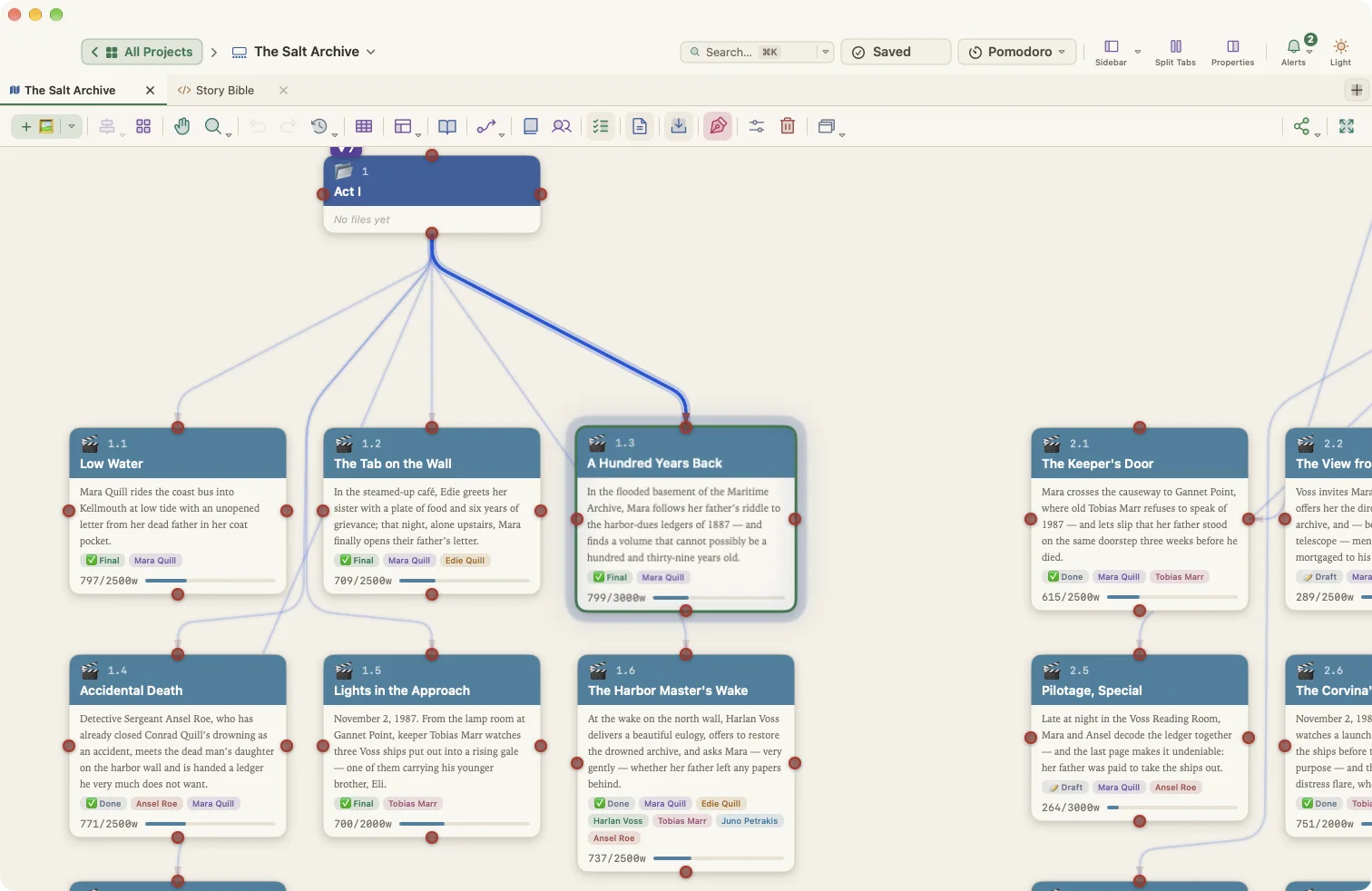
- The top bar: project switching, Save status, Split Tabs, view and search menus, the Pomodoro timer, task Alerts and a light/dark switch.
- The sidebar (⌥⌘S): every tab in the project, with folders and favorites.
- The tab area: the open tab: a Visual Planner, a manuscript, a note, a PDF and so on.
- Panels: the Outline, Properties, Writer Timeline, Task Manager and other panels that open beside or over the canvas.
Tabs
A project can hold many tabs. Create them from the sidebar's New ▾ menu:
| Tab | What it is |
|---|---|
| Visual Planner | A canvas of cards (⌘T creates a new one) |
| Manuscript | A standalone book with its own binder |
| Note and Document (rich text) | Rich text pages |
| Markdown | A Markdown source editor with a live preview, side by side or below |
| HTML page | HTML with a code editor and live web preview |
| PDF attachment… | A PDF viewer |
| Image… | An image viewer with fit, fill and actual-size modes |
| Web link | A web page with an address bar |
| Folder | A folder to group tabs in the sidebar |
Switch tabs with ⌃⇥ and ⌃⇧⇥. View › Show / Hide Tab Bar (⌥⇧⌘T) toggles the tab strip above the content.
Split view
Choose View › Split View (⌘\) or the top bar's Split Tabs to show two tabs side by side, for example your outline next to your manuscript. Right-click a tab and choose Open in Split View to pick which one.
Panels
Many tools open as panels: the Writer Timeline, Task Manager, Tension curve, Book Stats, Story Map, Compile, Project Settings and card previews. A panel can be centered, docked on the left or right, floated in its own window, or minimized.
The most common panels have their own shortcuts:
| Panel | Shortcut |
|---|---|
| Outline Panel | ⌘L |
| Properties Panel | ⌥⌘P |
| Writer Timeline | ⌥⌘T |
| Task Manager | ⌃⌘K |
View › Stats Panel and View › Revert History open the other planner panels.
Saved layouts
Arranged the window just the way you like it? Choose Window › Layouts › Save Layout… to save it, and pick it from Window › Layouts later.
Window › Float Window (Keep on Top) keeps the current window above other apps, which is handy when you are transcribing notes or watching a video.
Toolbars
Right-click any toolbar to choose Icon and Text, Icon Only or Text Only, to use monochrome icons, or to open Customize Toolbar…. In the customizer you can show, hide and reorder items for each bar: Planner, Editor, View, Top bar, Manuscript, Timeline and Composition.
Hidden a bar by accident? Use View › Toolbars, or Show All Bars and Items.
Switching projects
- Window › Switch Project jumps to another project.
- File › Open Recent lists recent projects.
- File › Favorite Projects lists your favorites.