 WriterMorph
Help › Planning
Card Properties and Custom Fields
Track anything on your cards with typed properties, an Obsidian-style property block, starter sets, bulk editing and custom card types.
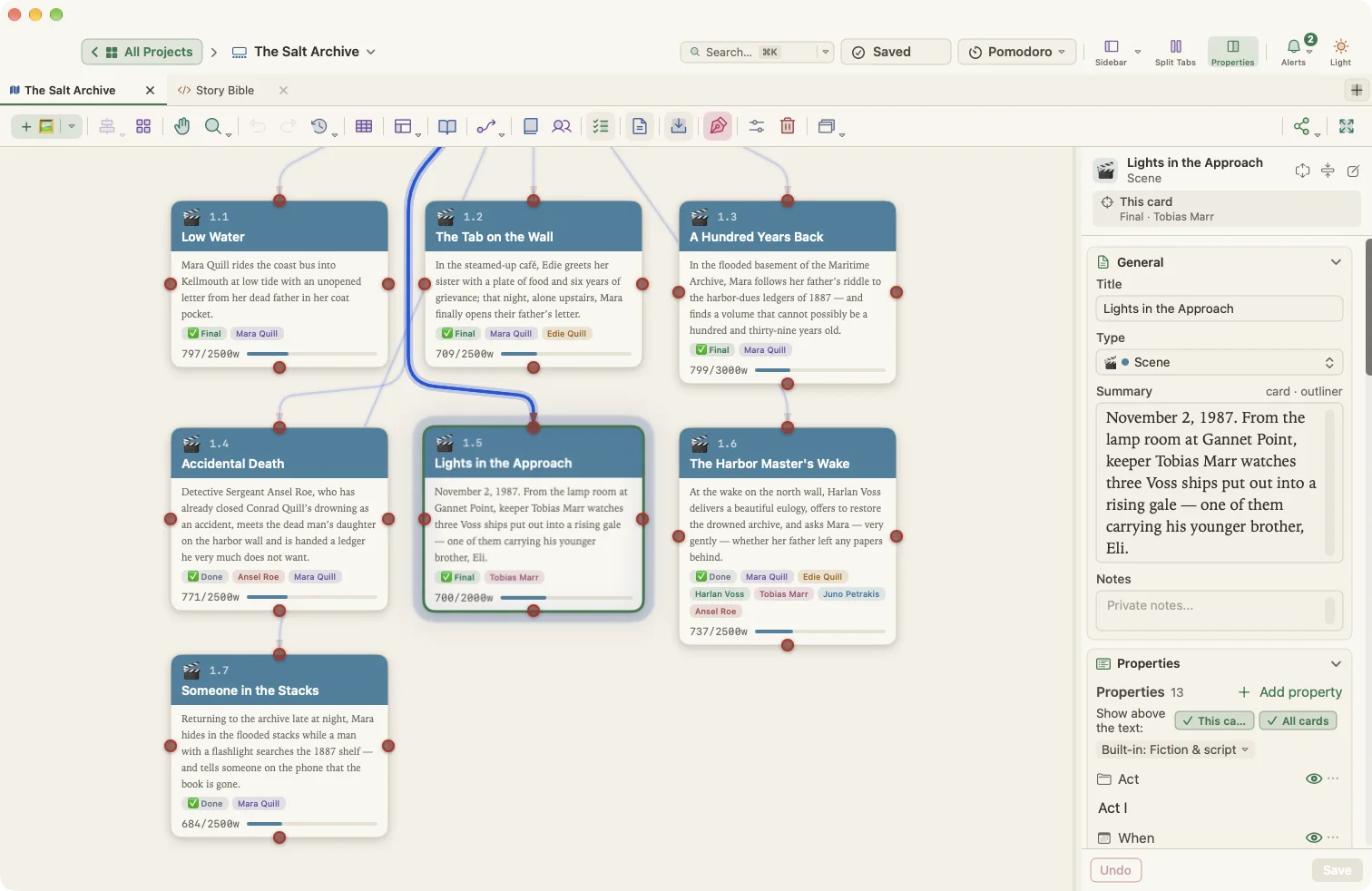
Every card can carry properties: small typed fields such as a status, a date, a point of view, a word target or anything you invent. Properties power the Outliner columns, the Writer Timeline, filters and search.
Where you see properties
- The Properties panel: choose View › Properties Panel or press ⌥⌘P. It shows the selected card's fields in sections such as General, Properties, Status & Tags, Appearance, Targets, Progress, Word stats, Media, Manuscript and Connections.
- The property block in the editor: a compact table above the text, in the style of Obsidian properties.
- The Inspector in Manuscript Mode, under Metadata (or Properties for cards).
- The Outliner, where properties can be shown as columns.
- On the card face: up to four properties can be printed on the canvas card.
Property types
| Type | Good for |
|---|---|
| Text | Short values such as a source or a code |
| Long text | Notes or descriptions |
| Number | Page counts, runtime, budget |
| Date | Deadlines, story dates |
| Date & time | Appointments, timed events |
| Checkbox | Done / not done |
| Select | One choice from a list |
| Multi-select | Several choices from a list |
| Link to cards | Linking a scene to characters, sources or other cards |
| List | A list of free values |
A property's type applies to every card that uses that name. If a value does not match the type, WriterMorph shows a warning and offers Convert value or Clear value. It never deletes a value silently.
Adding a property
- Select a card or open it in the editor.
- Choose Documents › Add Property (⌥⌘;) or click + Add property under the property block.
- Type a name. WriterMorph suggests names you already use.
- Pick a type, then enter the value.
When you define a property, you can decide whether it applies to all cards, to cards of one type, or only to this card. Each card keeps its own value.
The property block menu
Click ⋯ at the end of a row for:
- Find cards with this value
- Rename… (everywhere, or only on this card)
- Edit property…
- Clear value
- Hide from the text (the value stays in the Inspector)
- Remove from this card…
- Apply to all cards of this type, or to all cards
- Move up / Move down
- Delete property everywhere…
Tip: In Settings › Editing, choose whether the property block above the text is visible, collapsed or hidden.
Built-in fields
Fiction planners come with built-in fields such as Act, When, Synopsis, Summary, Subplot, Characters, POV, Status, Beat, Tension and Location. Character cards also get Role, Gender and Appears in. Non-fiction planners use friendlier labels, for example Summary instead of Synopsis and Date instead of When.
Starter sets
Starter sets add a ready-made group of properties and card types for a kind of writing. There are 34 sets in seven areas:
- Academic: Thesis / Dissertation, Research Paper / Journal Article, Literature Review, Lab Report, Research / Grant Proposal, Conference Talk / Poster
- Student: Essay / Assignment, Study Notes / Revision, Book Report, Group Project
- Teaching: Lesson Plan, Course / Module Design, Marking / Feedback
- Non-fiction: Non-Fiction Book, Memoir / Biography, Journalism / Feature Article, Blog / Newsletter, Travel Writing
- Work: Business Report, Proposal / Pitch, Technical Documentation, Meeting / Project Notes, Legal / Policy, Grant / Funding Application
- Creative: Novel: Scene Craft, Screenplay / Stage Play, Poetry, Short Story Submissions, Podcast / Radio Script, Worldbuilding, Comic / Graphic Novel
- Personal: Journal / Diary, Recipe Collection, Goals & Life Planning
To switch a whole planner to another kind of writing, choose Project › Convert Planner To and pick a set. Nothing is deleted; properties with the same name are kept.
You can also save your current properties as your own set and apply it to other projects.
Editing many cards at once
Select two or more cards. The Properties panel switches to Bulk edit:
- Fields where the cards share a value show it; fields that differ show "mixed".
- Change the fields you want. Each picker also offers Leave unchanged and None (clear).
- Choose Apply to update every selected card in one undoable step, or Discard.
Bulk edit covers the card type, status, color, POV, whether the cards appear in the manuscript, word-count settings and, for story projects, scene type, beat, tension, story time, place and era.
Custom card types
Open Project › Project Settings… (⌥⌘,), then Cards › Node Types. You can rename and recolor built-in types, duplicate a type, or create your own. Design… opens the type designer, where you choose:
- Appearance: an emoji or icon, card color, text color, and which built-in type it behaves like.
- Panels & fields: which sections appear for this type.
- Property template: the properties every new card of this type starts with.
Ready-made card type sets are available for novels, scripts, academic writing, students, lesson plans, non-fiction, business reports and poetry.
Story categories
Story projects can track more than characters and places. In Project Settings, add a category such as Factions, Themes, Objects, Subplots, Eras or Mood. A category becomes a single- or multi-select property on your cards, appears in the Properties panel and search, and can have its own profile card for each item.