 WriterMorph
Help › Productivity
Search and Navigation
Find anything in a project or across all projects, search inside documents, filter by property and move quickly between documents, tabs and views.
Search the whole project
Choose Edit › Find › Search Project… or press ⌘K. The Search Project window searches the open project as you type.
Use Look in to narrow the results:
| Scope | Searches |
|---|---|
| All | Everything below |
| Tabs | Tab titles |
| Cards | Card titles and synopses |
| Text | Card body text and notes |
| Properties | Property values. Type name: value, for example status: draft |
Each scope shows how many results it has. Click a result to jump to it. Press Esc to close the window.
Search across all projects
On the Home screen, use Search projects and documents to search every project in your library at once. Results appear under Found in Your Documents.
Find and replace in a document
- ⌘F: Find…
- ⌥⌘F: Find and Replace…
- ⌘G / ⇧⌘G: next / previous match
- ⌘E: use the selection for Find
The find bar can match case, match whole words or use regular expressions, and it can search the current document, the selection or the whole project.
Filter the Outline and the binder
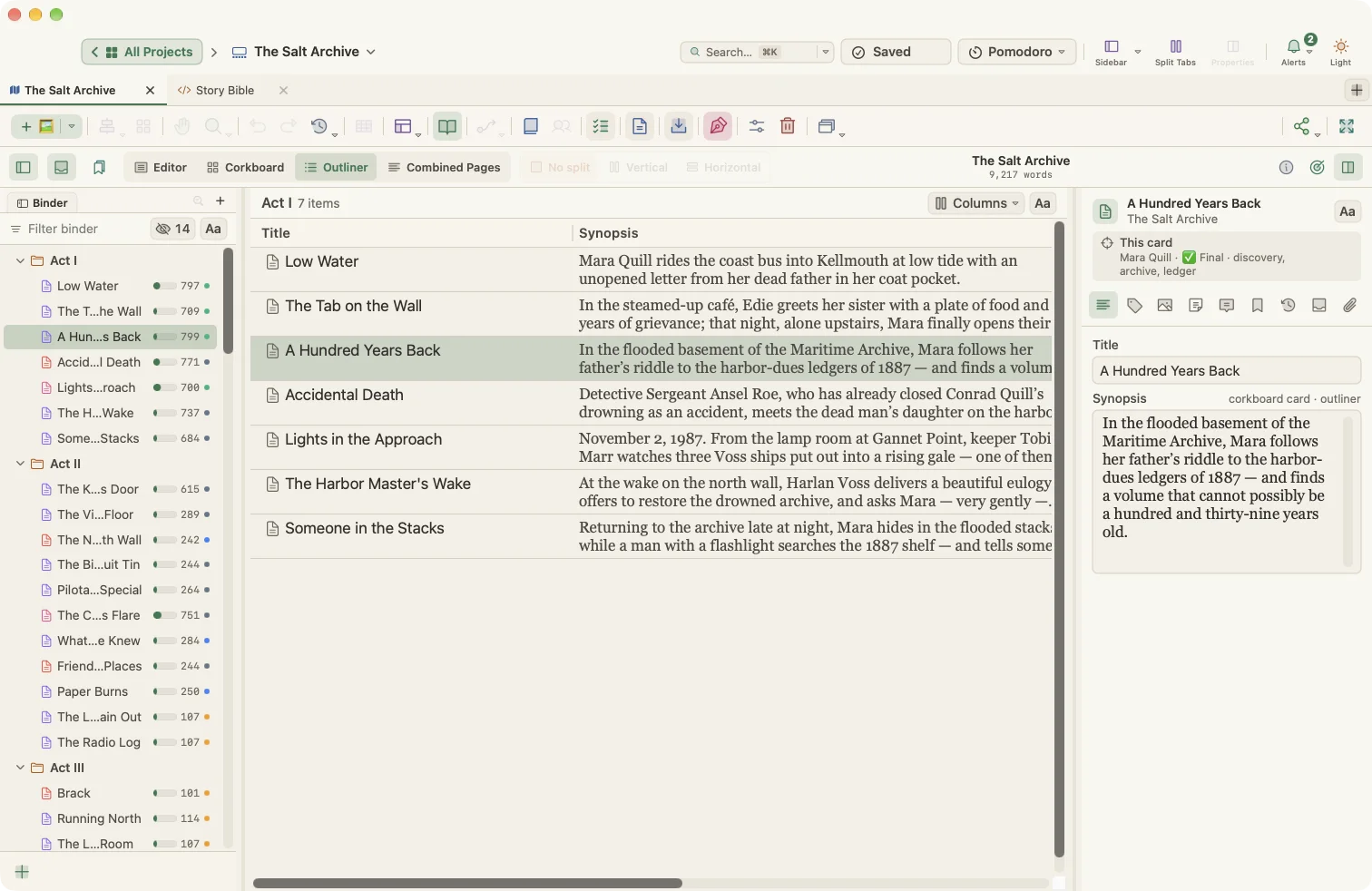
- In the Outline panel (⌘L), type in the filter field to show only matching cards. Property filters such as
pov: Maraortype: characterwork here too. - In Manuscript Mode, search the binder, then choose Save Search as Collection… to keep the search as a collection that updates itself.
- In a property's ⋯ menu, choose Find cards with this value to select every card that shares it.
Search the Writer Timeline
In any Writer Timeline view, press ⌘F to search scenes. Press Esc to close the search.
Moving around
| Action | How |
|---|---|
| Next / previous document | ⌥⌘↓ / ⌥⌘↑ |
| Reveal the current document in the binder | ⌥⌘R |
| Next / previous tab | ⌃⇥ / ⌃⇧⇥ |
| Jump to a top-level document | Navigate › Go To |
| Move focus to the binder / editor | ⌃⌘B / ⌃⌘E |
| Open an Inspector tab | Navigate › Inspect |
| Show the selected card on the canvas | Navigate › Show Selected Card on Canvas |
| Fit the canvas to the window | Navigate › Fit Canvas to Screen or ⌘0 |
| Go back to all projects | Navigate › All Projects (Home) or ⇧⌘H |
| Open a card in a preview window | Navigate › Open Quick Reference (⌥⌘Space) |
Links between documents
- Insert › Link… (⌥⌘L) links selected text to a web address. The editor can also link to another card or document, or to a file.
- The Bookmarks tab of the Inspector keeps documents, files and web pages related to the current document.
- Project › Show Project Bookmarks (Favorites) (⇧⌘B) lists your favorite tabs and documents.
Keywords
Project › Show Project Keywords (Tags) (⇧⌘K) lists every keyword (tag) in the project. Keywords also appear as colors on the corkboard and as a column in the Outliner.