 WriterMorph

Help › Getting Started
All help topics
WriterMorph on iPad
WriterMorph for iPad: what you need, one purchase for Mac and iPad, the same projects through iCloud Drive, the keyboard and Apple Pencil, and what stays on the Mac.
Coming soon: WriterMorph for iPad is in testing and is not on the App Store yet. This page describes it ahead of its release.
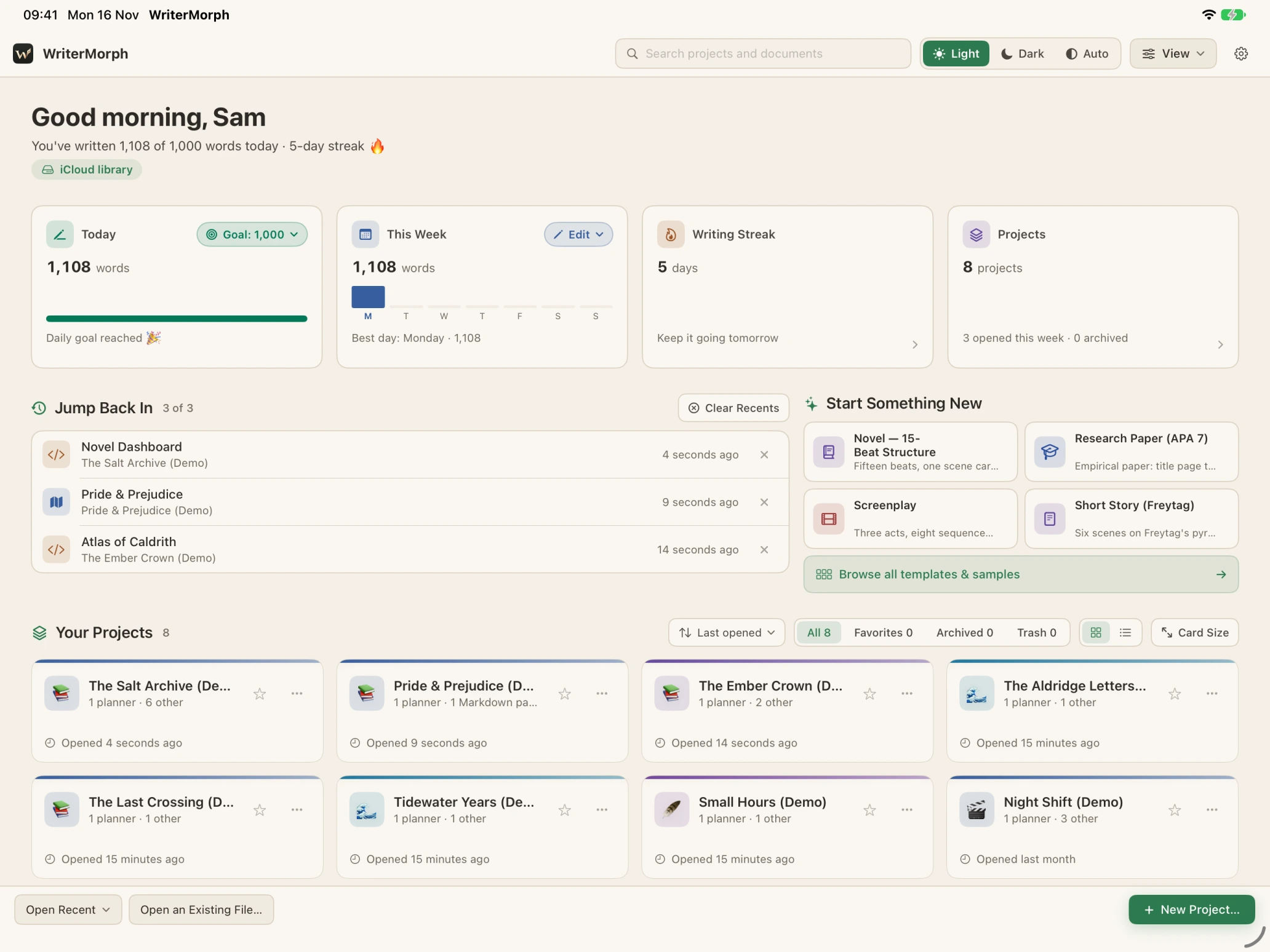
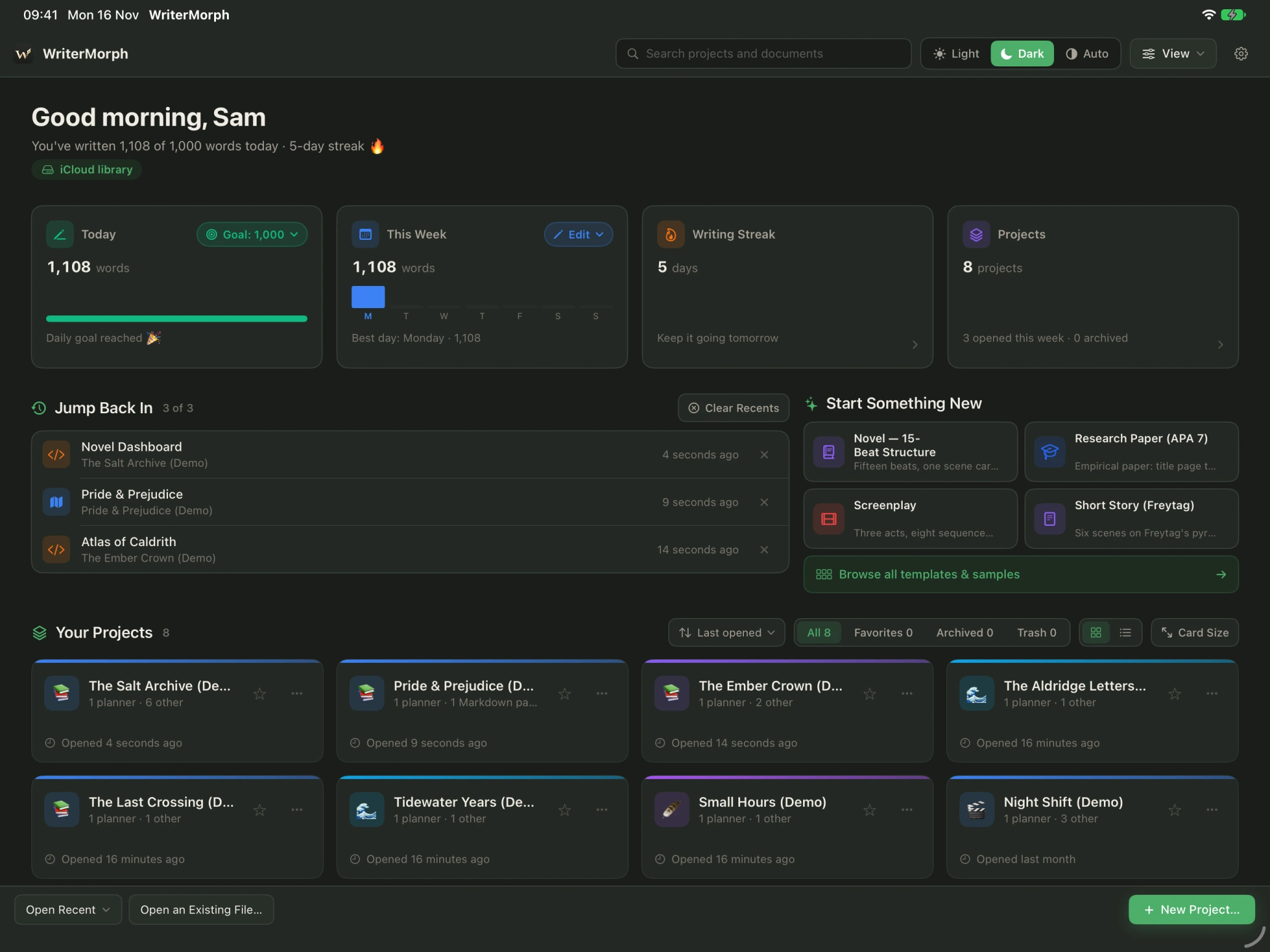
WriterMorph for iPad is WriterMorph made for the iPad's screen, keyboard and Apple Pencil. It opens the same .wmorph projects as the Mac, so you can plan on the canvas at your desk and carry on writing in the armchair.
What you need
- An iPad with iPadOS 18 or later. There is no iPhone version.
- To share projects with your Mac: iCloud Drive turned on, with the same Apple Account on the Mac and the iPad.
- For Dactylo and the keyboard shortcuts: a Magic Keyboard or any hardware keyboard.
One purchase for Mac and iPad
WriterMorph is one app on the App Store, with a Mac version and an iPad version. The same App Store link opens the right one on each device.
- If you have bought WriterMorph on your Mac, it is unlocked on your iPad too. If the iPad does not show it at once, choose Restore Purchases.
- On the iPad, the License window is under the ? menu in the top bar › About WriterMorph › License…. It has Restore Purchases and Redeem Code.
- The trial works as on the Mac: 30 days of use with every feature, then 10 days to read and export. See Trial and purchase.
Your projects on the Mac and the iPad
The iPad uses the same iCloud Drive library as WriterMorph for Mac.
- On the Mac, store your library in iCloud Drive: Settings › General › Library › Store Library in iCloud Drive…. See iCloud Drive.
- On the iPad, sign in to iCloud with the same Apple Account and turn on iCloud Drive.
- Open WriterMorph on the iPad. Your projects are listed on the Home screen; a project that is not on the iPad yet downloads when you tap it.
When the Mac saves a project, the iPad loads the newer copy before it opens it. If the same text changed on both devices, WriterMorph never overwrites it silently: it stops and asks, and keeps the version you did not choose as a backup.
Without iCloud Drive, projects stay on the iPad, in Files › On My iPad › WriterMorph.
Tip: Let iCloud finish syncing before you switch from one device to the other, and avoid editing the same scene on both at the same moment.
What you can do on the iPad
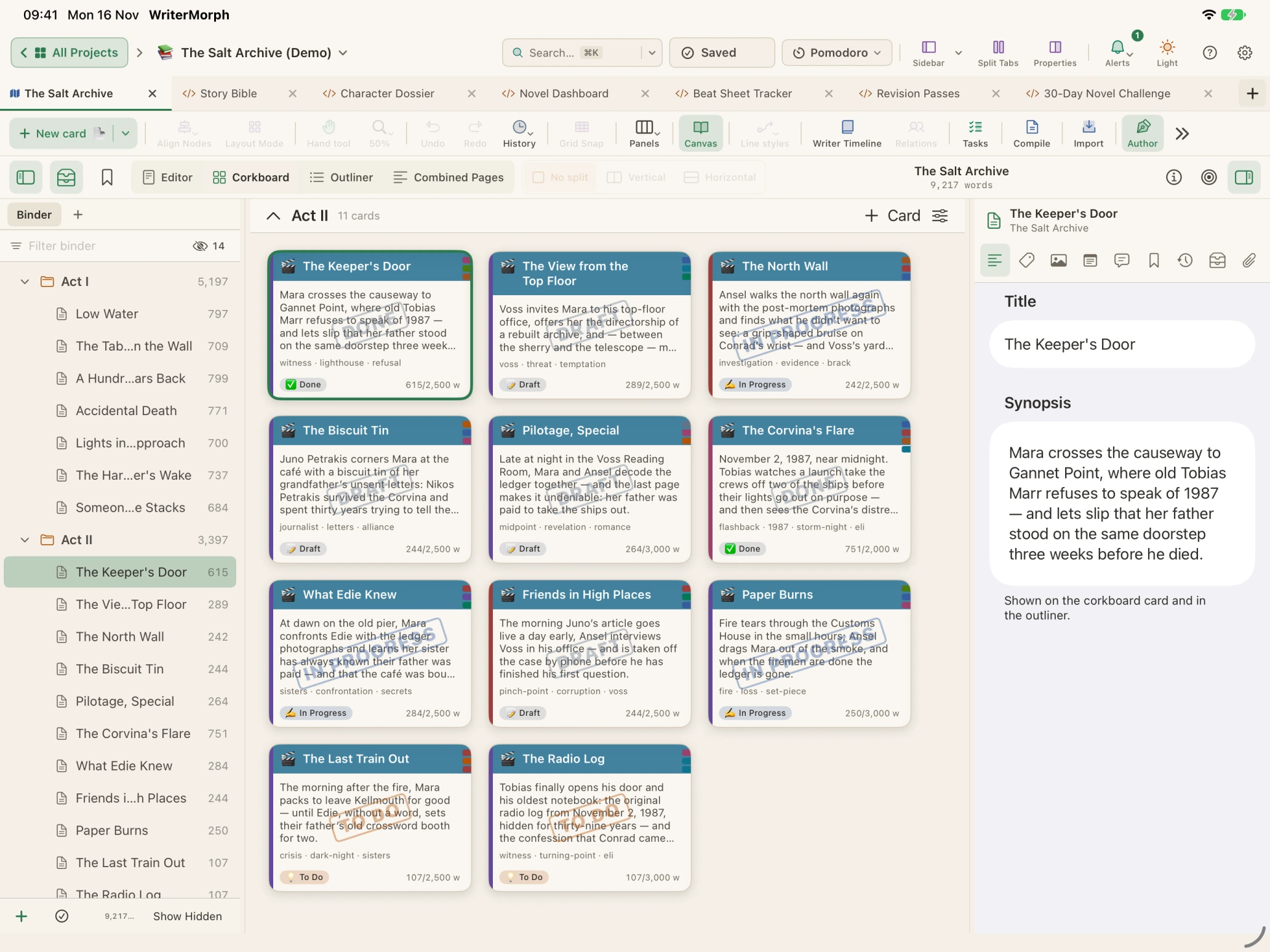
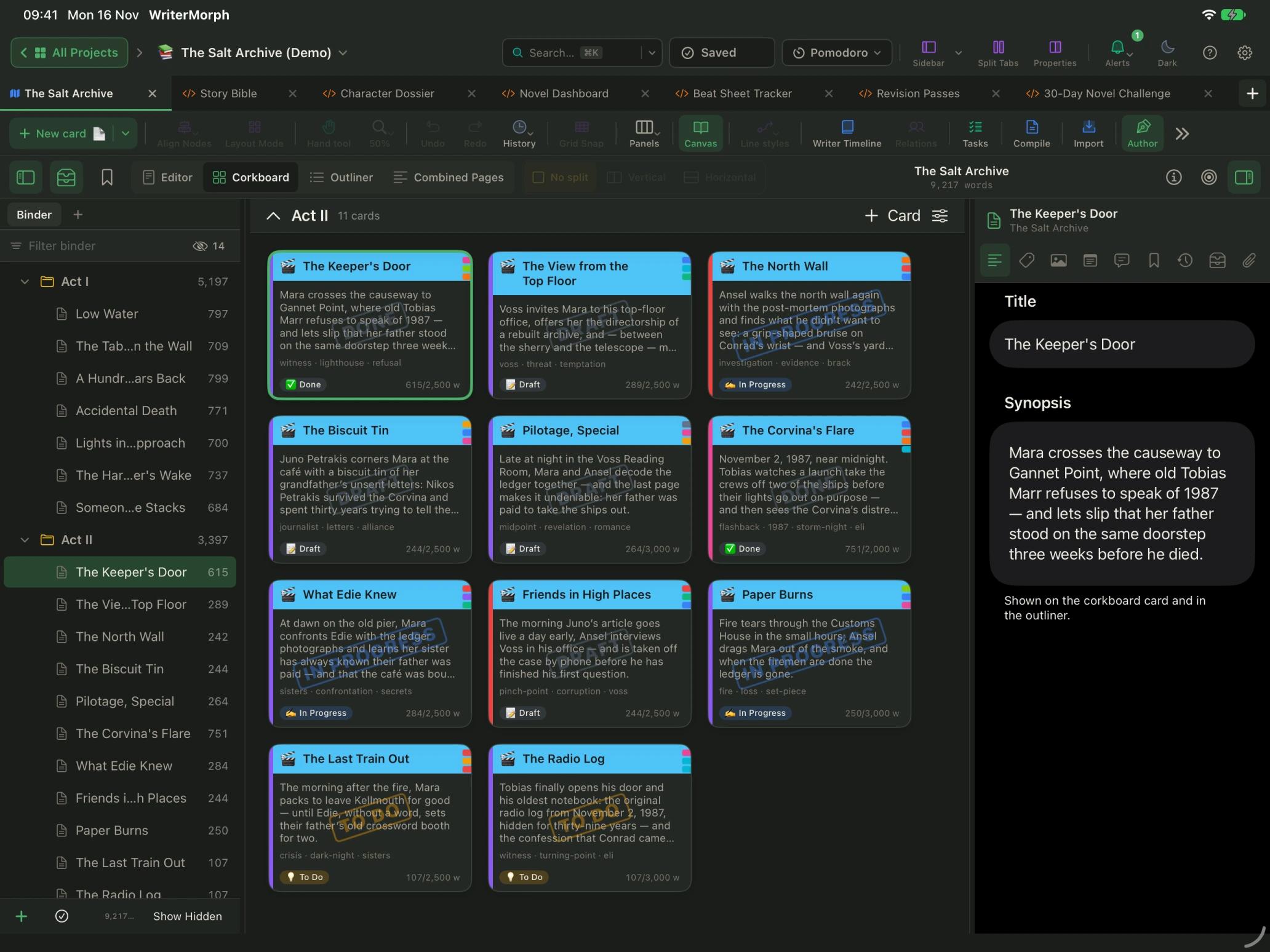
- Write: the binder, the editor and the inspector with synopsis, notes, targets, status and snapshots. See The Editor.
- Plan: the plot canvas, the Corkboard and the Outliner, and the Writer Timeline.
- Focus: Composition Mode, full screen, with Focus, typewriter scrolling and the bar that hides while you type.
- Dactylo: the typewriter, with the recorded key, space and carriage-return sounds. It needs a hardware keyboard. See Dactylo.
- Compile: PDF, Word (DOCX) and EPUB, sent to the share sheet or saved to Files. See Compile and Export.
- Extras: HTML pages and Live Pages open on the iPad as well.
Keyboard, trackpad and Apple Pencil
- With a hardware keyboard, the keyboard shortcuts work as on the Mac. Hold ⌘ to see them.
- A trackpad or mouse works everywhere, in landscape and portrait, in Split View and with Stage Manager.
- Apple Pencil writes by hand with Scribble, in the editor and in every text field.
What stays on the Mac
- AI Connections: letting an AI app such as Claude Code, Codex or LM Studio into an open project is a Mac feature. See AI Connections.
- Some advanced Live Pages features, such as collection queries and file attachments, say "isn't available on iPad yet".
- New tabs and folders in a project's workspace are made on the Mac.
Everything else you write, plan and compile on the iPad is saved in the same project and appears on your Mac.