 WriterMorph

Help › Writing
All help topics
Second Read
Read your draft again with Second Read: more than thirty reports on sentences, repeats, pacing, dialogue and slips, Word Explorer, your own House Style rules and Safe Fixes with a preview. No AI, nothing leaves your device.
Second Read reads your text the way a careful first reader would and marks what is worth a second look: sentences that run long, words you lean on, stretches where nothing but narration happens, a doubled word, a missing capital. Every finding comes with the reason, and you decide what to change.
It is rules and word lists that run on your own Mac or iPad. There is no AI in it, your text is never sent anywhere, and nothing in your book changes unless you choose a fix and see it first.
Open Second Read
- Project › Second Read… (⌥⇧⌘R), or the Second Read button in the toolbar.
- In the editor, right-click and choose Second Read This Document or Second Read the Selection.
- In Compile Studio, Before Compile… opens it on the book's checklist.
The window stays above your project, so you can click a finding and see it in the editor while the list stays in view. Drag its edges to make it larger; it opens where you left it. Esc closes it.
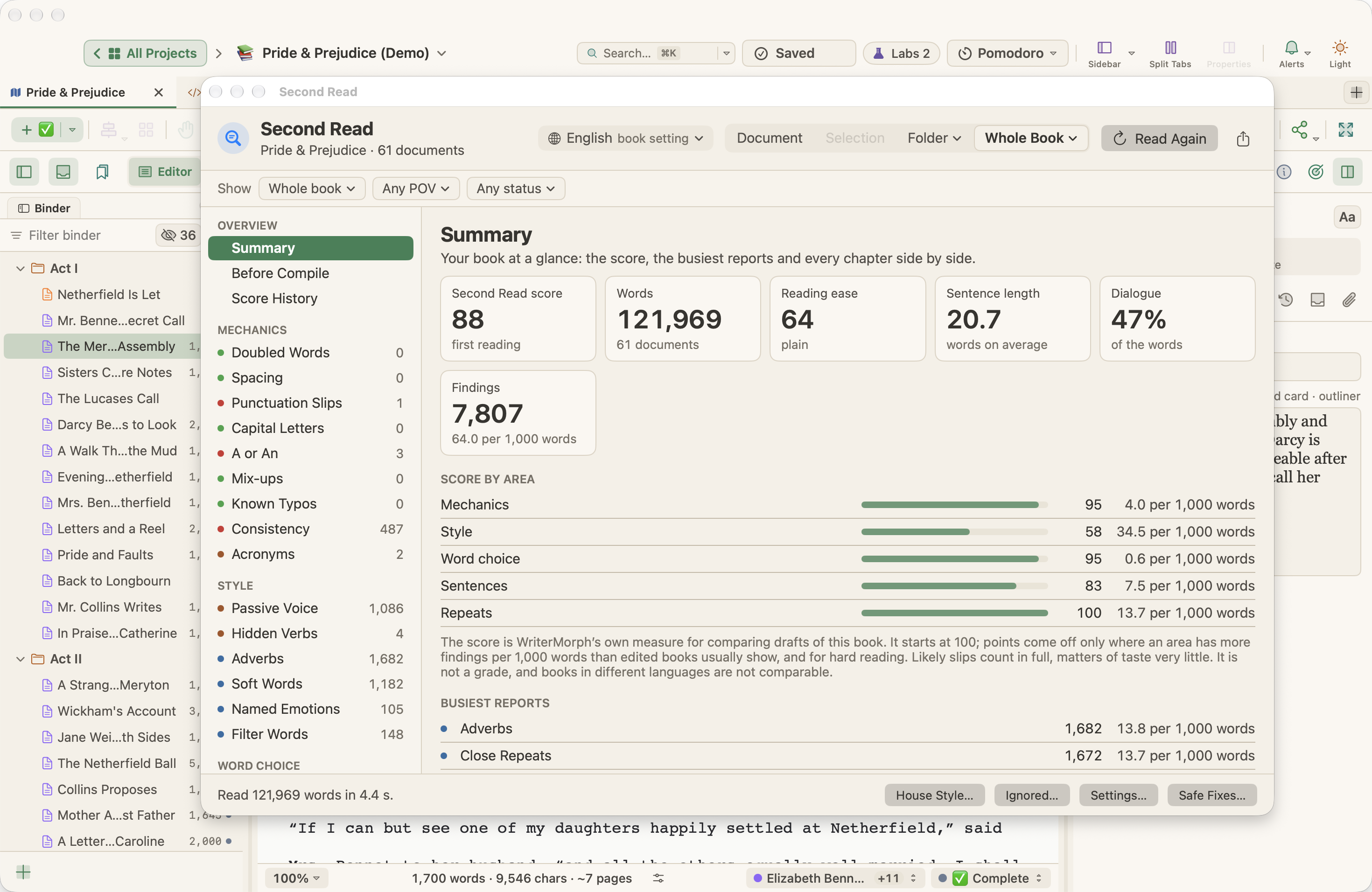
At the top, choose what to read:
| Choice | What is read |
|---|---|
| Document | The document in the editor you are working in |
| Selection | The text you selected |
| Folder | A folder or chapter, with everything inside it |
| Whole Book | The book in binder order, the documents that are part of the manuscript |
Read Again reads the text once more after you have edited it. The Show bar under the header narrows every report to a chapter, a point of view or a status, without reading again.
The language chip beside the title shows which language the reading used and where it came from: your choice, the book's own setting or the text itself. Click it to choose another.
The summary and the score
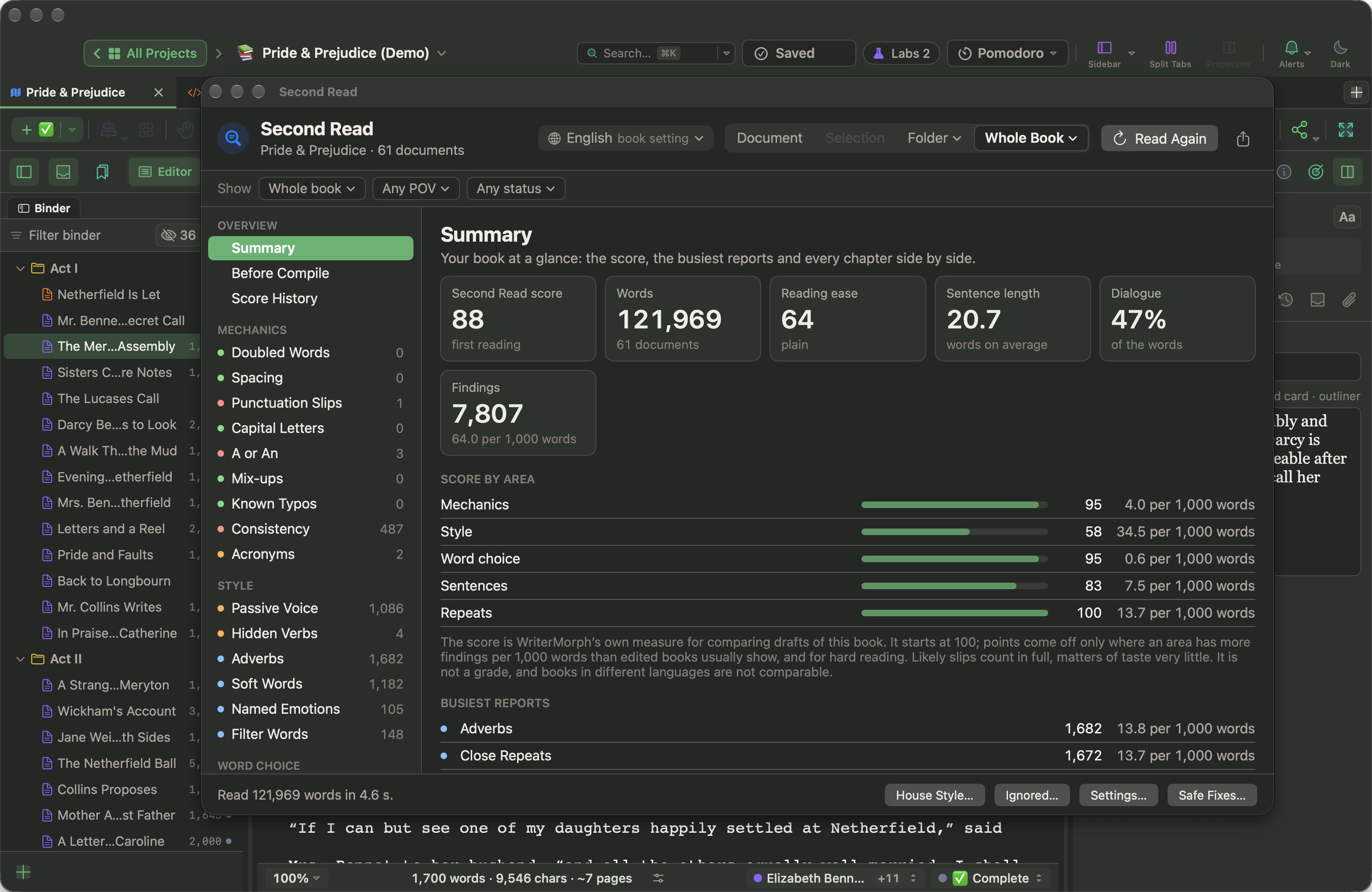
The Summary shows the book at a glance: the Second Read score, the number of words, reading ease, the average sentence length, how much of the book is dialogue and the number of findings. Below them are the score by area (mechanics, style, word choice, sentences and repeats), the busiest reports and every chapter side by side.
The score is WriterMorph's own measure for comparing drafts of the same book. It starts at 100, and points come off only where an area has more findings per 1,000 words than edited books usually show, and for hard reading. Likely slips count in full, matters of taste very little. It is not a grade, and books in different languages are not comparable. Score History keeps every reading, with a chart and what changed since the one before.
Reports and findings
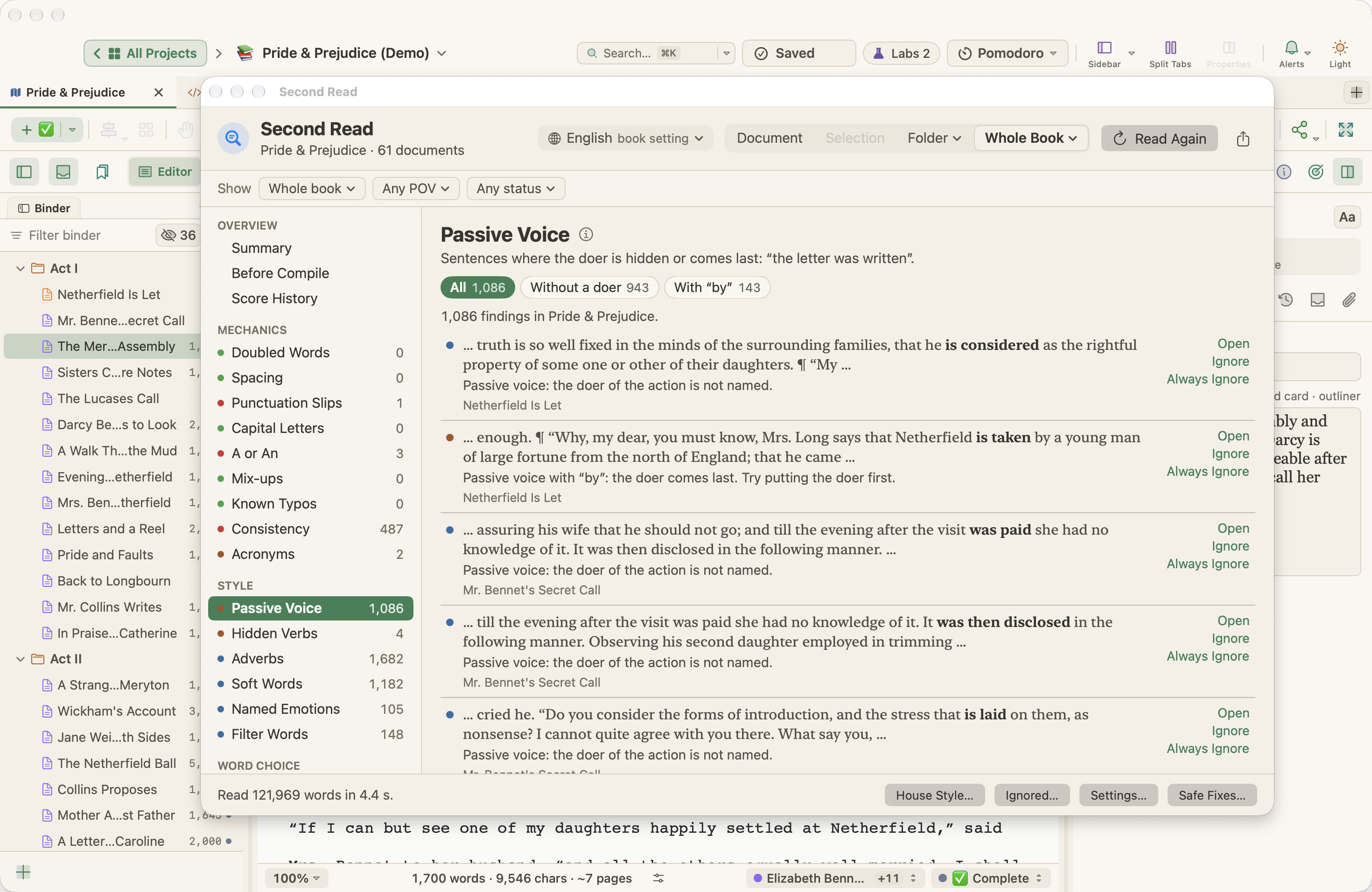
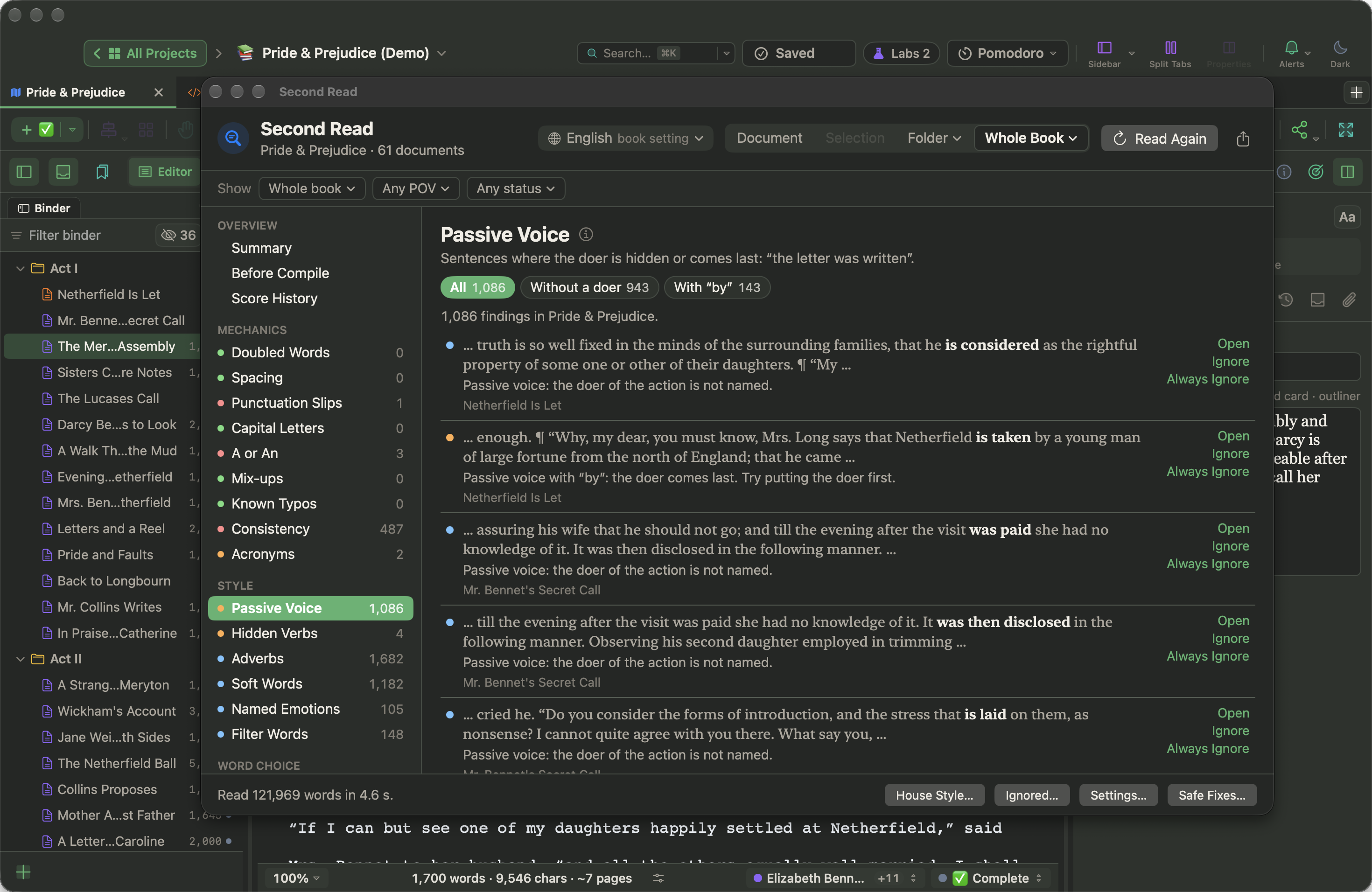
The list on the left groups the reports:
- Mechanics: Doubled Words, Spacing, Punctuation Slips, Capital Letters, A or An, Mix-ups (could of, more then), Known Typos, Consistency (one spelling for a word, British or American, -ise or -ize) and Acronyms.
- Style: Passive Voice, Hidden Verbs (made a decision for decided), Adverbs, Soft Words, Named Emotions and Filter Words.
- Word choice: Leaned-on Words, Worn Phrases, Say It Once, Wordy Phrases, Office Speak, Sound-alikes, Alliteration, Senses, Pronouns and Transitions.
- Sentences and flow: Readability, Sentence Length, Heavy Sentences, Sentence Starts, Close Repeats, Pacing and Dialogue.
A coloured dot shows how sure a finding is: red for an almost certain slip, orange for something often worth changing, blue for a matter of taste. The number beside each report is how many findings it has.
Each finding has three buttons:
- Open shows it in the editor.
- Ignore hides this one finding.
- Always Ignore hides the word in this report everywhere in the book.
Ignored… at the bottom of the window lists what you have ignored and brings any of it back. Settings… sets how close repeated words and phrases must be to count, what counts as a chapter, and which documents are read.
From a finding to the page
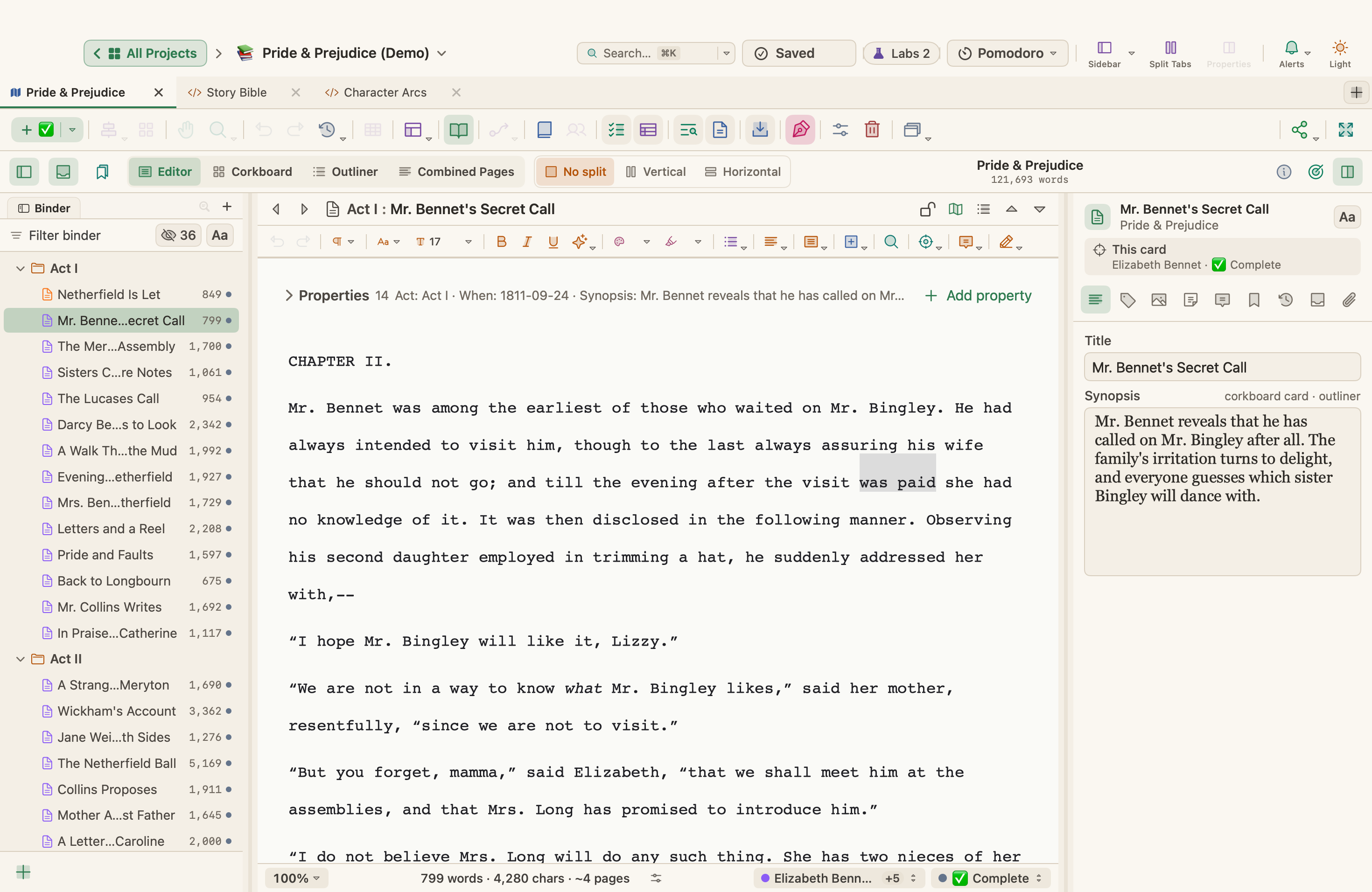
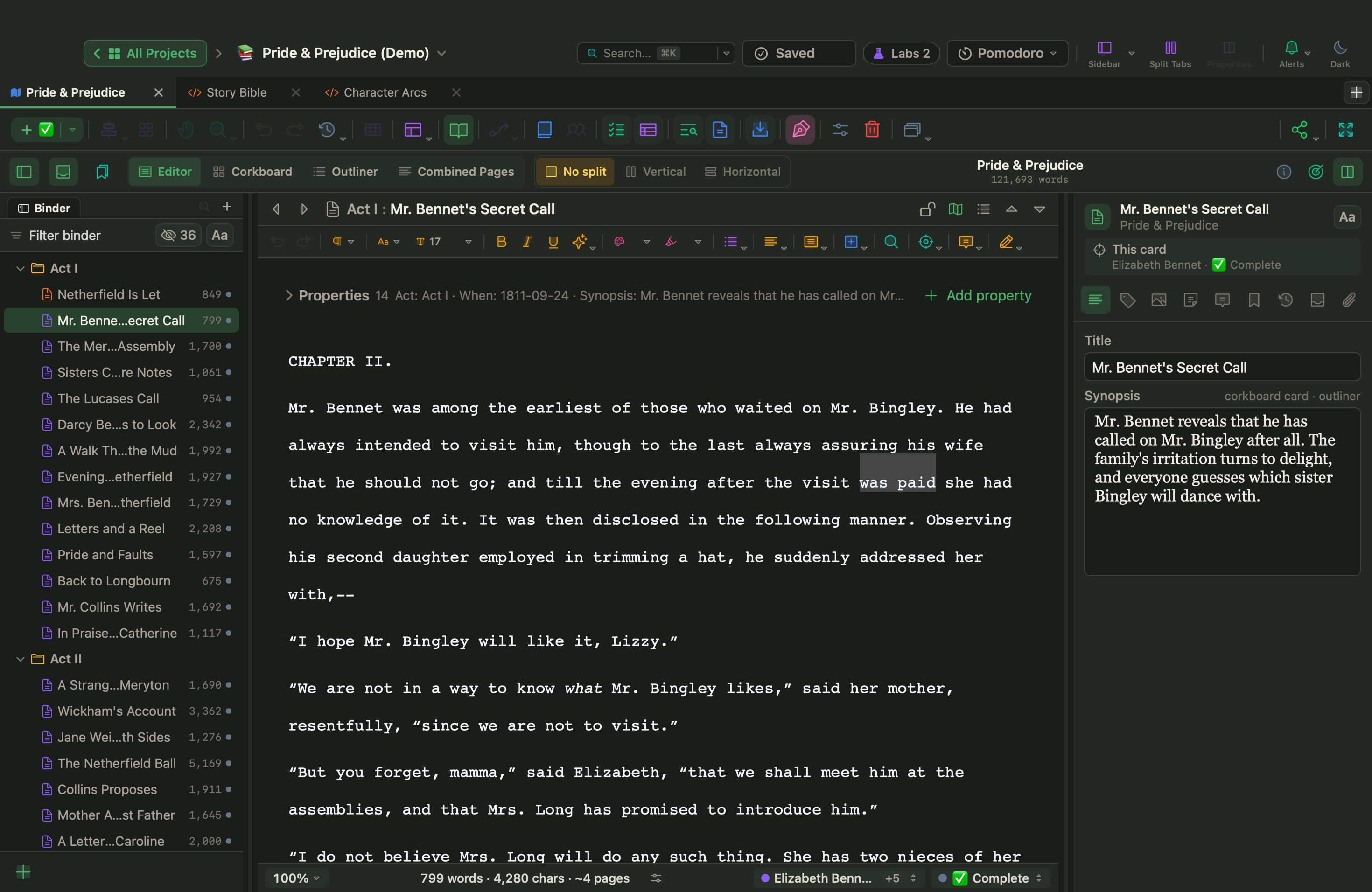
Click Open, or the finding itself, and the editor opens that document and selects the exact words. Change them there; Read Again updates the reports.
Charts: pacing, dialogue and the senses
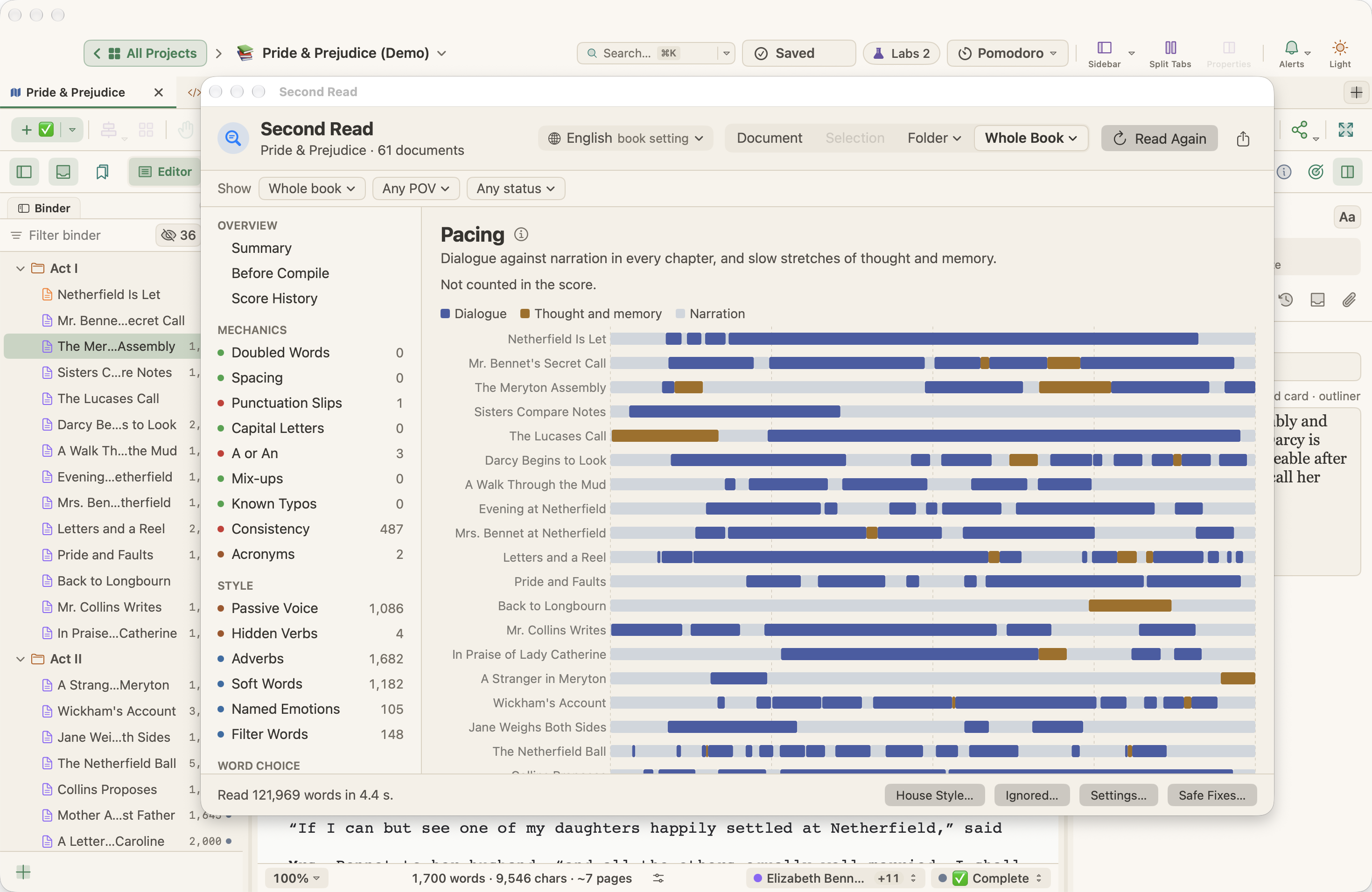
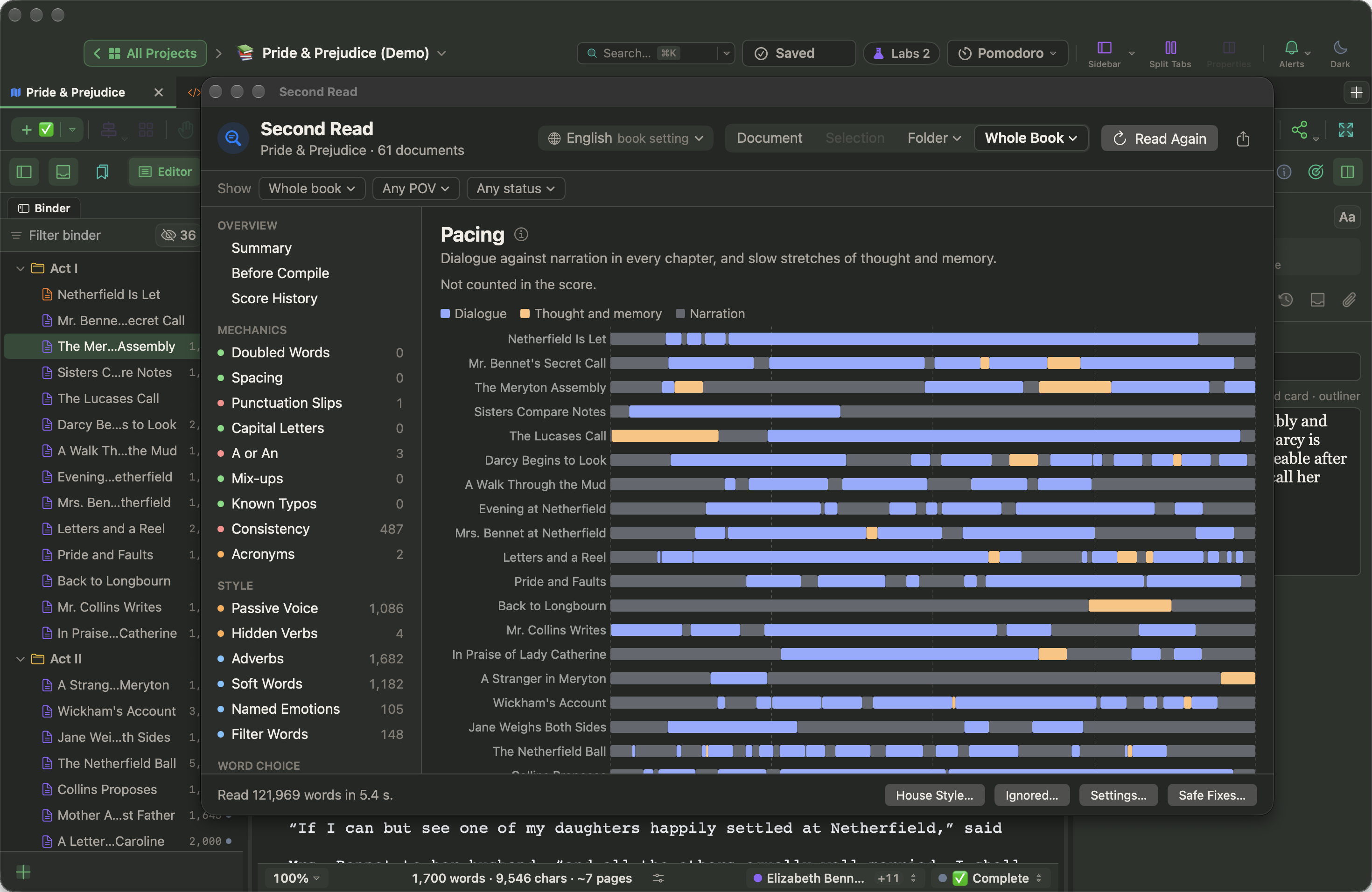
Pacing draws each chapter as a strip of its paragraphs: dialogue, thought and memory, and narration. Long stretches of one kind stand out. Dialogue shows how much of each chapter is speech, Sentence Length how long the sentences run, and Senses (for books in English) which of the five senses each chapter calls on. Click a chapter in a chart or a table to narrow every report to it.
Word Explorer
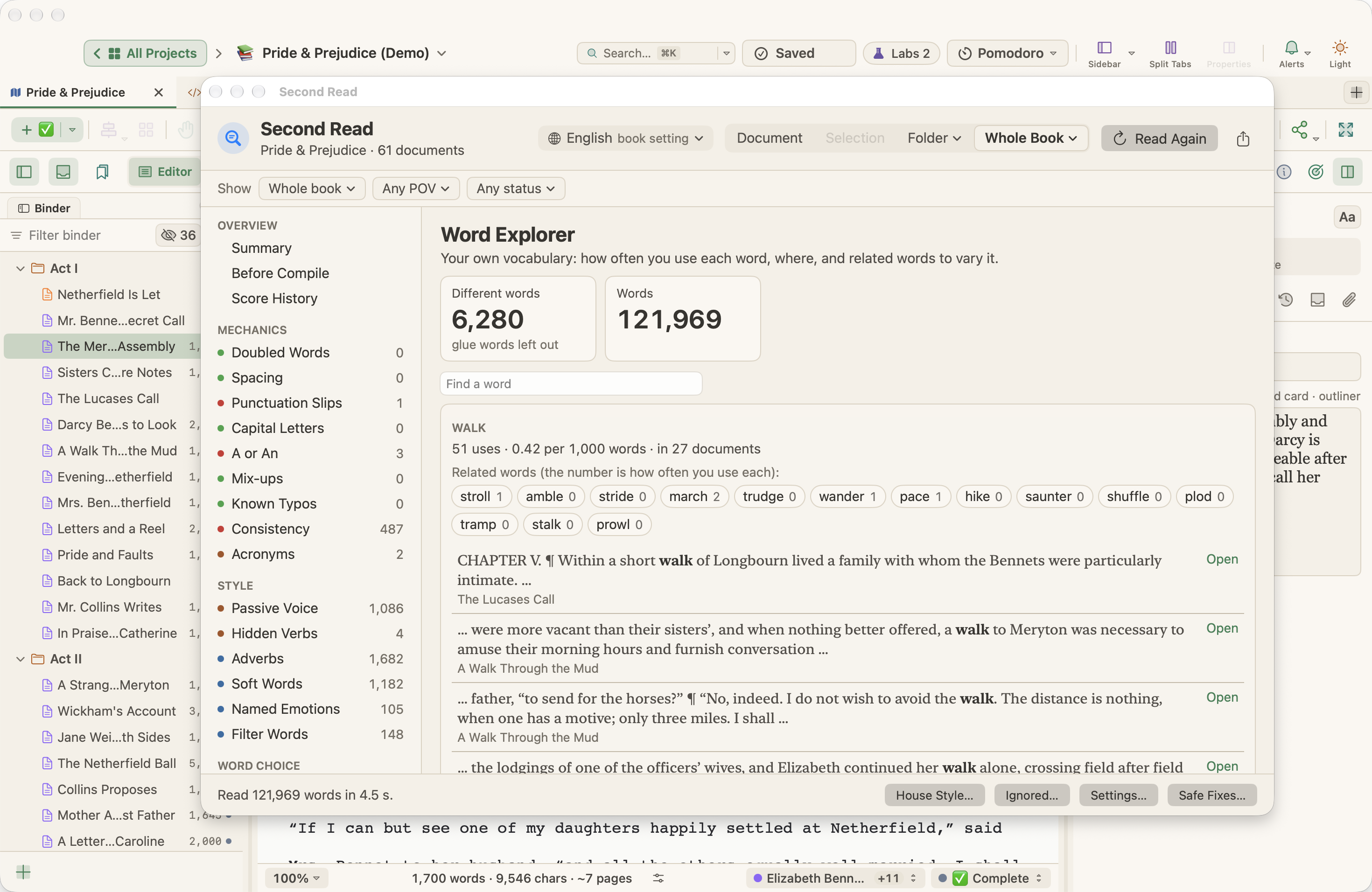
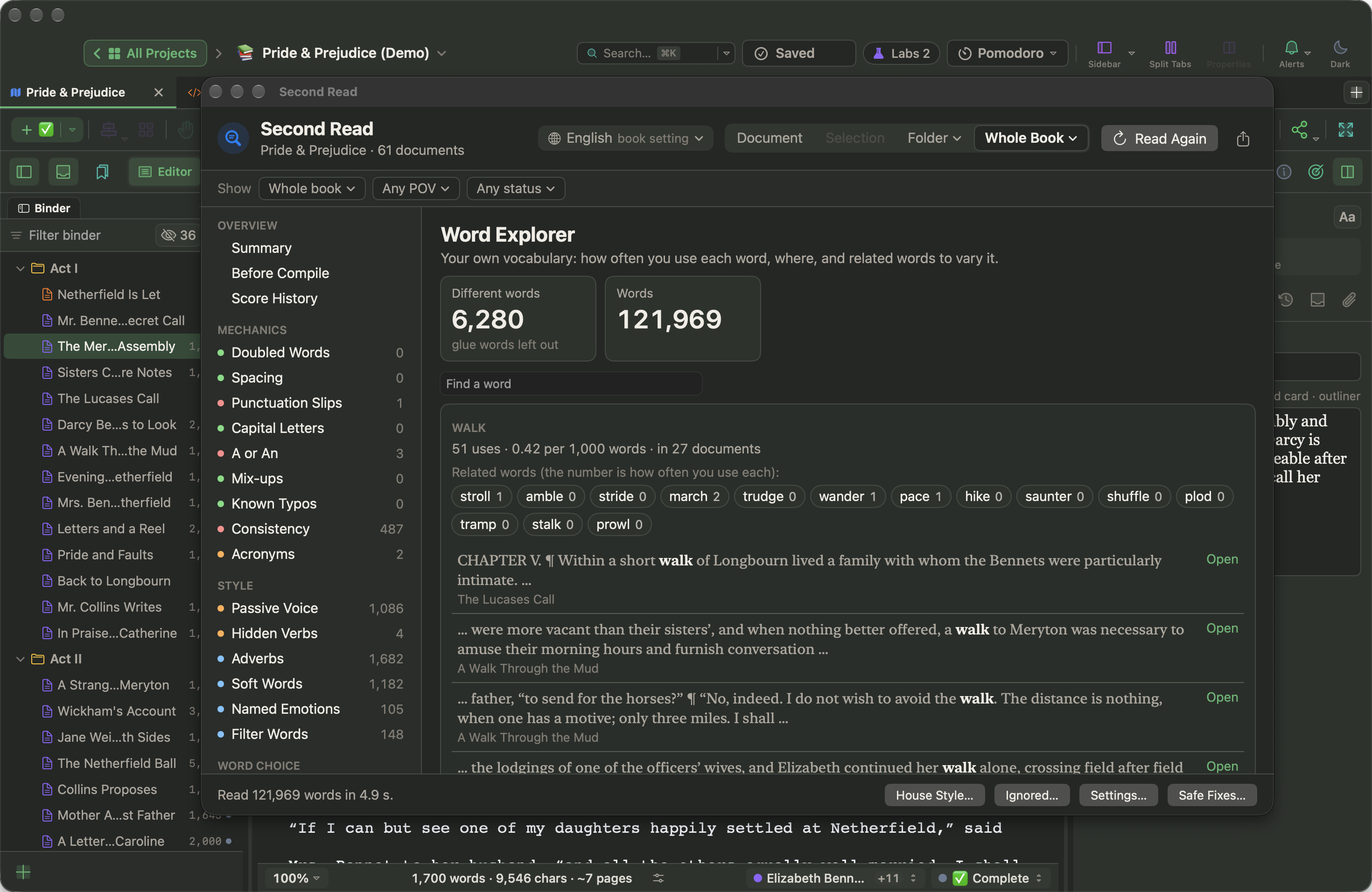
Word Explorer lists the words you use most, without the small words every sentence needs: how many times, how often per 1,000 words and in how many documents. Choose a word to see every sentence that uses it, each with Open. For books in English it also shows related words, such as glance, gaze and peer for look.
House Style
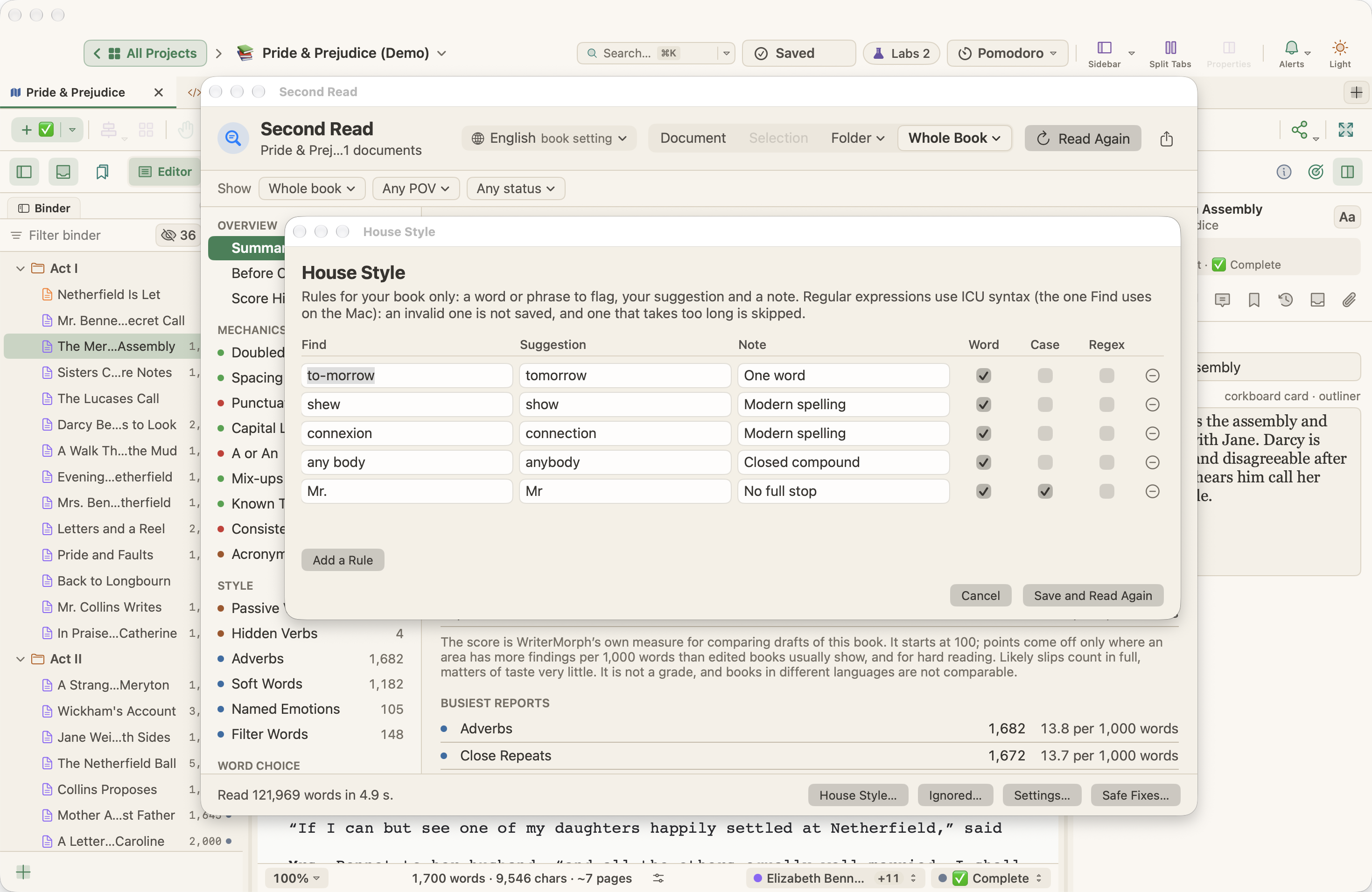
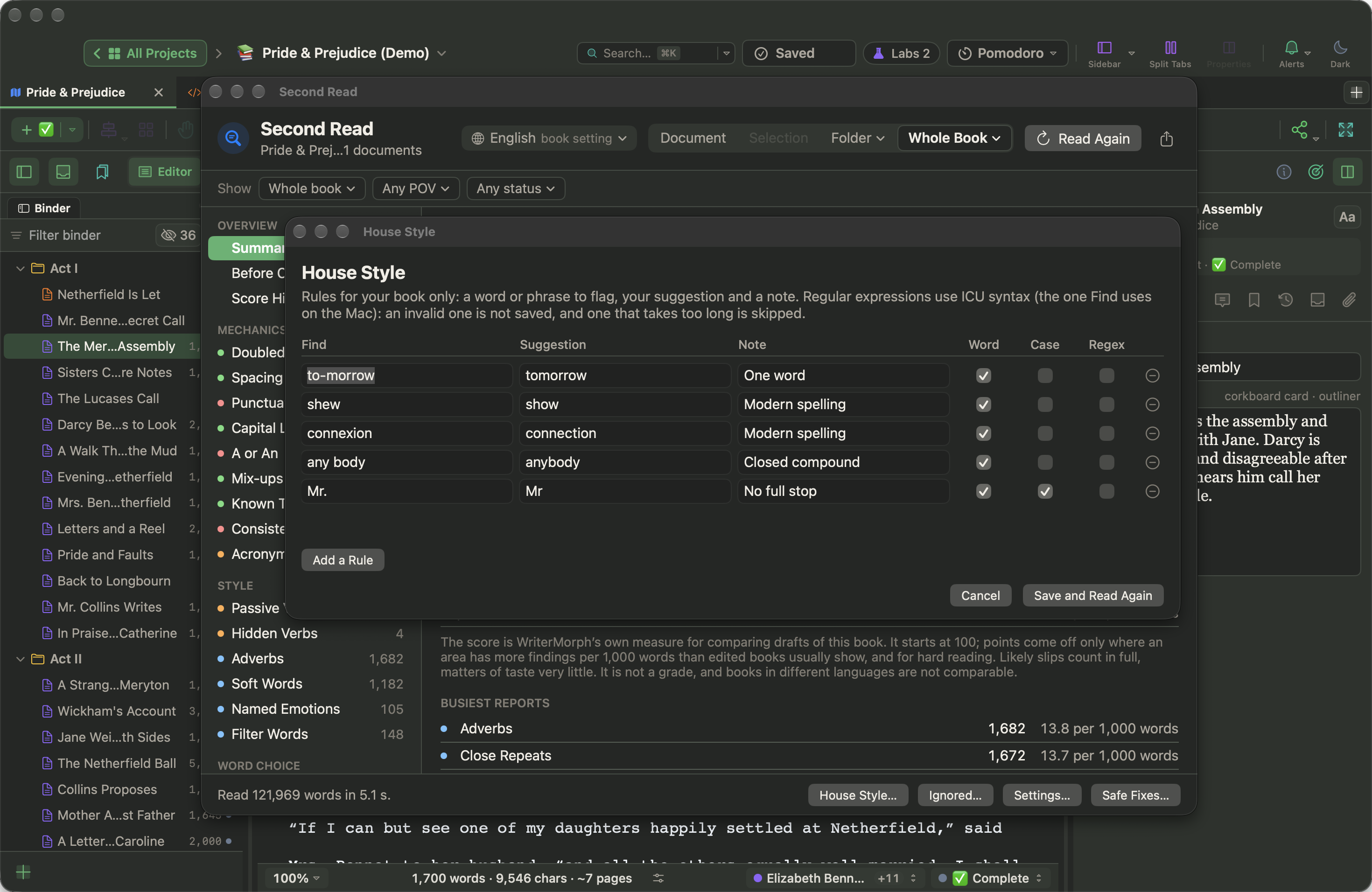
House Style… holds your own rules for the book: a word or a phrase to flag, the form you want instead and a note. For example: to-morrow → tomorrow, "One word", or Mr. → Mr, "No full stop". Tick Word (whole words only) or Case (match case) where it matters, or Regex for a regular expression. A regular expression that is not valid is not saved, and one that would take too long is skipped and named.
Second Read lists every place that breaks a rule, in its own report. The rules belong to the project, so they are the same on every Mac and iPad that opens it.
Before Compile and Safe Fixes
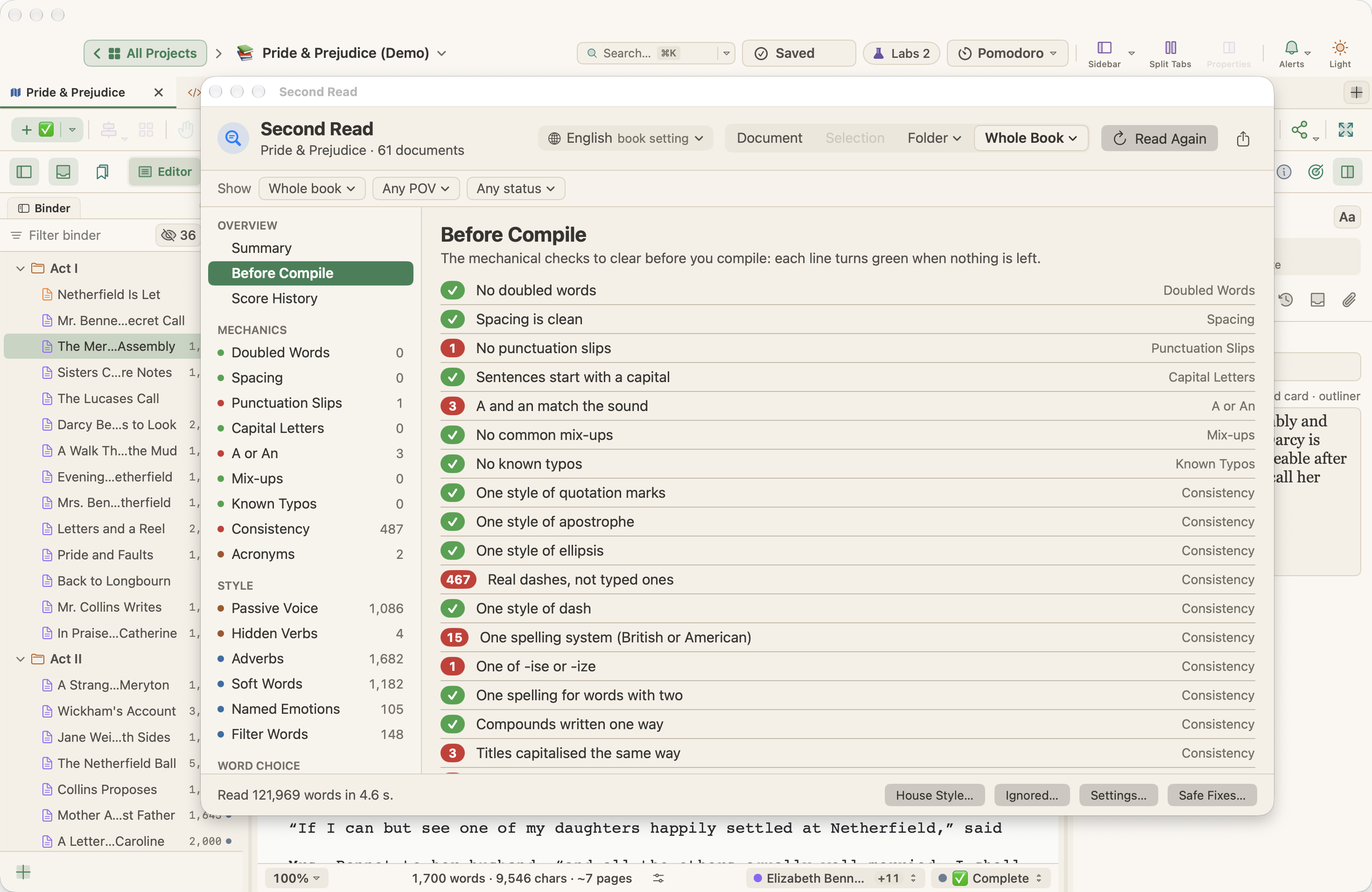
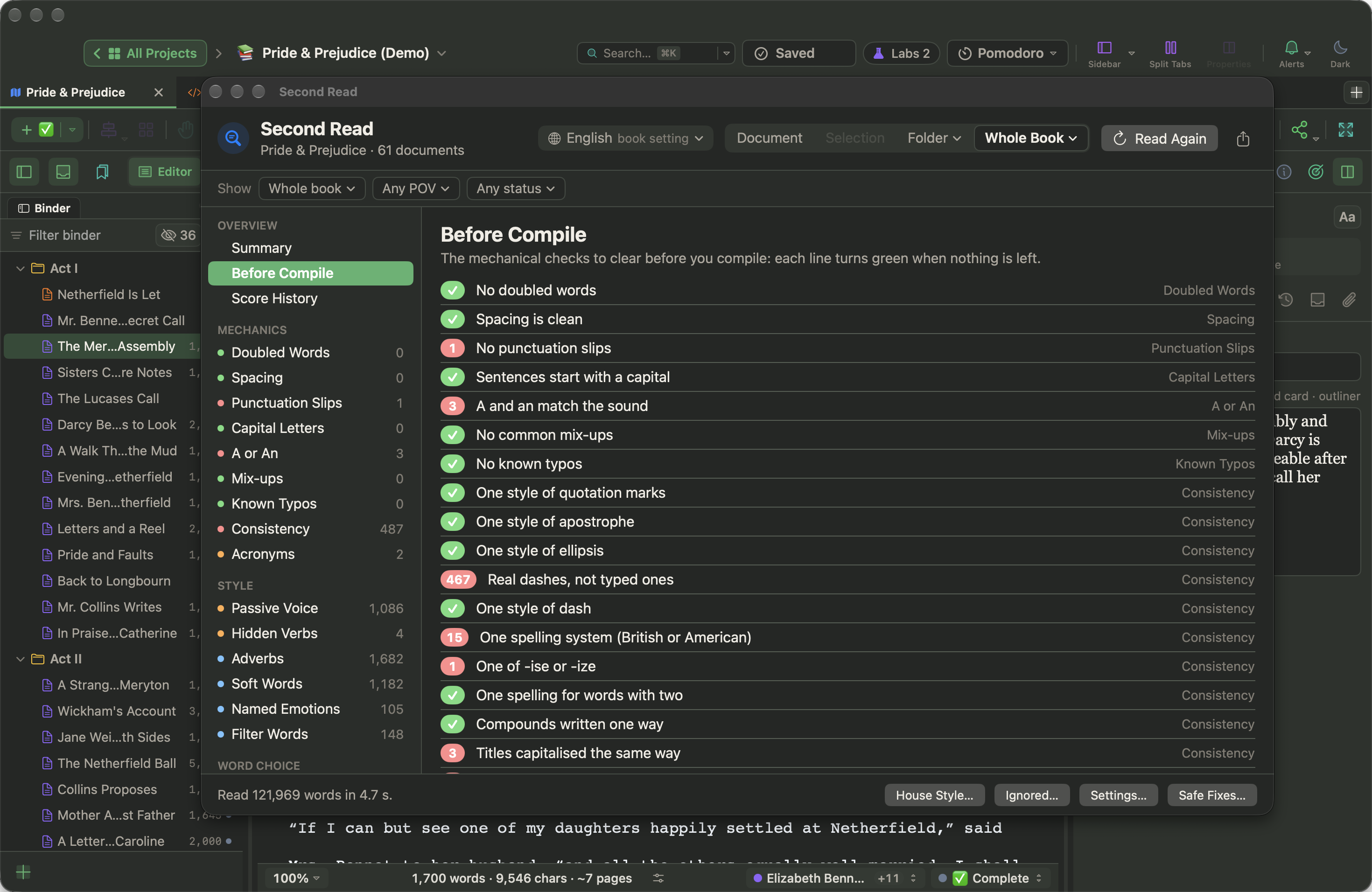
Before Compile turns the mechanics reports into a checklist: a green tick for a report with nothing to fix, the number of findings for the others. Each line opens its report.
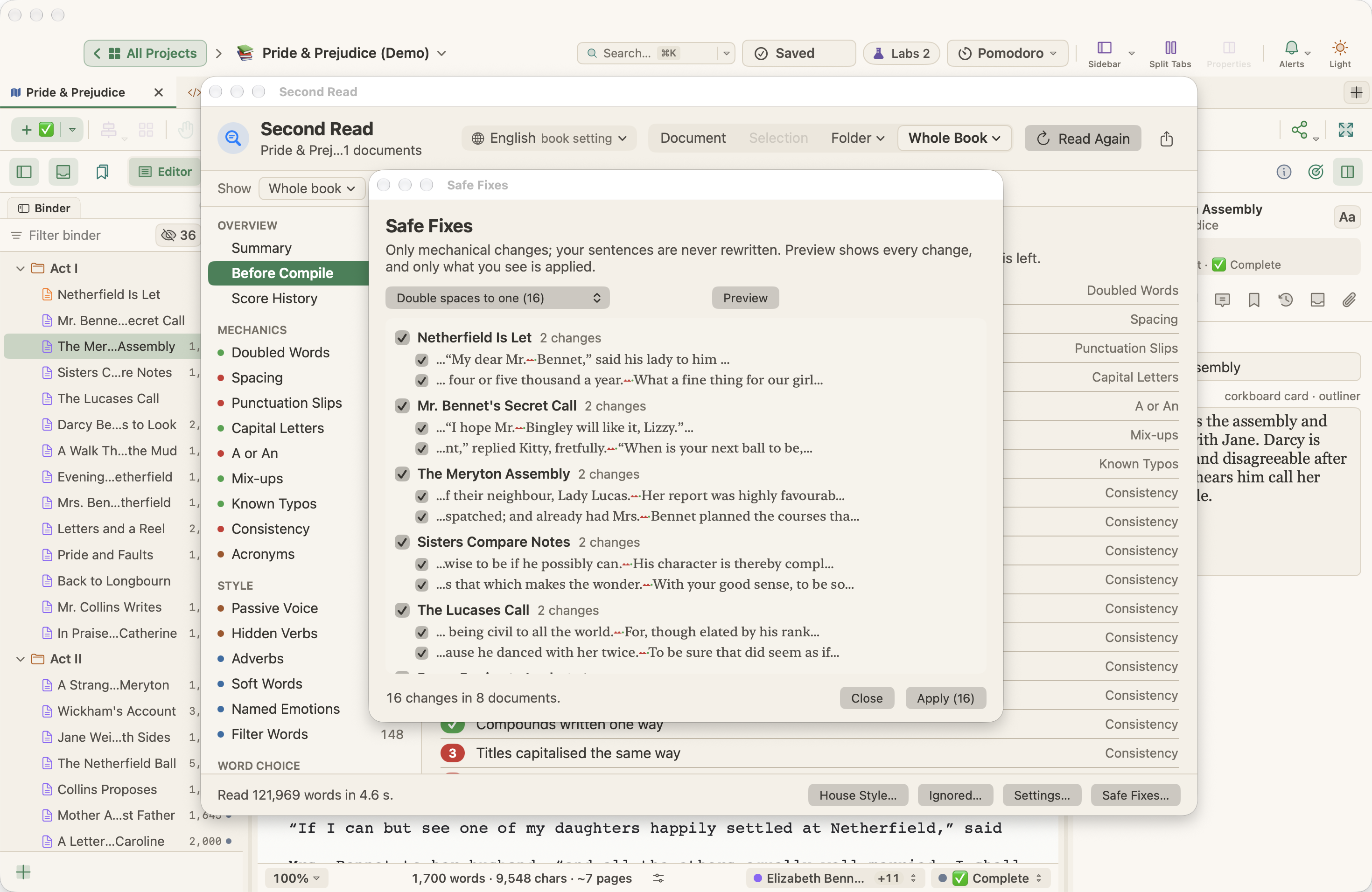
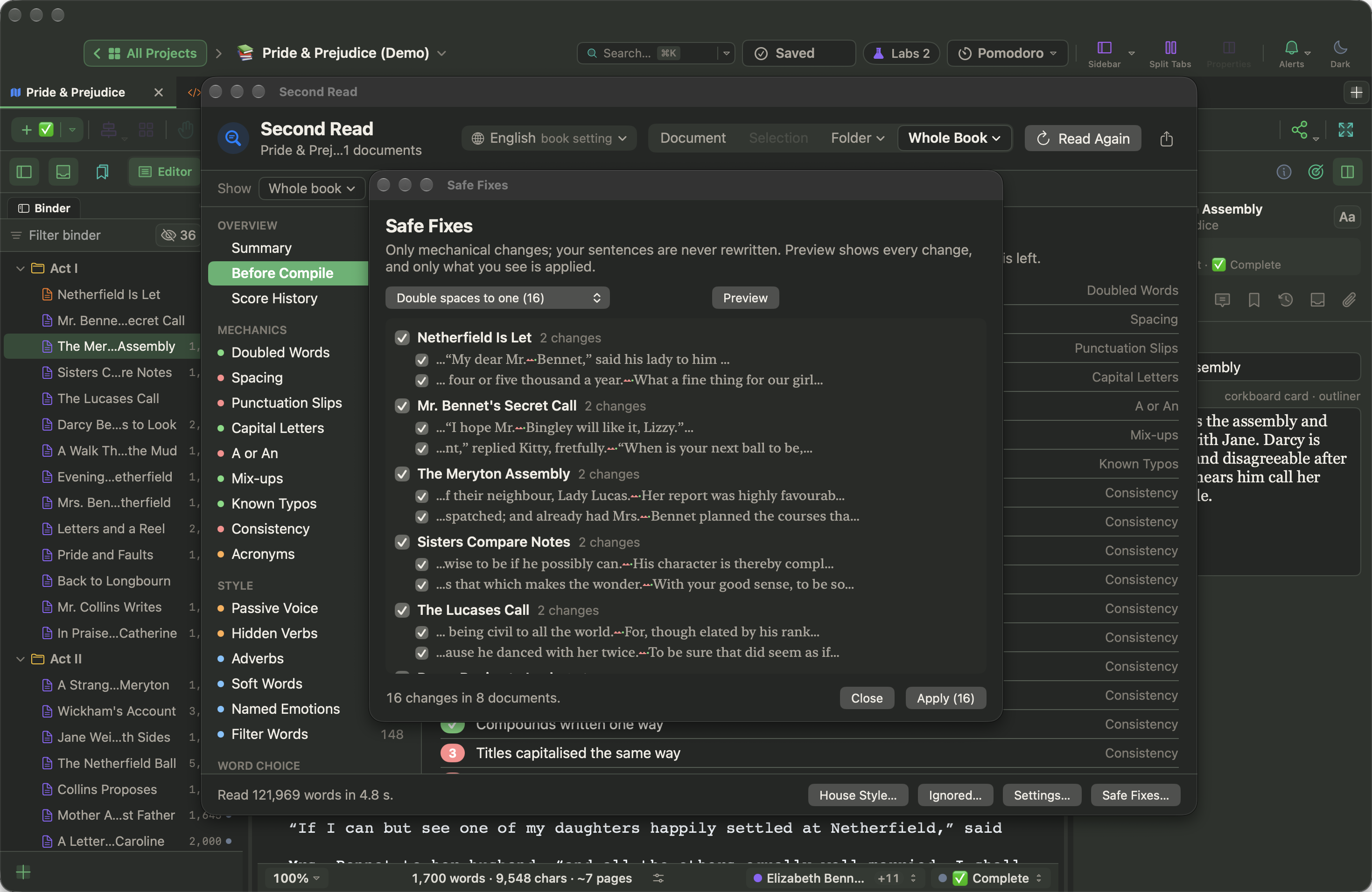
Safe Fixes… fixes three kinds of slip together: double spaces, straight quotes (turned into your language's curly quotes where the pairs are clear) and a word spelled two ways (the form the book uses most wins). Nothing changes before you see it:
- The preview lists every change, grouped by document, each with its own tick box.
- A word that looks like a name is listed but not ticked.
- Apply makes exactly the ticked changes. The count on the button is the number of ticked changes.
- One Undo takes back the changes in a planner or an open document. Documents that are not open get a snapshot named "Before Second Read fixes" first.
Places you ignored, code, tables and anything outside a selection are left alone. A document that changed since the reading is not touched: read again first.
Underlines while you write
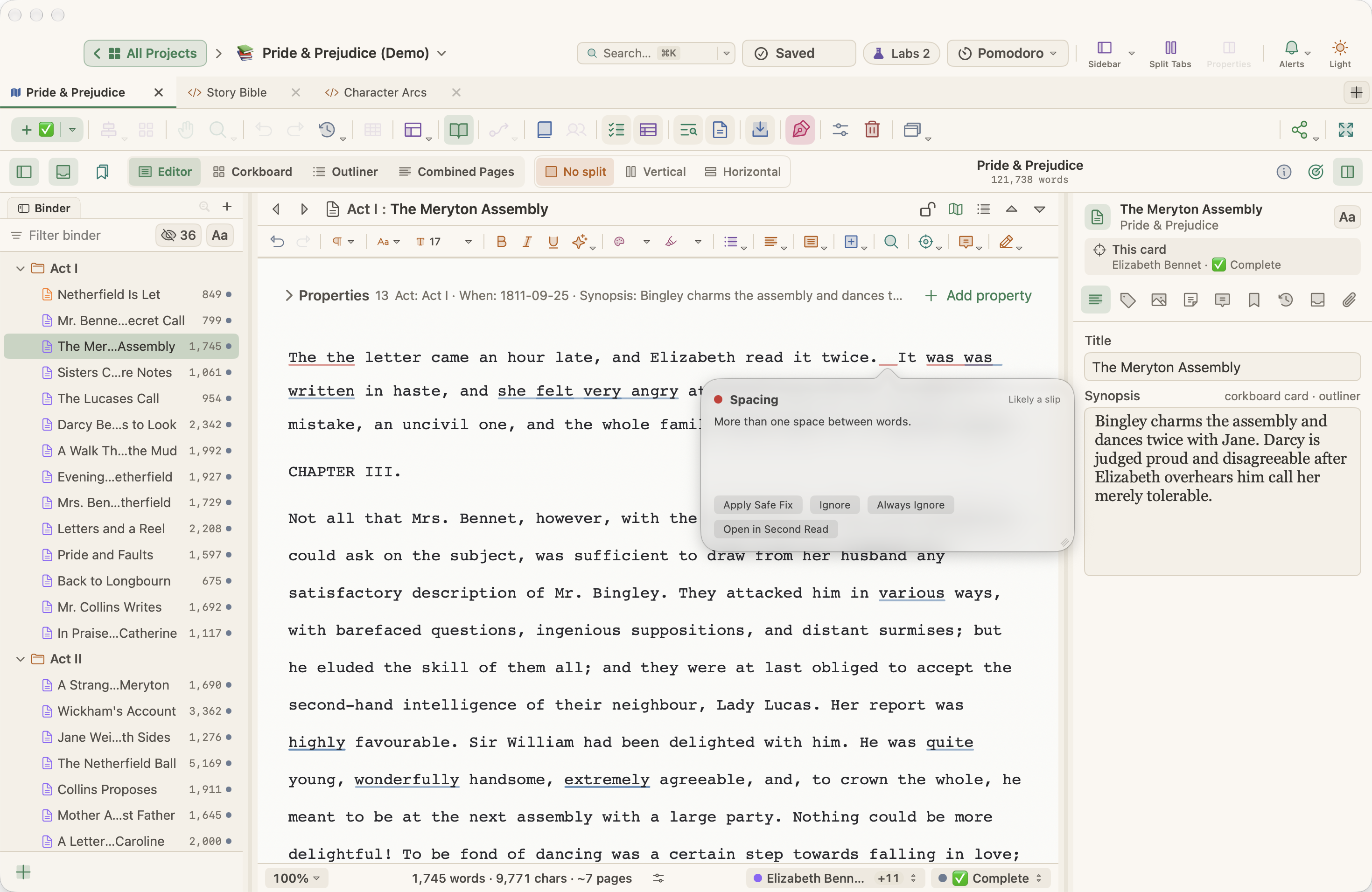
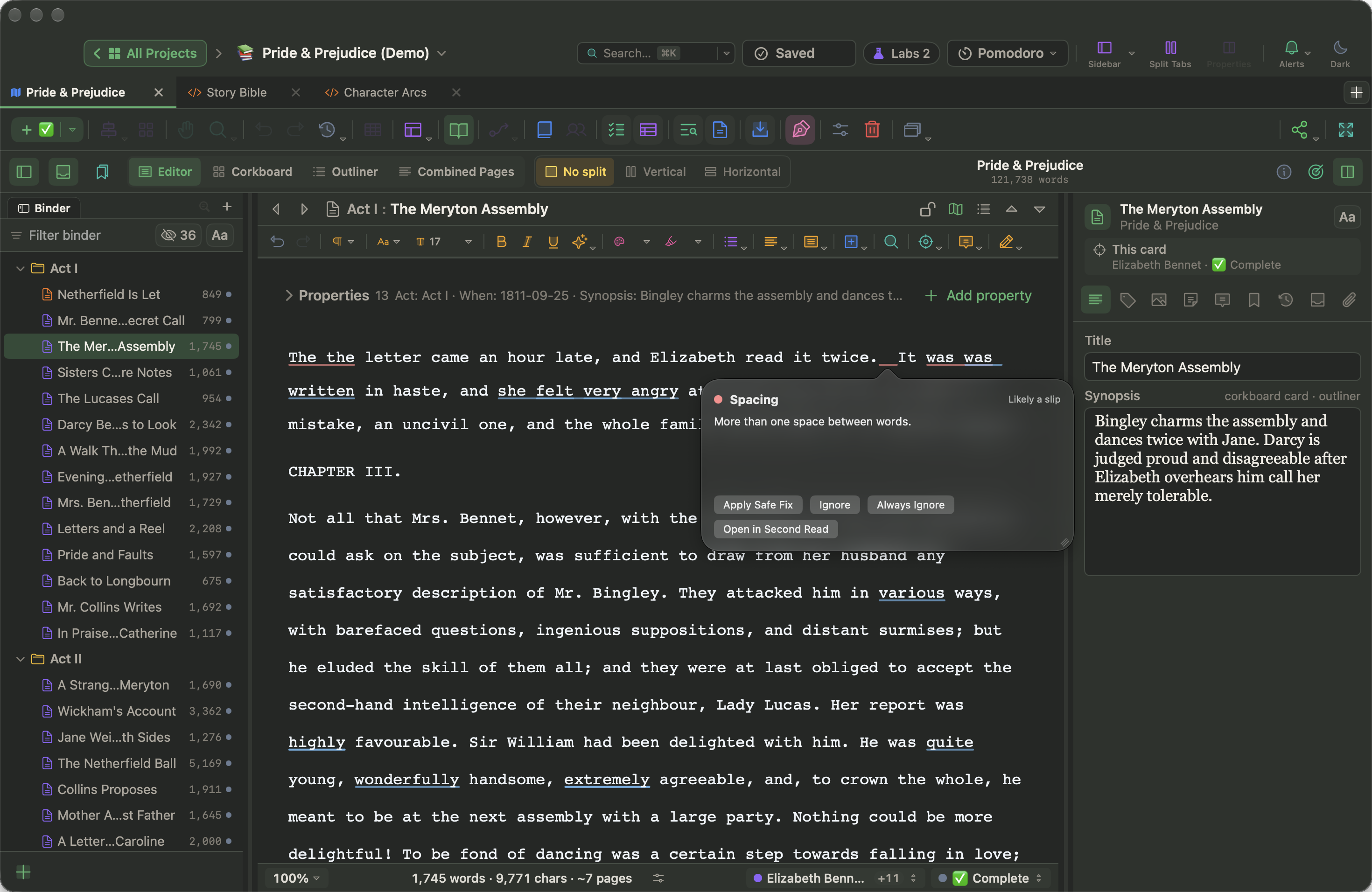
Second Read also marks findings in the editor as you type, with soft underlines, so a doubled word or a double space is caught on the page itself. Click an underline to see the finding and what to do with it: Apply Safe Fix (where there is one), Ignore, Always Ignore or Open in Second Read. The underlines use the same rules, House Style and ignore list as the Second Read window. They are only drawn on screen: never saved, copied or exported.
Turn them on or off with View › Text Editing › Second Read Underlines, or in Settings › Corrections › Second Read While Typing, where you also choose the kinds of finding: Mechanics and House Style are on to start with, and Style, Word Choice, Sentences and Flow can be added.
Languages
The reports follow the book's language. Books in English get every report. German, French, Spanish, Portuguese, Turkish, Japanese, Korean and Chinese books get the reports that hold up in that language, such as spacing, punctuation, sentence length, close repeats, pacing, dialogue, consistency and House Style; a report that cannot work for the language says so instead of guessing.
Copy, print and share
The share button at the top copies the reading as Markdown or opens a print view. On the iPad, Second Read reads the same projects and keeps the same choices: what you ignore or add to House Style on one device is there on the other.