 WriterMorph

Help › Writing
All help topics
Named styles
Give a letter, a poem, an epigraph or a note its own look once, as a named style, and use it everywhere. Change the style and every paragraph that uses it follows; it stays through compile, Word and Scrivener.
A letter inside a chapter, a poem, an epigraph at the head of a part, a note from the author: these should look different from the rest of the book, and the same every time they appear. A named style is that look, saved under a name. Apply it to a paragraph, and if you change your mind about how letters look, change the style once: every paragraph that uses it follows, in the whole project.
Apply a style
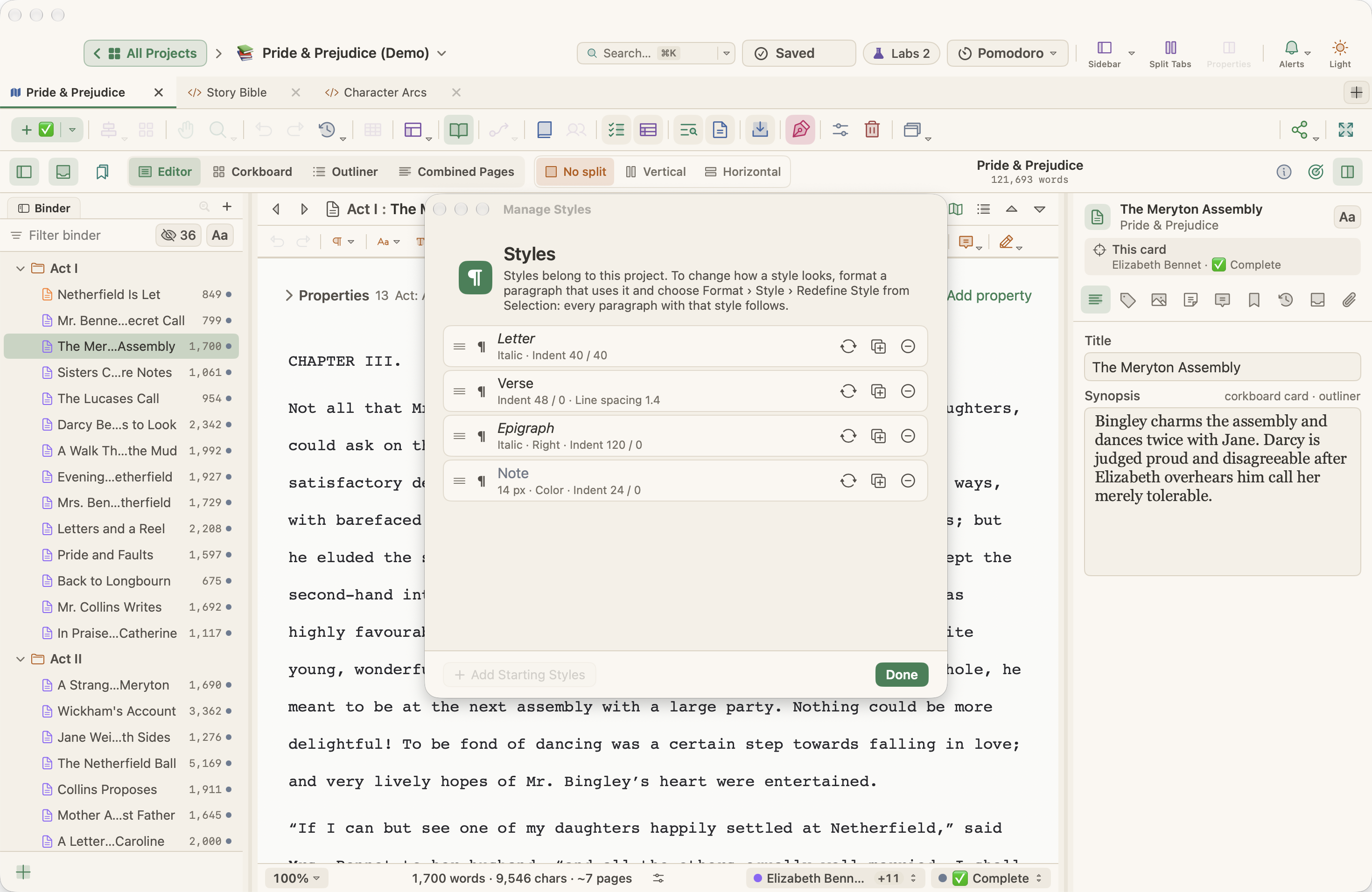
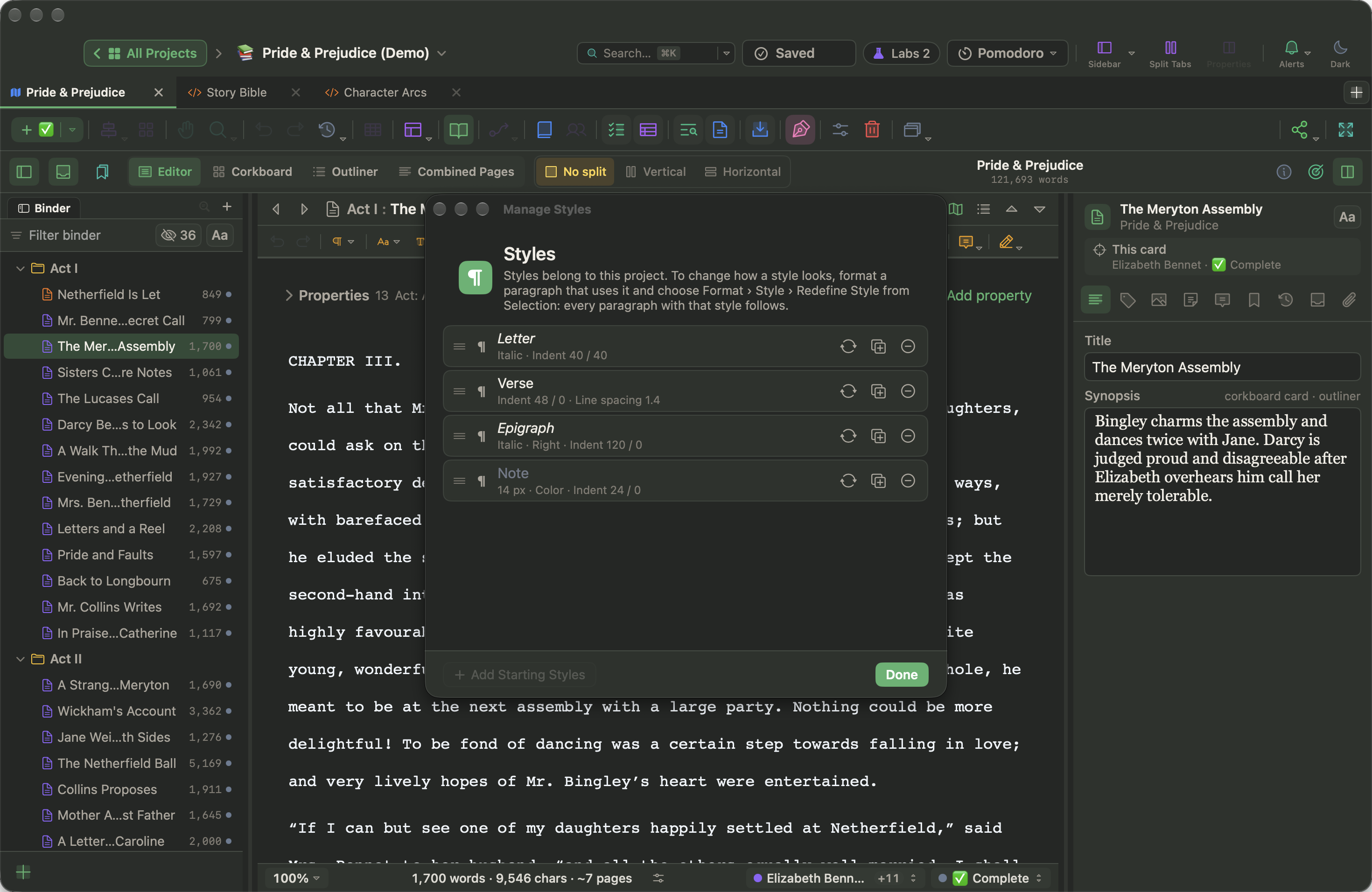
Put the cursor in a paragraph (or select several) and choose Format › Style. Four styles are there to start with:
| Style | Shortcut | For |
|---|---|---|
| Letter | ⌥⌘4 | Letters and notes the characters write |
| Verse | ⌥⌘5 | Poems and song lyrics |
| Epigraph | ⌥⌘6 | A quotation at the start of a part or chapter |
| Note | ⌥⌘7 | An aside set off from the text |
The same menu has the built-in blocks: Paragraph (⌥⌘0), Heading 1 to Heading 3, Block Quote and Code Block. The paragraph style button in the format bar lists your styles too.
- Clear Style (⌃⌥⌘0) takes the style off: the paragraph looks like the rest of the text again.
- Remove Style (keep formatting) takes the name off but keeps the look, as plain formatting.
Make your own
- Format a paragraph the way you want: indents, alignment, spacing, font, size, italic or colour.
- Choose Format › Style › New Style from Selection… and give it a name.
New Character Style from Selection… does the same for words inside a paragraph, for example ship names or a language the characters speak.
To change a style, format one paragraph that uses it and choose Redefine Style from Selection. Every paragraph with that style changes, in every document of the project.
Manage Styles
Format › Style › Manage Styles… lists the project's styles. Rename, duplicate or delete one, and right-click to move it up or down (the order is the order in the menu). Update Text applies a style again everywhere it is used. Add Starting Styles brings back Letter, Verse, Epigraph or Note if you deleted them.
The window can be resized from any edge and remembers its size. Styles belong to the project: every document and card in it uses the same list, on the Mac and on the iPad.
Styles in compile, Word and Scrivener
- Compile: Keep named styles (in Page Layout, on by default) keeps your styled paragraphs as they look when a compile preset formats the rest of the book. Turn it off to give everything the preset's look.
- Word (DOCX): a named style becomes a real paragraph style in the Word file, under the same name.
- EPUB and HTML: styled paragraphs get a class, so the e-book's style sheet keeps their look.
- Scrivener: styles come in with a Scrivener project as named styles, and a book exported to Scrivener takes them back as Scrivener styles.