 WriterMorph

Help › Projects & Data
All help topics
Reviewing AI suggestions
When an AI app you connect edits your text, its changes arrive as marked revisions with a dotted underline, Suggested by AI. Accept or reject each one; nothing is final until you do.
WriterMorph has no AI of its own. If you connect an AI app yourself through AI connections and turn on Allow changes, it can edit your text. When it does, its changes do not simply replace your words: they arrive as marked revisions for you to review, like an editor's tracked changes.
How a suggestion looks
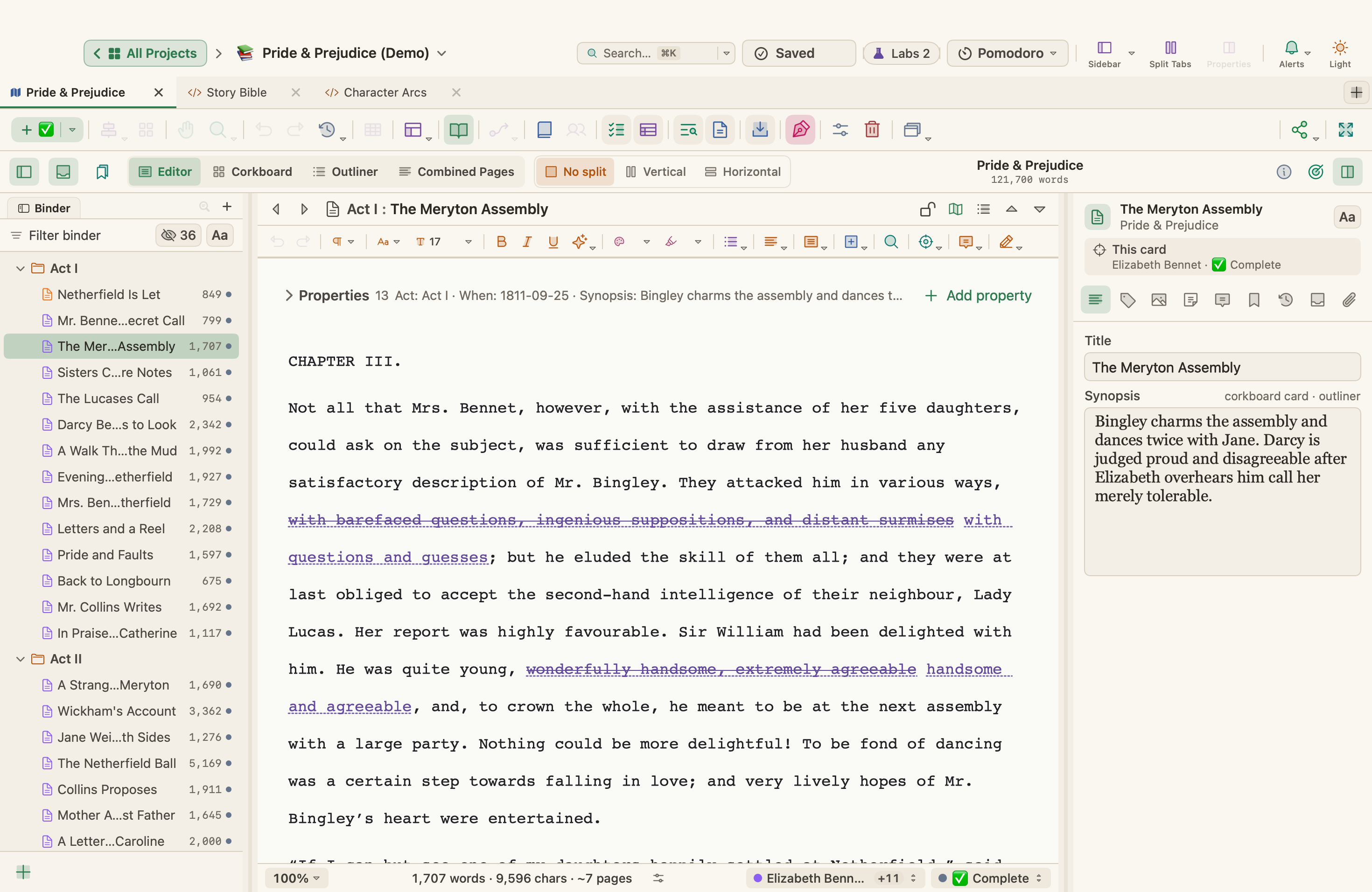
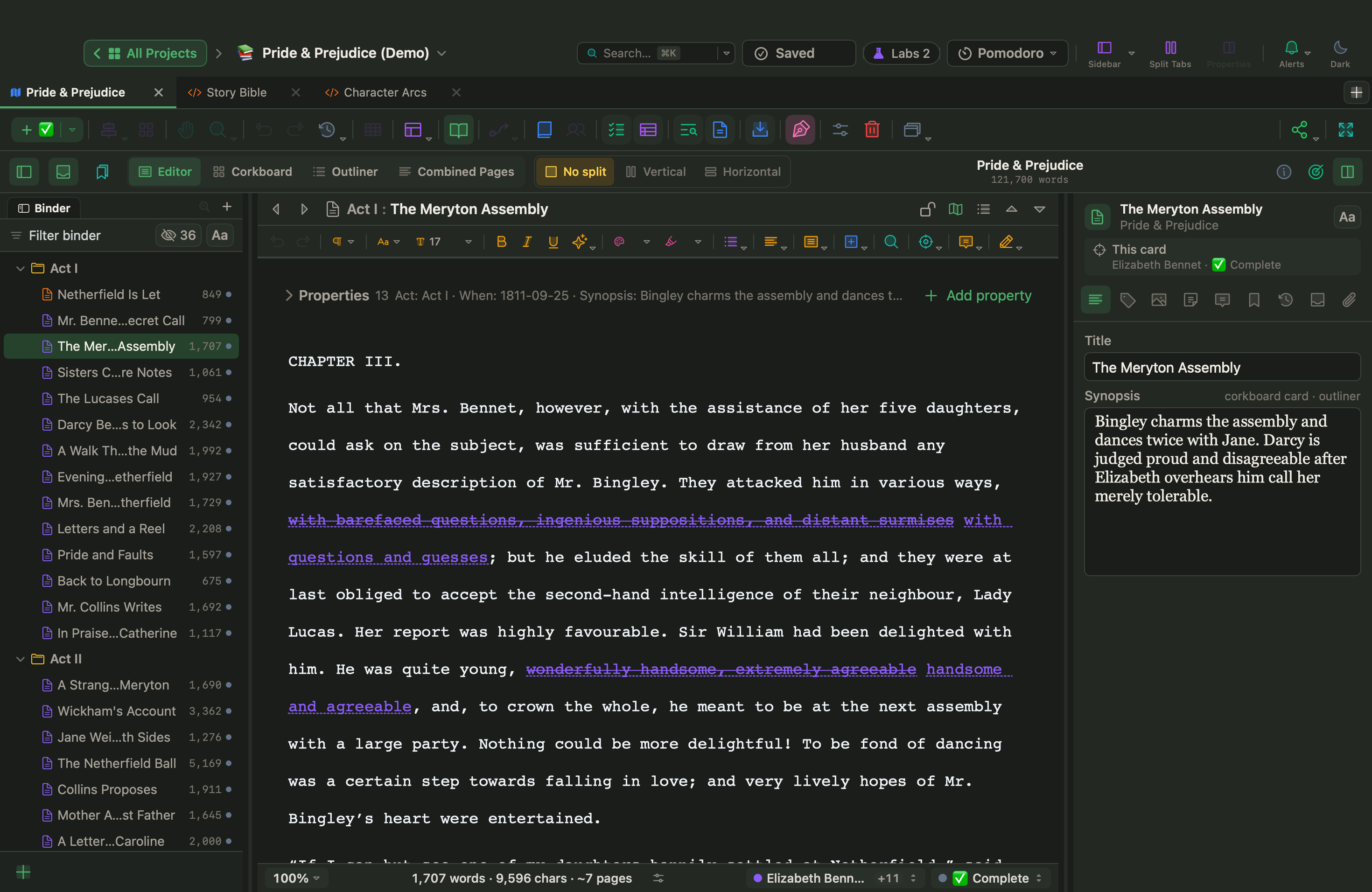
- The words the AI app would change stay in place, struck through.
- Its new words follow them.
- Both are in a revision colour with a dotted underline. Hold the pointer over them and the tip says Suggested by AI.
The AI's marks never use the revision level you work at in Format › Revision Mode: they take a colour of their own (level 5, or level 4 when you work at level 5), so your own revisions and the AI's stay apart.
Accept or reject
Select the marked text, or put the cursor in it, and choose:
- Format › Revision Mode › Accept Revision Marks in Selection: the new words stay and lose their mark; the struck-through words are deleted.
- Format › Revision Mode › Reject Revision Marks in Selection: the new words are removed; the struck-through words come back as normal text.
Select a whole scene to accept or reject all of its suggestions at once.
Remove Revision Markings… lists AI suggestions on a line of their own, with their number, and leaves them unticked, so clearing your own revision colours does not accept the AI's changes by accident. Remove All Revision Marks leaves AI suggestions alone and tells you how many are still waiting.
Nothing is final until you accept it
- Struck-through words are never really deleted until you accept the change.
- A change to a planner card is one step of Edit › Undo (⌘Z).
- Before an AI app changes a document of the book, WriterMorph takes a snapshot named Before AI edit: compare or restore it in the Inspector's Snapshots tab.
- Recent activity lists what the AI app did. See Going back to before an AI edit.
Asking for suggestions
Ask the AI app in plain words, for example: "Suggest a tighter version of the first paragraph of The Meryton Assembly, as tracked changes." The app sees which changes are still waiting and can list them, so you can also ask it to explain a suggestion before you decide.