 WriterMorph

How to keep your novel's timeline straight: story time, flashbacks and continuity
Track when every scene happens, keep story time apart from reading order, handle flashbacks and parallel plotlines, and catch continuity slips before a reader does. Then see how WriterMorph keeps the chronology for you.
Every novel runs on two clocks. One is the order in which things happen to your characters. The other is the order in which the reader finds out about them.
Many chronology mistakes come from losing track of the distance between the two: a Tuesday that turns into a Thursday, a child who ages three years in one winter, a train that arrives before it could have left. The cure is mostly bookkeeping, and it is easier to keep the books from the start than to rebuild them after the draft.
Story time and reading order
Narratologists call the two clocks story and discourse; the Russian Formalists' terms were fabula and syuzhet. Story time is the sequence of events as they would sit on a calendar. Reading order is the sequence of scenes in the book.
In a strictly linear novel the two match. As soon as you open near the end, cut away to another character or return to the past, they part ways, and you need a way to see both at once.
The simplest habit: give every scene a date, or at least a position such as "Day 3, evening", even if that date never appears on the page.
Flashbacks and flash-forwards
A flashback is a scene whose story time is earlier than the scenes around it; a flash-forward, later. Both work best when they are anchored:
- Cue the reader early. In the first lines, give a year, a season, an age or a detail that belongs only to that time.
- Date them as carefully as the present. Two flashbacks to the same night must agree about the weather, the hour and who was there.
- Know why each one sits where it does. A flashback usually answers a question the present story has just raised.
Parallel plotlines
When plotlines run side by side, each keeps its own clock. If one line covers a week and the other a single night, the cuts between them still have to make sense in time. Watch the places where the lines meet: two characters arriving at the same moment from different directions is where the dates are tested.
Ages, seasons and travel time
These slips are easy to make and easy for a reader to catch:
- Ages. Record birth years rather than ages, and work out each age from the date of the scene.
- Seasons and light. Leaves, snow, the hour of sunset and school holidays all follow the calendar.
- Travel. Note how long it takes to get between your main places by the means your characters have. A three-hour drive in chapter two can't take forty minutes in chapter twenty.
- Waiting. Wounds heal slowly, letters take days, and the weeks a character waits for news have to pass for everyone else too.
A simple chronology document
You don't need software for this. A table with the scenes in story order and their place in the book beside them does the job. Here are four early scenes from The Salt Archive, a sample mystery:
| Story time | Scene | In the book | Where | Who |
|---|---|---|---|---|
| 2 Nov 1987, 19:40 | Lights in the Approach | Chapter 5 | Gannet Point Lighthouse | Tobias Marr |
| 9 Mar 2026, 16:20 | Low Water | Chapter 1 | Kellmouth Harbor | Mara Quill |
| 9 Mar 2026, 18:45 | The Tab on the Wall | Chapter 2 | Quill's Café | Mara Quill, Edie Quill |
| 10 Mar 2026, 09:15 | A Hundred Years Back | Chapter 3 | The Maritime Archive | Mara Quill |
Read down the first column for the story and down the third for the book. Add columns for whatever you need to track: injuries, the weather, who knows the secret by now.
Then run a continuity pass. Read the table for one thing at a time: one character, one place, one week. Nobody can be in two places at once, and nobody should turn up after their death.
Keeping the timeline in WriterMorph
In WriterMorph the story time lives on each scene card, and the Writer Timeline turns it into views. Open it with View › Writer Timeline (⌥⌘T). It needs Author mode, which fiction and script templates turn on for you; in other projects, turn it on in Project › Project Settings… under Canvas › Writing.
Date every scene
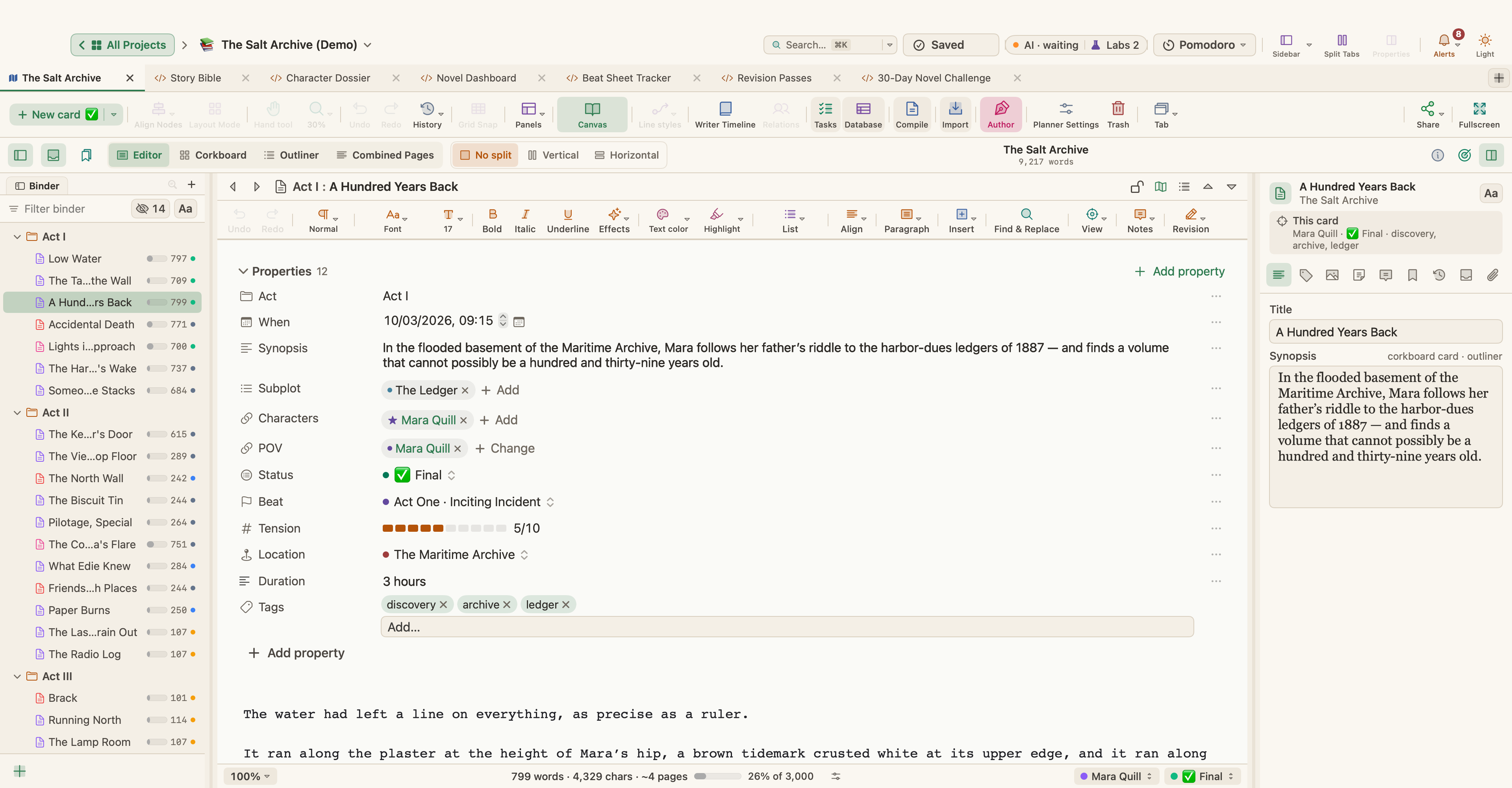
Select a scene and open View › Properties Panel (⌥⌘P). Its Writer Timeline section holds:
- Story time (start) and Story time (end): a real date and time, a year, or free text such as "Day 3",
- Time Label, such as "Next morning",
- Era: Past, Present or Future,
- Scene Type, with Flashback among the choices,
- Narrative Order and Subplot / Location Lanes.
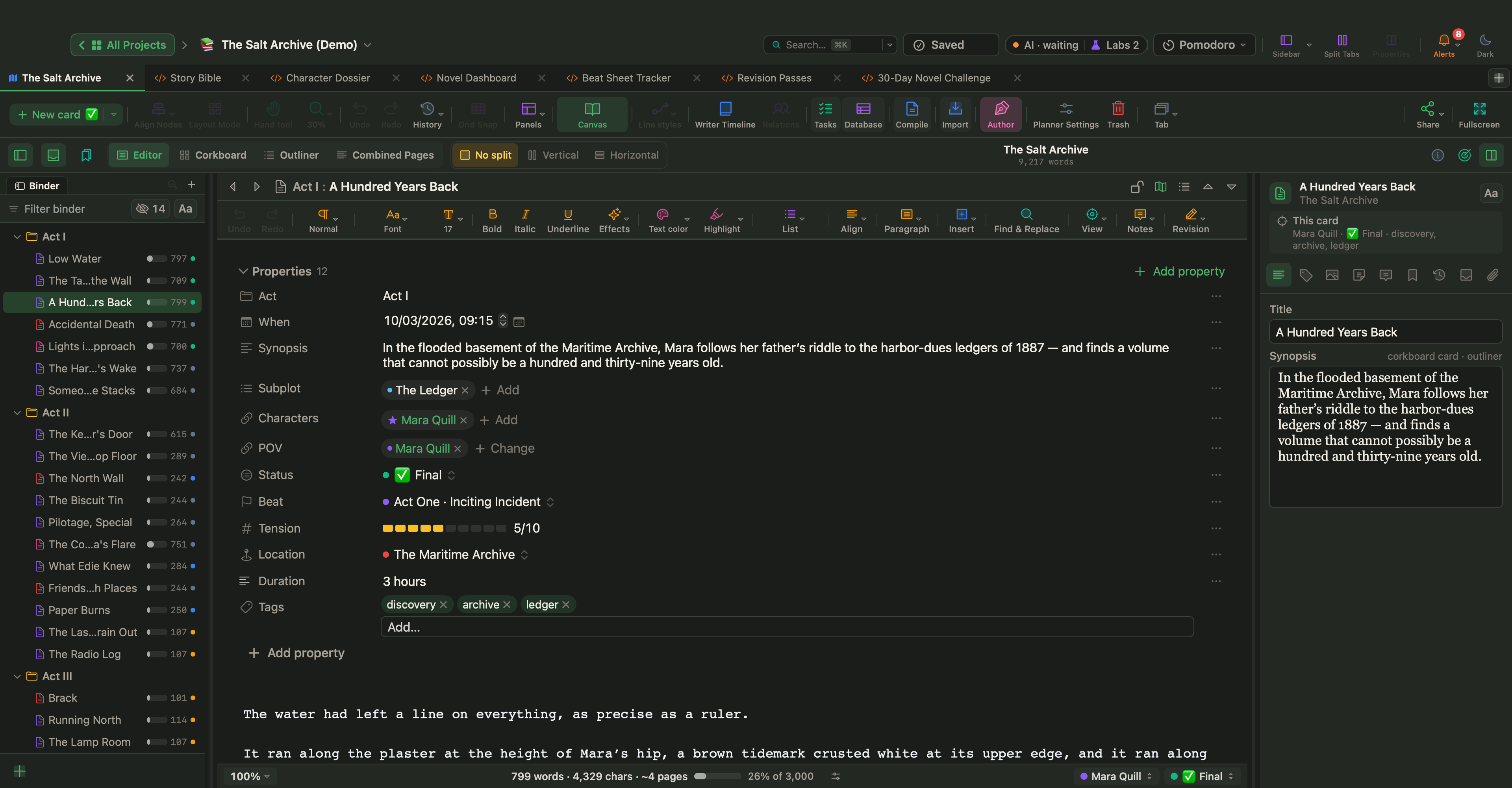
The Cast section sets the POV characters; the first one is the primary POV. In the editor, the same facts sit in the property block above the text, with the story time under When. To date a run of scenes in one step, select them all: Bulk edit in the Properties panel covers story time, place and era.
See story order next to reading order
In the Writer Timeline, the Timeline view draws a lane for each plotline. Sort it by Narrative order, Story time or Structure (beats). In story-time order, choose a time scale from hours to years and step through with First, Prev, Next and Last. Gaps flags jumps of more than a year, Marker adds a milestone label such as "Part 2 begins", and Links shows the arrows between related scenes.
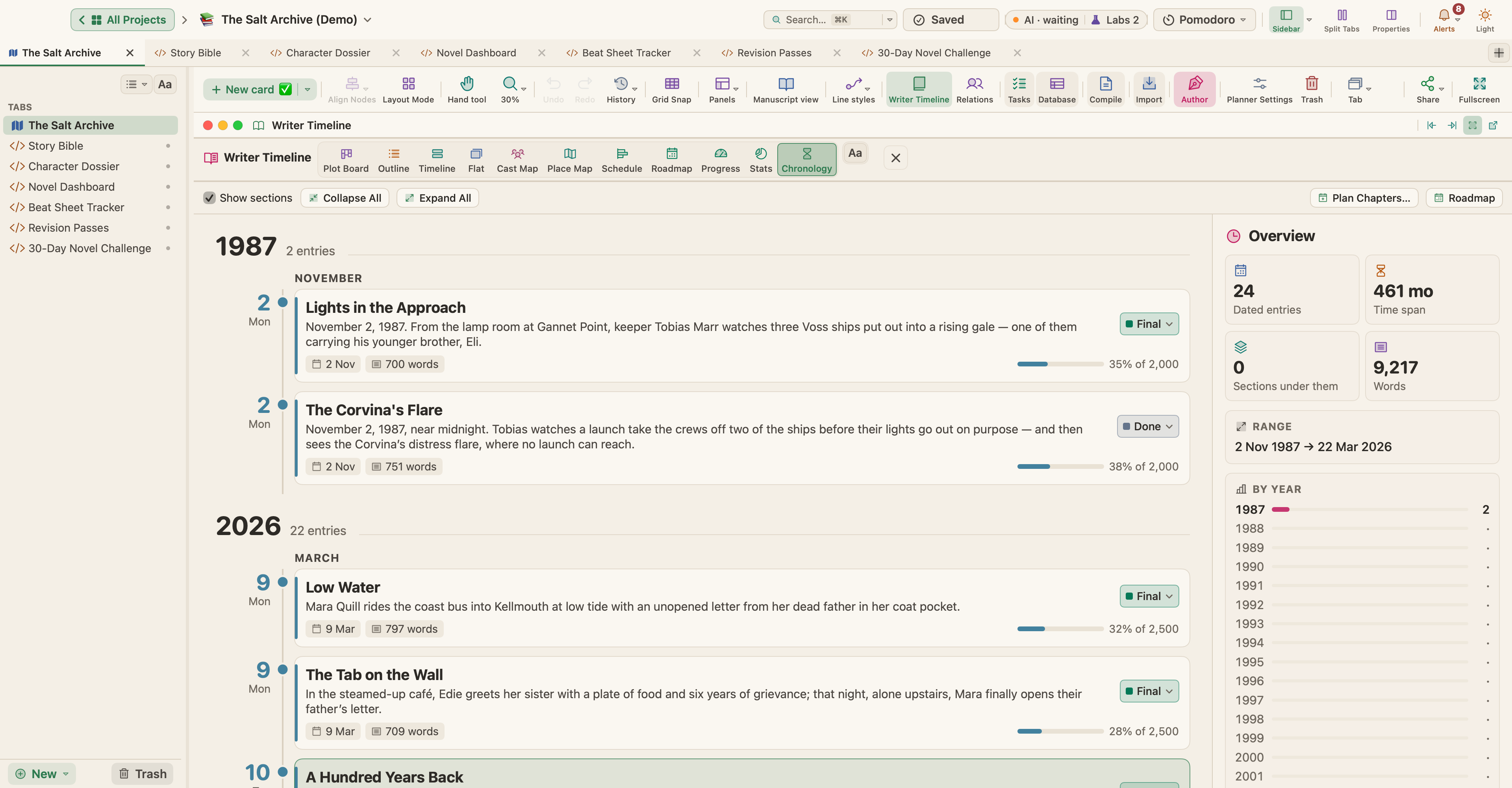
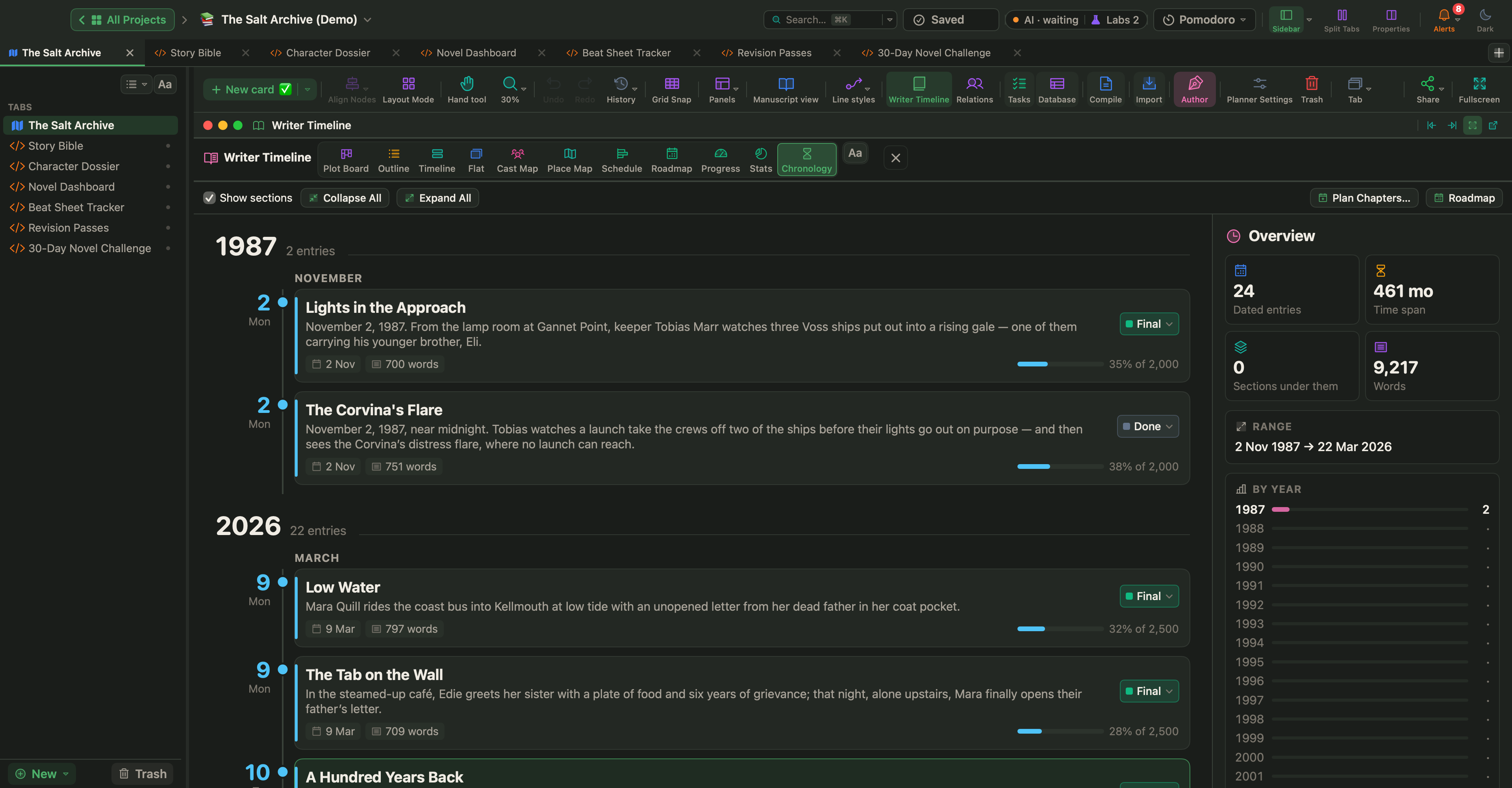
The Chronology view, shown at the top of this article, lists dated cards in date order, grouped by year and month. Auto # numbers scenes by structure or by story time.
Follow each plotline
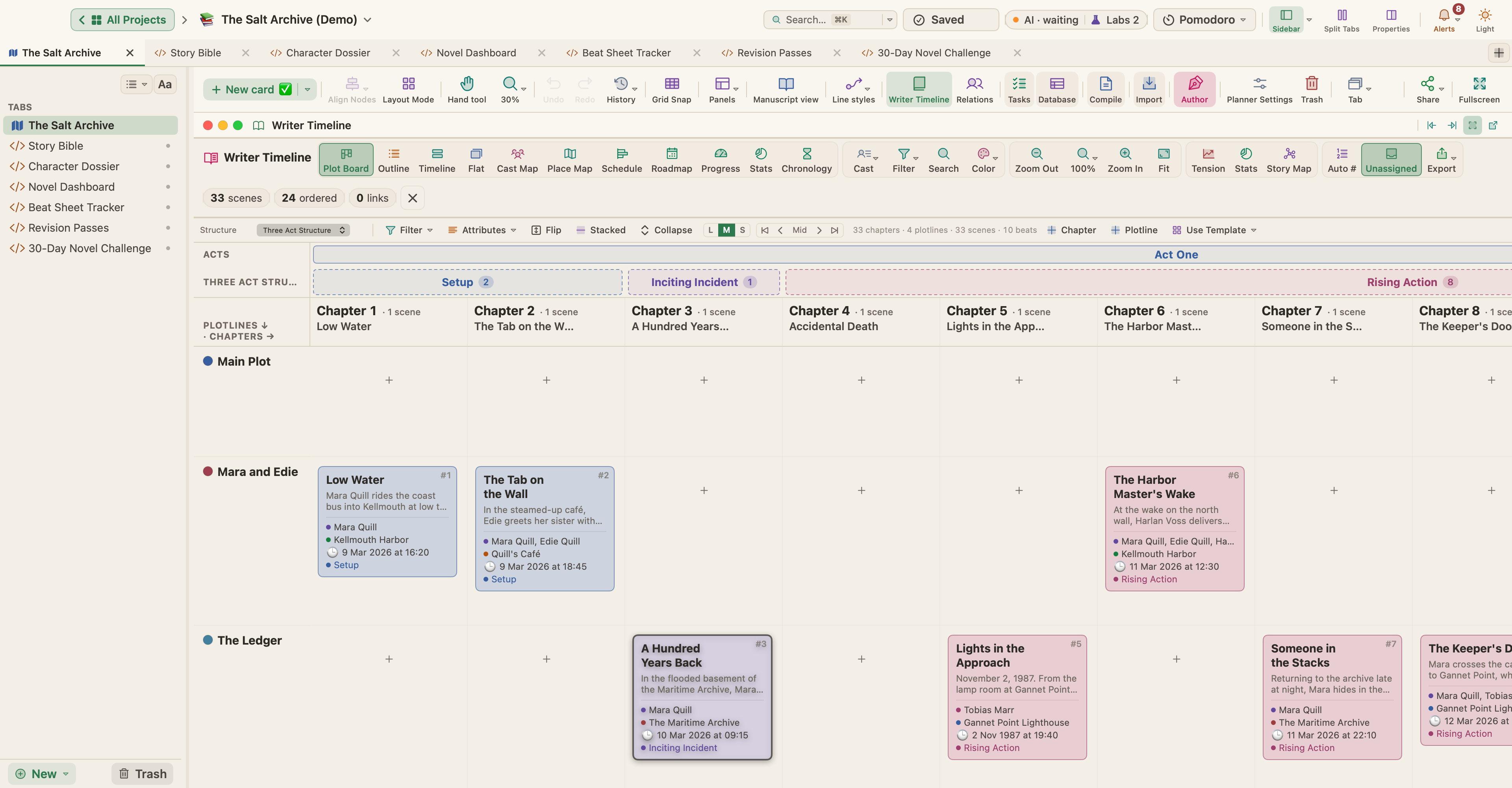
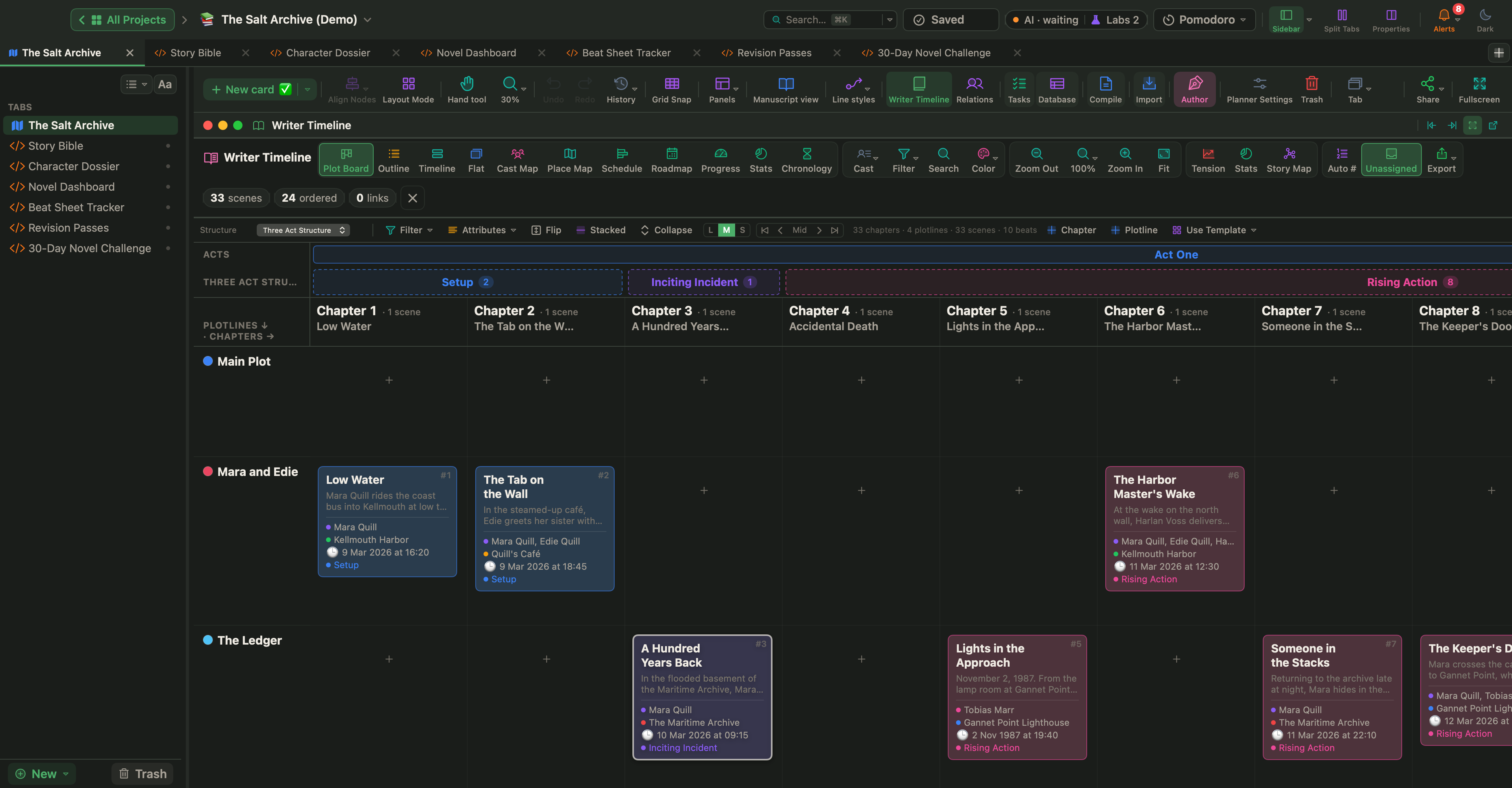
The Plot Board is a grid of chapters across and plotlines down. Set Attributes to show story time, and you can read each plotline's dates across the book. In the Timeline view, Add Lane adds Subplot lanes and Location lanes, and Colour can color scenes by POV.
Check continuity
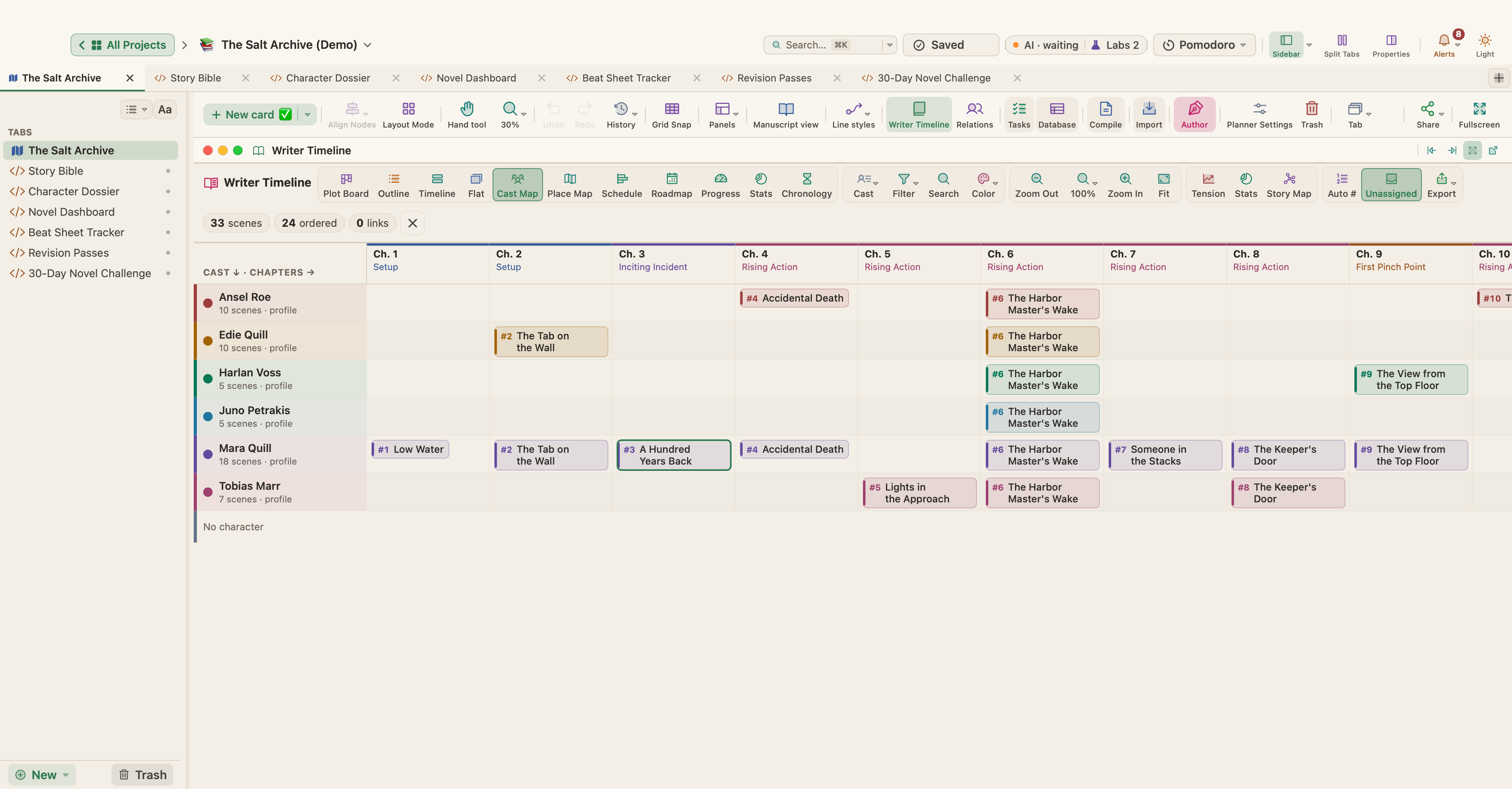
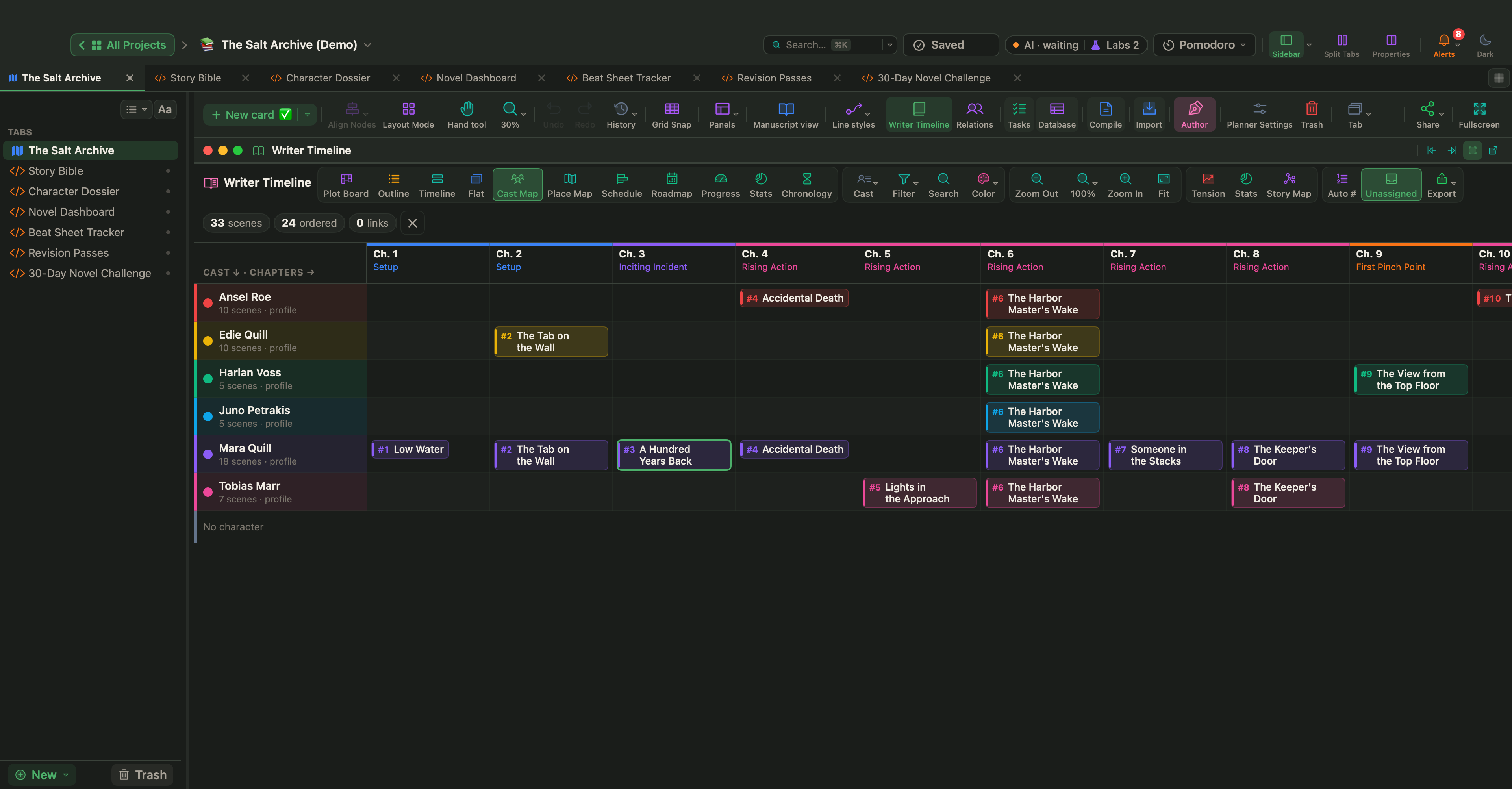
The Cast Map and Place Map set characters, or places, against chapters. Each cell holds the scenes where that character appears or that happen in that place, so someone who vanishes for half the book, or turns up where they shouldn't be, is easy to spot.
Book Stats lists scenes with no story time under Needs attention; click the tile to filter the timeline to just those scenes. Live Pages are a Labs feature: turn them on in Settings › Labs, then add the Continuity Checker template from the sidebar's New ▾ › Live Page ▸ › Examples ▸ menu. It runs rule-based checks over your scenes: timeline order, a character in two places at once, characters who appear after their death, POV gaps and scenes without a place or cast.
Date your scenes while you outline, not after the draft: it takes a moment per scene and saves a long hunt later. If you are still building the scene list, start with how to outline a novel.