 WriterMorph

Connect any AI app to WriterMorph
WriterMorph has no AI of its own. Bring the one you already use, through one open standard: Claude Code, Codex, local AI in LM Studio or any other app that supports MCP, whatever the brand.
WriterMorph has no AI of its own. It doesn't suggest sentences or summarize your chapters, and it never sends your writing anywhere. Many writers never need more than that.
Some writers do use an AI app on their Mac, and want its help with the scaffolding of a book rather than the sentences: setting up chapters, filling in character sheets, building a reference page, checking which scenes still have no summary. For them there is Settings › AI Connections. It works with the AI app they already use, and only while they allow it.
One standard, any brand
AI Connections speaks MCP, the open standard AI apps use to work with other apps. Because it is a standard, WriterMorph doesn't have to pick an AI for you. You choose:
- Claude Code (Anthropic) or Codex (OpenAI). One click copies the setup command and opens Terminal; one paste connects the app.
- LM Studio, which runs AI models on your own Mac, so nothing leaves it. One click adds WriterMorph to LM Studio.
- Any other app that supports MCP, whatever the brand: desktop chat apps such as Msty Studio, Cherry Studio, Jan or Cline, for example. WriterMorph shows its address and your key, ready to copy into the app's MCP settings.
Grok is a good example of the general route: it connects through Grok Build, xAI's app for Terminal, or through a desktop chat app that has your xAI key. What can't connect are AI services that run only in the cloud, such as grok.com in a browser, because WriterMorph accepts connections only from your own Mac.
What an AI app can do in a project
A connected app works in the project that is open in WriterMorph, with the same cards you do. It can draft new cards, fill in their properties, write and revise text, reorganize the binder, search the project, compile it, and build HTML pages as tabs inside the project.
It helps to think of it as an assistant for the paperwork around a book. Requests that work well are concrete and checkable:
- "Plan this premise as a three-act novel: acts, six scenes, the cast and places."
- "Fill in point of view, beat, tension and place for every scene in Act II."
- "Write a two-line summary for every card that has none."
- "Mark all four Chapter 5 sections as Draft and set each target to 900 words."
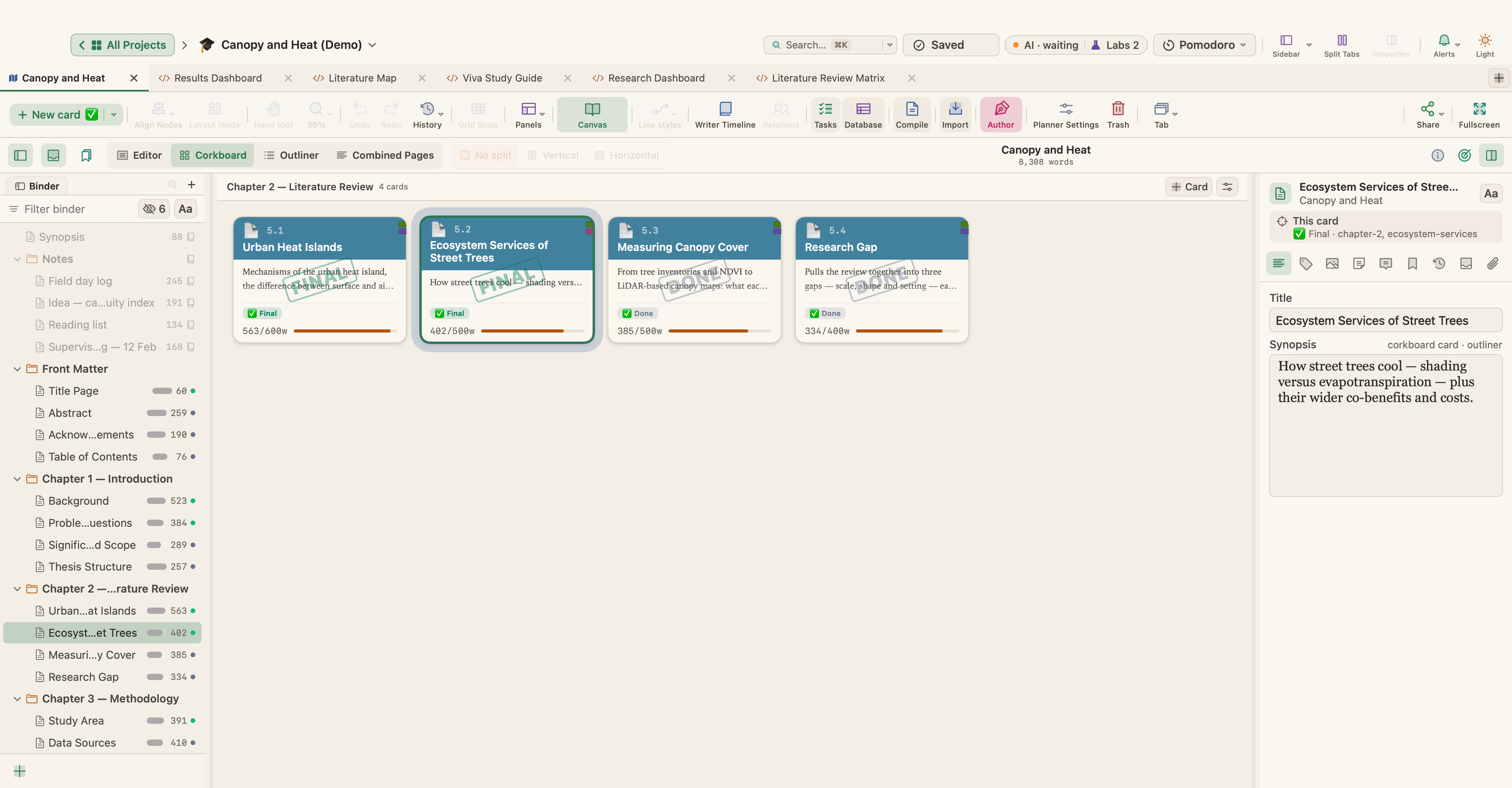
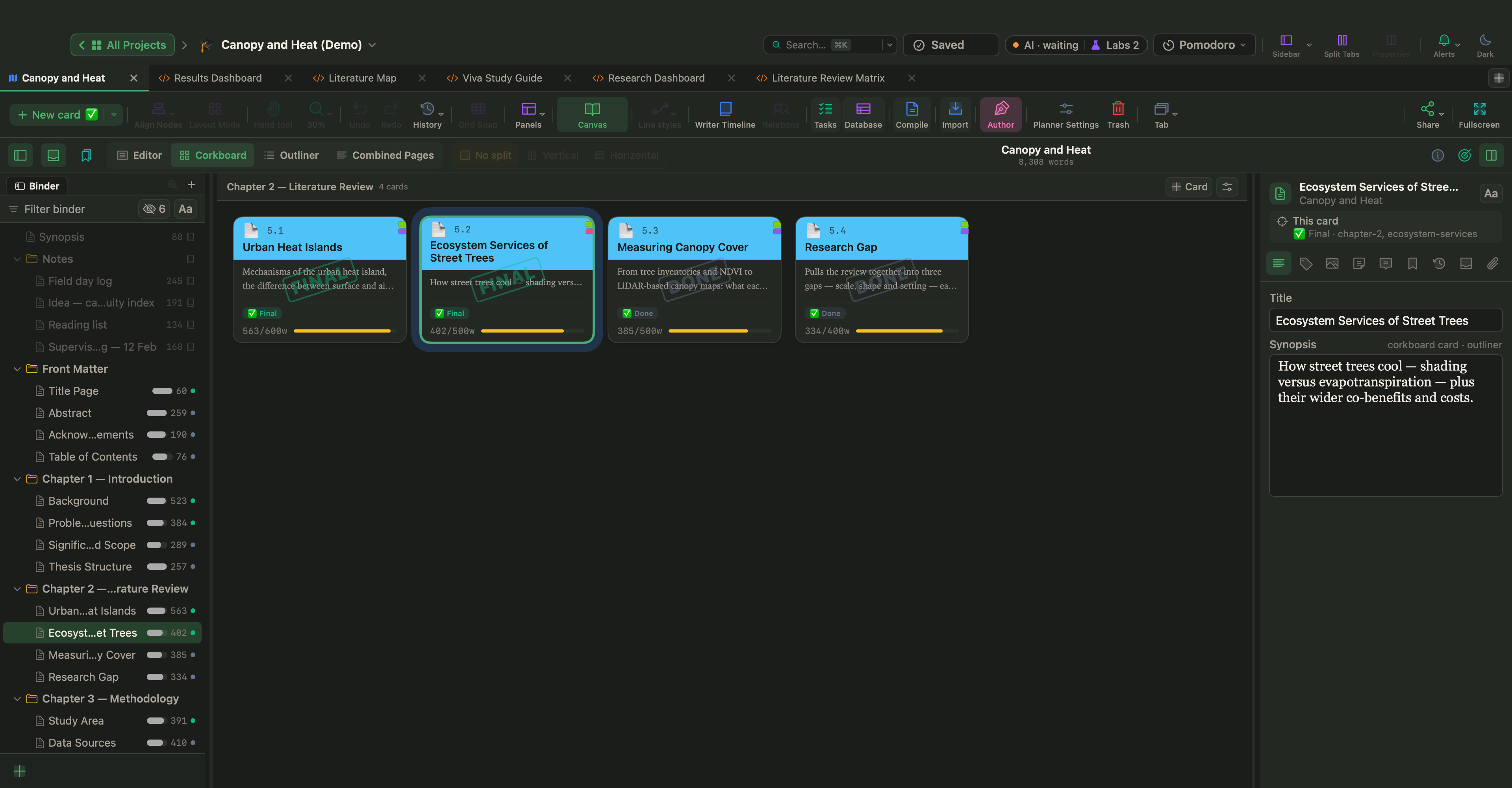
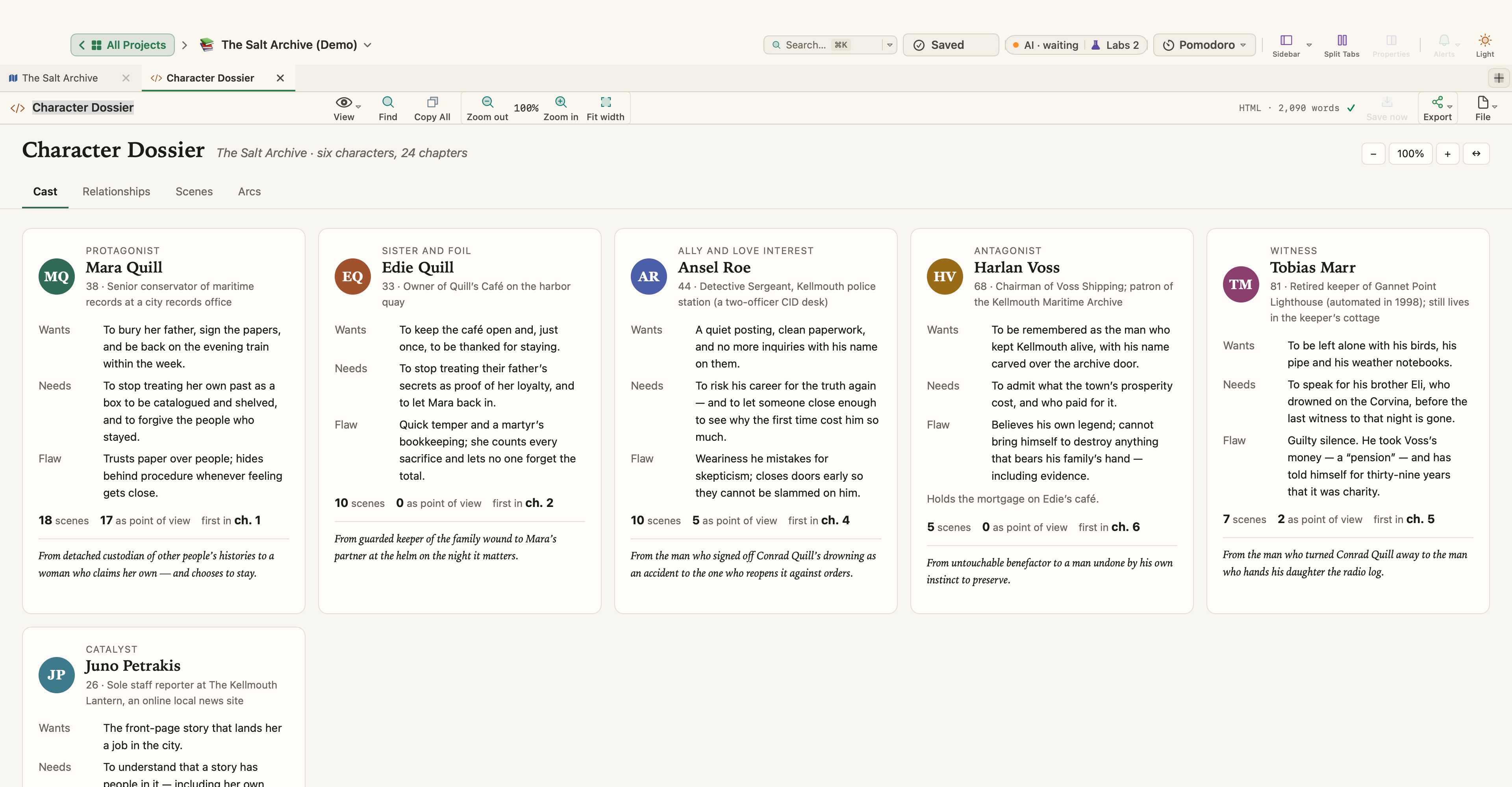
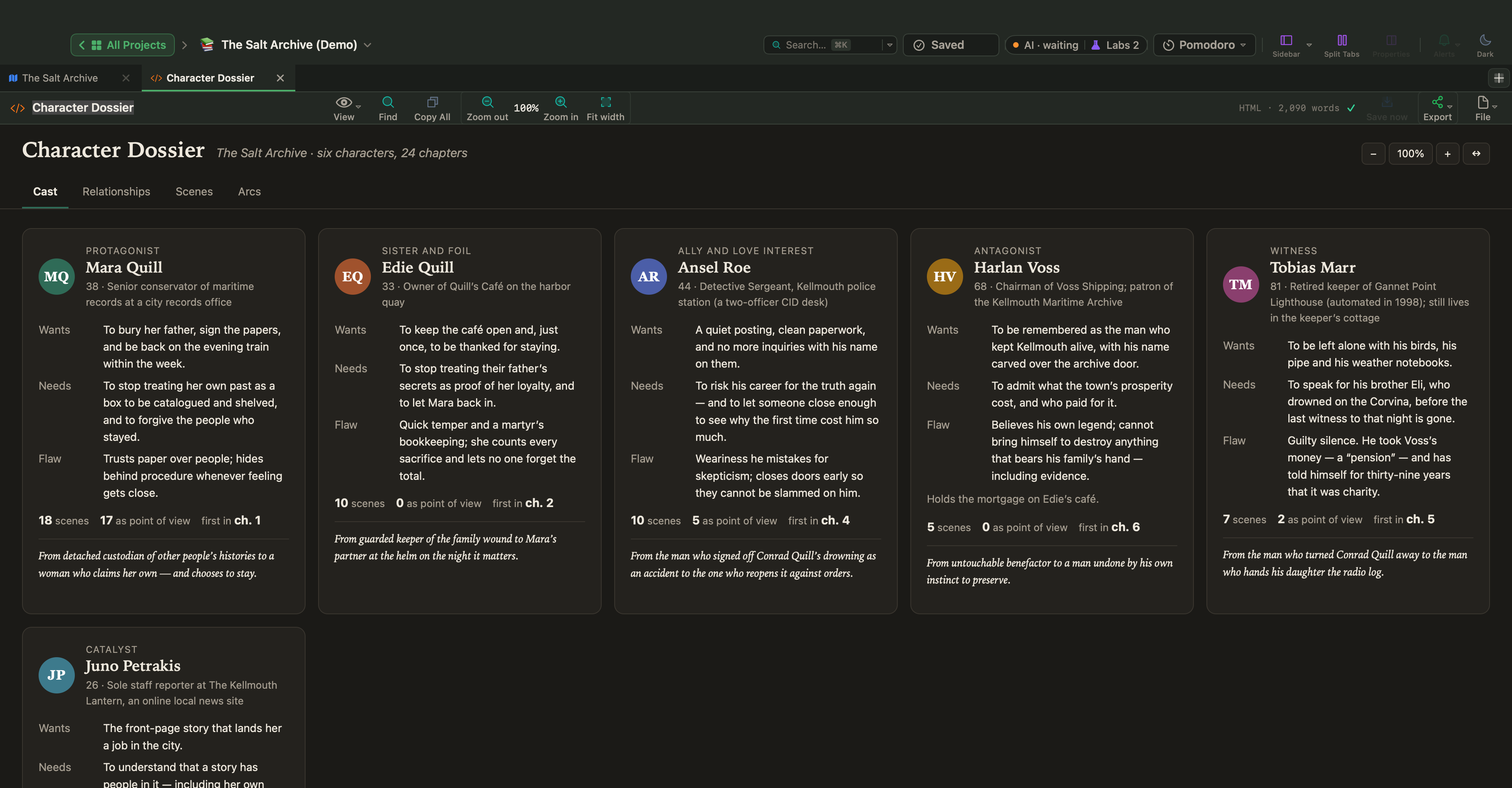
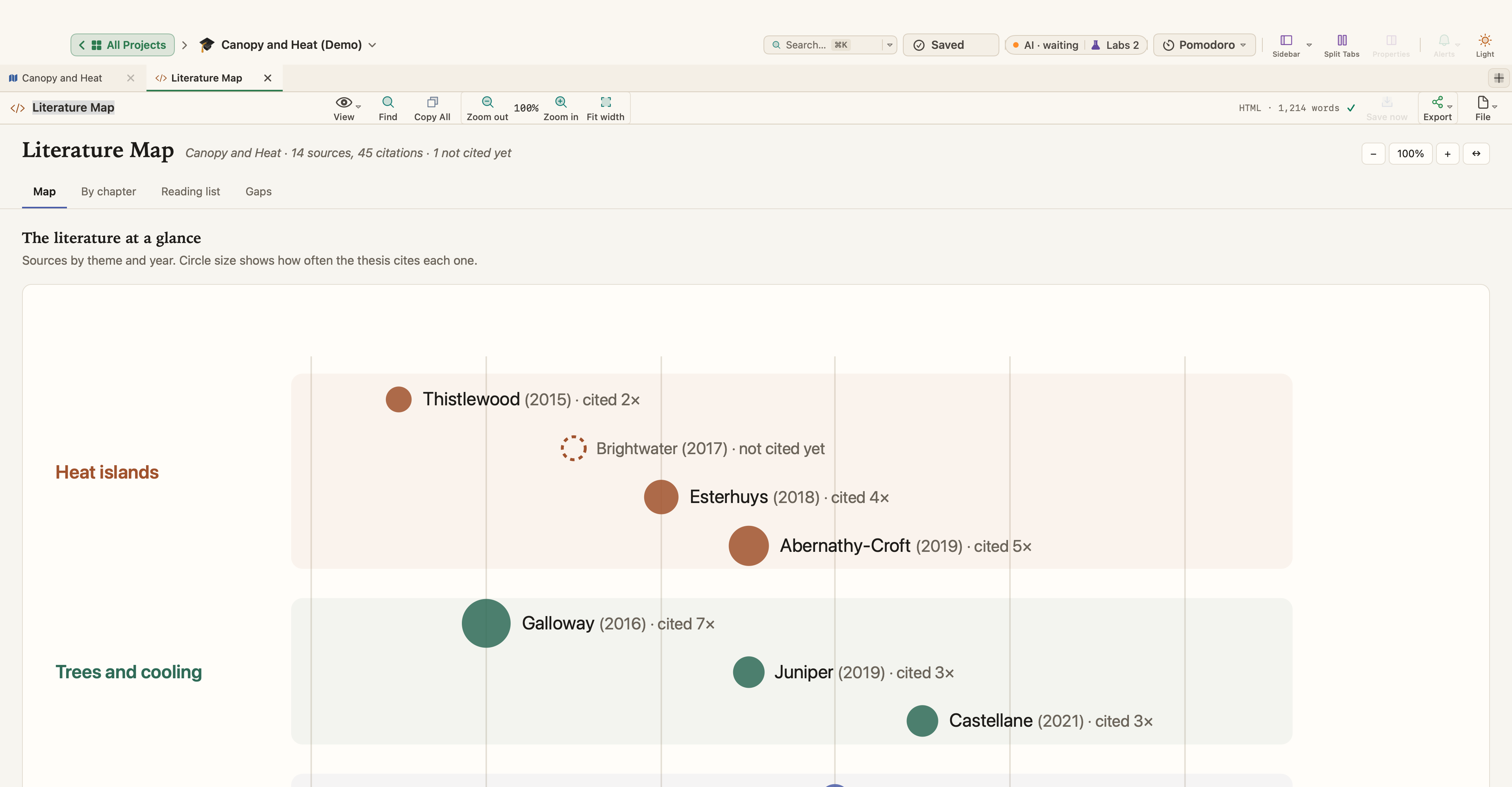
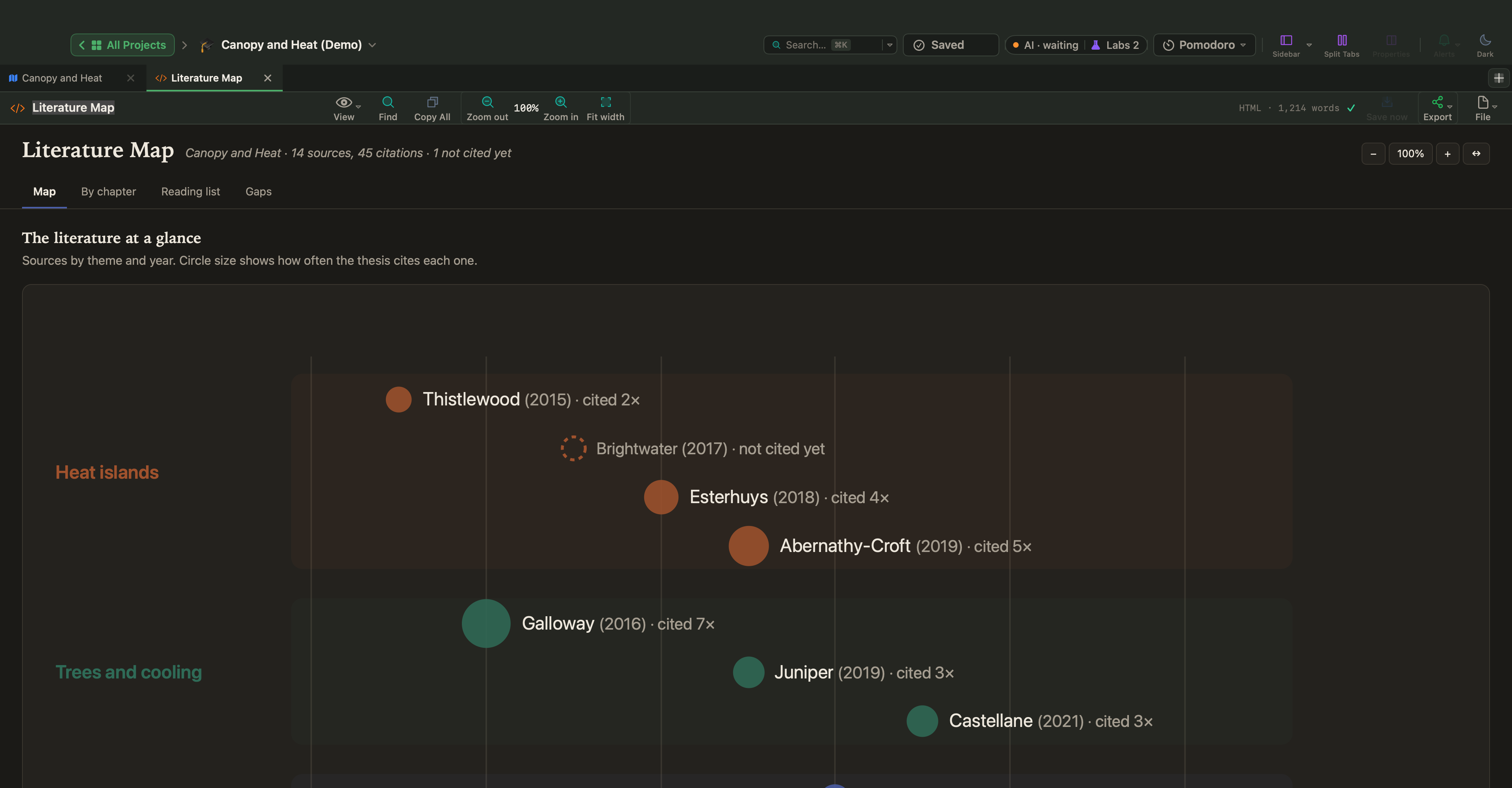
When you ask for a page, report or dashboard, the app creates a new HTML tab in the project. These pages follow WriterMorph's light or dark setting, have zoom and full-width controls in their header, and are saved inside the .wmorph project file, so they travel with it. The HTML tab shows the source beside the live page, and you can edit it.
Pages can be about the book itself: a character dossier with who shares scenes with whom, a story bible with tabs for characters, places and chronology, or a map of a literature review that shows which sources a thesis cites and which it doesn't cite yet. WriterMorph also gives the assistant a Live Page Designer skill, so you can ask for a Live Page in the same style as the built-in templates. It starts from the closest template and builds a page with the same look and controls.
You decide what it may do
The connection is off by default. When you turn it on, an AI app can only read the open project. Three switches decide the rest:
| Switch | What it allows |
|---|---|
| Turn on AI Connections | The connection itself. Off means no AI app can reach WriterMorph. |
| Allow changes | Adding and editing cards and tabs. Off means read-only. |
| Allow deleting | Deleting cards and tabs, a separate choice. Deleted items go to the Trash. |
You keep an eye on it from the Active Services indicator in the top bar. Click it to see the connected apps, change the switches, and read What AI apps did: the latest 40 actions since WriterMorph opened.
Changes from an assistant can be undone with ⌘Z. Before an assistant changes an HTML page, a note or a document, WriterMorph keeps a copy of how it was: for an HTML page, choose File ▾ › Restore Before AI Edit ▸ in the tab's header; for a note or a document, click the clock button in its header.
Your Mac, your key
Nothing runs while WriterMorph is closed. The connection accepts requests only from your own Mac and needs your secret key, which works like a password. If you ever want to cut off every app that has the old key, Create New Key… replaces it; each app then has to be set up again with the new key.
WriterMorph itself sends nothing anywhere. What your AI app sends to its own service is covered by that provider's terms, so it is worth knowing them before you connect. With LM Studio and a local model, the conversation stays on your Mac as well.
Setting it up
The setup takes a few minutes, once:
- Open Settings (⌘,), choose AI Connections and switch on Turn on AI Connections.
- Under Connect an app (one time), choose your app: Claude Code, Codex, LM Studio or Other Apps.
- Follow the steps WriterMorph shows for it: Copy & Open Terminal for Claude Code and Codex, Add to LM Studio for LM Studio, or the address and key to copy for any other app.
- Start a new session or chat in your AI app and ask in plain words, for example: "List the tabs in my open WriterMorph project."
The AI Connections help article has every step for each app, including Grok, where to find your key and what to do if an app stops connecting.
A sensible way to start
Start read-only, with Allow changes off, and ask questions about the project: which scenes have no summary, which characters never meet, how long each act is. When you trust the answers, turn on Allow changes for a concrete job, such as filling in properties for one act, and read What AI apps did afterwards. Keep Allow deleting off unless you need it.
Whatever the AI app does, the book stays yours: the words you write are written by you, and every change can be checked and undone.
Tell us what you need
We keep improving AI Connections, and we are always glad to hear suggestions. Write to us and tell us which AI app you use and what you would like it to do in your project.