 WriterMorph

Writing on two screens: what to put where
A second screen is most useful when it holds the thing you keep looking up. Five layouts for a novel, from the plot board beside the page to an iPad as a reference screen, and how to set each one up in WriterMorph.
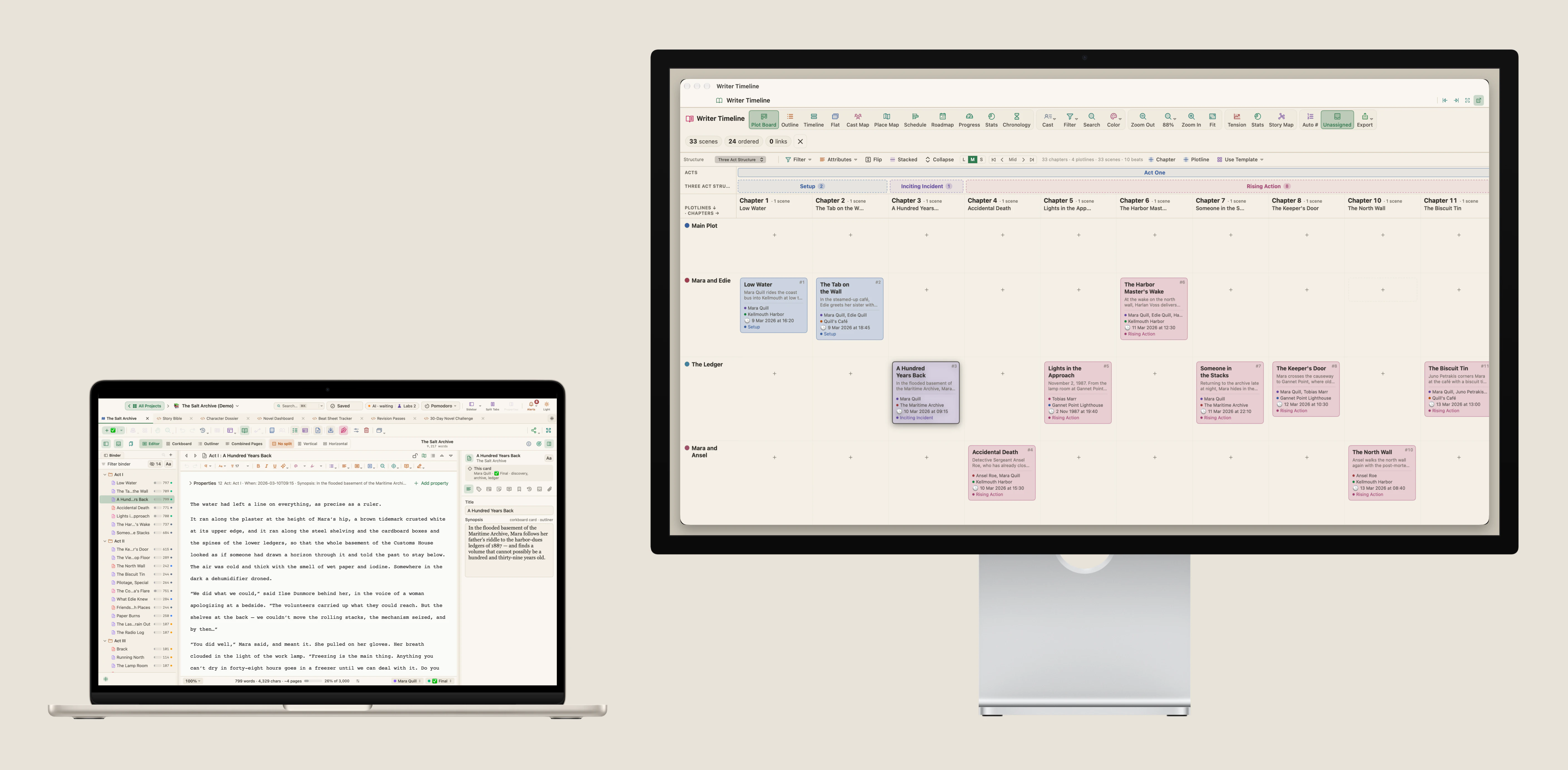
A second screen does not make anyone write faster. What it does is remove one small interruption that happens dozens of times a day: leaving the page to look something up, and then finding your way back. Where did she leave the letter? What colour was the car in chapter three? Which scene comes after this one?
So the useful question is not "what can I fit on two screens" but "what do I keep leaving the page for". Put that on the second screen and leave it there. This article gives five layouts that answer that question for different days of work on a book, and shows how to set each one up in WriterMorph.
One rule before the layouts
Keep the page on the screen in front of you, and give it the whole screen. The second screen is for things you glance at: an outline, a character sheet, a map of the plot. If you find yourself turning your head to type, the layout is the wrong way round.
A second rule follows from the first: one thing on the second screen is better than four. A wall of panels is a second place to get lost in.
1. The plot beside the page
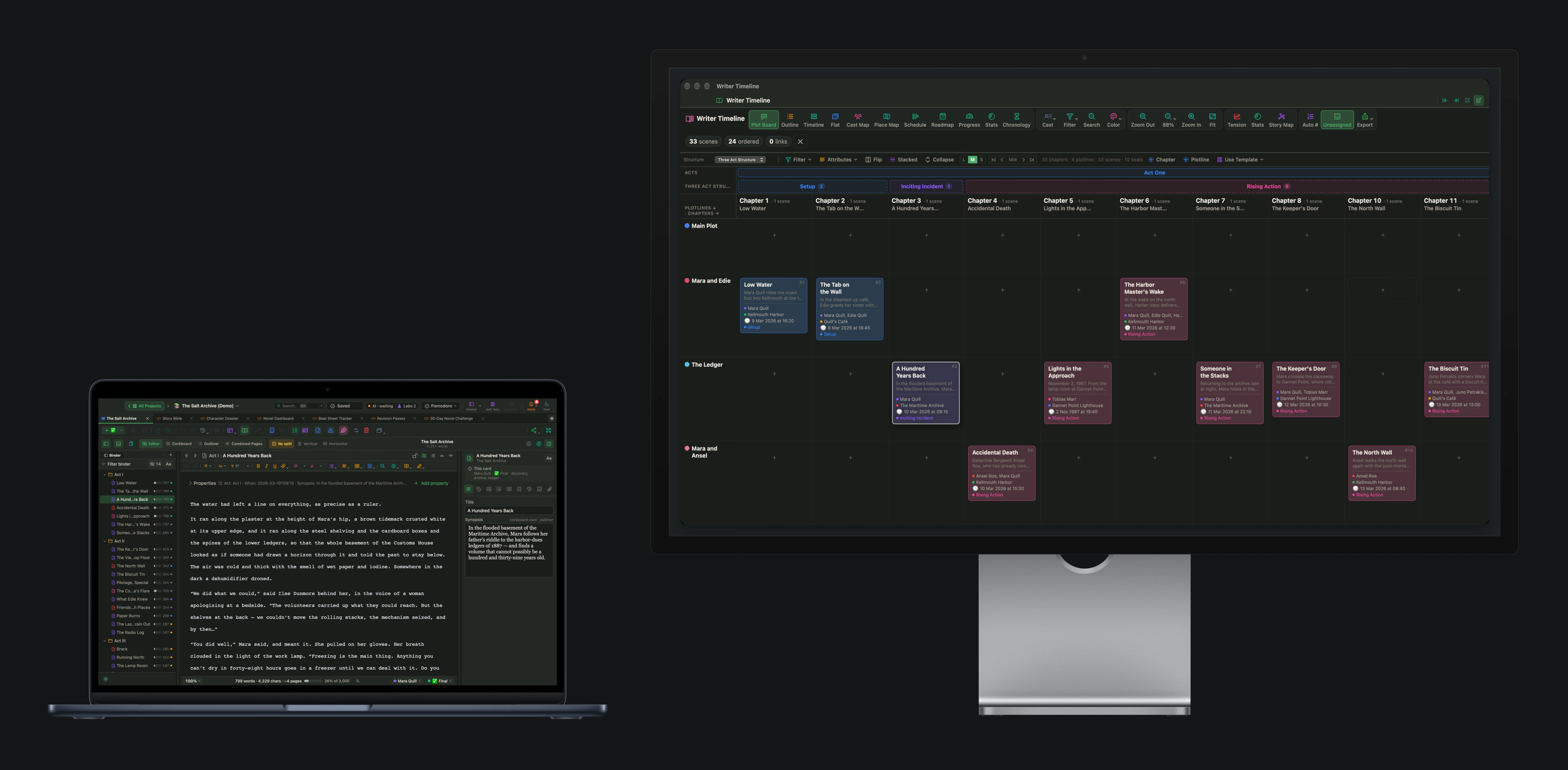
This is the layout for drafting. The manuscript has the first screen. On the second, the plot board shows the chapters in order and the storylines that run through them, so you can always see where the scene you are writing sits and what it has to hand on to the next one.
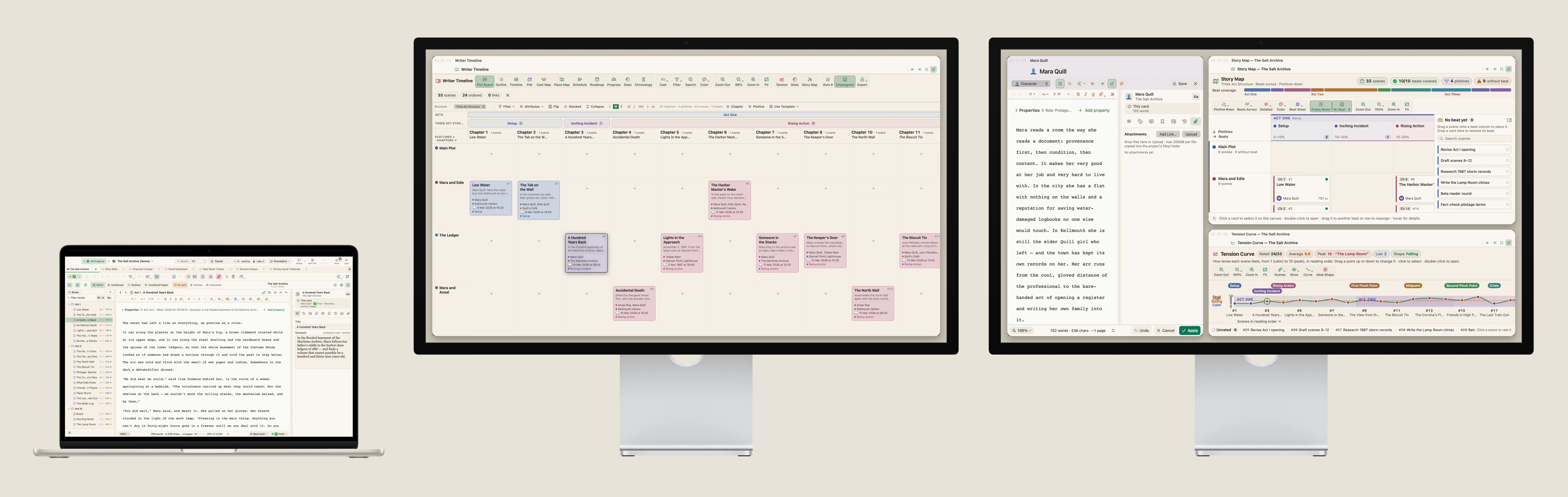
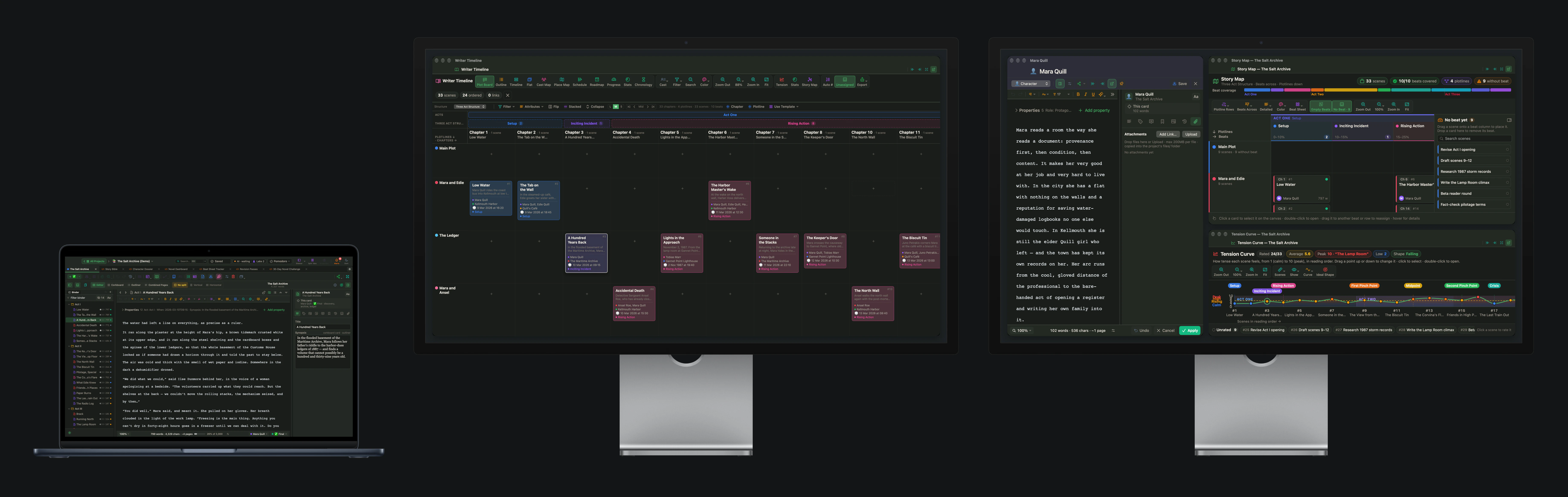
In WriterMorph, open the Writer Timeline, choose Plot Board, and click Detach into a floating window in the panel's title bar. Drag the window to the other screen and make it as large as you like. It stays there when you move between scenes, and the next time you open the Writer Timeline it opens in the same place.
2. A reference card in a window of its own
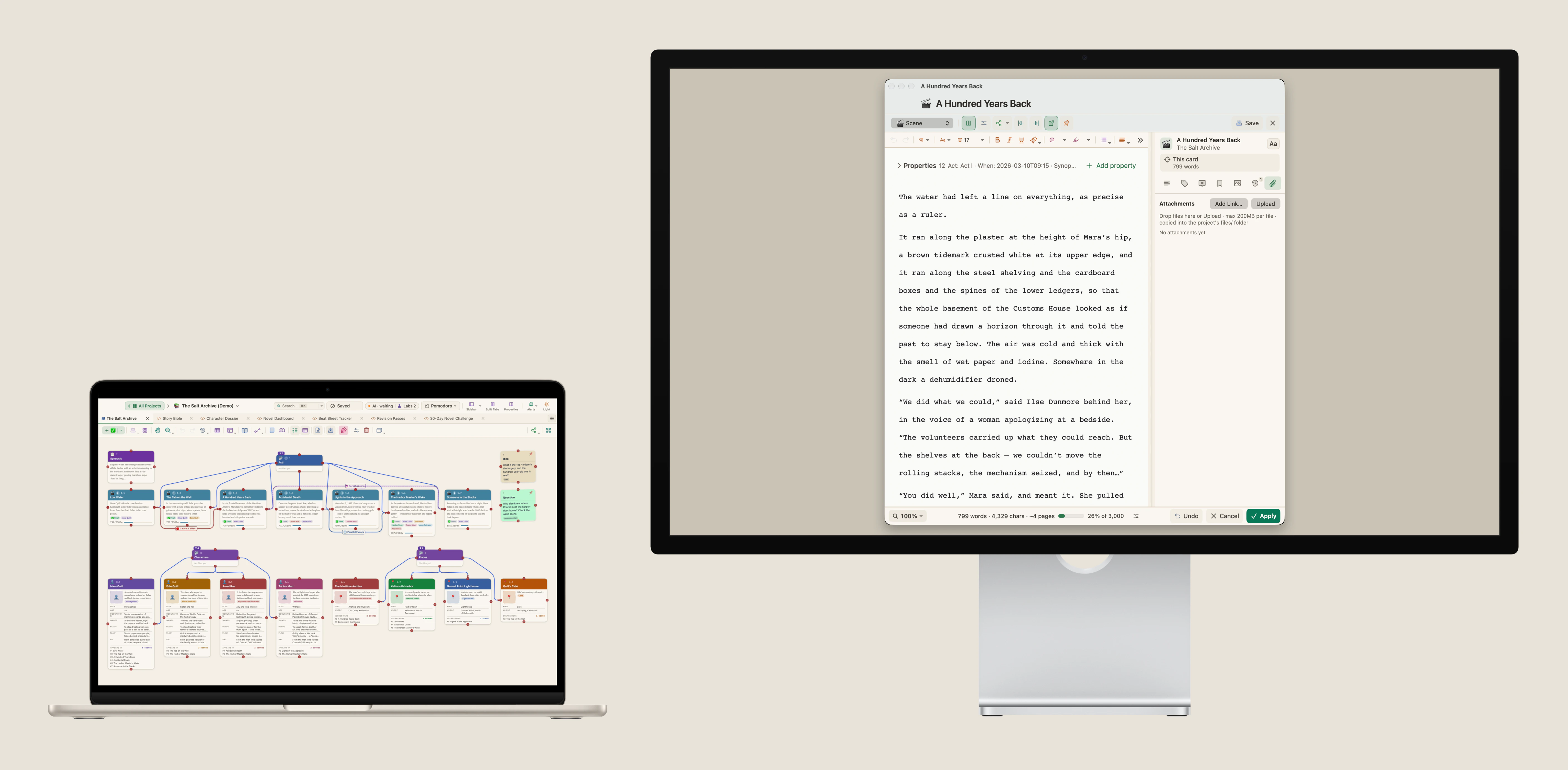
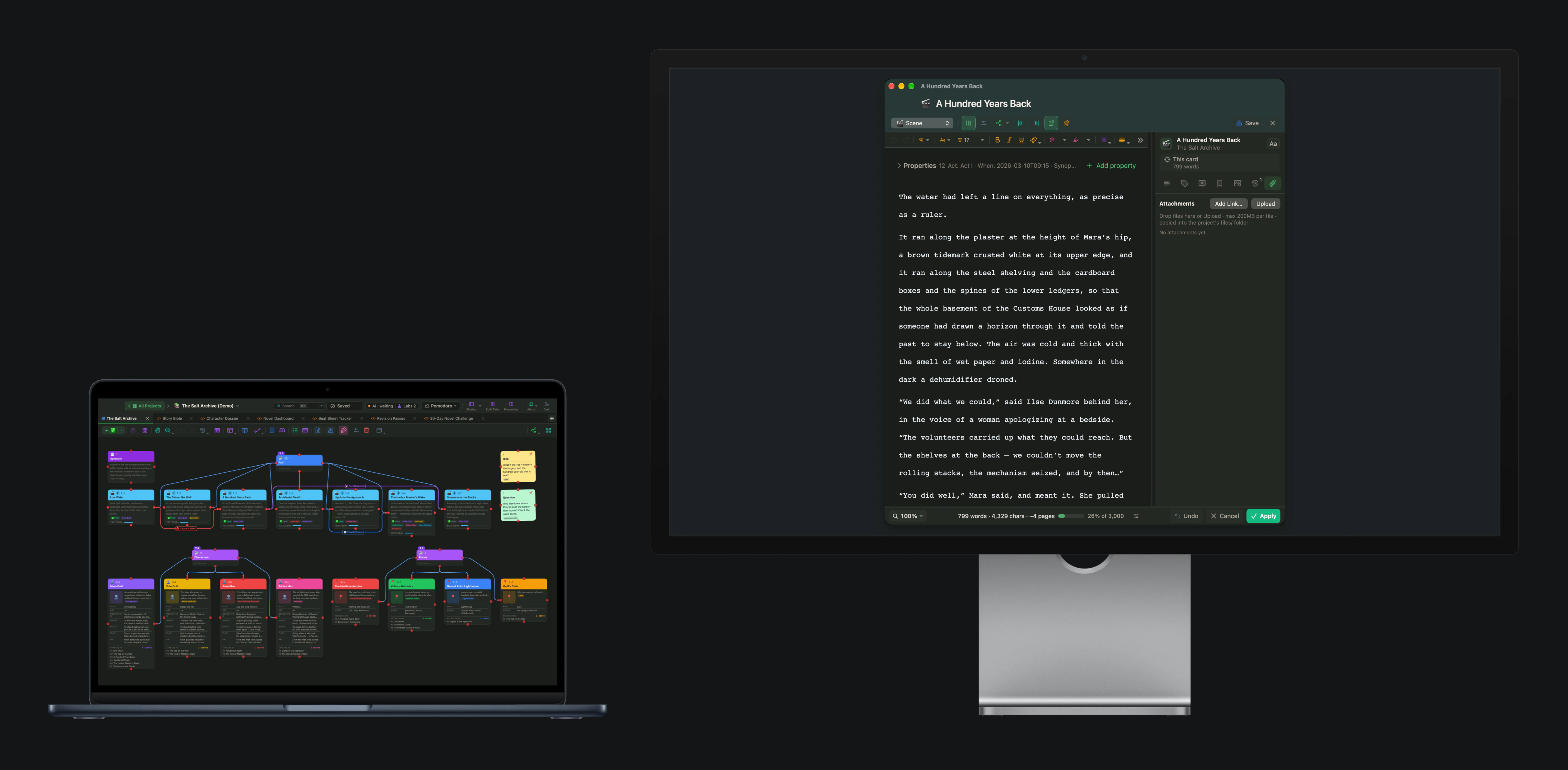
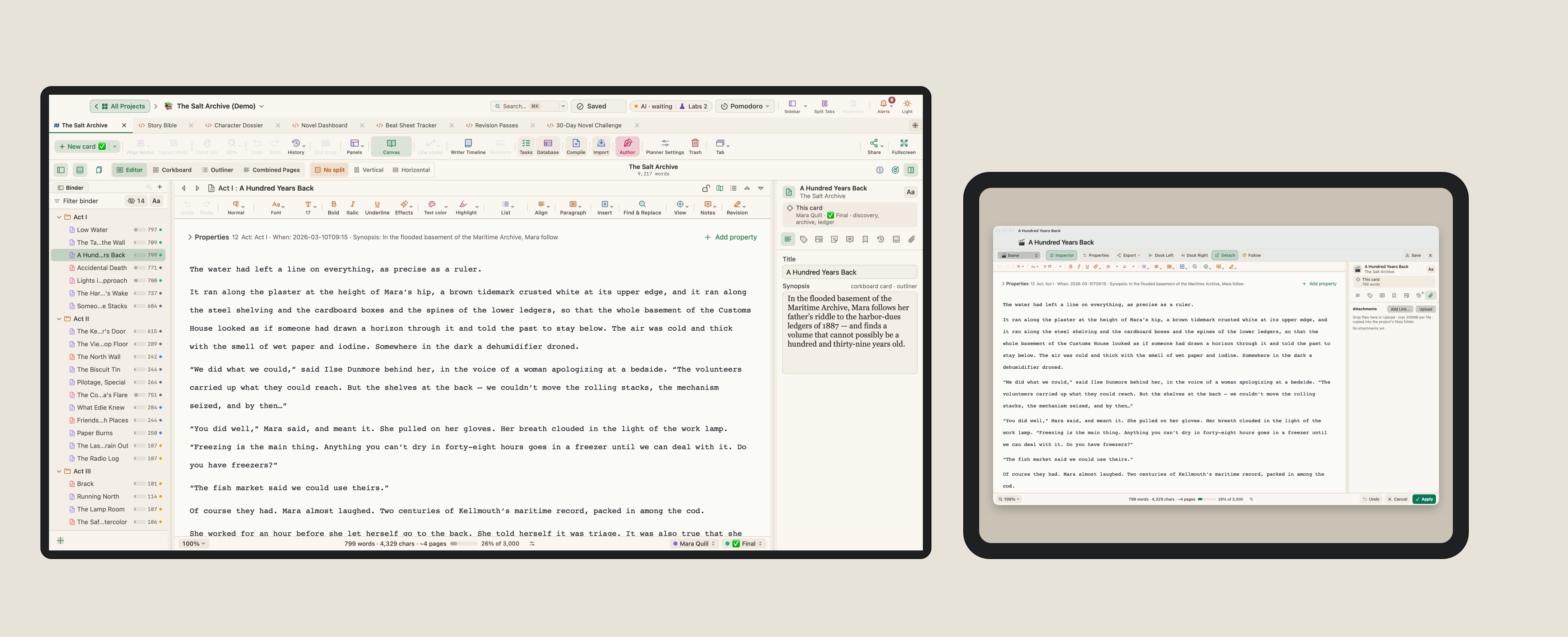
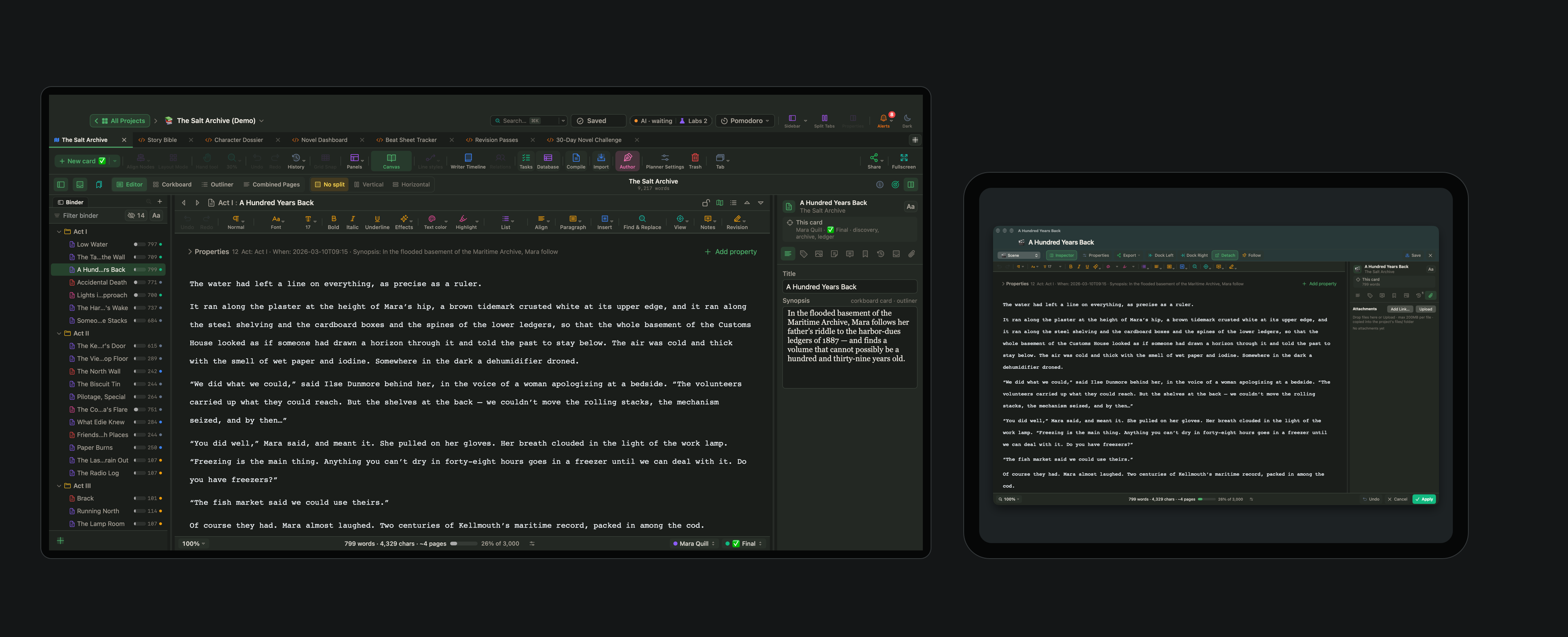
Some scenes lean on one piece of reference: a character sheet, a page of research, the scene that came just before. Open that card and click Detach. Its editor becomes a window, and you can move it to the second screen and keep it open while you write or plan on the first.
You can detach several cards. Each one gets its own window, and when you dock them again they come back as tabs beside the canvas, so nothing you had open is lost when you change your mind about the layout.
3. The whole story at full size
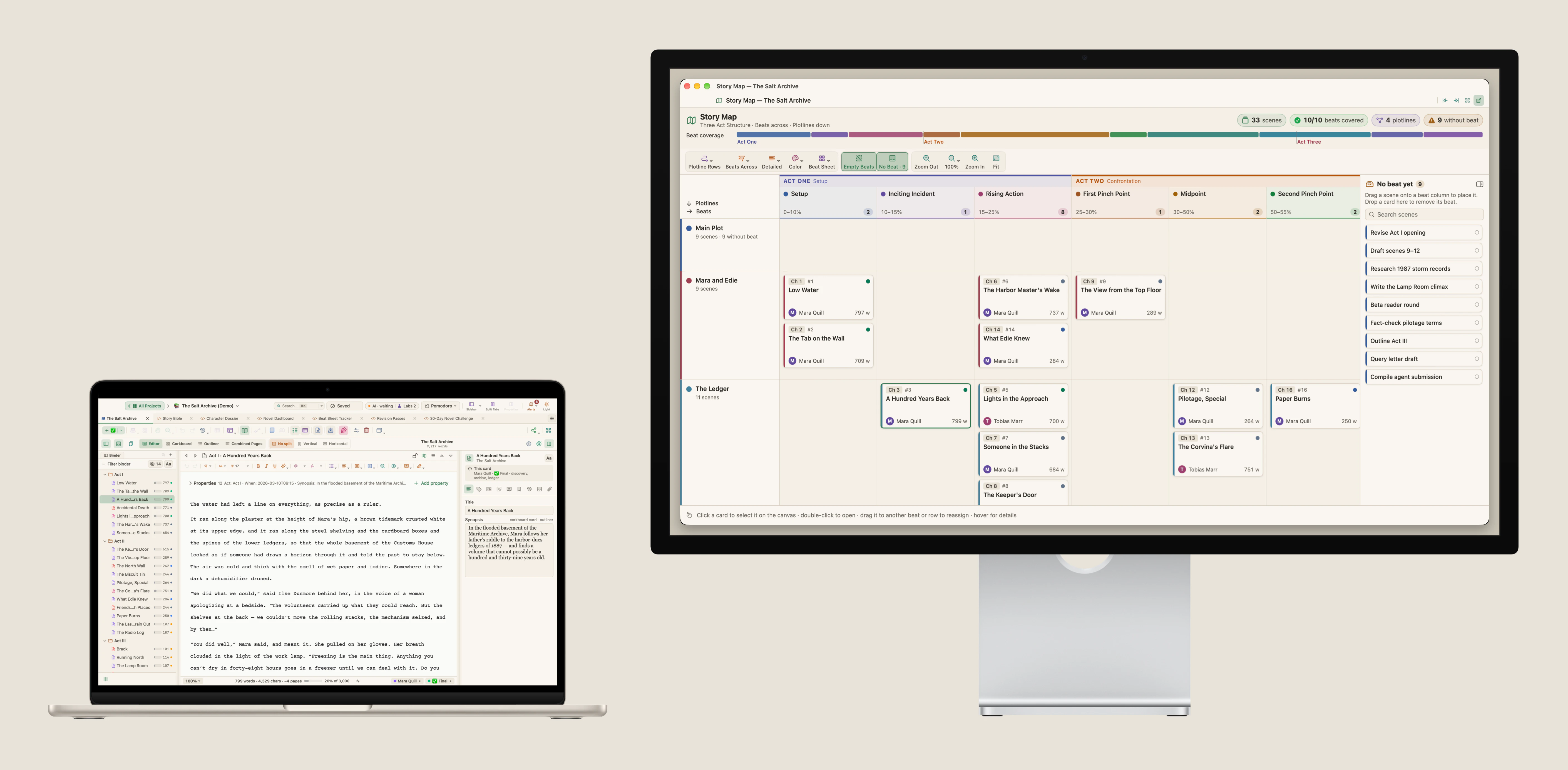
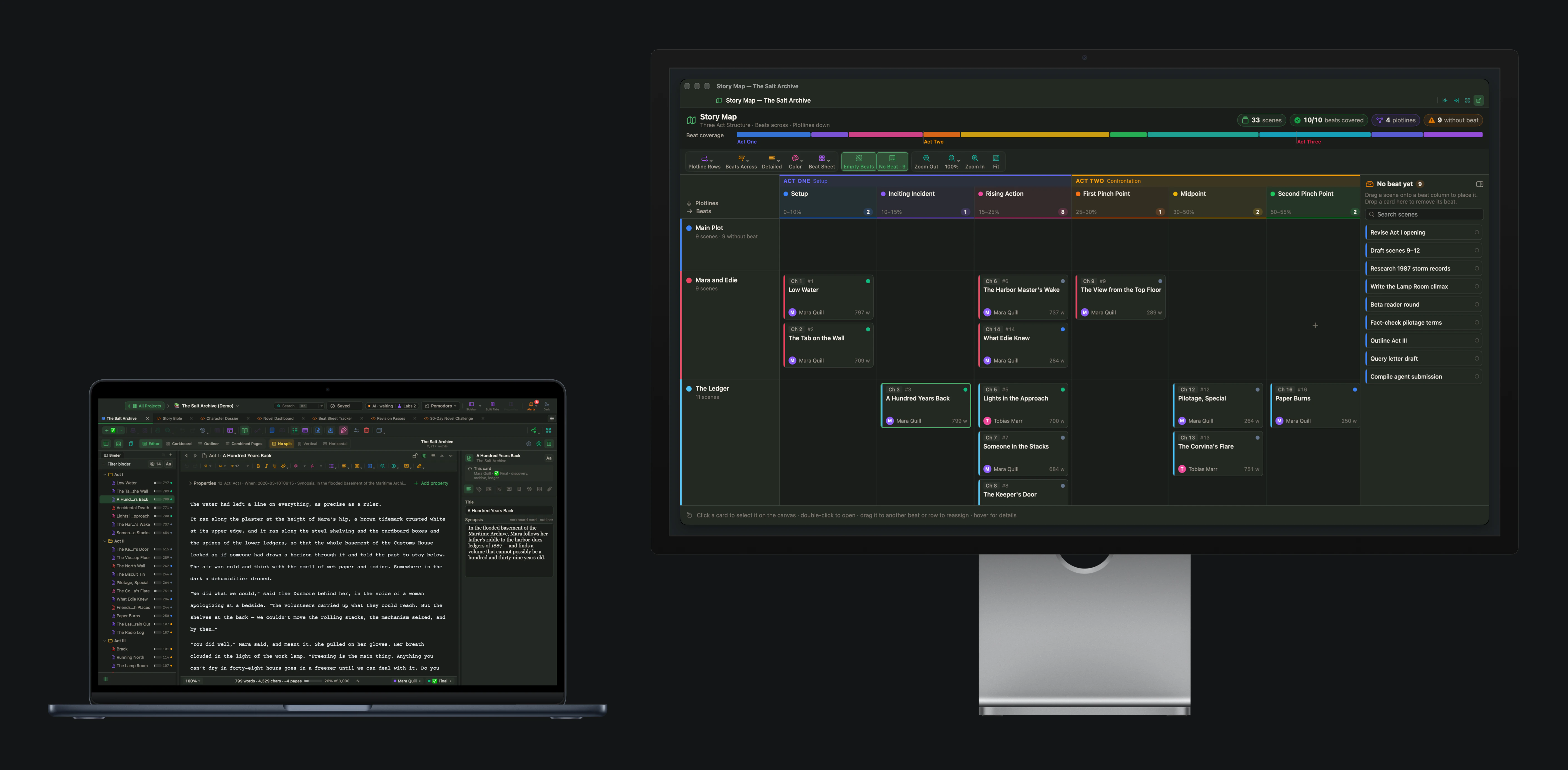
Structural work is the opposite of drafting: you want to see as much of the book as possible at once. The Story Map shows the whole book on one screen, with the beats of its structure and the scenes that cover them, and it is hard to read in a narrow panel. On a second screen it can have the full width.
Use this layout when you are checking that every beat has its scenes, where the middle of the book is thin, or which scene still has no place in the structure. The Tension Curve works the same way and is worth a screen of its own on the day you look at pacing.
4. The compiled pages beside the text
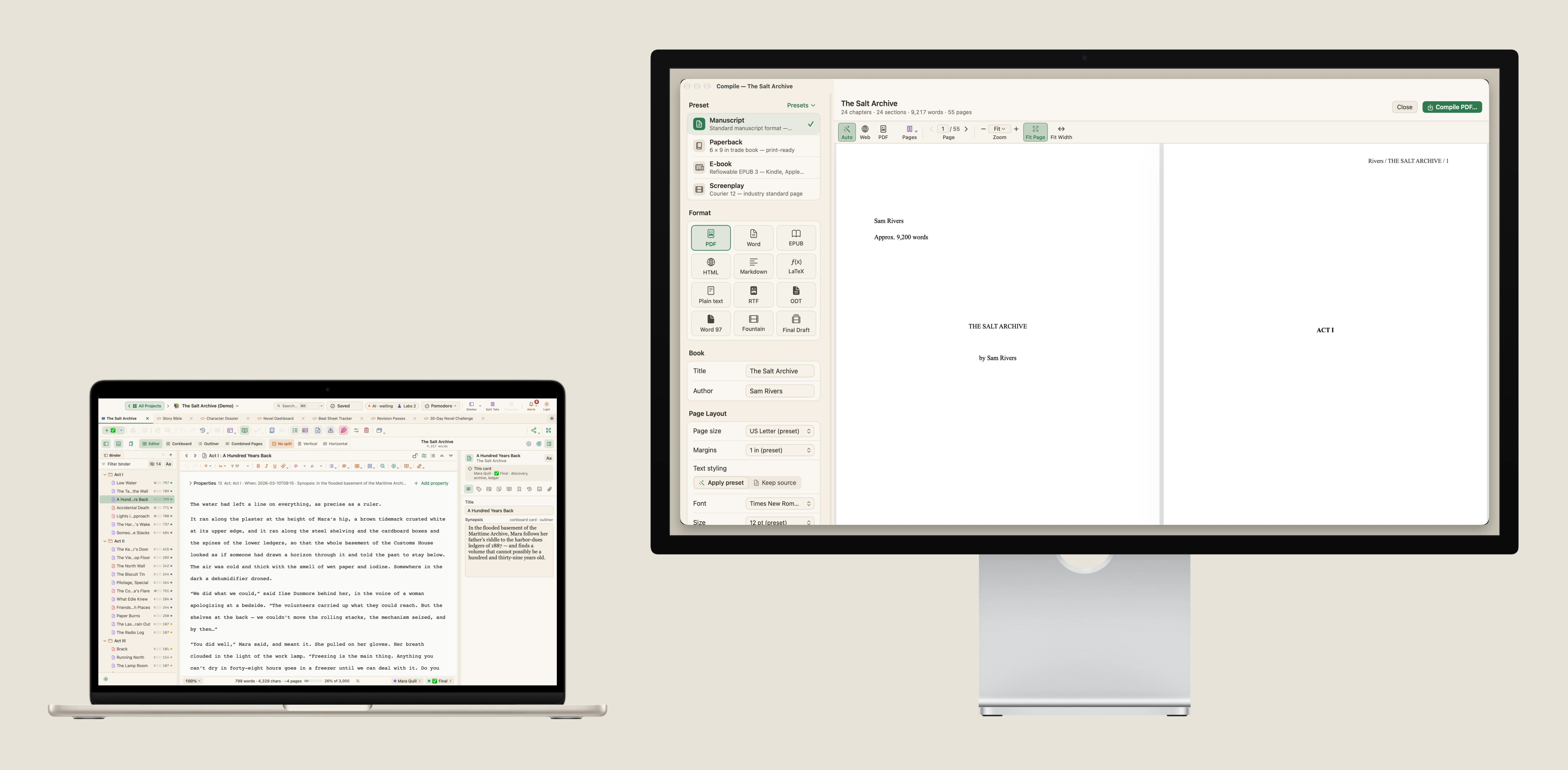
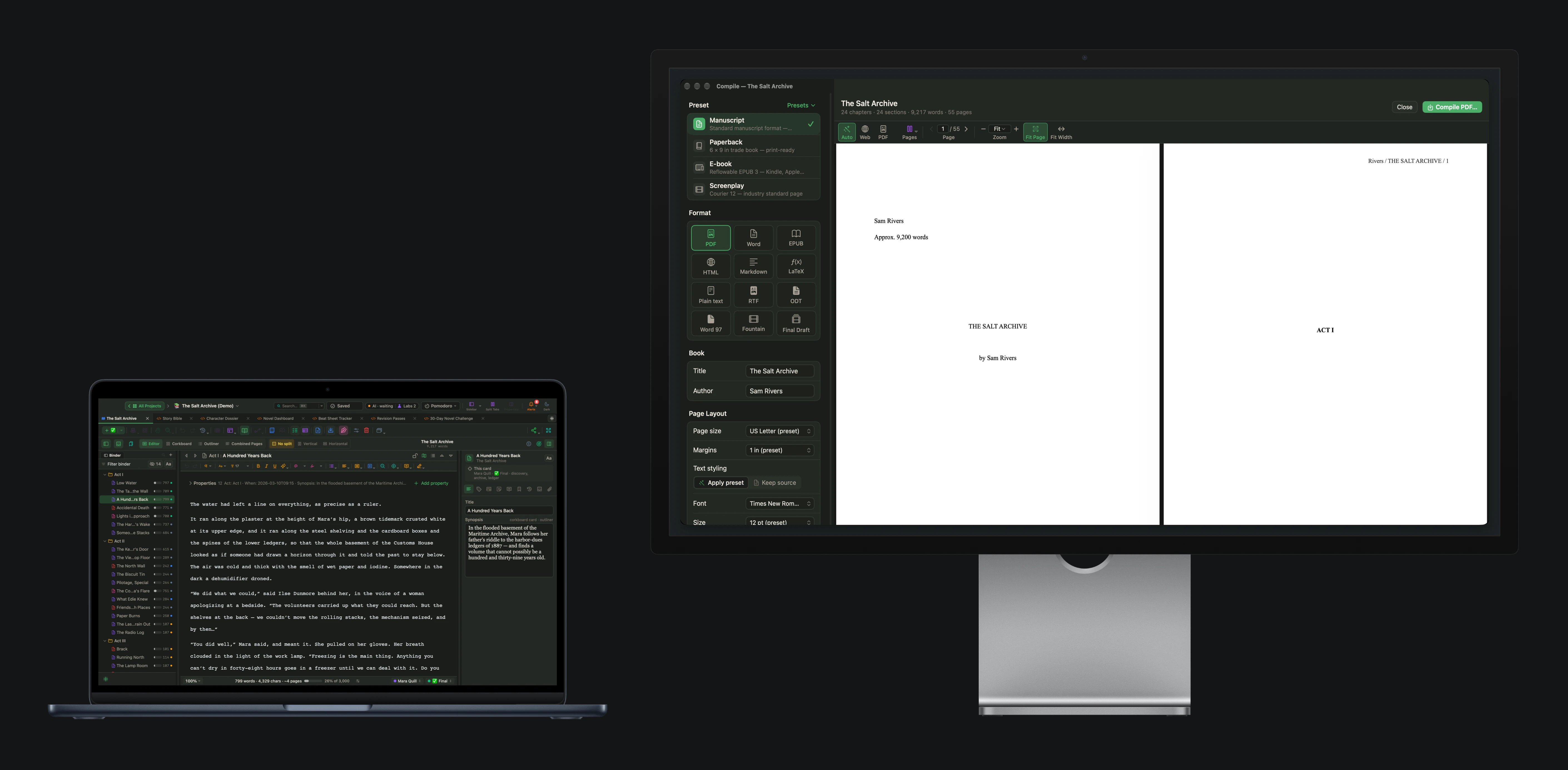
At the end, the question changes from "is this the right scene" to "is this the right page". Open Compile Studio, choose the format, and move it to the second screen. You read the pages as a reader will see them, and correct the text on the first screen as you go.
This is also the least tiring way to proofread. Reading a page that looks different from the one you typed helps you see what is on it, and not what you remember writing.
5. An iPad as the second screen
You do not need a second monitor to try any of this. With Sidecar, an iPad next to the Mac is a display like any other. It is small, so give it one thing: a single card, or the outline of the chapter you are in.
This is different from the WriterMorph app for iPad, which is the app itself on the iPad. Here the iPad is only a screen, and everything on it belongs to the Mac.
More than one window on the big screen
The rule of one thing has an exception: the days you restructure. Then it helps to see the plot board, the tension curve and the scene you are rewriting at the same time. Every panel and every card is a window of its own, so you can lay them side by side on the large display and keep the MacBook for the page.
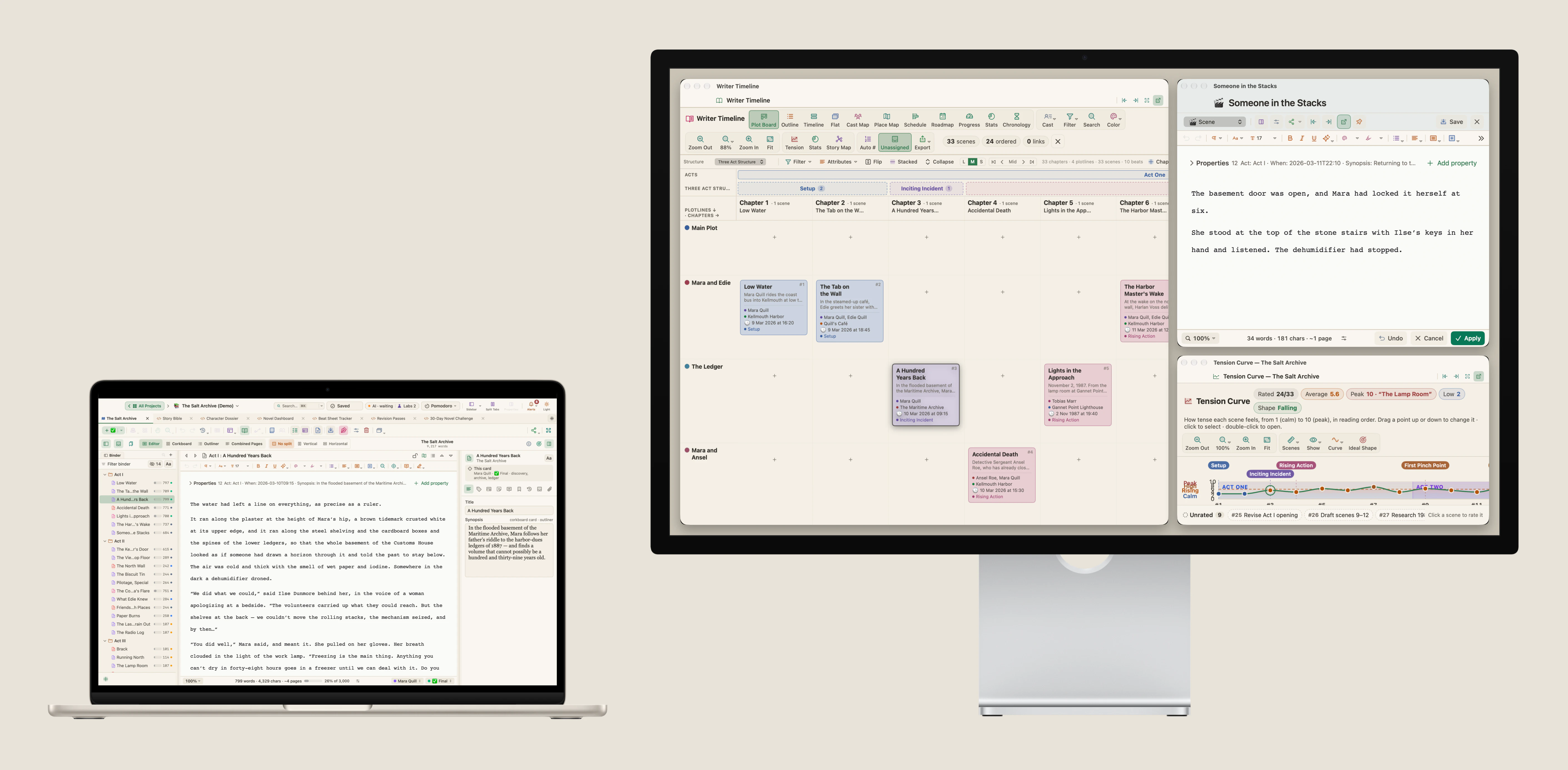
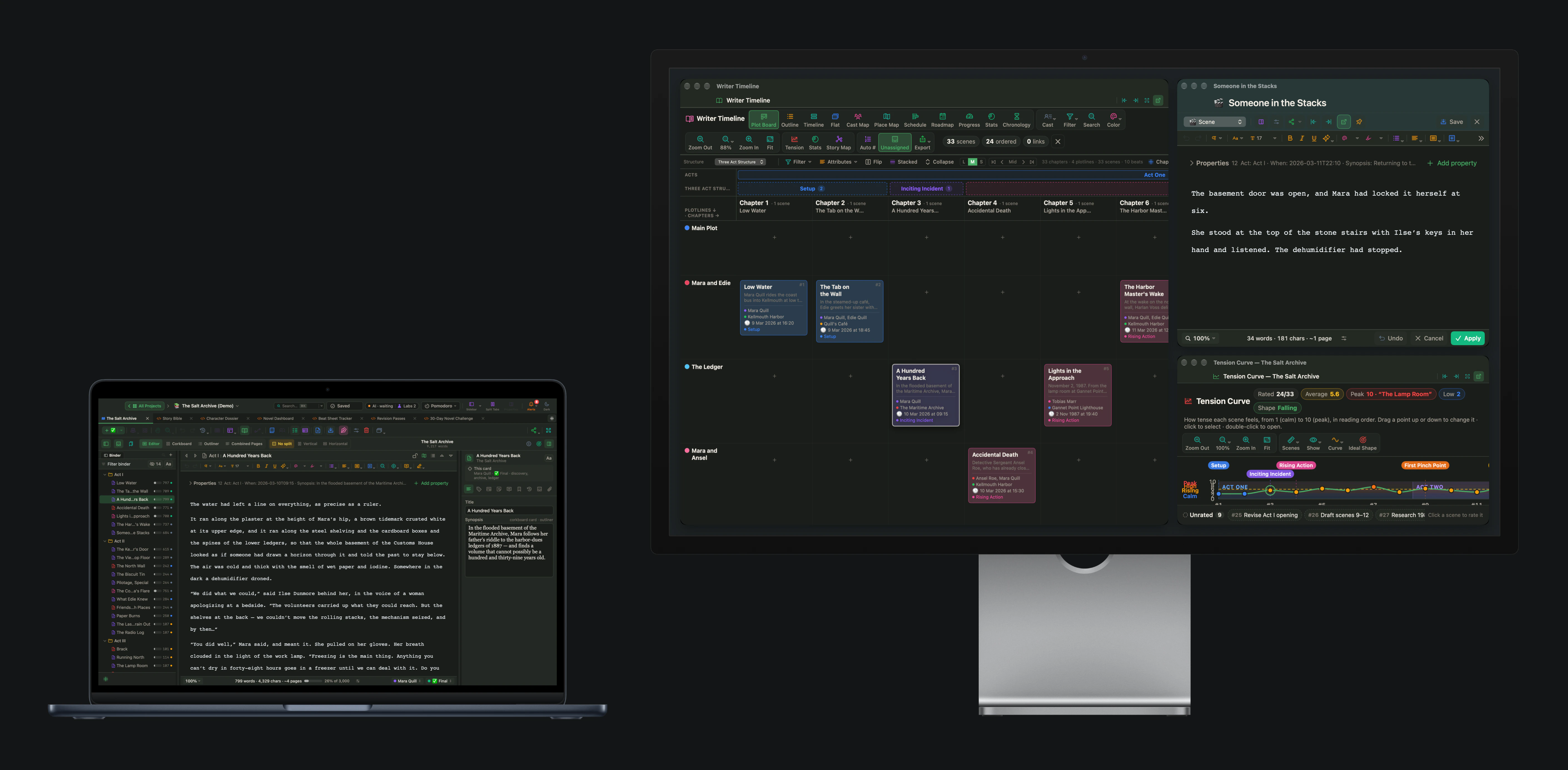
With two external displays, give the plot a screen to itself and put the cast and the structure on the other.
When you want nothing on the second screen
Some days the best use of a second screen is to switch it off. Composition Mode leaves only the page. In Settings › Behaviors you can choose which screen it opens on and tick Blank out other screens, so the one you are not writing on goes dark until you leave Composition Mode.
If you have one screen
All of these panels also work inside the main window. A panel can dock to the left or the right of the canvas, fill the canvas area, or wait as a title chip under the canvas until you need it. Split Tabs shows two tabs of a project side by side. Two screens are a comfort, and the same tools are there without them.
A short checklist
- Decide what you keep leaving the page for. That goes on the second screen.
- One thing on the second screen, at a size you can read at a glance.
- Drafting: the plot board. Planning: one card. Structure: the Story Map. Finishing: the compiled pages.
- When the second screen pulls at your attention, blank it and write.