 WriterMorph

Make your own beat sheet in WriterMorph: acts, beats and where each one starts
A step-by-step guide to building a story structure of your own in WriterMorph, with as many acts as your book needs, the beats in each act and the point where each beat starts. Then what happens to your scenes when you use it, and how to switch back.
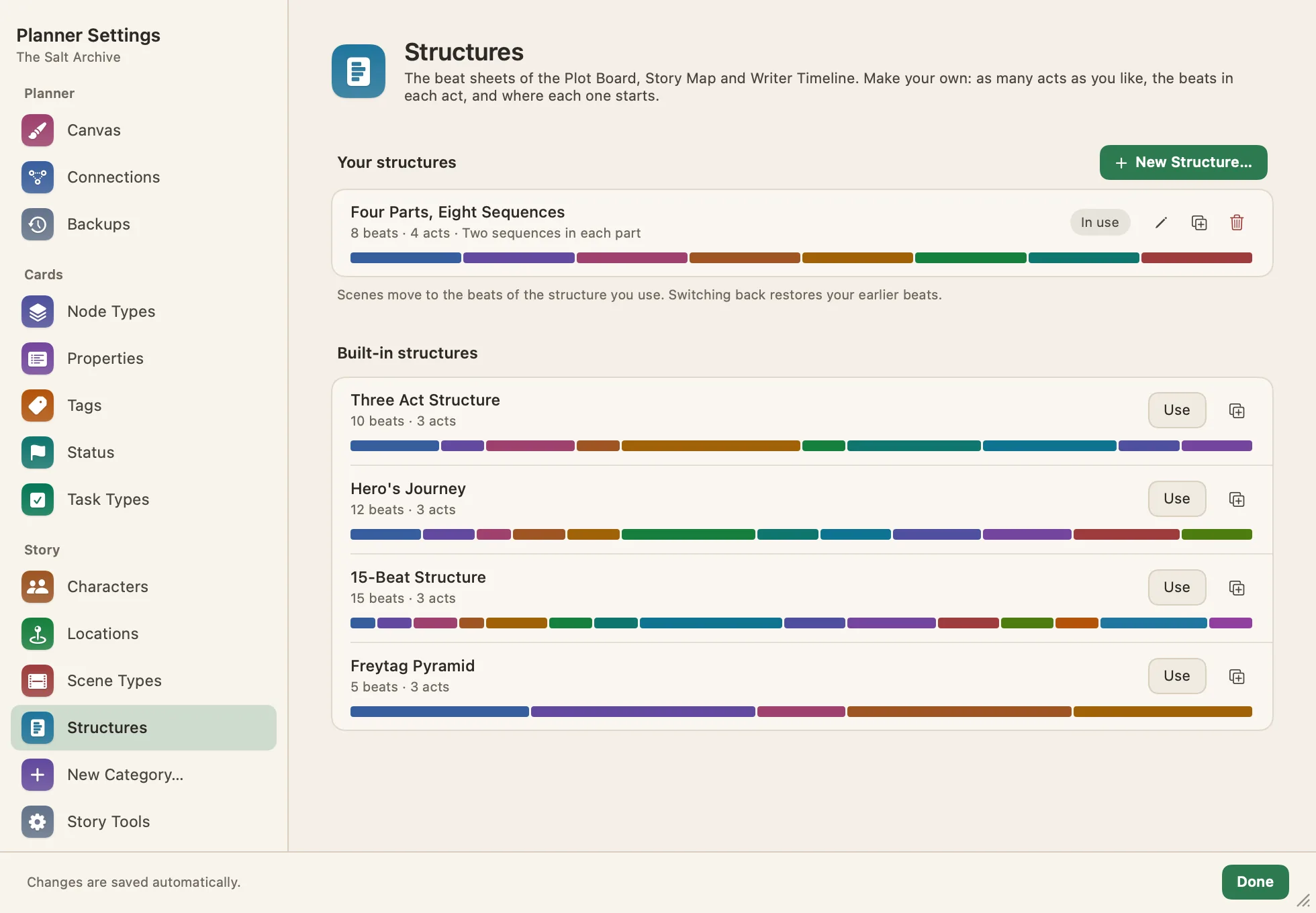
A beat sheet is a list of the moments a story passes through, with a rough idea of where each one falls. WriterMorph comes with four: the Three Act Structure, the Hero's Journey, the 15-Beat Structure and the Freytag Pyramid. They are good lenses, but they are someone else's. Your book may have five acts, or four parts and a turn, or a beat that no published sheet names.
So you can make your own: from 1 to 20 acts, the beats in each act, and the point in the book where each beat starts. Your scenes then follow it on the Plot Board, the Story Map and the rest of the Writer Timeline. This guide goes through it step by step. For ideas on what to build, see story structures beyond three acts.
Before you open the app: write the list
A structure is easier to build when you already know what goes in it. On paper, or in a note, write three things for each beat:
- A name that says what happens, not only where it sits. "The letter arrives" tells you more on a busy board than "Beat 2".
- What it does: the change it brings, in one line.
- Where it starts, as a share of the book. Rough is fine: "about a third of the way in" is 33%.
Then group the beats into acts. An act is a stretch of the book with one job: the setup, the long pursuit, the fall. If you cannot say what an act is for, it may be two acts, or none.
A worked example: a mystery in four acts
An invented mystery, planned in four acts so the long middle has a turn of its own.
| Act | Beat | Starts at | What happens |
|---|---|---|---|
| One | The body | 0% | A death no one can explain |
| One | Why it matters | 8% | The investigator has a personal stake |
| Two | First theory | 18% | The obvious suspect, and the evidence that fits |
| Two | False solution | 38% | The case seems closed; one detail does not fit |
| Three | Second death | 50% | The theory collapses; the stakes rise |
| Three | Under suspicion | 62% | The investigator becomes a suspect |
| Four | The last clue | 76% | The detail from act two, seen correctly |
| Four | Unmasking | 86% | The truth, in front of the people it affects |
| Four | Aftermath | 95% | What the truth costs |
Open the Structures page
Structures belong to a planner, and they live in its settings. Choose Project › Project Settings… (⌥⌘,) and click Structures. From the Plot Board or the Writer Timeline you can also open the Structure menu and choose Edit Structures… at the bottom; it opens the same page. Structures are part of the story tools, so the project needs Author mode; fiction and script templates turn it on for you.
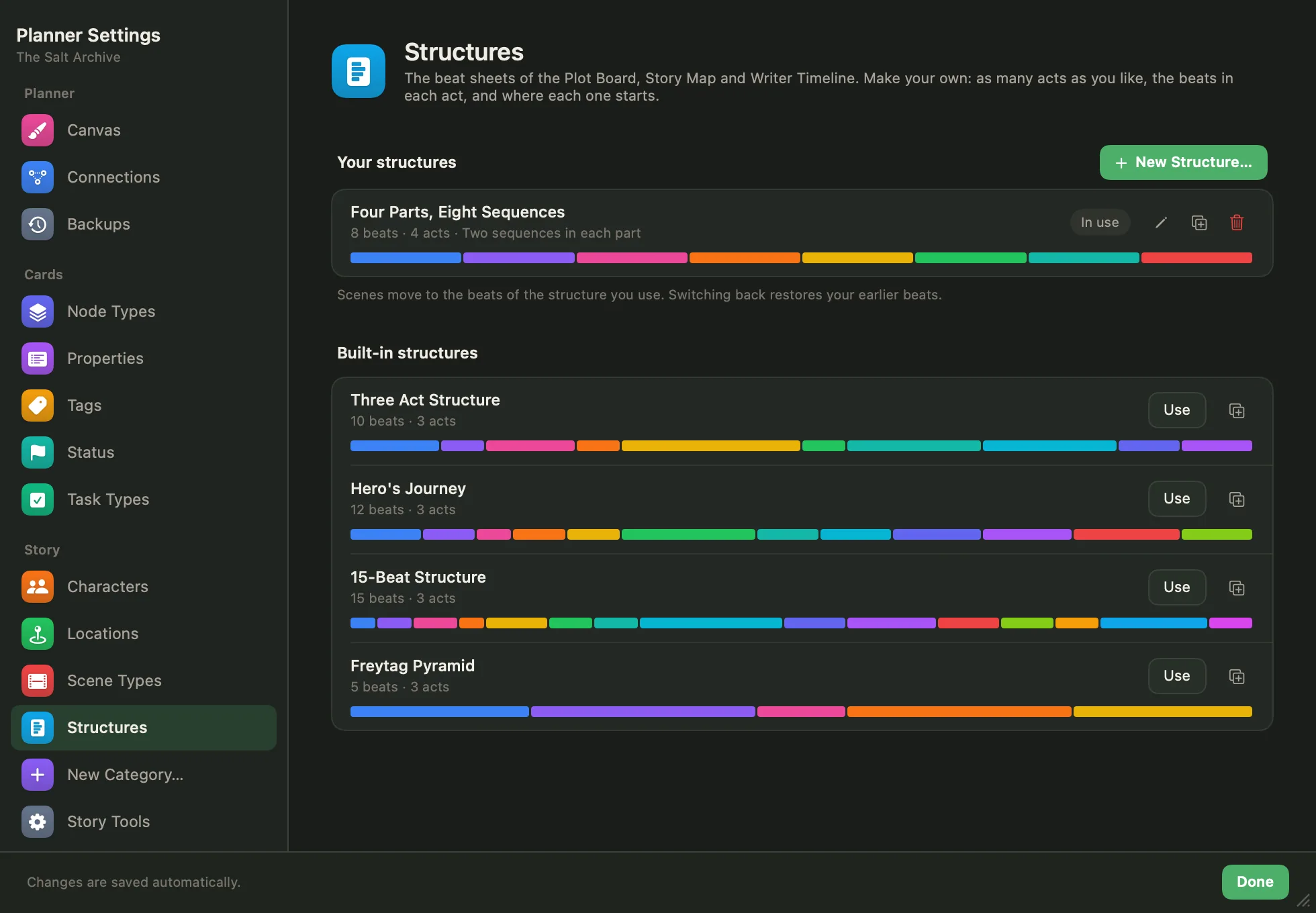
The page, shown at the top of this article, has two sections. Your structures lists the ones you made; until there are some, it suggests starting from scratch or duplicating a built-in one. Built-in structures lists the four that come with the app. They cannot be changed, but each can be copied.
Every row shows a colored strip of its beats across the book, with its number of beats and acts and its description, if it has one. The structure the planner uses has an In use chip; the others have a Use button. The icons on the right are Edit, Duplicate and Delete; built-in structures have only Duplicate.
Start from scratch, or from a copy
- New Structure… starts a structure called "My Structure" with three acts and six beats, two in each act, spread evenly over the book. Use it when your beat list is your own.
- Duplicate on a built-in structure makes an editable copy with the same beats and starts, named after the original with "Copy" at the end. Use it when you want a known structure with changes: a Three Act Structure with an extra pinch point, or a 15-Beat Structure with your own beat names.
Either way, the editor opens. Its window can be resized: drag an edge or a corner.
Name it and set the acts
At the top of the editor, a note says how beats work: each beat runs until the next one starts, and the last beat ends the book.
- Name. Each structure in a planner needs a name of its own.
- Acts. The stepper adds an act at the end or removes the last one, from 1 to 20. A new act gets as many beats as the act before it. The Add Act button below the acts does the same.
- Description. Optional: a line to remind you what the structure is for.
Below these, a colored strip shows every beat across the book, grouped by act. Point at a beat in the strip to see its name and its range.
Add the beats in each act
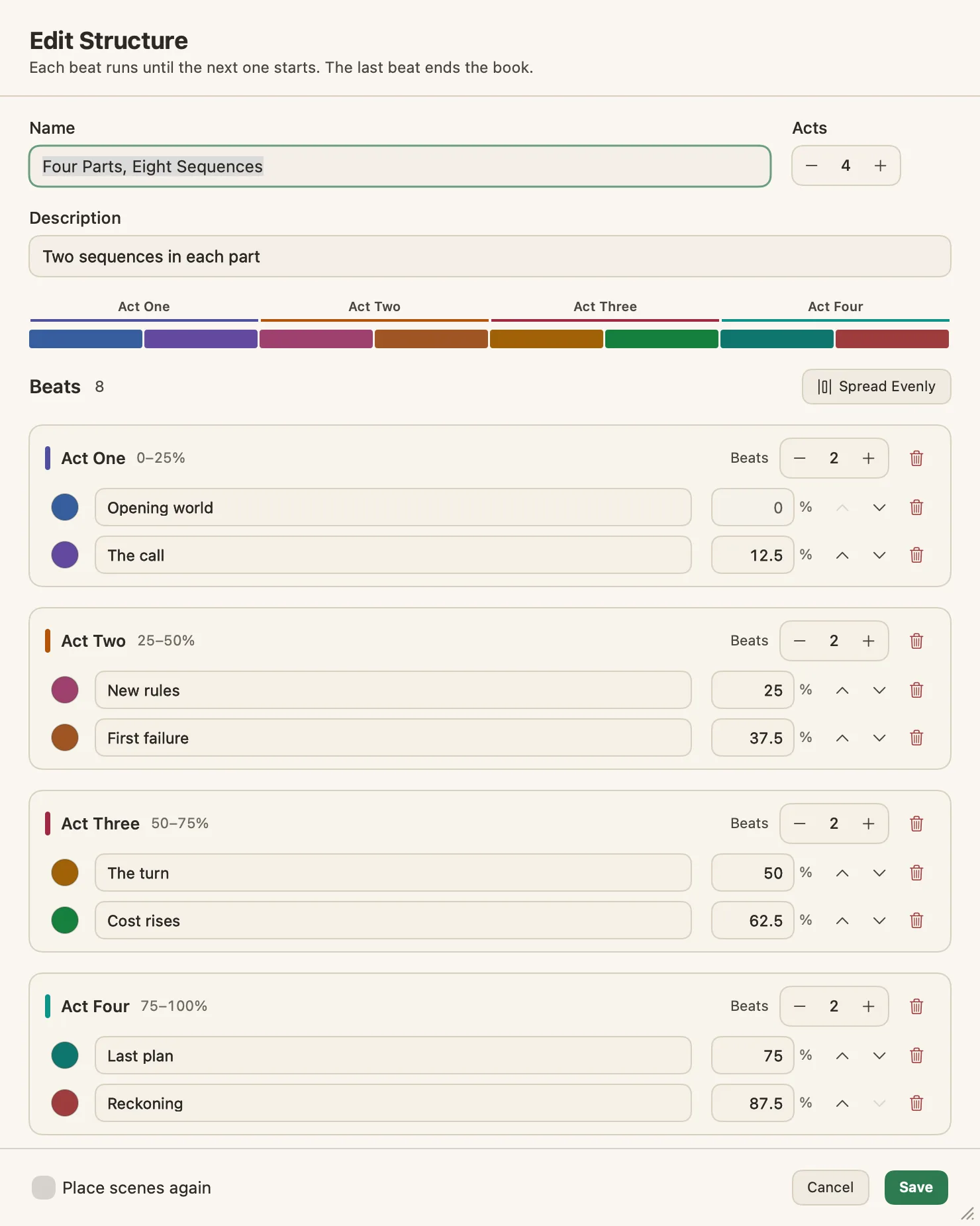
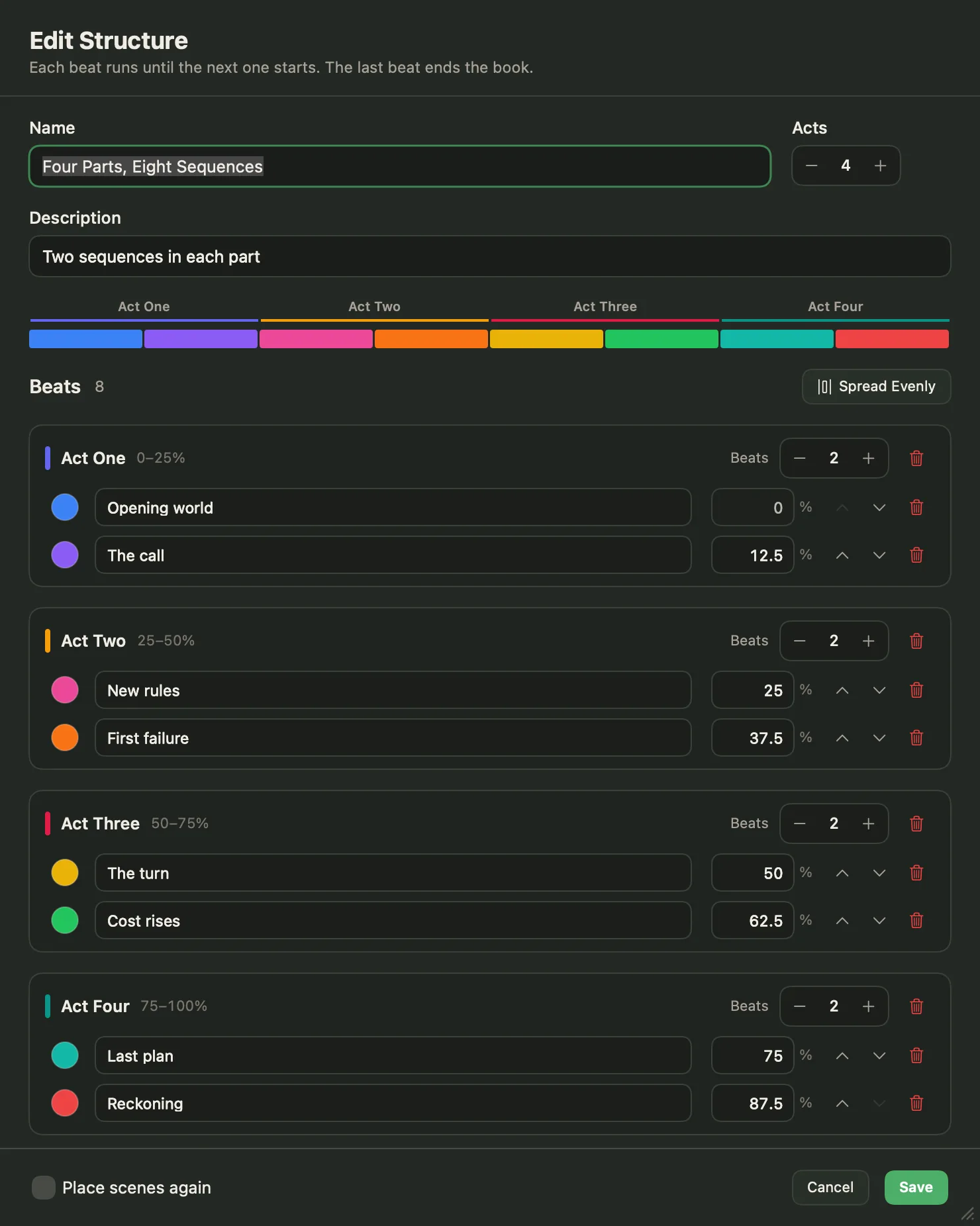
Each act has a section of its own, titled Act One, Act Two and so on, with the share of the book it covers. In each section:
- The Beats stepper adds a beat at the end of the act, or removes the last one. A new beat starts halfway between its neighbors.
- Remove this act deletes the act with its beats.
- Each beat has a color, a Beat name and a start %.
- Move up and Move down change the order. The starts stay where they are, so the beat takes the place of its neighbor. A beat at the edge of an act moves into the neighboring act, as long as it is not the only beat left in its own.
- Delete removes the beat.
For the mystery above: set Acts to 4, use each act's Beats stepper to give the acts two, two, two and three beats, and type the names.
Set where each beat starts
The % field is where the beat starts, as a share of the book, to one decimal place. The first beat always starts at 0%. Every other start stays between the beats before and after it, so the order of the beats and the acts cannot get tangled: if a number will not go in, set the neighboring beat first.
Spread Evenly gives every beat the same share of the book. It is a good first step when your beats are of similar weight, or before you set the exceptions by hand. While the beats are spread evenly, adding or removing a beat keeps them even.
For the mystery, type the starts from the table, from the top down: 8, 18, 38, 50 and so on. The strip at the top shows at once whether the proportions look like your book: a long second act, a short fourth.
The rules the editor checks
Save stays dimmed until the structure is complete, with a line saying what is missing:
- the structure needs a name, and no other structure in the planner may have it;
- every act needs at least one beat with a name.
A structure can have up to 60 beats, and a planner up to 50 structures of your own.
Use it in this planner
When you make a structure, Use it in this planner is ticked. Leave it on and click Save, and the planner switches to the new structure. You can also click Use on the Structures page at any time, or pick the structure from the Structure menu on the Plot Board or the Writer Timeline, where your own structures are listed with the built-in ones.
When the planner switches structures, every scene moves to the beat at its place in the book. That place is measured by words when every scene has text, and by scene order when some are still empty, so a draft with blank scenes is not crowded into one beat. The first scenes land on the first beat, the last scenes on the last.
Change it later
Click Edit on one of your structures to change it. Renaming a beat or moving its start keeps your scenes on the beats you gave them. If you remove beats that have scenes, the editor tells you how many cards are on them; those cards will have no beat.
If you edit the structure the planner uses, the editor offers Place scenes again. It moves every scene to the beat at its place in the book, instead of keeping the beats you chose. Leave it off to keep your own assignments, and turn it on when you have changed the proportions and want a fresh start.
Switch back, undo, delete
Switching to another structure is safe. WriterMorph remembers which beat each scene had in each structure, so when you switch back, your earlier beats return exactly as you left them. The Structure menu also has No structure.
Saving a structure, or deleting one, is a single step that Edit › Undo (⌘Z) reverses. Delete asks first, and says how many cards are on the structure's beats: they will have no beat, and ⌘Z brings the structure back. Deleting the structure the planner uses leaves the planner with no structure.
Everything that follows your structure
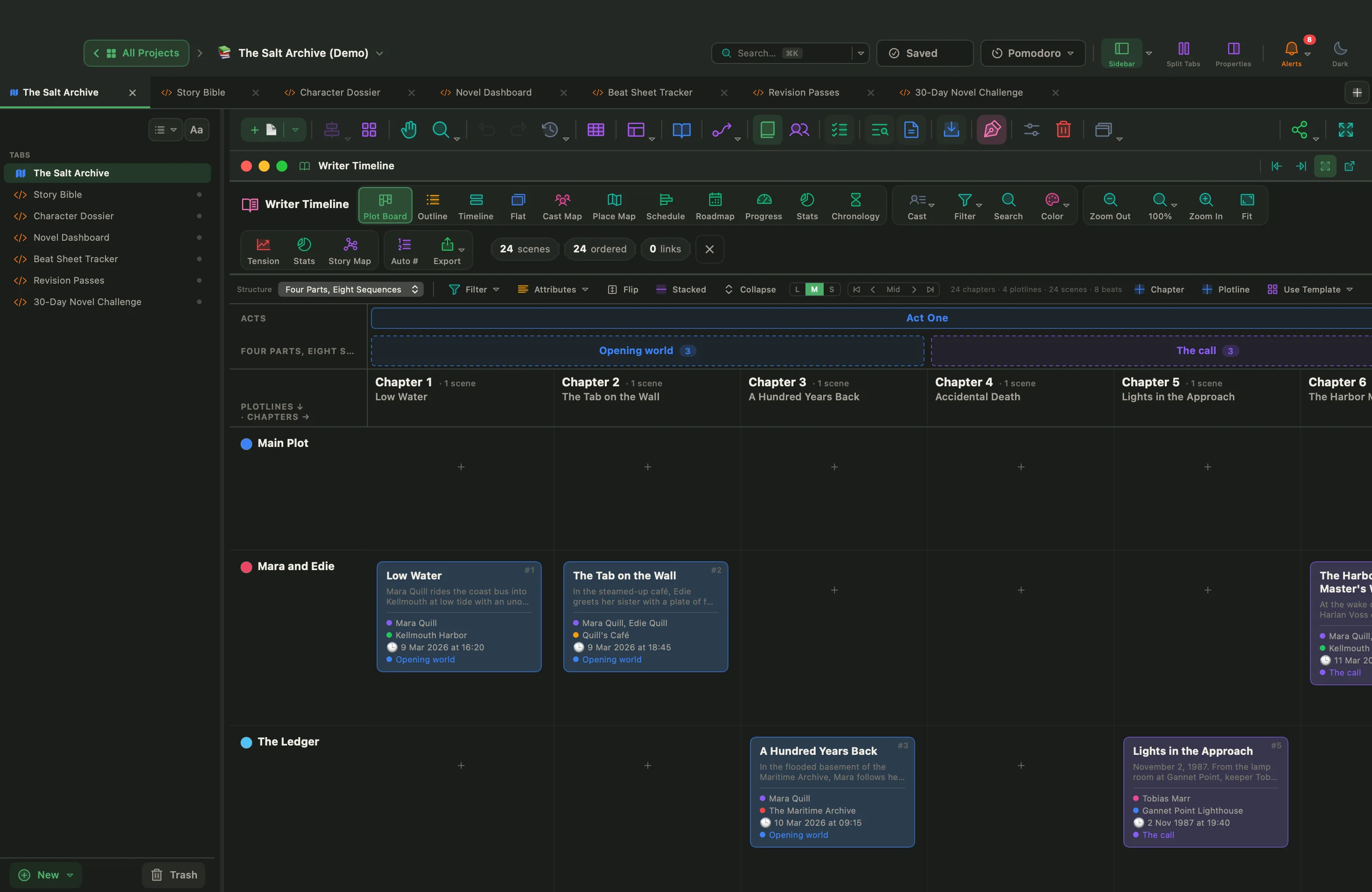
The structure the planner uses runs through the story views. Open the Writer Timeline with View › Writer Timeline (⌥⌘T):
- Plot Board. Your acts and beats run above the chapters, each beat with the number of its scenes, and the plotlines run down the side.
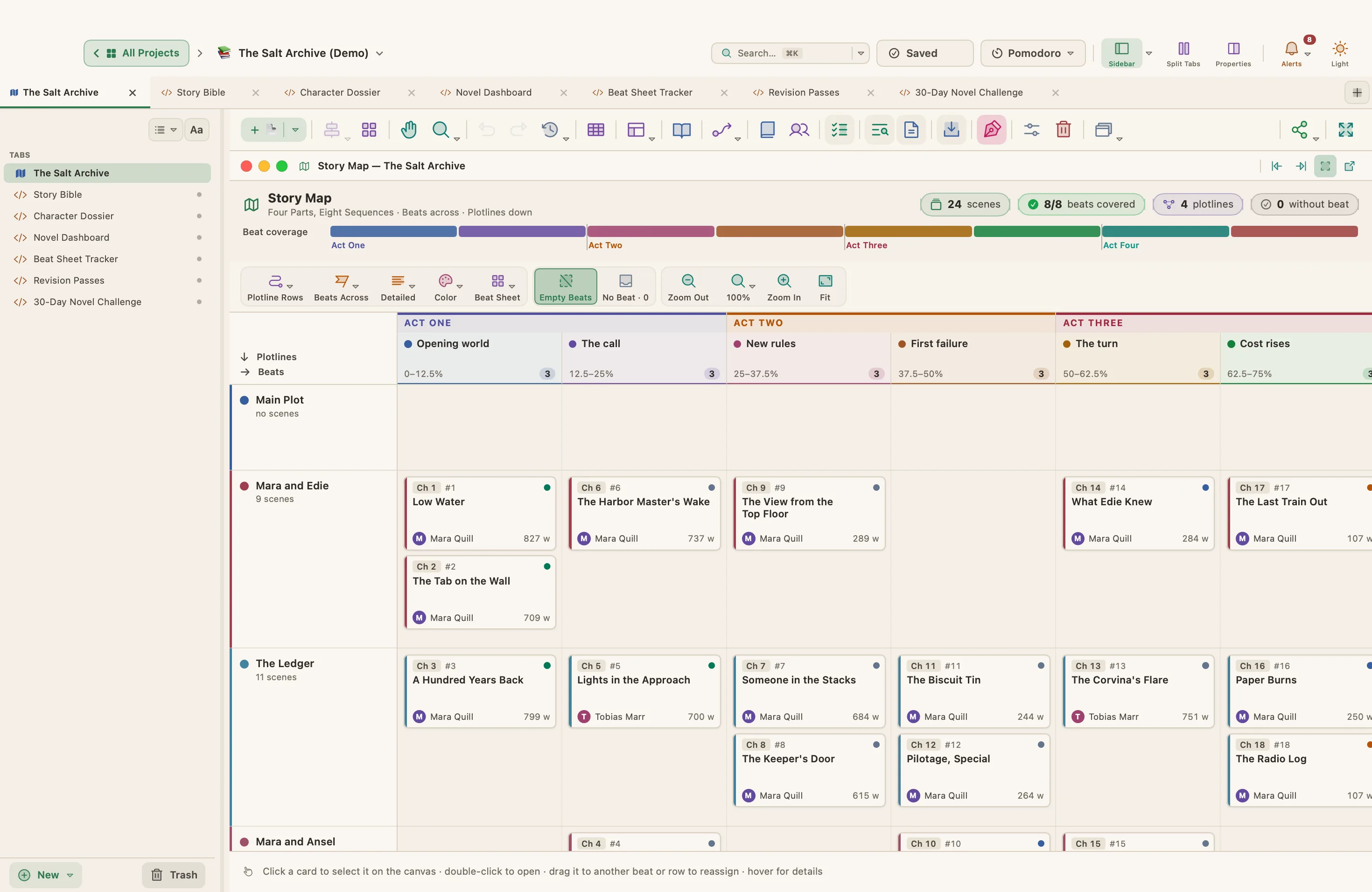
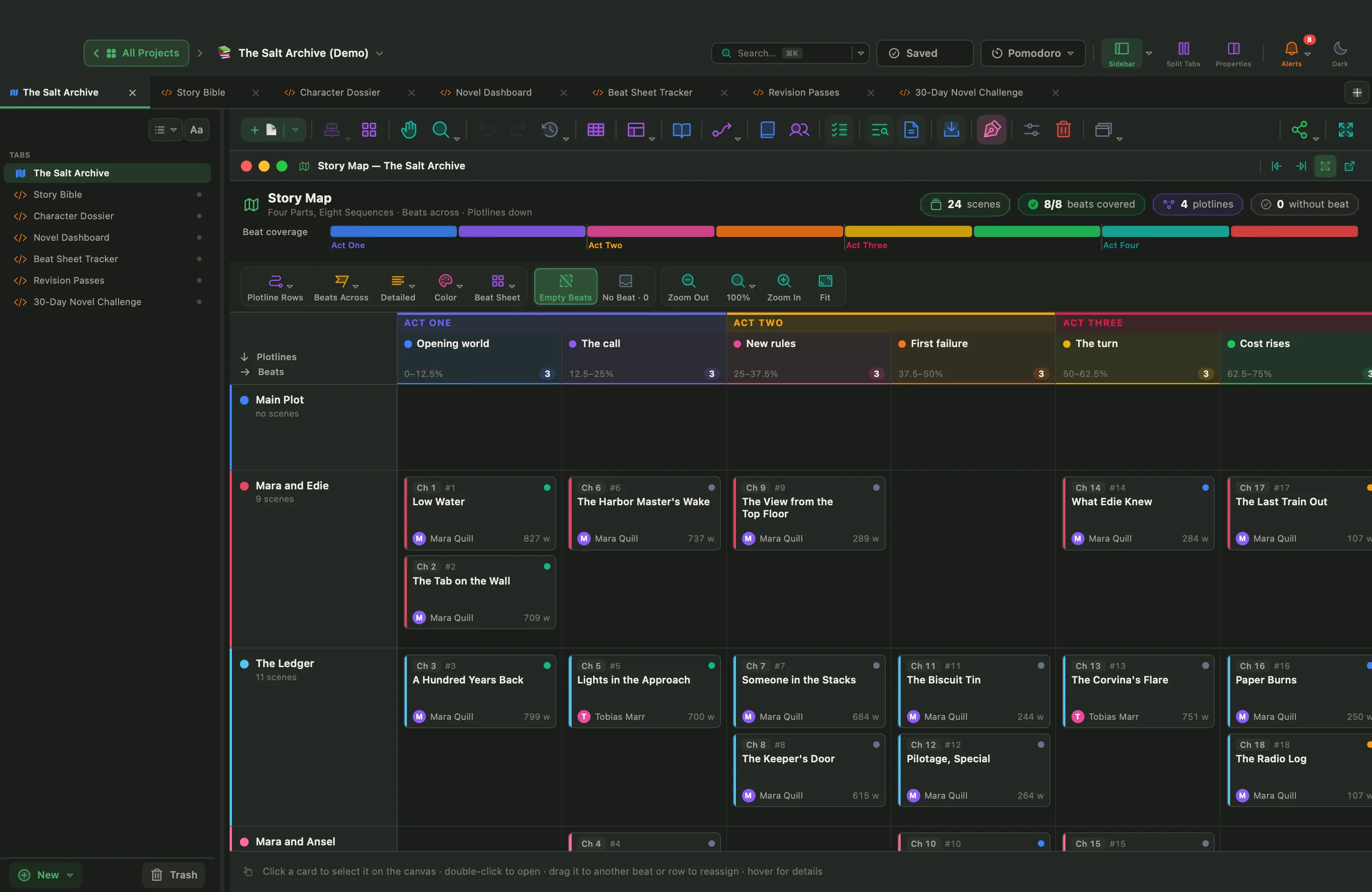
- Story Map. Beats or acts across, in their colors, and plotlines, POV, location or scene type down. Missing beats appear as dashed columns. Drag a scene into a cell to set its beat.
- Timeline. Sort by Structure (beats) to read the scenes in beat order.
- Tension and Stats. The tension curve marks your beats and can show act bands; Book Stats counts filled beats and breaks the book down by act.
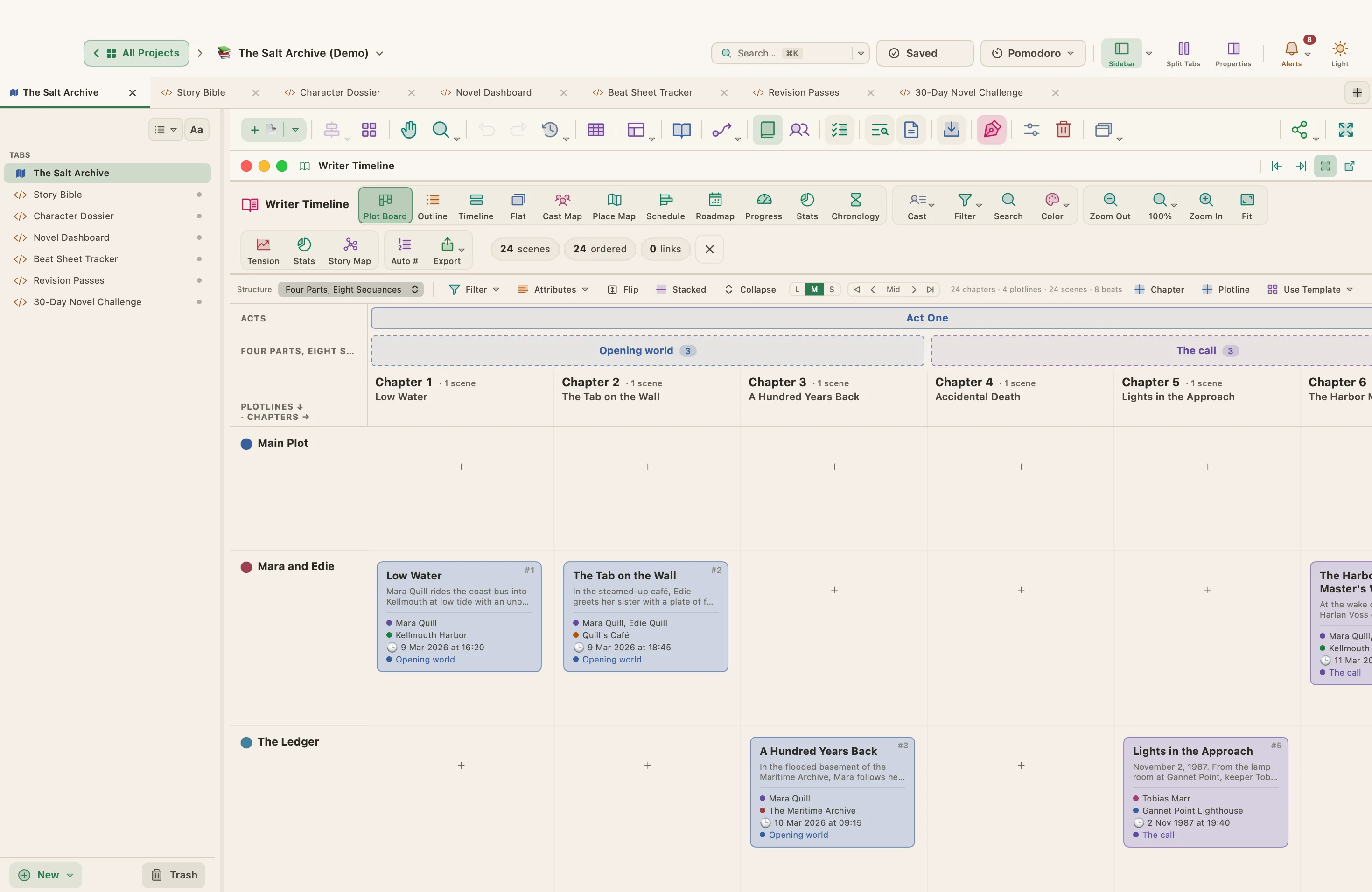
On each scene card, Beat Assignment in the Writer Timeline section of the Properties panel (⌥⌘P) lists your beats with their acts and ranges, such as 12–25%. Select several cards, and Bulk edit sets the beat for all of them. Live Pages, a Labs feature, can show a scene's beat too.
Moving a structure to another project
Your structures belong to the planner you made them in. To take one to another project, or to keep it in an Obsidian vault, export it with the vault; story structures from Obsidian and AI apps explains how, and how a connected AI app on the Mac can draft a structure for you to edit.
Start with the list, build it in one sitting, and read your scenes against it on the Story Map. The first version will be wrong somewhere. Move a start, rename a beat, try a second structure. Your scenes keep the beats you gave them in each one.